HD OPTI Game Mode is designed to monitor for supported game launches, apply optimised CPU settings when a game is detected, and keep those changes active while the game remains open. This guide explains the full workflow, status messages, active process tracking, and what users should expect.
What HD OPTI Game Mode Does
HD OPTI Game Mode is a monitoring-based feature that waits for you to launch a game, detects that process, and then applies the HD OPTI Game Mode optimisation to it. The feature is designed to work in the background, so once the game has been detected and Game Mode has been applied, you do not need to keep the HD OPTI app open for that game session.
How HD OPTI Can Optimize Your Gaming PC
The most important thing to understand is that Game Mode must be enabled before you launch your game. Turning on the switch starts the monitoring function. That monitoring state is what allows HD OPTI to listen for supported game launches and apply the optimisation at the right time.
Before You Launch a Game
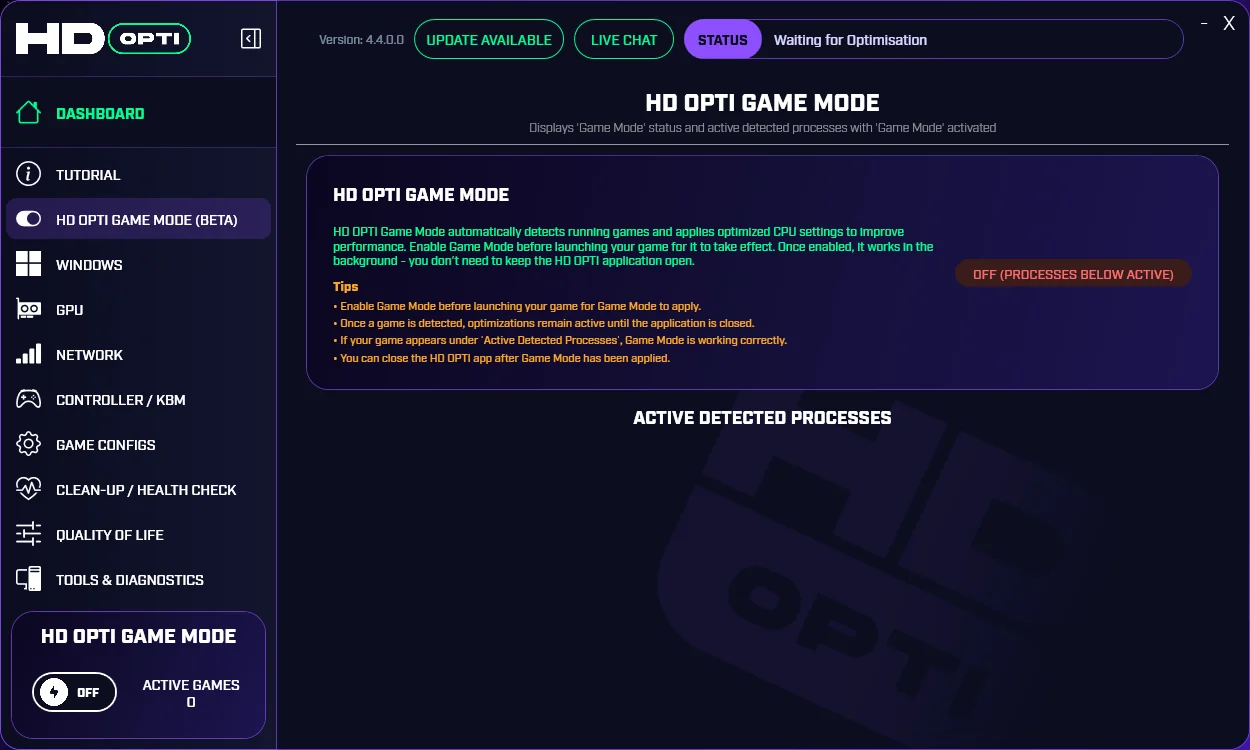
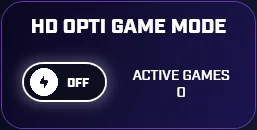
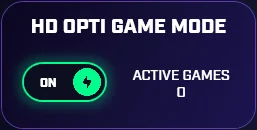
Users should first turn on the HD OPTI Game Mode switch in the bottom-left section of the application before starting any game. When the switch is enabled, HD OPTI begins monitoring for game processes. If you launch the game first and only enable Game Mode afterwards, the intended detection flow may not happen correctly for that session.
- Open HD OPTI.
- Turn on the Game Mode switch in the bottom-left panel.
- Leave HD OPTI running while you launch your game.
- Wait for HD OPTI to detect the game and apply Game Mode.
- After confirmation appears, you can continue playing and close the app if needed.
What Happens When Monitoring Is Active
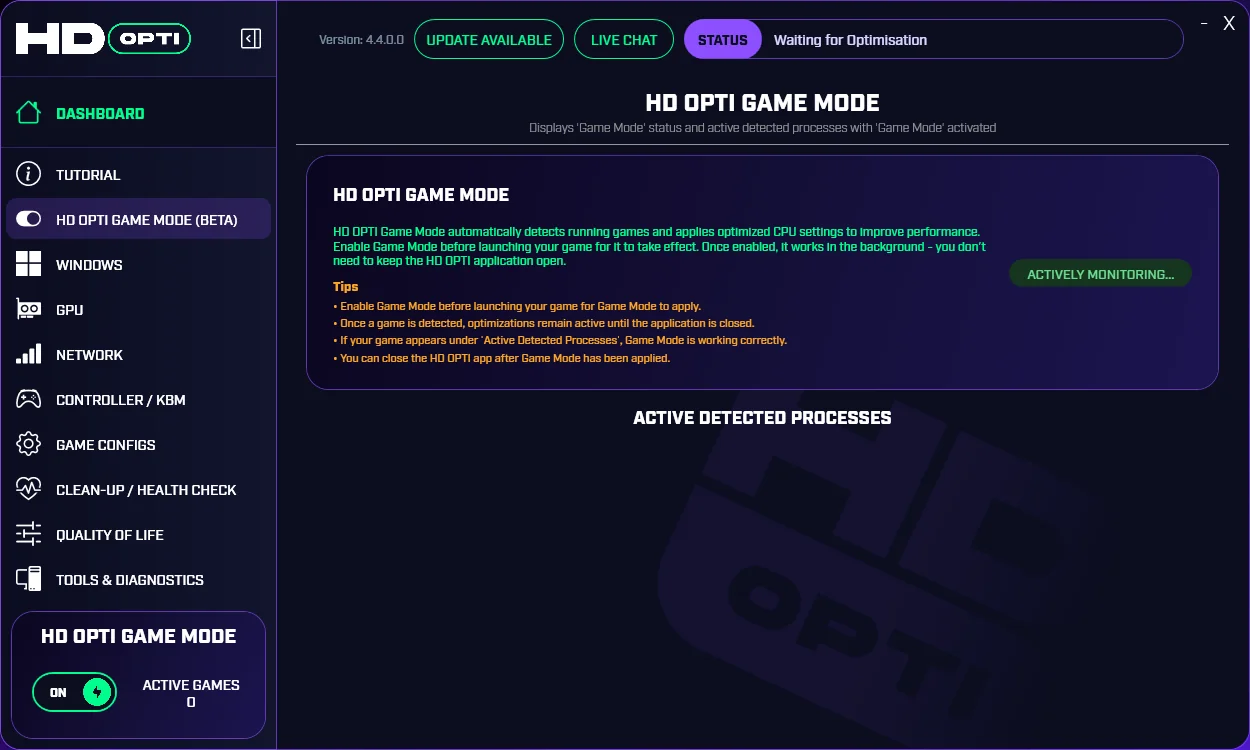
When Game Mode is switched on, HD OPTI enters an active monitoring state. In this state, the interface shows that the app is watching for launched games and waiting for a supported process to appear. This is the stage where nothing has been applied yet, but the system is ready to detect a game as soon as one opens.
In the Game Mode panel, users may see a status such as actively monitoring while no games are currently listed under Active Detected Processes. That simply means HD OPTI is on, watching, and waiting for a game launch.
What Happens After a Game Is Detected
Once a supported game is launched, HD OPTI detects the process and applies Game Mode automatically. A popup notification appears to confirm that the game has been found and that Game Mode has been activated for it. This popup also lets the user know that the app can now be closed and the game mode will remain applied for that active game session.
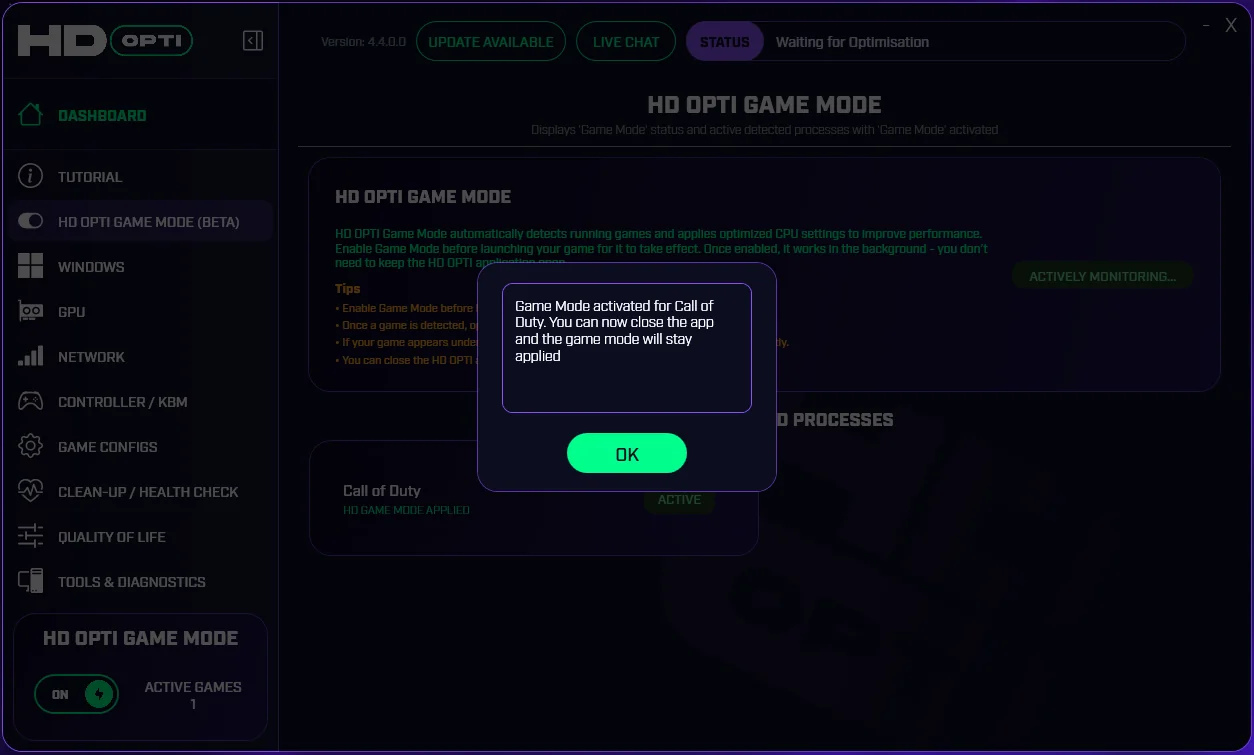
After detection, the game will also appear in the Active Detected Processes section. This area shows which games or related applications are currently running with HD OPTI Game Mode applied. If a user launches something like Call of Duty, that game should appear in this section once detection completes.
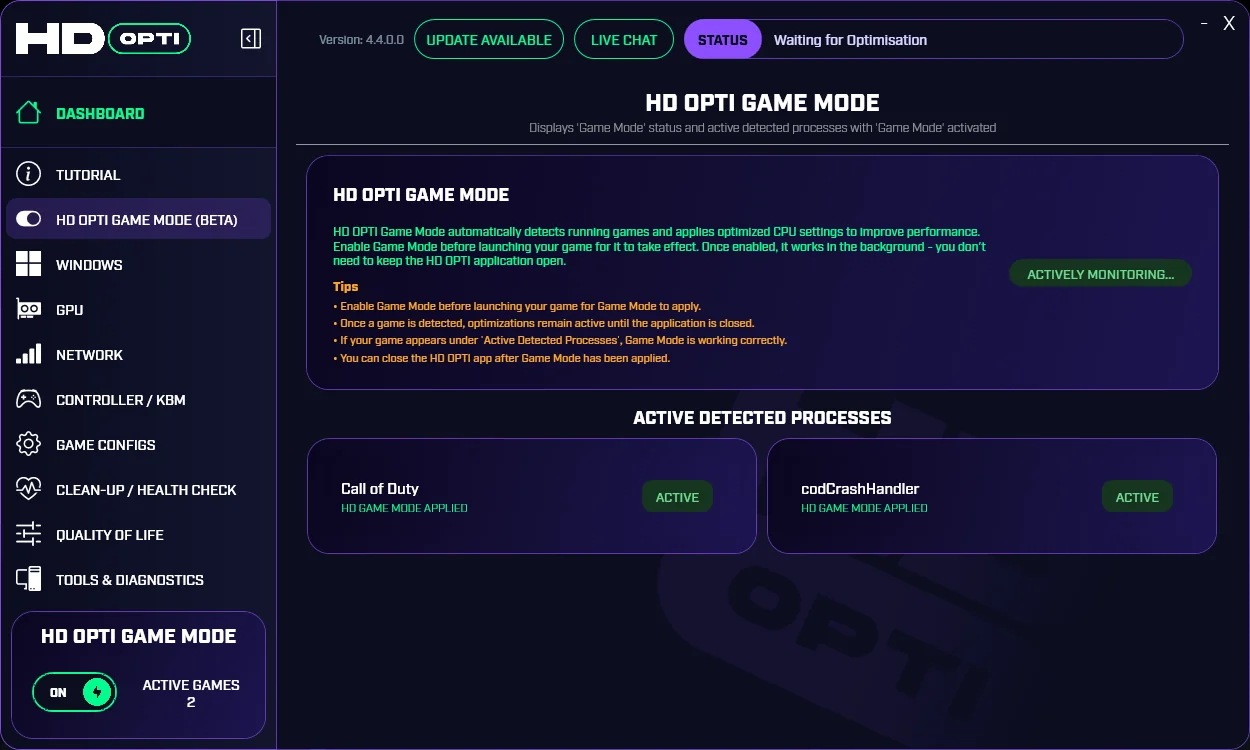
Users may also notice that HD OPTI can apply Game Mode to related processes associated with the game, not just the main executable itself. For example, a title like Call of Duty may show supporting processes such as codcrashhandler alongside the main game process. This is normal behaviour and is nothing to be alarmed about. It simply means HD OPTI has detected relevant game-related processes that are part of the same active session.
The Active Games counter in the bottom-left panel also updates automatically. This number shows how many currently running games or applications are using HD OPTI Game Mode at that moment. If one game is detected, the counter increases to one. If multiple supported processes are active, the number increases accordingly.
Closing the App or Turning Game Mode Off
One of the key behaviors of HD OPTI Game Mode is that detection and application are separate from continued app visibility. After a game has already been detected and Game Mode has been applied, the HD OPTI app can be closed and the active game will continue using that applied Game Mode state until the game itself is closed.
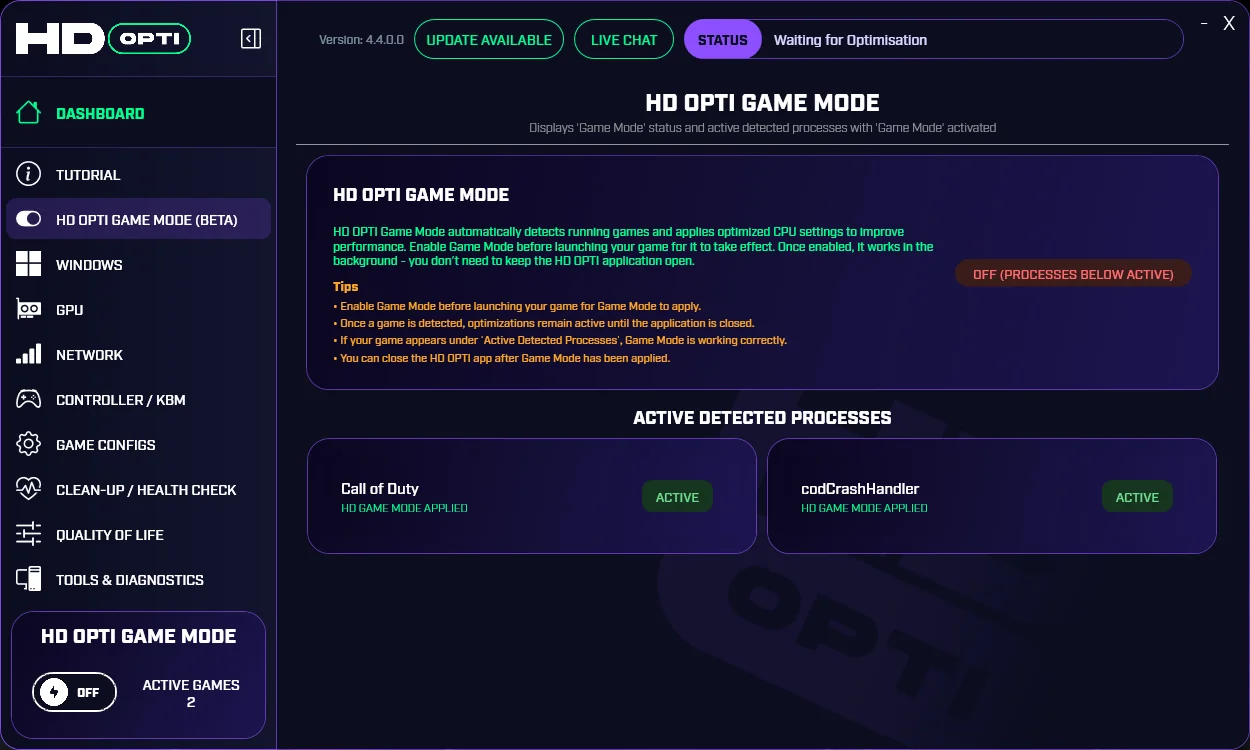
The same applies if the user turns off the Game Mode function after the game has already been detected. Turning the switch off stops future monitoring, but it does not strip Game Mode from games that already had it applied. Those active processes remain listed and remain under Game Mode until they are closed.
This means Game Mode off does not retroactively remove optimisation from already detected games. It only stops HD OPTI from continuing to monitor for newly launched games.
How to Lower Background Processes for Better Gaming Performance
What Users Should Expect
Users should expect a simple flow. Enable Game Mode first, launch the game, wait for the popup confirmation, and then check Active Detected Processes to confirm the game is listed. From there, gameplay can continue without needing to keep the HD OPTI app open.
- Game Mode must be enabled before the game launches.
- Enabling the switch starts the monitoring function.
- A popup appears after a supported game is detected.
- Detected games appear under Active Detected Processes.
- The Active Games counter shows how many active processes are currently using Game Mode.
- Closing HD OPTI does not remove Game Mode from games that already had it applied.
- Turning Game Mode off only stops future monitoring for new launches.
- Game Mode remains active until the detected game or application is closed.
Results You Can Expect
Based on user results collected from systems running HD OPTI, Game Mode has shown an average gain of around 15 FPS in CPU-limited scenarios. The exact improvement depends on the game, system configuration, background load, Windows scheduling behavior, and whether the CPU was already being utilised correctly before Game Mode was enabled.
In some cases, gains can be much larger. This is especially true on dual-CCD X3D processors where Windows is not parking cores or prioritising the correct CCD properly. On those systems, performance can vary massively if the game is landing on the wrong cores, and correcting that behavior can lead to much bigger improvements than a normal tuning change. In more extreme cases, some users have seen CPU average FPS gains of around 100 to 170 FPS.
That means users should treat Game Mode as a performance tool that helps remove bad CPU behaviour rather than a fixed FPS boost. Some systems may see modest gains, while others can see dramatic improvements if scheduling, core parking, or CCD usage was incorrect beforehand.
X3D CPUs Setup - Utilise the V-Cache CCD (7900X3D · 7950X3D · 9900X3D · 9950X3D)
Enable Hyper-Threading or SMT
For best results, Hyper-Threading on Intel CPUs or SMT on AMD CPUs should be enabled unless you have a very specific reason to disable it. Game Mode works best when the processor is operating in its intended configuration, and disabling logical threads can reduce scheduling flexibility, hurt background task handling, or create inconsistent performance in some games.
If Hyper-Threading or SMT has been disabled in BIOS, Game Mode may still work, but the system may not respond as well as it should under load. Users chasing the best overall balance of FPS, responsiveness, and stability should generally leave it enabled.
How to Access BIOS or UEFI on Any PC
Not Enabling Game Mode Can Cause FPS Drops
If Game Mode is not enabled before launching your game, HD OPTI cannot begin its monitoring process and may miss the launch entirely. When that happens, the intended CPU optimisation does not get applied for that session, which can leave performance on the table and in some cases lead to lower FPS, worse frame pacing, or reduced responsiveness compared to a correctly monitored launch.
This is why Game Mode should always be turned on before opening the game. Do not wait until the game is already running. The correct order is simple: open HD OPTI, enable Game Mode, launch the game, wait for detection, then play.
Why Your X3D CPU Is not performing
Re-enabling Game Mode for Future Sessions
After a game session ends, users can open HD OPTI again and turn Game Mode back on whenever they want monitoring to begin for future launches. This is useful for players who want to apply the feature only when needed rather than leaving monitoring active all the time.
In simple terms, HD OPTI Game Mode should be treated like a pre-launch tool. Turn it on first, let it detect the game, confirm the process is active, then play as normal.
Common FPS Fixes for PC Games - OCCT, DDU, shadercache
Common Mistakes to Avoid
The most common mistake is enabling Game Mode after the game is already open. Since Game Mode relies on the monitoring stage to catch the launch event, users should always switch it on before starting the game. Another mistake is assuming that switching Game Mode off will instantly remove it from already detected games. It does not work that way. Existing detected processes stay active until those games are closed.
10 Mistakes Killing Your FPS and Input: solutions to fix your mistakes
FAQ
No. Once the popup confirms the game has been found and Game Mode has been applied, you can close the HD OPTI app and the optimisation will remain active until that game is closed.
Turn it on before launching any game. This starts the monitoring function so HD OPTI can detect the process properly.
Detected games appear under the Active Detected Processes section, and the Active Games counter updates in the bottom-left panel.
Turning Game Mode off stops monitoring for future launches, but any game that already had Game Mode applied will keep it until that game is closed.
It shows how many current games or applications are actively using HD OPTI Game Mode, which makes it easy to confirm whether detection and application have happened.
This is normal. HD OPTI may apply Game Mode to related game processes as well as the main game executable. Some games launch supporting processes alongside the main game, so the count can appear higher than the number of games you personally opened. Seeing entries such as codcrashhandler is nothing to worry about.