If your FPS is “fine” but the game still feels choppy, you’re usually fighting frame-time spikes, driver issues, shader rebuilds, or unstable cooling. This guide walks through the highest-impact fixes you can do safely: a clean GPU driver reinstall with DDU, clearing shader cache, and validating CPU cooling/stability with OCCT.
Before You Start: What You’re Actually Fixing
Many players chase higher max FPS when the real issue is inconsistent delivery, stutter, hitching, and low 1% lows. The steps below target the most common causes:
- Driver conflicts: leftovers from old NVIDIA/AMD installs can cause spikes, instability, or weird performance regressions.
- Corrupt or bloated shader cache: shader rebuilds can cause hitching and “micro-freezes” mid-match.
- Thermal throttling: if your CPU isn’t being cooled properly, it will drop clocks under load and your game will feel inconsistent even if average FPS looks OK.
Fix #1: Clean Reinstall Your GPU Driver with DDU
DDU (Display Driver Uninstaller) removes GPU driver remnants more thoroughly than a normal uninstall. It’s one of the best “reset buttons” when you’ve upgraded GPUs, swapped between AMD/NVIDIA, or feel like a new driver version made things worse.
When DDU is worth doing
- FPS dropped after a driver update and never recovered
- Stutters started after changing GPU, Windows updates, or major game patches
- Crashes, black screens, random driver timeouts, or inconsistent GPU usage
How to do it (safe checklist)
- Download your new driver first (so you’re not stuck without a driver after cleanup).
- Disconnect the internet temporarily to stop Windows from auto-installing a driver mid-process.
- Boot into Safe Mode (DDU is most effective there).
- Run DDU and choose Clean and restart for your GPU brand.
- Back in Windows, install the driver you downloaded, then reboot once more.
After a DDU reinstall, re-check your in-game settings and any GPU control panel features you use (low-latency modes, overlays, sharpening, etc.). A “clean state” can also reduce weird input-lag or frame pacing issues that don’t show up as a clear error.
Fix #2: Clear Shader Cache (Stop Hitching and Rebuild Issues)
Modern games compile shaders to prevent re-building effects every time you launch. But shader caches can get bloated or corrupted after driver updates, big patches or changing games settings, and that can cause stutter during gameplay.
What to expect after clearing
- The first launch may stutter more while shaders rebuild, that’s normal (let it settle).
- After the rebuild, frame-time consistency usually improves.
Quick Windows method
- Open Settings → System → Storage → Temporary files
- Tick DirectX Shader Cache
- Click Remove files
If a specific game has its own “shader cache” folder (common for big AAA titles), clearing that can also help, but only do it if you know exactly what you’re deleting and the game supports rebuilding it safely.
Two examples of Black Ops 7 shadercache paths below. It is integral that only the files within the shadercache are removed and not the subdirectory itself. Once in the subdirectory, press down both keys Ctrl + A; all shader files will be
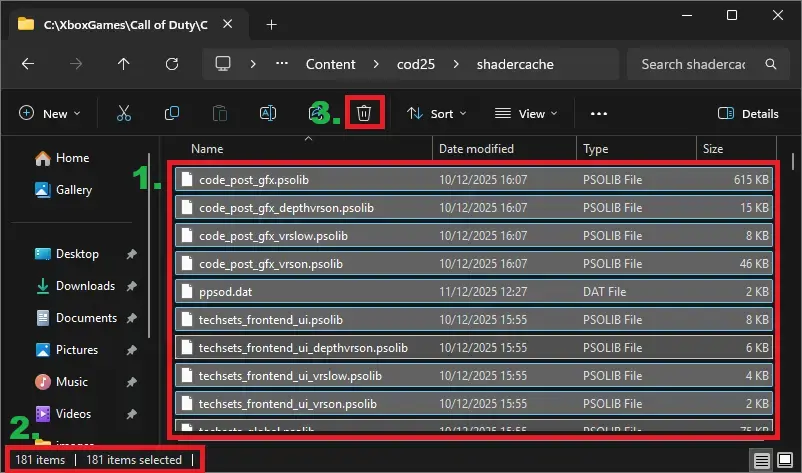
- 1. All shaders are highlighted
- 2. Verify all shaders are highlighted
- 3. Remove them
Black Ops 7 Xbox path
C:\XboxGames\Call of Duty\Content\cod25\shadercache
Black Ops 7 Battle.net
C:\Program Files (x86)\Call of Duty\_retail_\cod25\shadercache
Fix #3: Run OCCT to Verify CPU Cooling and Stability
OCCT is a stress-testing tool that helps confirm your CPU cooling is adequate and your system stays stable under sustained load. If your CPU is overheating (or power-limited), clocks can drop and your 1% lows will suffer, even if your GPU is strong.
What you’re looking for
- Temperatures that climb and stay high (could indicate weak cooling or bad mounting/paste)
- CPU clock drops during load (throttling)
- Errors, crashes, or WHEA warnings (stability problem that can manifest as stutter)
Practical approach (not overkill)
- Run a CPU test long enough to see temps stabilize (you want “worst-case steady state”).
- Watch whether the CPU maintains clocks without hitting thermal limits.
- If temps are too high: re-check fan curves, cooler mounting pressure, thermal paste, case airflow, and dust.
If you fix cooling and suddenly games feel smoother, that’s not placebo, throttling hits minimum FPS first, and that’s exactly what your hands feel as stutter.
Final Thoughts – Turn Fixes Into a Repeatable “Smoother FPS” Routine
The best FPS fixes are the ones that reduce spikes, not just chase max numbers. If you’re troubleshooting: start with a clean driver baseline (DDU), clear shader cache after major updates, and validate cooling with OCCT so your CPU isn’t silently throttling.
Once your system is stable, the HD OPTI PC Optimization App can help keep performance consistent by trimming background load before you launch games and prioritizing resources where they matter most.
FAQ
It can, but the main benefit is stability and consistency. DDU is most useful when a driver install is “dirty” (leftovers, conflicts, or problems after GPU swaps/updates).
Not always. It’s most helpful after big performance regressions, major game patches, or if you’re seeing shader-related hitching. Expect a temporary stutter during the rebuild.
Often it’s not an obvious “crash”, it’s clock drops, lower 1% lows, and inconsistent frame pacing during longer sessions. Stress tests like OCCT help confirm it.
Check dust and airflow first, then fan curves. If temps are still high, re-seat the cooler and re-apply thermal paste. Case airflow and cooler quality matter a lot under sustained load.
- CONTROL Resonant7 min read
CONTROL Resonant Intel Arc Performance: Driver 32.0.101.9033 Benchmark & Best Settings
- Beast of Reincarnation6 min read
Beast of Reincarnation FPS Boost: Best Settings to Fix Lag and Stutter
- Marvel Rivals FPS fix7 min read
Marvel Rivals FPS Boost Guide: Fix Stutters and Input Lag on PC