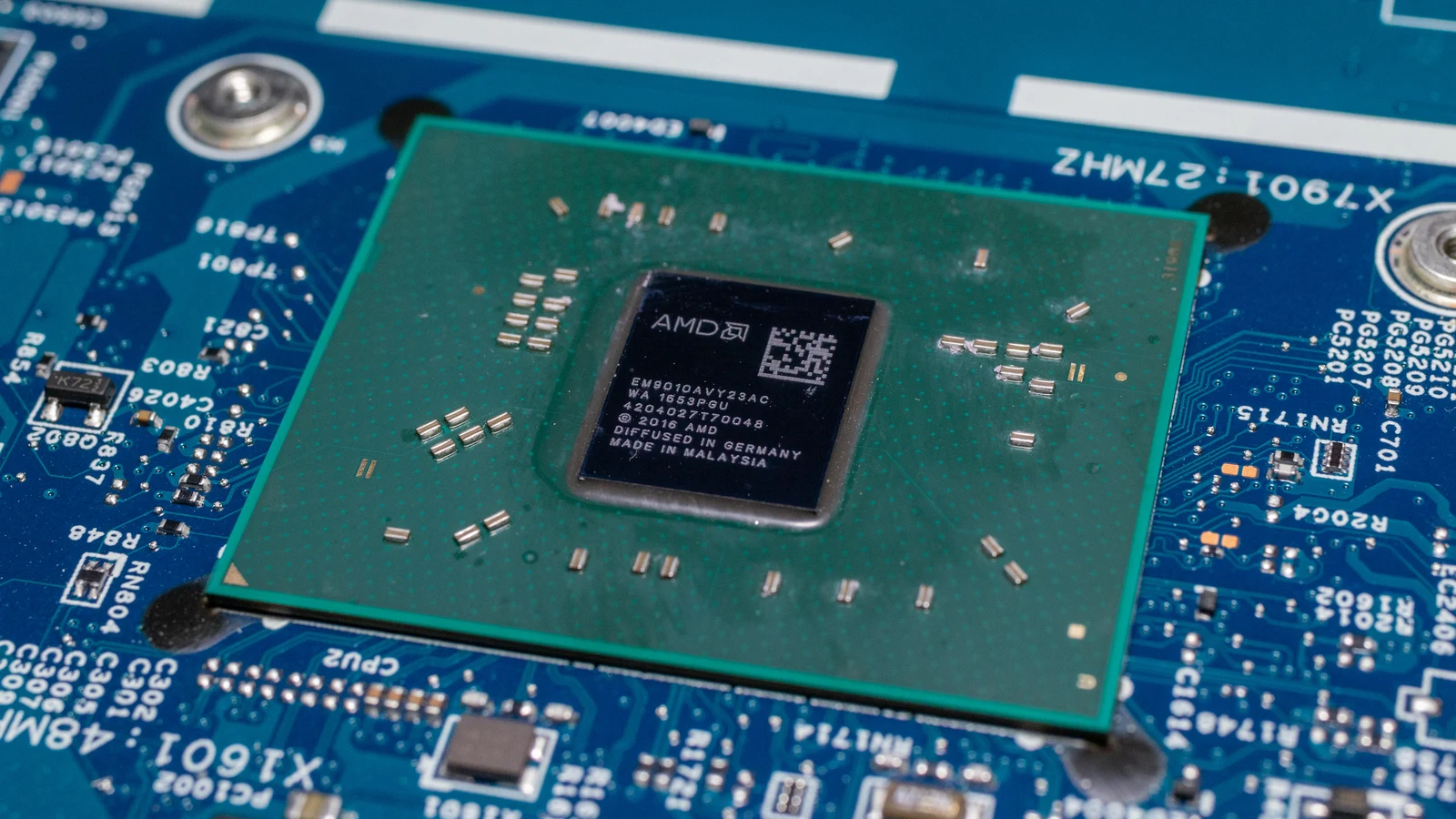
A CPU-core tweak can look promising in a quiet benchmark, then feel worse during a call or recording session. Compare the same game under both workloads before keeping a restriction. Frame-time consistency deserves as much attention as average FPS.
Can CPU affinity cause gaming stutter?
CPU affinity limits the processors on which a process or thread can run. A narrower selection gives Windows fewer places to schedule that work. If another application needs the same processors, a restricted game thread can have fewer opportunities to run elsewhere.
There is a trade-off. Keeping work on a processor can reduce cache reloads associated with migration, while a restrictive selection can interfere with effective scheduling. Treat a custom affinity rule as a setting to evaluate on your own system.
Process affinity and individual thread affinity also have different scopes. A process-level selection alone cannot describe every thread's restrictions. Priority affects scheduling precedence, so keep manual priority changes out of an affinity comparison.
Check old RaceRoom launch options
RaceRoom's 8 November 2026 update, client 0.9.9.23 and BuildID 26518550, removed fixed thread pinning. It also removed the -nothreadaffinity launch option because its behaviour became the default. If you retained that option from an older guide, remove the obsolete entry after updating and test the current build.
Compare affinity with your normal background workload
Use this suggested diagnostic method to assess an existing custom CPU rule. Begin with a baseline that has your own extra affinity overrides removed. Record any scheduling behaviour applied by the game or platform. Keep those built-in policies consistent throughout the comparison.
- Record the CPU model, Windows build, game build, driver, CPU-policy tool and its version. Save the current rule so you can restore it. Describe the selected processors precisely instead of writing only “gaming cores”.
- Choose a repeatable benchmark or offline route. Keep resolution, graphics settings, frame cap, camera and capture duration fixed. Use the same preparation period before each capture.
- Capture condition A with the baseline CPU policy and optional background apps closed. Capture condition B with only the custom CPU rule changed.
- Repeat both policies with your usual background workload active as conditions C and D. Specify what that means, such as the same Discord call, browser video or OBS recording preset. Keep each workload consistent across the pair.
- Start with three captures per condition, preserving every run. Return to the baseline and repeat it after the custom-policy set to check whether the apparent improvement survives the change in run order.
PresentMon can capture per-frame CSV data and display performance graphs. Use one capture-tool version throughout. Record average FPS alongside the frame-time trace and any 1% or 0.1% low metrics your tool provides. Keep its percentile definitions consistent and judge the spread across runs before choosing a policy.
NVIDIA Driver Overhead: How to Test a Suspected CPU Limit
Give each condition equivalent warm-up and note prior gameplay. Avoid clearing caches between selected runs. A later, smoother pass needs a repeat comparison before you attribute the difference to the CPU rule.
Did Your Shader Stutter Fix Work? How to Test Without Cache Bias
Read the four conditions together
| Observation | Interpretation to investigate | Next action |
|---|---|---|
| B and D repeatedly have worse spikes than A and C | The custom rule is a poor fit for both tested workloads | Restore the baseline and repeat the troublesome scene |
| B is smoother than A, but D is worse than C | The policy's usefulness changes with background workload | Base your choice on the workload you actually use |
| C and D both worsen similarly | Background activity deserves a separate comparison | Test one optional background application at a time |
| Results overlap heavily between runs | The comparison has not separated the policies reliably | Improve repeatability and collect more captures |
These are ways to interpret your captures. Even a repeatable difference leaves the exact mechanism open. A background app can change several resource demands, so an FPS graph alone cannot establish that two particular threads fought for the same core.
Compare HD OPTI Game Mode across fresh launches
HD OPTI Game Mode monitors supported game launches and applies CPU settings while detected games run. Enable it before launching the supported game and check the confirmation popup, Active Detected Processes list or Active Games counter for detection.
To capture the monitoring-off baseline, fully exit the game, turn Game Mode off and launch the game again. For the enabled condition, fully exit again, enable Game Mode before launch, then relaunch and confirm detection. Keep other manual CPU overrides removed for this comparison.
Turning Game Mode off stops monitoring future launches. Settings already applied to a detected game remain active until that game closes. Closing HD OPTI after detection also leaves those settings active until the game exits.
Use the same four-condition method to judge Game Mode with your usual apps. The current product description does not specify its exact affinity masks, so describe this as a Game Mode comparison and leave the cause of any measured difference open.
FAQ
Affinity changes where work can run, and the balance between scheduling freedom and cache locality depends on the workload. Compare your existing rule with a baseline under both quiet and normal background conditions.
Affinity controls the eligible processors. Priority influences which ready threads receive processor time. Keep manual priority settings fixed while comparing affinity.
For the 8 November 2026 update, client 0.9.9.23 and BuildID 26518550, the option was removed and its behaviour became the default. Update the game and remove the obsolete launch entry.
An already-detected game retains the applied CPU settings until it closes. Fully exit the game, turn monitoring off and relaunch for the off condition.