Published: 10/17/2025
🕒 7 min read
Ryzen 9 X3D CPUs Setup - Get Games on the V-Cache CCD (7950X3D · 7900X3D · 9900X3D · 9950X3D)
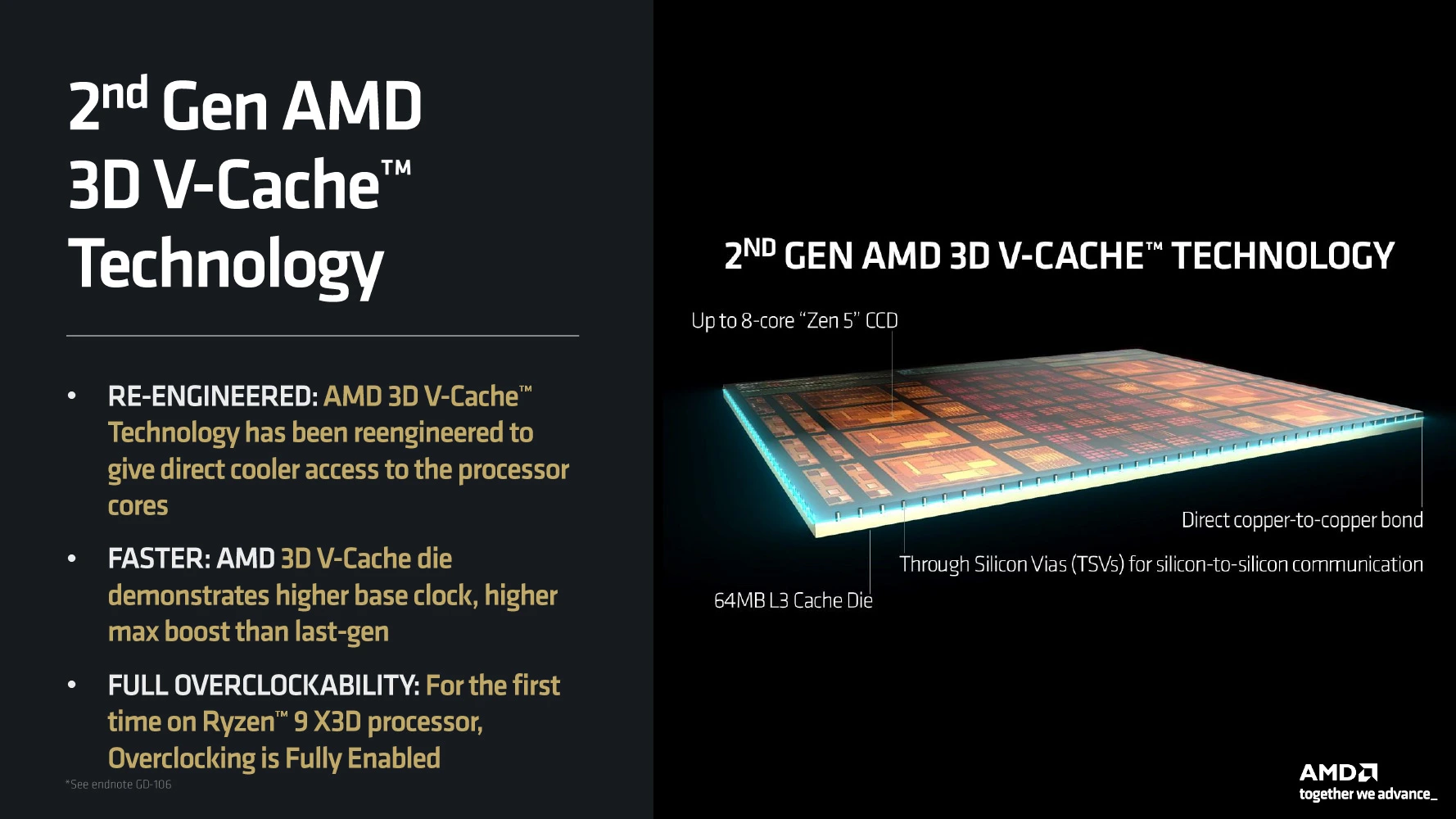
Ryzen 9 X3D chips have two CCDs: CCD0 carries the 3D V-Cache and CCD1 does not. Windows tends to prefer CCD1 because it boosts higher by default, but many games are faster on the V-Cache CCD. This guide makes sure your system actually uses the X3D part when it should.
What’s Going On?
On 7950X3D/7900X3D/9900X3D/9950X3D, one CCD has extra cache (CCD0) while the other boosts higher (CCD1). Windows’ scheduler often sends new workloads to the fastest boosting cores, so without proper setup your games can land on CCD1 and miss the V-Cache advantage.
Fixes involve a few BIOS toggles, the right chipset driver, Windows Game Mode, and (optionally) managed core parking so launches land on CCD0 first.
Quick Steps
- Update motherboard BIOS/UEFI to the latest stable version.
- Install the latest AMD Chipset Driver (reboot afterwards).
- In BIOS, set CPPC Dynamic Prefer Cores to "Cache" (prioritize the V-Cache CCD).
- In BIOS, keep SMT = Enabled (recommended for most users).
- Set Global C-State = Enabled (lets the scheduler see core residency properly).
- Windows Power Plan: choose AMD Ryzen™ Balanced (or Windows Balanced on Win11 + new chipset).
- Windows Game Mode = On and Xbox Game Bar = On (allows game-aware scheduling).
- Optional: Use Ryzen Master > Game Mode to park CCD1 for specific games.
- Optional: Use Process Lasso to park/limit CCD1 cores per game. Note: This only works if the game’s anti-cheat doesn’t block it.
BIOS / UEFI Setup (All X3D Generations)
Precision Boost Overdrive (PBO): Enabled / Advanced is fine, but avoid settings that skew the scheduler’s view (extreme negative curves or CCD-specific OC on CCD1 can over-tempt Windows to pick CCD1).
CPPC Prefer Dynamic Cores: Set to "Cache". This hints the OS to prefer cores on the V-Cache CCD for cache-sensitive workloads (like most games), letting CCD0 take point.
SMT: Enabled for general use. You can test Disabled on a per-game basis, but it’s rarely needed on modern titles.
Global C-States: Enabled. Helps the OS place threads smartly.
CCD Controls (if available): Leave both CCDs Enabled globally. You’ll view game-specific CCD parking from Windows/Ryzen Master/Process Lasso instead.
Windows Setup (Scheduler + Power)
- Chipset Driver: Install the newest AMD chipset driver after BIOS updates. Reboot.
- Power Plan: Select AMD Ryzen™ Balanced (or Balanced on Windows 11 with recent AMD drivers). Avoid “High Performance/Ultimate” for gaming on X3D; they can keep clocks/voltages high and reduce scheduler hints that favor CCD0.
- Game Mode: Settings → Gaming → Game Mode → On.
- Xbox Game Bar: On (lets Windows recognize games for thread steering).
- GPU driver: Keep up to date; some overlays interact with Game Mode/game detection.
Make Sure Games Start on CCD0 (V-Cache)
Most of the time, BIOS+driver+Game Mode will land games on CCD0. For stubborn titles, use one of the following approaches:
Option A - Ryzen Master Game Mode
- Open Ryzen Master.
- Go to Profiles → Game Mode.
- Park CCD1 (non-V-Cache) and apply. Launch the game. Unpark when you’re done.
Easiest way to guarantee V-Cache for that session. Great for single-thread-sensitive shooters.
Option B - Process Lasso Core Parking
- Install and run Process Lasso as Administrator.
- Start your game once so it appears in the list, then right-click the game process.
- Set a persisted profile that limits or parks threads on CCD1 cores, leaving CCD0 available for the game.
- Save the rules so they auto-apply next launch (watch for updates that may reset them).
Important: This only works if the game’s anti-cheat doesn’t block such controls. Many competitive titles restrict external affinity/core parking. If blocked, use Ryzen Master Game Mode.
Verify You’re Really on CCD0
- Frame time uplift: Many CPU-bound titles (esports, strategy, sim) show higher 1%/0.1% lows on V-Cache. Compare quick jaunt on CCD1 vs CCD0.
- Per-core utilization: Use HWiNFO or similar to watch which cores are loaded. CCD0 should carry the main game threads when configured right.
- Latency checks: Record a short benchmark run; V-Cache should smooth stutters where working sets fit in cache.
Model-Specific Notes
7900X3D / 7950X3D (Zen 4 X3D)
- CCD0 = V-Cache. CCD1 = higher boost. Leave both active; steer games to CCD0 via Game Mode, Ryzen Master, or (when allowed) Process Lasso.
- PBO with moderate CO undervolt is fine; avoid extreme CCD1 emphasis that tempts the scheduler.
9900X3D / 9950X3D (Zen 5 X3D)
- Same split personality: CCD0 has V-Cache, CCD1 boosts higher.
- Newer chipset + Windows builds do better automatically, but the steps here still ensure stubborn games stick to CCD0.
Power Plan, Temps & Background Apps
- Windows Balanced keeps latency low while allowing idle states. It’s the best default for X3D gaming and daily use.
- Background processes: Trim overlays/recorders you don’t need. Scheduler hints work best when fewer background threads compete for favored cores.
- Thermals: V-Cache CCDs typically run a little cooler. Keep a clean curve/limits so neither CCD throttles under load.
Troubleshooting Tips
- Game ignores CCD0: Toggle Game Mode off/on, relaunch via a clean desktop shortcut, or force CCD0 with Ryzen Master Game Mode.
- Micro-stutter after updates: Reinstall the chipset driver, then verify CPPC/Preferred Cores and CPPC Prefer Dynamic Cores = "Cache" stayed enabled in BIOS.
- Rules won’t stick / anti-cheat blocks: Some anti-cheats prevent third-party core control (Process Lasso). Fall back to Ryzen Master Game Mode or the default scheduler.
- Worse FPS on CCD0: Some purely throughput-bound workloads are faster on CCD1. Not all titles benefit from V-Cache; keep both options handy.
Why This Setup Helps
- Lower CPU-side latency: V-Cache reduces main-thread cache misses in many games.
- Stronger 1%/0.1% lows: Smoother frame pacing when the working set fits in CCD0’s cache.
- Still great for work: CCD1 remains available for boost-heavy tasks and background apps.
- Per-game control: You can park/unpark CCD1 with Ryzen Master or, when allowed, use Process Lasso rules.
Trade-offs to Keep in Mind
- Not universal: Some engines favor raw clocks over cache; CCD1 can win there.
- Manual steps for edge cases: A few games need explicit CCD parking.
- Over-tuning risk: Aggressive PBO/CO on CCD1 may mislead the scheduler and hurt cache-sensitive titles.
Dial this in once, then keep quick tools handy (Ryzen Master Game Mode or Process Lasso rules). That way Windows can prefer the V-Cache CCD0 when it matters - while you still enjoy CCD1’s high boost for everything else.
Furthermore, you can increase FPS performance even further with the HD OPTI PC Optimization App. HD OPTI intelligently reduces unnecessary background services and processes, relieving stress on your CPU allowing it to boost higher while running cooler. It also lowers RAM usage, improving overall system responsiveness and communication between components for smoother, more consistent performance.