If your game stutters only while recording, watching GPU-accelerated content or running local AI, compare the workloads before chasing a new priority setting. Here is a repeatable way to check what changes—and whether the background app still works well.
What GPU App Prioritization can tell you
A game that runs smoothly alone can behave differently alongside GPU-heavy work. OBS needs graphics resources to compose its scenes, and a background compute task can also compete for GPU time. That makes resource sharing worth investigating when stutter appears only during multitasking.
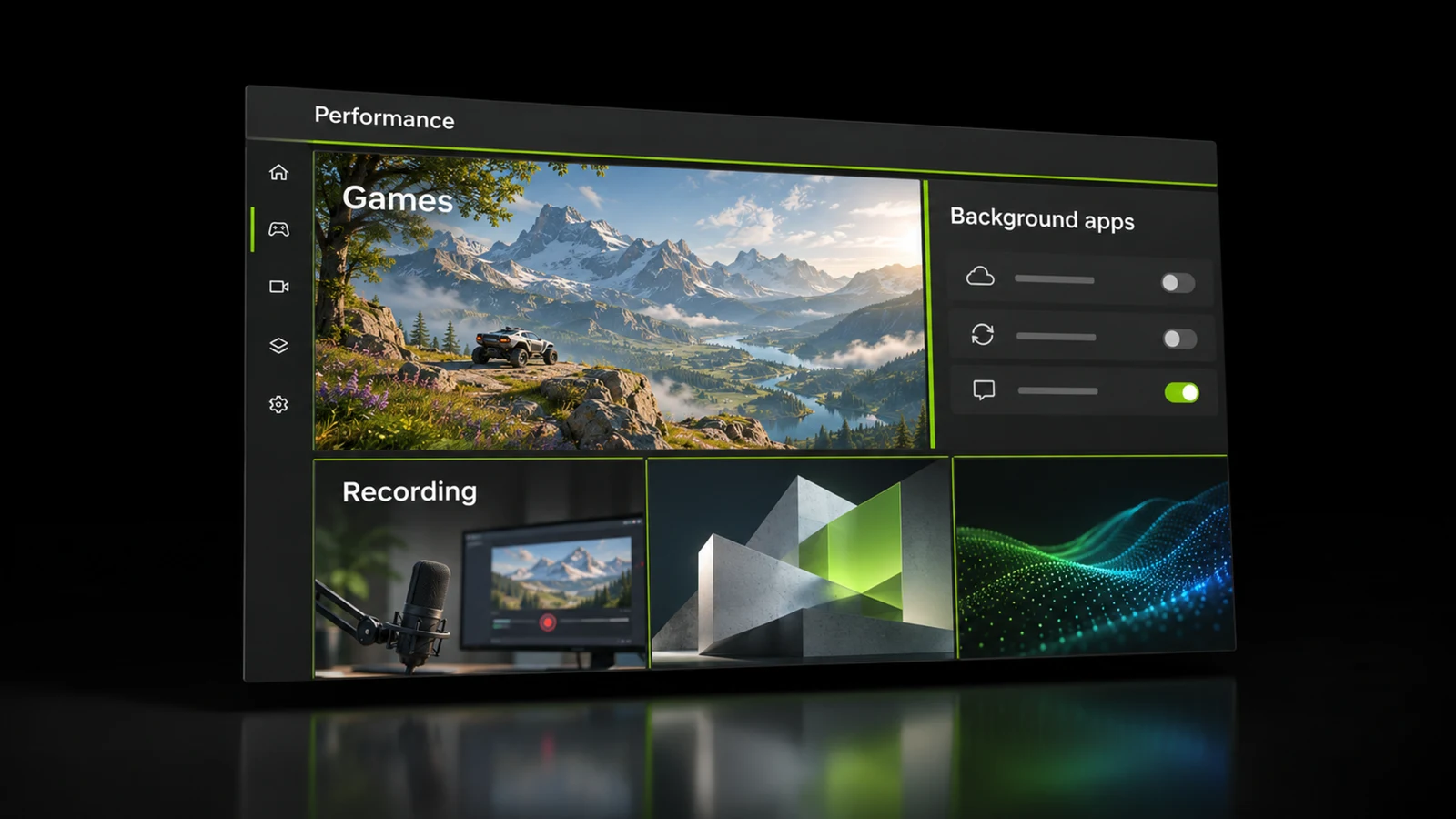
As checked on 11 November 2026, NVIDIA documents foreground/background resource controls for RTX Spark under NVIDIA App > System > Advanced, with hardware-accelerated GPU scheduling required. This research did not establish a supported GeForce compatibility list. The 11.0.9.585 release highlights do not announce broad GeForce support, and installing that version is not a guarantee that the control will appear.
Treat GPU App Prioritization as a conditional test if the option is present. There is no measured HD OPTI FPS or latency gain to promise here. Do not read a priority percentage as a verified hard limit on GPU utilisation; the evidence inspected does not establish that interpretation.
Check availability before changing anything
- Record your GPU model, Windows build, graphics driver and NVIDIA App version.
- Open System > Advanced and look for GPU App Prioritization. If it appears, record the original setting and read its current in-app explanation.
- On RTX Spark, check the documented hardware-accelerated GPU scheduling prerequisite. For a GeForce PC, do not assume that changing HAGS will reveal the option.
- If the control is absent, move to the workload checks below. Its absence alone does not diagnose a broken driver.
Keep the Game Mode comparison precise
HD OPTI Game Mode monitors supported game launches and applies optimised CPU settings while detected games run. Enable it before launching the game so monitoring can detect the process. That provides a useful connection to managing resources, but its documented CPU behaviour does not establish that it controls NVIDIA's foreground/background GPU setting.
Keep Game Mode and HAGS unchanged while comparing GPU priority profiles. If you want to compare HD OPTI Game Mode separately, close the detected game between conditions: turning monitoring off does not remove the optimisation from an already detected game.
Test the game and the background app together
Use the following as a proposed comparison method, not a benchmark result. Pick a repeatable route or built-in benchmark, warm it up, and use the same capture duration. Hold resolution, graphics settings, FPS cap, upscaling and frame generation constant. Use the same monitoring tools throughout.
| Condition | What to run | What it helps isolate |
|---|---|---|
| Game baseline | Game alone with original priority | Normal frame delivery without the extra workload |
| Contention baseline | Game plus one background workload, original priority | Whether that workload changes the experience |
| Priority comparison | Same workload with foreground preference, if available | Whether the priority change helps this combination |
| Headroom comparison | Original priority plus a lower game FPS cap | Whether reducing game GPU demand helps both apps |
Start with one workload: your normal OBS scene and recording settings, a fixed browser video or graphics task, or a repeatable local AI inference job. Confirm that it remains active while the game has focus. Avoid switching focus during the measured section, because you are investigating foreground/background behaviour.
- Capture each condition several times and alternate the original and changed settings so a single lucky run does not decide the result.
- Record average FPS, 1% lows and the frame-time trace using the same tool. Inspect recurring spikes as well as the averages.
- Record background output too: OBS rendering/encoding statistics and a saved clip, browser playback continuity, or AI throughput and completion time.
- Restore the original priority and repeat the contention baseline. Keep a changed profile only if the improvement repeats and the background task remains acceptable.
Do not infer input-to-display latency from FPS or 1% lows. If you cannot measure latency directly, leave that result unknown. Likewise, keep generated-frame counts separate from the game's rendering rate wherever your tools expose the distinction.
For OBS, leave room for the recording
Open View > Stats in OBS and watch frames missed due to rendering lag. OBS still needs GPU time to compose a scene even when the video encoding work is handled elsewhere. A smoother game is not a useful streaming result if the recording becomes choppy.
NVIDIA NVENC OBS Studio Setup Guide: Best Settings for Streaming and Recording
Keep network dropped frames separate from rendering lag. Network delivery problems need their own investigation; changing foreground GPU priority is not evidence that the connection has improved.
If contention is the problem, try a lower game FPS cap or reduced graphics load, simplify expensive OBS sources and filters, or pause a GPU-heavy task you opened. On Windows, running OBS as administrator is another documented troubleshooting option. Test each change independently and review the saved recording before keeping it.
Decide from the combined result
If the background workload makes no repeatable difference, there is little reason to credit GPU priority for a later good run. If foreground preference improves game frame delivery but harms the recording or slows an important AI job too much, restore the original setting and try reducing demand instead. The useful setting is the one that meets both workloads' needs.
FAQ
This research did not establish a supported GeForce hardware list or a guaranteed way to enable it. The official resource-sharing instructions inspected cover RTX Spark. Record your software versions and use the workload checks rather than treating a missing menu as a fault.
HD OPTI documents Game Mode as detecting supported game launches and applying optimised CPU settings. NVIDIA documents foreground/background GPU resource sharing on RTX Spark. Test the two controls separately rather than assuming the same mechanism or result.
Compare both outputs first. OBS needs GPU resources for scene composition, so judge the game's frame-time trace alongside OBS rendering statistics and the saved recording. A repeatable game improvement is only useful if the capture remains acceptable.
Yes. Compare the game alone with the same scene plus one background workload. Then try lowering the game FPS cap or graphics load, or pausing the task. These checks can reveal workload sensitivity, although they do not prove a specific scheduling defect.