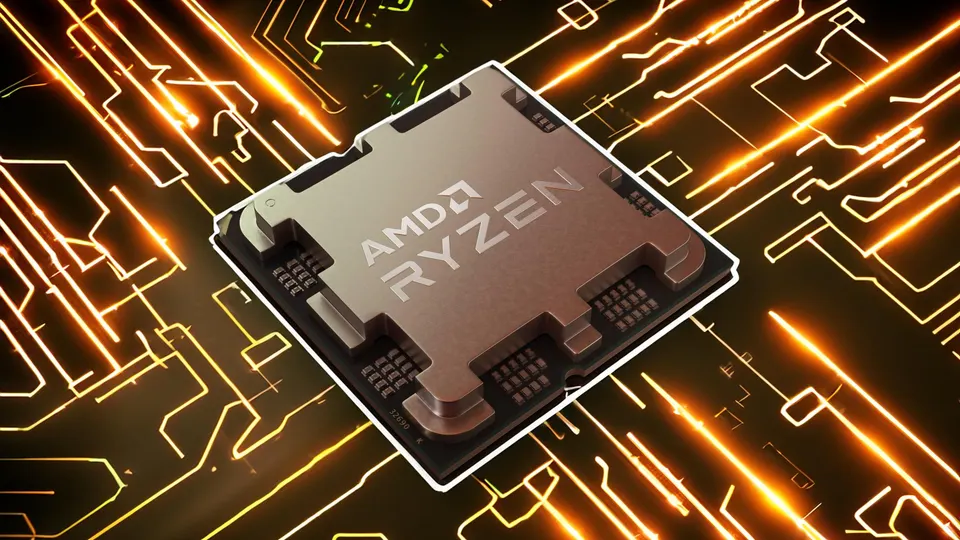
Ryzen X3D CPUs like the 5800X3D, 7800X3D, and 7950X3D are built for gaming. If yours feels slow or performs below expectations, this guide explains the common causes and how to fix them.
What Makes X3D CPUs Different
X3D CPUs use 3D V Cache. This adds extra L3 cache on top of the chip. More cache reduces memory access time in games. Models like the 5800X3D, 7800X3D, and 7950X3D are designed to deliver high gaming performance at lower power than standard chips. If performance feels weak, something is limiting the CPU.
Reason 1. Wrong Windows Power Plan
X3D chips need proper scheduling to work at full speed. Use the AMD chipset drivers and enable the recommended power plan. This allows the CPU to boost correctly. If you use a generic Balanced plan, boost behavior may not work as expected.
- Install latest AMD chipset drivers
- Select the Balanced power plan (Dual CCD only)
- Restart the system
Reason 2. Core Parking And Scheduling Issues
Dual CCD chips like the 7950X3D have one cache rich CCD and one standard CCD. Games must run on the cache rich cores for best performance. If Windows schedules the game on the wrong CCD, FPS drops.
Make sure Game Mode is enabled in Windows. Update BIOS to the latest version. Install the latest AMD chipset driver. In BIOS, set CPPC Dynamic Prefer Cores to "Cache" or "Driver" (prioritize the V-Cache CCD). These steps help the system assign games to the correct cores.
Reason 3. Temperature Limits
X3D CPUs are sensitive to temperature. They boost based on thermal headroom. If the CPU runs hot, boost clocks drop. This reduces FPS. Check the following:
- CPU cooler mounting
- Thermal paste quality
- Case airflow
- Dust buildup
Even a small temperature drop can improve clock stability during gaming.
Reason 4. Curve Optimizer Not Tuned
X3D CPUs do not support traditional overclocking. You can improve performance using Curve Optimizer in BIOS. A negative curve reduces voltage. Lower voltage reduces heat. Lower heat allows higher sustained boost clocks. Safe starting point:
- Enter BIOS
- Enable Precision Boost Overdrive
- Set Curve Optimizer to Negative
- Start with -10 on all cores
- Stress test for stability
If stable, you can test slightly lower values. Stop if the system becomes unstable.
Reason 5. Outdated BIOS
Motherboard BIOS updates improve X3D scheduling and boost behavior. Early BIOS versions may limit performance. Update to a stable recent version from your motherboard manufacturer.
Reason 6. RAM Configuration Problems
X3D CPUs still depend on memory tuning. Use dual channel memory. Enable EXPO in BIOS. For AM5 systems, DDR5 6000 with low latency is often the sweet spot. Running slow memory can reduce overall gaming performance.
Reason 7. Background Software Or CPU Limits
Background apps can steal CPU time. Heavy monitoring tools, overlays, or stress tools left running can affect performance. Close unnecessary apps while gaming.
Best Quick Fix Combination
For most users, this setup restores full performance:
- Update BIOS
- Install latest AMD chipset driver
- Enable EXPO
- Apply a small negative Curve Optimizer
This keeps temperatures lower and allows proper boost behavior.
FAQ
The game may be running on the wrong CCD. Make sure Game Mode and chipset drivers are installed so the cache cores are used.
It can. Lower voltage reduces heat. Lower heat allows the CPU to sustain higher boost clocks.
They protect themselves at high temperatures. Good cooling helps maintain consistent performance.
Traditional overclocking is locked. Precision Boost Overdrive and Curve Optimizer are the safe tuning methods.
- AMD BIOS Guide5 min read
The Definitive AMD BIOS Guide: Safe Settings, Performance Tweaks, and What to Avoid
- disable windows 11 services5 min read
Disable Windows 11 Services to Reduce Background Processes and Speed Up Your PC
- Windows 117 min read
Windows 11 vs Windows 10 Gaming Performance 2026: The Final FPS Verdict

