Published: 5/17/2025
🕒 2 min read
Want smoother gameplay and fewer stutters? Disabling unnecessary background services that auto-start with Windows is one of the easiest ways to reduce CPU load and improve gaming performance—especially if you’re chasing low latency and maximum FPS.
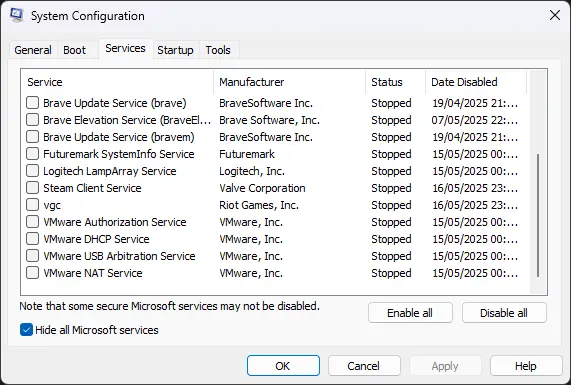
Step-by-Step: Disable Non-Microsoft Services
- Press
Windows + R, typemsconfig, and press Enter. - Open the Services tab.
- Check “Hide all Microsoft services” to avoid disabling critical system functions.
- Click Disable all to turn off visible third-party services.
- Click Apply then OK.
- Restart your PC to apply changes.
Important: Re-enable Game-Critical Services
After restarting, re-enable services required for online games, anti-cheat, and hardware support. Examples:
- EasyAntiCheat (Apex Legends, Fortnite, etc.)
- BattlEye (Escape from Tarkov, DayZ, etc.)
- Riot Vanguard (VALORANT)
- Steam Client Service (required for full Steam functionality)
- Logitech/Corsair/Razer services (for macros or peripheral profiles)
To re-enable: open msconfig → Services tab → tick the services you need → Apply → restart.
Final Advice
Disabling non-essential services can free up resources, reduce CPU usage, and smooth out gameplay. However, don’t disable security software, network drivers, or services tied to critical hardware.
When in doubt, leave it enabled—disabling the wrong service can break apps, online features, or device functionality.
For best results, combine this with startup program cleanup and a proper GPU driver routine to build a lean, high-performance Windows gaming setup.