If your PC feels slower than it used to, the problem is usually reversible. Most systems lose responsiveness over time because Windows, apps, startup programs, and leftover files place more strain on the same hardware. Here is how to identify the real cause and speed your computer back up.
Why computers feel slower over time
Most computers do not get slower because the CPU, RAM, or storage physically “wear down” in a way that reduces raw performance. Outside of physical issues like failing fans, blocked vents, or degraded cooling, the hardware generally performs the same as it did when it was new. What changes is the software load. Modern apps grow heavier, more background services pile up, and Windows has to manage more clutter than it did on day one.
That slowdown also feels worse because expectations change. An older desktop or laptop may still be doing the same work at roughly the same speed, but modern phones, SSD-based systems, and cleaner installs make any delay feel much more obvious.
The real causes of PC slowdown
Software bloat and background load
Over time, installed programs add services, updaters, launchers, scheduled tasks, overlays, and background helpers. Even if you do not actively use them, they still compete for CPU time, RAM, and disk access. This is one of the biggest reasons a PC that once felt responsive now feels sluggish.
How to Lower Background Processes for Better Gaming Performance
RAM pressure and virtual memory
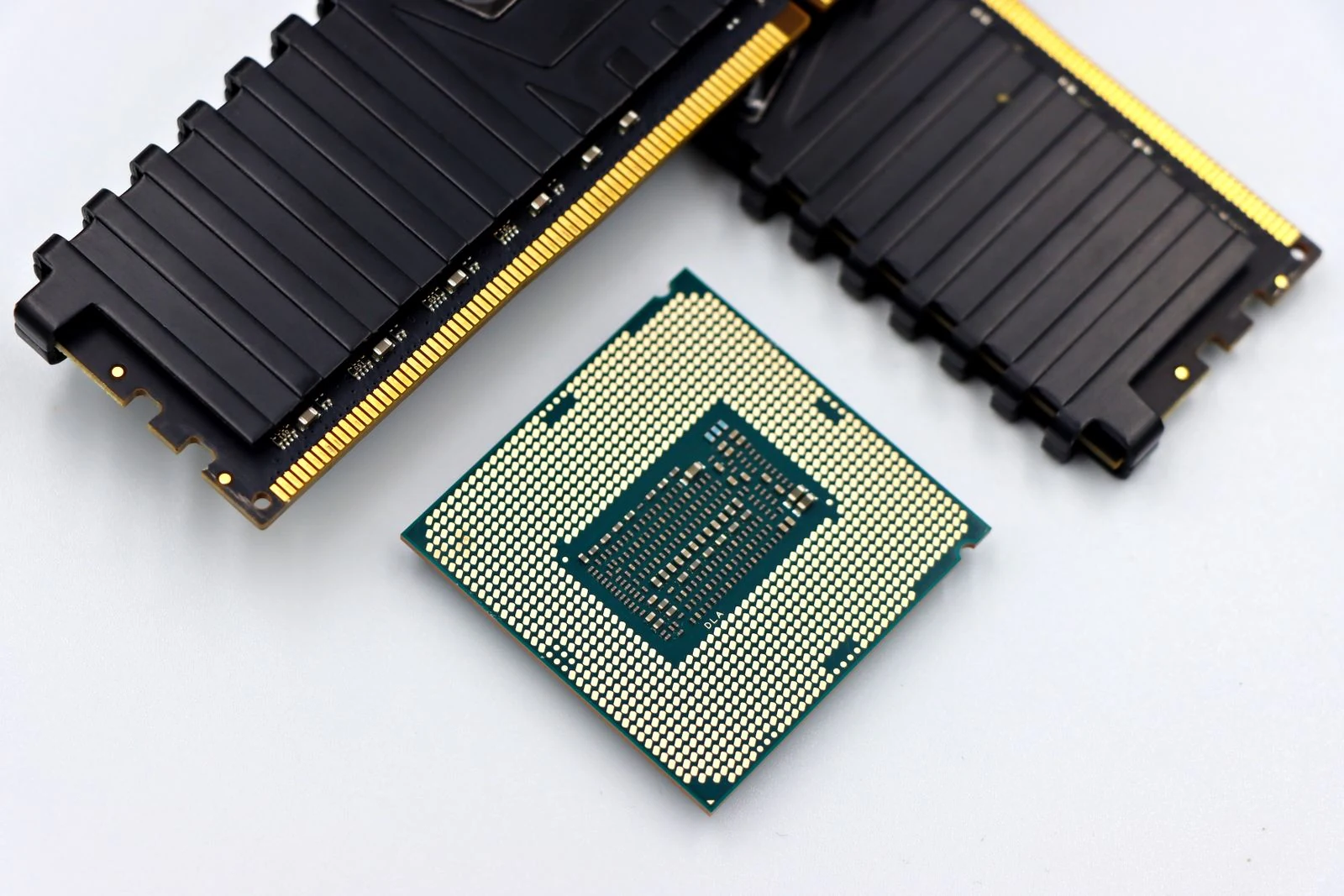
Slowdown becomes much more severe when your total working set pushes beyond available physical memory. For example, if your workload needs 16GB of RAM but the system only has 8GB, Windows spills the excess into virtual memory on disk. That disk-based overflow is dramatically slower than direct RAM access, which is why performance can collapse instead of declining gradually.
Boost Your FPS - How Faster RAM and More Memory Improve Gaming Performance
Thermal throttling
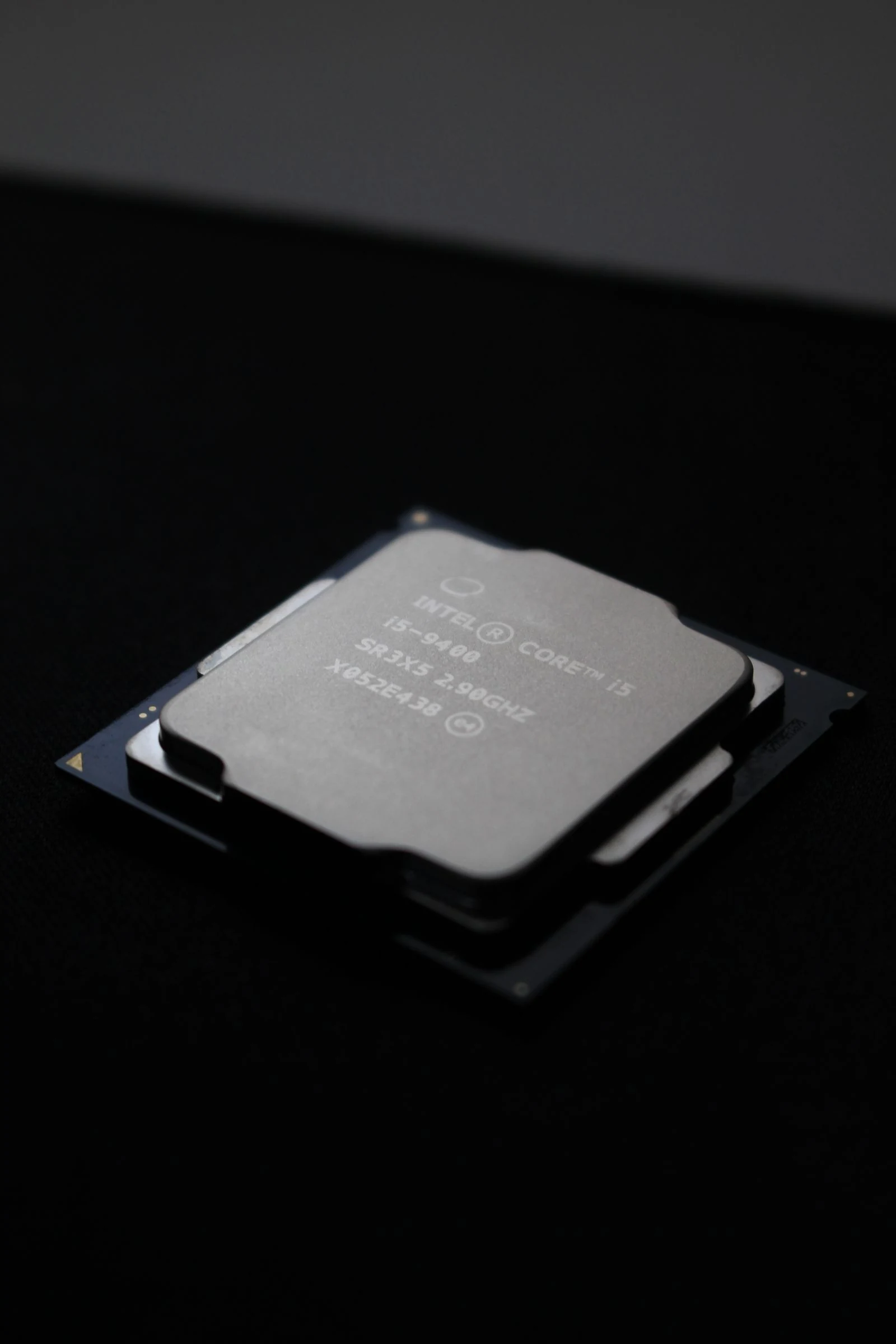
CPUs do not naturally become slower with age, but they will intentionally reduce speed when temperatures get too high. Dust buildup, clogged heatsinks, weak airflow, and failing fans can all cause thermal throttling. In that case, the slowdown is not age-related silicon decay. It is the system protecting itself from heat.
How To Reduce Temps On Intel 12th, 13th, and 14th Gen CPUs
Larger, heavier software versions
Older PCs are often asked to run newer versions of browsers, launchers, office apps, and operating systems that are much more demanding than the versions they originally shipped with. Even if the hardware is still functioning correctly, the software stack may have outgrown it.
This is also why slowdown can feel non-linear. A machine that is just slightly overloaded can become far more than slightly slower once memory limits, storage bottlenecks, and background contention all stack together.
Fix #1: Clean up startup apps
Startup applications are one of the easiest and safest places to begin. Many programs add themselves to startup without providing much day-to-day value, which increases boot time and keeps background load high after sign-in.
- Press Ctrl + Shift + Esc to open Task Manager.
- Go to the Startup tab.
- Review the list of apps that launch with Windows.
- Disable entries you are confident you do not need running in the background.
- Restart and test the system before disabling more.
On older versions of Windows such as Windows 7, you can manage this through msconfig. Use a one-at-a-time approach rather than disabling everything at once. That makes it easier to identify anything important you may want to re-enable later.
Fix #2: Reclaim wasted disk space
A nearly full drive can make a PC feel worse, especially when Windows has less room for temporary files, updates, and virtual memory. One often-overlooked space hog is hiberfile.sys, which can consume tens of gigabytes on some systems.
- Check whether hiberfile.sys is taking up significant disk space.
- If you do not use hibernation, open Command Prompt as administrator.
- Run powercfg /hibernate off.
- Windows will remove the file automatically and free the space immediately.
Do not delete random large files you do not recognize. System files can be important, and removing the wrong one can break Windows. If you are unsure, inspect disk usage first with a trusted analyzer and make a backup before deleting anything critical.
Fix #3: Check whether your page file is hurting performance
The page file is part of Windows virtual memory. On some systems, especially those with multiple drives, moving it to a faster or roomier secondary drive can improve responsiveness if the current boot drive is overloaded.
- Open System and go to Advanced system settings.
- Open the Advanced tab, then Performance Settings.
- Go to the Advanced tab again and open Virtual Memory.
- Select Change.
- If a secondary drive is faster or has more free space, set a system-managed page file there.
- Remove the page file from the original drive if appropriate.
- Restart the PC.
This is not a magic fix for low RAM, but it can reduce the pain of paging on a badly configured system. If you regularly hit virtual memory, adding more RAM is often the better long-term solution.
Fix #4: Repair disk and system file issues
File corruption and disk errors can also contribute to instability and slowdowns. Windows includes two useful built-in tools for this: Chkdsk and System File Checker.
- Open Command Prompt as administrator.
- Run chkdsk to scan the drive for file system issues.
- Use chkdsk /f if you want Windows to fix detected errors.
- Run sfc /scannow to verify and repair core system files.
- Restart if Windows requests it.
System File Checker is especially useful when official Windows files have been corrupted or replaced by third-party software. It is one of the safest maintenance steps you can run on a sluggish system.
Fix #5: Reduce clutter, not just files
PC slowdown is not only about visible files. It is also about leftover services, registry debris, scheduled tasks, old launchers, and half-removed software. The safest way to keep Windows clean is to uninstall programs properly instead of deleting their folders by hand.
Avoid third-party registry cleaning tools that promise massive speed gains. They are often risky, and the real fix is better software hygiene: install less, uninstall properly, and avoid testing unknown utilities directly on your main Windows install when a virtual machine would do the job.
What to update and what to ignore
Drivers and minor operating system updates can still matter, especially for stability, compatibility, and performance tuning. GPU drivers in particular may continue improving behavior on older cards years after launch. Minor OS updates are also often where developers refine performance after a major feature update introduces new overhead.
That does not mean every major OS upgrade will make an old PC faster. Newer versions can add more demands than benefits on aging hardware. The right move is to stay secure and updated, but be realistic about whether your system still has enough RAM, storage speed, and cooling for the software you expect it to run.
Windows 11 23H2 Reaches End of Support on November 11 2025
When a clean reinstall makes sense
If the PC has years of accumulated software, broken uninstall remnants, startup clutter, strange background services, and inconsistent performance, a clean reinstall can be the fastest path back to responsiveness. It removes deep software residue that basic cleanup often misses.
A clean install is especially effective when the hardware itself is still decent but the system feels bloated beyond easy repair. Back up your files first, reinstall Windows cleanly, then add back only the apps you actually need.
What usually does not help much
- Defragmenting SSDs is unnecessary and should not be treated as a speed fix
- Random registry cleaners are not a safe substitute for proper uninstall habits
- Deleting unknown system files to chase free space can cause more damage than benefit
- Disabling everything in startup at once makes troubleshooting harder
- Assuming the hardware is “old and slow” can hide a fixable software problem
The bottom line
If your computer feels slow, the cause is usually not that the hardware has physically become weaker. In most cases, the slowdown comes from software bloat, rising memory demands, startup clutter, disk pressure, and occasional thermal throttling. That makes the problem mostly reversible.
Start with startup apps, free space, page file configuration, system scans, and proper uninstall habits. If the system is still overwhelmed after that, check cooling, consider a RAM upgrade, or do a clean reinstall. Those steps usually restore far more performance than most people expect.
FAQ
They usually feel slower because software gets heavier over time, more background apps pile up, storage fills up, and RAM pressure forces Windows to use slower virtual memory. The hardware itself usually does not lose speed unless heat or physical faults are involved.
Yes, but only by disabling hibernation properly with powercfg /hibernate off. Do not manually remove the file. If you use hibernation, keep it enabled.
Yes. Low free space can hurt responsiveness, reduce room for temporary files, limit virtual memory flexibility, and make updates or background tasks behave poorly.
Usually not worth the risk. The safest way to keep the registry clean is to uninstall software properly and avoid clutter in the first place.
Not always. Minor updates often improve stability and performance, but major upgrades can also increase system demands. The best result depends on your hardware, available RAM, storage speed, and overall system condition.