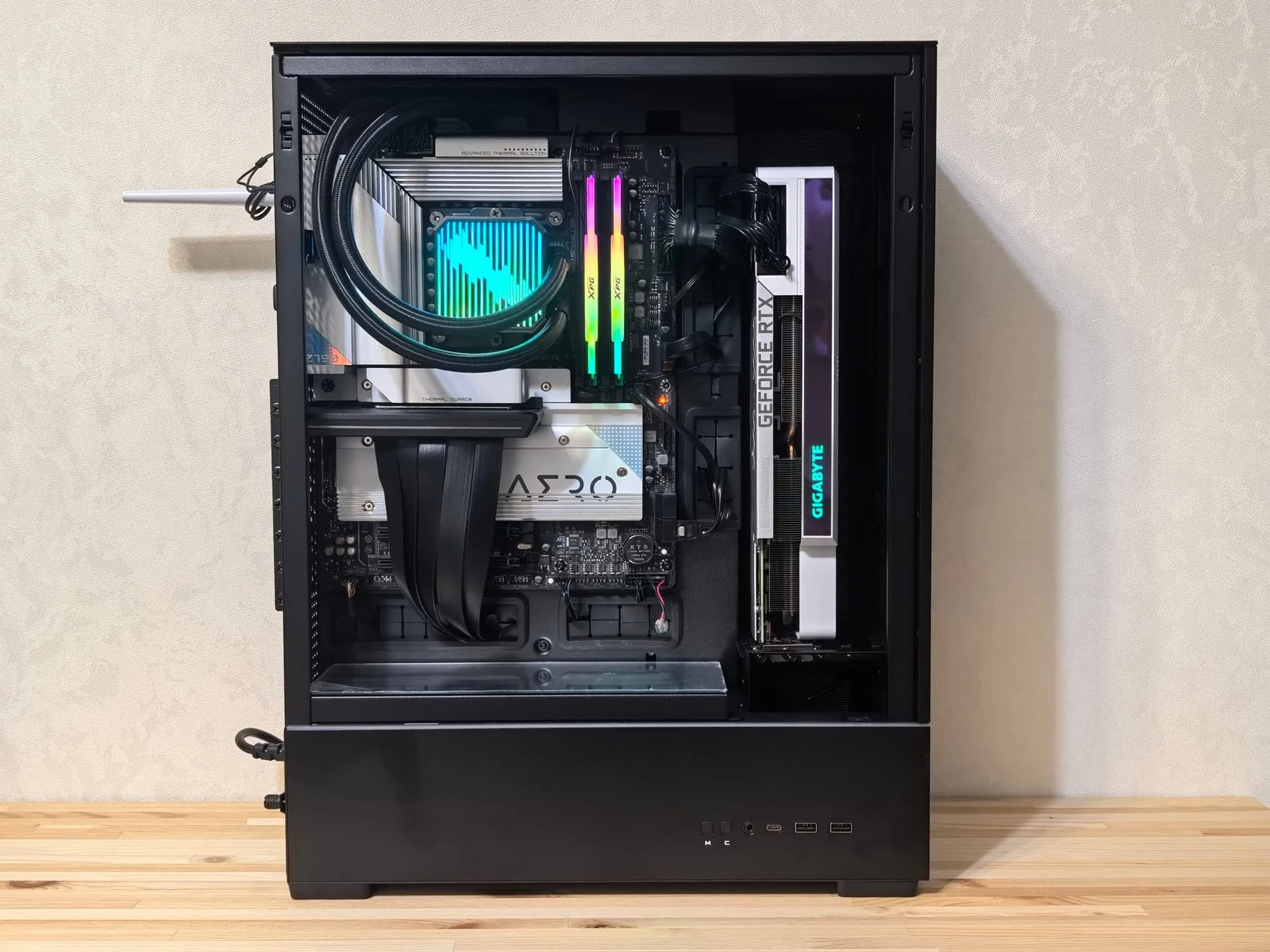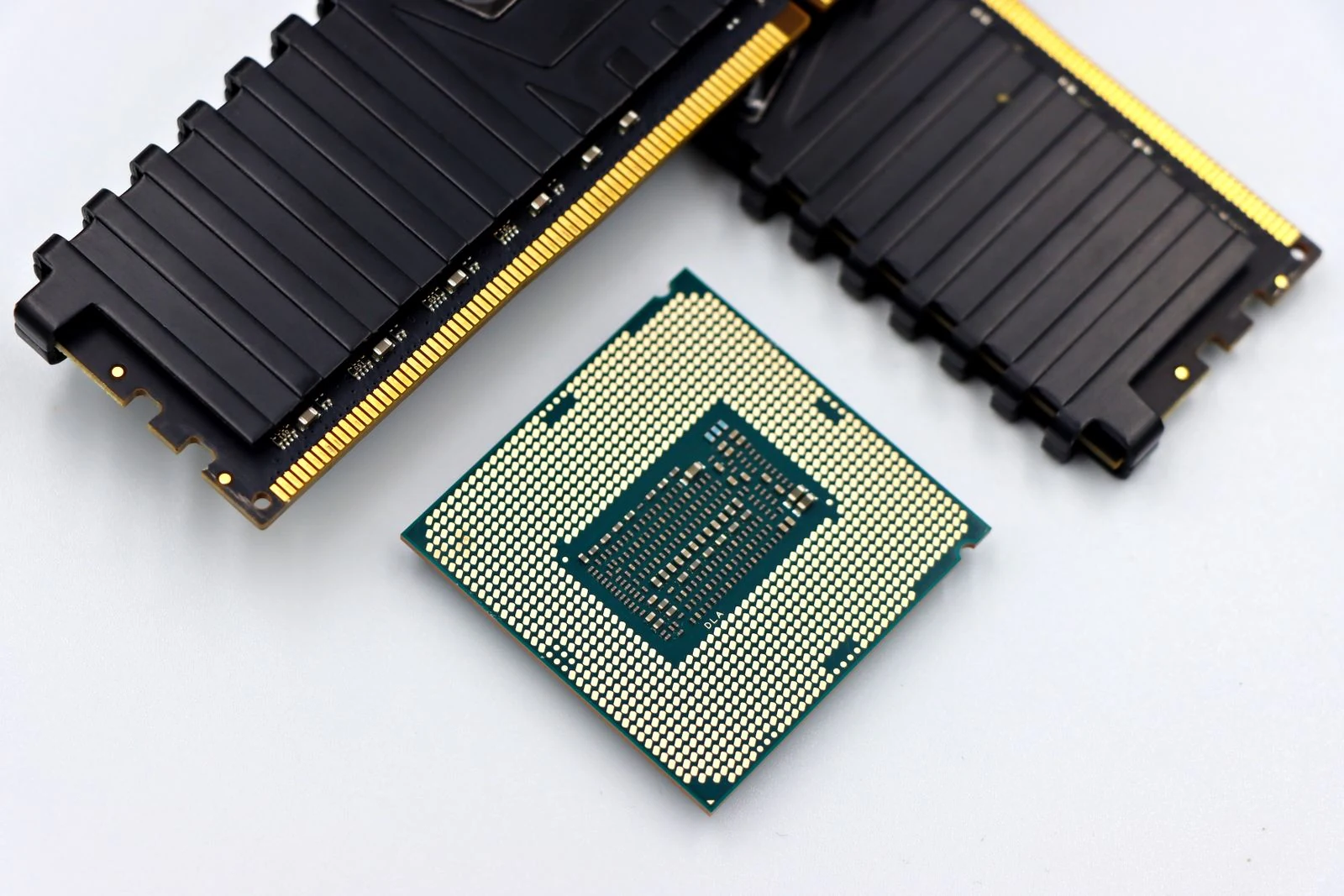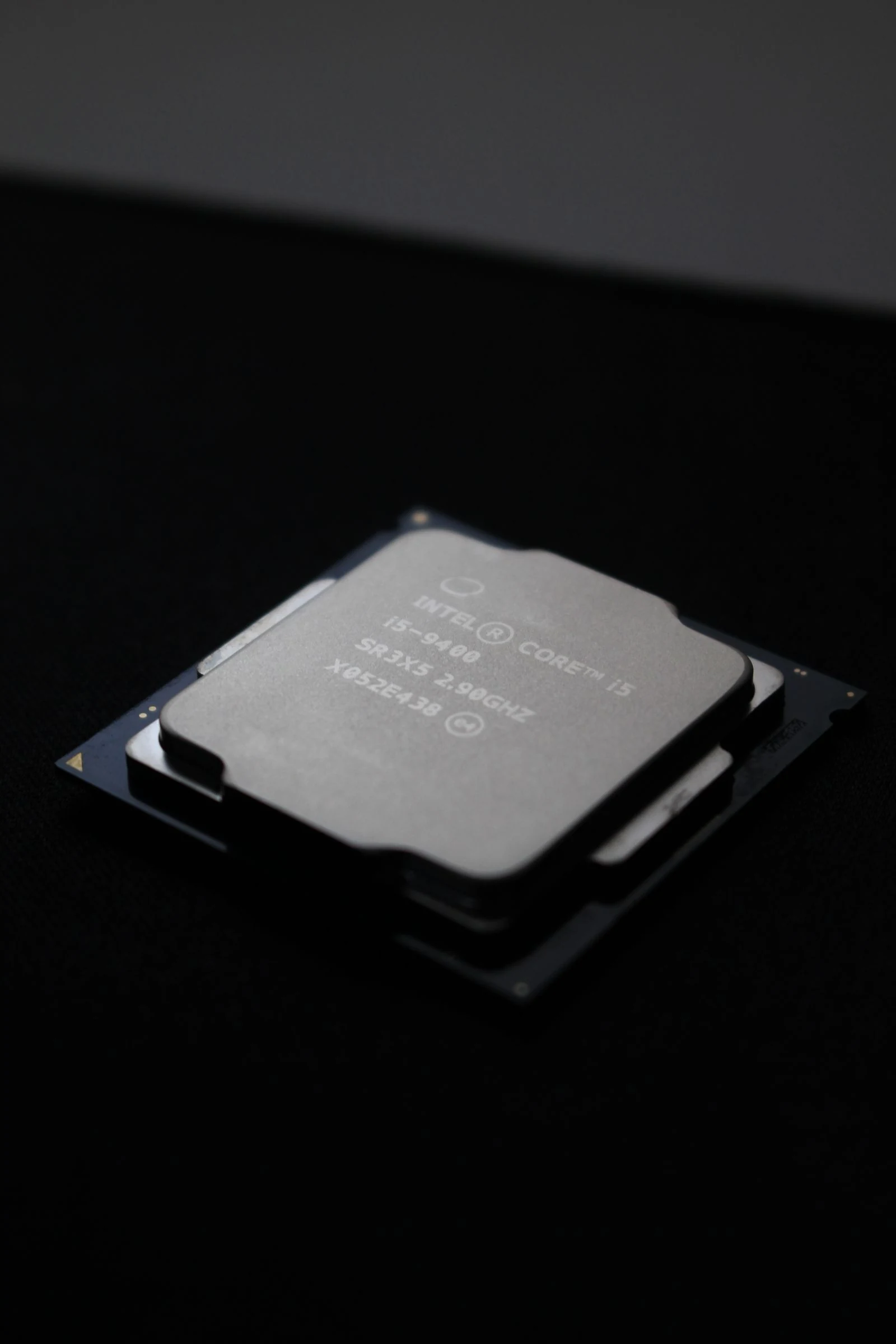
Intel 12th, 13th, and 14th Gen CPUs run hot, especially the 12900K, 13900K, and 14900K. This guide explains how to lower CPU temperatures with undervolting, power limits, airflow improvements, better cooling, and advanced options like delidding.
Why 12900K, 13900K, and 14900K Run Hot
Intel 12th, 13th, and 14th Gen CPUs push high clock speeds and high power draw. The 12900K, 13900K, and 14900K can pull over 250W under load. That level of power creates heat fast. Most motherboards also remove power limits by default. This allows the CPU to boost harder, but it also raises temperatures. If you see 90 to 100°C in games or stress tests, this is common.
Step 1. Set Power Limits In BIOS
The fastest and safest way to reduce temps is to set proper power limits. Enter BIOS and look for:
- PL1
- PL2
- Long Duration Power Limit
- Short Duration Power Limit
Set both limits close to Intel stock values, such as 125W to 253W depending on the model. You will gain more consistent FPS in games. You will also gain lower temps and lower fan noise.
Step 2. Undervolt The CPU
Undervolting reduces voltage while keeping the same clock speed. Less voltage means less heat. Most CPUs can handle a small negative offset without losing stability.
Safe starting points:
- Set Adaptive Voltage or Offset Mode in BIOS
- Apply a negative offset of -0.050V
- Stress test
- If stable, try -0.075V or -0.100V
Stop when you see crashes or errors. A light undervolt can drop temps by 5 to 10°C.
You can also undervolt using Intel XTU if your board allows it. BIOS is more stable long term.
Step 3. Disable E Cores If You Do Not Need Them
Intel hybrid CPUs use P cores and E cores. E cores handle background work. If you only play games and want lower temps, you can disable E cores in BIOS. This reduces total power draw. It also reduces heat output. You may lose multi core performance in rendering or heavy workloads.
Step 4. Disable Hyper Threading
Hyper Threading adds extra threads per P core. It improves performance in heavy tasks but raises heat and power use. Disabling it can reduce temps by several degrees. Most games do not need it. Content creators should keep it enabled.
Step 5. Improve Case Airflow
Hot air must leave the case fast. Poor airflow traps heat around the CPU cooler. Use at least:
- Two front intake fans
- One rear exhaust fan
- One top exhaust fan
Step 6. Upgrade Your CPU Cooler
The 13900K and 14900K need strong cooling. A basic air cooler is not enough for full load. Use one of these:
- High end air cooler with large heatsink and dual fans
- 280mm AIO liquid cooler
- 360mm AIO for heavy workloads
Mount the cooler with firm, even pressure. Uneven pressure causes hot spots.
Step 7. Use Quality Thermal Paste
Thermal paste transfers heat from the CPU to the cooler. Replace old paste if it has dried. Apply a small pea sized amount in the center. Do not spread too much. Too much paste traps heat. Good paste can lower temps by 2 to 5°C.
Step 8. Contact Frame For LGA1700
LGA1700 boards can bend the CPU slightly. This creates uneven contact with the cooler. A contact frame keeps the CPU flat. Better contact improves heat transfer. Many users see a 3 to 8°C improvement.
Step 9. Delidding For Maximum Temperature Drop
Delidding removes the integrated heat spreader. You replace the internal material with liquid metal. This can reduce temps by 10 to 20°C. This process voids warranty. It requires special tools. Mistakes can destroy the CPU. Only attempt this if you understand the risk.
What Combination Works Best
For most users, this setup works well:
- Set power limits
- Apply a light undervolt
- Improve airflow
- Use a 280mm or 360mm AIO
This keeps gaming temps in a safer range without major performance loss. Extreme users can explore disabling E cores, disabling Hyper Threading, or delidding.
FAQ
Yes. Lower voltage reduces heat and electrical stress. Less heat means less long term wear on the silicon. A small stable undervolt can help the CPU run cooler and may extend its lifespan.
Disabling E cores reduces total power draw. Lower power draw usually means lower overall voltage demand under load. This leads to lower temperatures, especially in games that do not use many threads.
Only for enthusiasts who want the lowest possible temps and accept the risk.
Yes. These CPUs boost based on thermal headroom. When temperatures stay lower, the CPU can hold higher boost clocks for longer. High heat causes thermal throttling, which reduces clock speed. Keeping temperatures under control helps maintain peak performance.