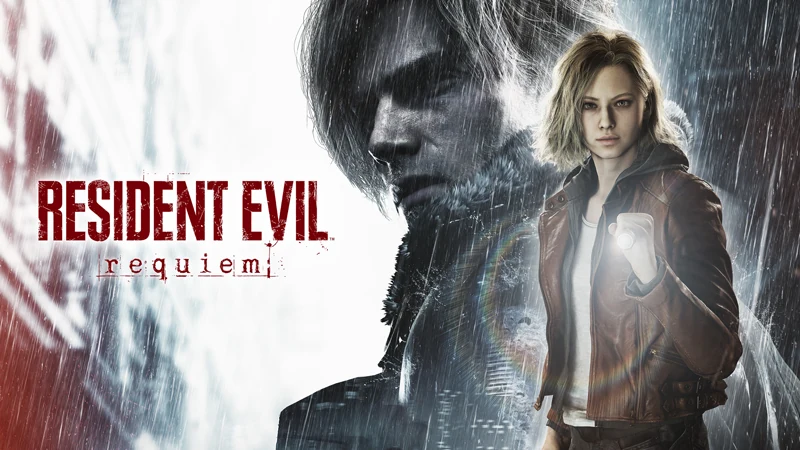
Resident Evil Requiem feels best when frame pacing is stable and input stays responsive. This guide focuses on the settings that matter most for smoother combat, lower input delay, and fewer stutters on a wide range of gaming PCs.
Why stability matters more than peak FPS
In Resident Evil Requiem, a high average frame rate does not always translate into smooth gameplay. Big swings in frame time can make camera movement feel uneven, delay your response during parries, and create a heavy feeling even when the FPS counter looks good. The goal is not to chase the highest number possible. The goal is to hold a frame rate your system can sustain during combat, effects, and camera swings.
This is why a fixed cap is usually better than running uncapped or using a variable target on a struggling system. A stable 60 FPS or 120 FPS experience often feels better than unstable peaks followed by sharp dips.
Common FPS Fixes for PC Games - OCCT, DDU, shadercache
Best display settings for lower input delay
Start by setting the game to your monitor’s native resolution. This keeps image clarity intact and gives you a clean baseline before you begin tuning heavier graphics options.
- Screen Resolution: Set to your monitor’s native resolution
- V-Sync: Off
- Frame Rate: Use a fixed cap your PC can actually hold
- Motion Blur: Off
V-Sync is one of the first settings to disable if the game feels sluggish on mouse or controller. It can remove tearing, but it often adds enough latency to make aiming feel less precise. If your game still feels delayed after turning it off, the issue is usually frame pacing, not raw FPS.
For the frame rate limit, avoid the Variable option if your system cannot stay consistent. Use Up to 60 FPS on lower-end or mid-range systems, or Up to 120 FPS on stronger PCs that can maintain it without frequent drops. A lower but steady cap usually produces better combat feel than unstable highs.
Graphics settings to turn down first
Ray tracing and path tracing are the biggest performance killers in Resident Evil Requiem. If your priority is smoother gameplay, turn them off first. This single change usually delivers the largest FPS gain and helps remove the worst frame time spikes.
- Ray Tracing: Off
- Path Tracing: Off
- Hair Strands: Off or Low
- Motion Blur: Off
- Lens Dirt: Off
- Lens Flare: Off
Hair Strands is especially hard to justify if you play in third-person or spend a lot of time in scenes where character detail is more visible. It can cost performance for a relatively small visual benefit. Disabling extra post-effects like Lens Dirt and Lens Flare can also help the image look cleaner, especially when you are using DLSS or FSR.
Advanced graphics settings for better FPS without ruining image quality
After disabling the heaviest features, move into advanced settings. These give you useful performance gains with a smaller visual hit than most players expect.
- Texture Quality: Normal
- Mesh Quality: Low
- Subsurface Scattering: Low
- Volumetric Fog Resolution: Normal
- Ambient Occlusion: Low or Normal
Texture Quality should be set based on your VRAM budget, not guesswork. If you push textures too high for your GPU, the game may start streaming assets poorly and produce stutter. Watch the in-game VRAM bar before increasing this setting.
Mesh Quality on Low is one of the best trade-offs for performance. It can free up frames with a surprisingly small reduction in overall visual quality during normal gameplay. Volumetric Fog Resolution is another expensive setting, so Normal is the safest baseline for most systems.
10 Mistakes Killing Your FPS and Input: solutions to fix your mistakes
DLSS, FSR, and Frame Generation explained
If your GPU is the bottleneck, upscaling is the most effective way to improve performance. DLSS and FSR let the game render internally at a lower resolution, then reconstruct the image to look sharper than a basic resolution drop.
- DLSS or FSR: Quality as the default starting point
- Balanced: Use only if you still need more FPS
- Performance: Use only on weaker systems or higher resolutions
- Frame Generation: Only use if your base FPS is already stable at 60 or higher
Start with Quality mode because it usually gives the best balance of image sharpness and performance. If you still need extra headroom, try Balanced. Performance mode should be treated as a last resort because image quality can start to look too soft.
Frame Generation is not a fix for a bad baseline. If the game already has unstable frame pacing or poor input feel, Frame Generation can make the experience feel worse by adding latency and exaggerating inconsistency. Use it only when the game already runs well and you want to push smoother visual output on top of a stable base.
NVIDIA vs AMD: The GPU Battle for PC Optimization and AI Dominance in 2025
NVIDIA users should also enable Reflex Low Latency and use On + Boost if they are targeting higher frame rates and want the snappiest possible response from mouse or controller.
How to Install NVIDIA Drivers Correctly (Manual Clean Method)
Recommended step-by-step setup
Use this setup order for a clean, high-FPS configuration in Resident Evil Requiem.
- Set the game to your monitor’s native resolution.
- Turn V-Sync off.
- Choose a fixed frame rate cap your PC can maintain, such as 60 FPS or 120 FPS.
- Disable Ray Tracing, Path Tracing, and Motion Blur.
- Set Texture Quality to Normal and check the VRAM bar before raising it.
- Set Mesh Quality to Low, Subsurface Scattering to Low, and Volumetric Fog Resolution to Normal.
- Enable DLSS or FSR on Quality mode.
- Lower upscaling to Balanced only if you still need more performance.
- Enable NVIDIA Reflex On + Boost if you use an NVIDIA GPU.
- Test the game in combat-heavy sections and lower the frame cap if you still get spikes.
Camera and control settings that improve comfort
Resident Evil Requiem allows independent camera settings for Grace and Leon, which is useful if you prefer a different feel depending on the character or perspective. You can tailor first-person or third-person style preferences without forcing both characters into the same setup.
If the game feels uncomfortable during movement or camera swings, reduce Camera Wobble in the Camera menu. This can help with motion sickness and make the game feel more controlled during tense sections. If you need to adjust sensitivity, do that in the Camera tab as well rather than trying to compensate with DPI changes outside the game.
How to fix stutter and random FPS drops
If you still get inconsistent performance after tuning graphics settings, the problem may be outside the game. Background software, overlays, driver issues, and high RAM usage can all create micro-stutters that feel like engine problems.
- Close unnecessary browser tabs before launching the game
- Disable Discord, GeForce Experience, and other overlays
- Check system RAM usage if the game becomes inconsistent over time
- Avoid running uncapped FPS if the system cannot sustain it
- Lower the frame cap and retest in the same area
- Recheck VRAM usage after changing texture settings
How Discord, Nvidia, and Other Overlays Affect FPS & Latency
If performance remains unstable across multiple games, the issue may be broader than Resident Evil Requiem. In that case, check driver health, shader cache behaviour, background services, and overall system stability rather than endlessly changing in-game settings. Internal link selection was based on your provided site link data.
Best settings summary
For most players, the best Resident Evil Requiem settings for FPS are simple: turn V-Sync off, use a fixed frame cap, disable ray tracing, keep textures within VRAM limits, set Mesh Quality to Low, use Normal fog, and enable DLSS or FSR on Quality mode. That setup usually gives the best mix of smoothness, responsiveness, and visual clarity.
FAQ
Not if your main goal is better FPS and smoother frame pacing. Ray tracing and path tracing are the biggest performance hits in the game and are the first settings to disable for stability.
High FPS does not guarantee smooth gameplay. Frame time spikes, V-Sync latency, unstable FPS caps, and background processes can all make the game feel heavy or delayed.
Only if your system is already very stable. If performance is inconsistent, a fixed cap such as 60 FPS or 120 FPS usually feels much smoother.
Start with DLSS or FSR on Quality mode. Move to Balanced only if you still need extra performance. Performance mode is best saved for weaker systems or higher resolutions.
Lower Texture Quality and watch the in-game VRAM bar. If textures are set too high for your GPU memory, the game can stutter while streaming assets.