If The Finals still hitches after update 12.3.0, start with the situation that triggers it. Separate mixed-input stutter, Practice Range performance and destruction-heavy rendering before changing your graphics profile.
What changed in update 12.3.0?
Update 12.3.0, released on 12 November 2026, includes FSR 4.1.1, global illumination optimisation, and fixes for severe stuttering in the Practice Range and when controller and keyboard inputs are used together. It also reduces unnecessary paused-video redraws during fullscreen transitions.
These changes target different situations. Start by reproducing your particular hitch on the updated game with your existing settings. This guide proposes checks for your PC; HD OPTI has not measured an FPS gain or a reduction in latency from this patch.
For a broader graphics baseline, use the existing Season 12 settings guide alongside these patch-specific checks.
The Finals Season 12 PC Settings: Balance FPS, Clarity and Response
Isolate the hitch before lowering graphics
First record your installed build and save screenshots of your current settings. Keep your driver, graphics profile, frame cap, synchronisation settings and background workload fixed while checking the situations below.
| Symptom | First comparison | What the result means |
|---|---|---|
| Hitch when using both input devices | Compare keyboard/mouse alone with your normal mixed-input sequence | A difference identifies a condition worth investigating; it does not identify the internal cause |
| Practice Range stutter | Repeat the same route and actions in the updated range | Judge the range separately before checking ordinary matches |
| Hitch around fullscreen transitions | Capture the transition separately from steady gameplay | A smoother transition does not establish faster combat rendering |
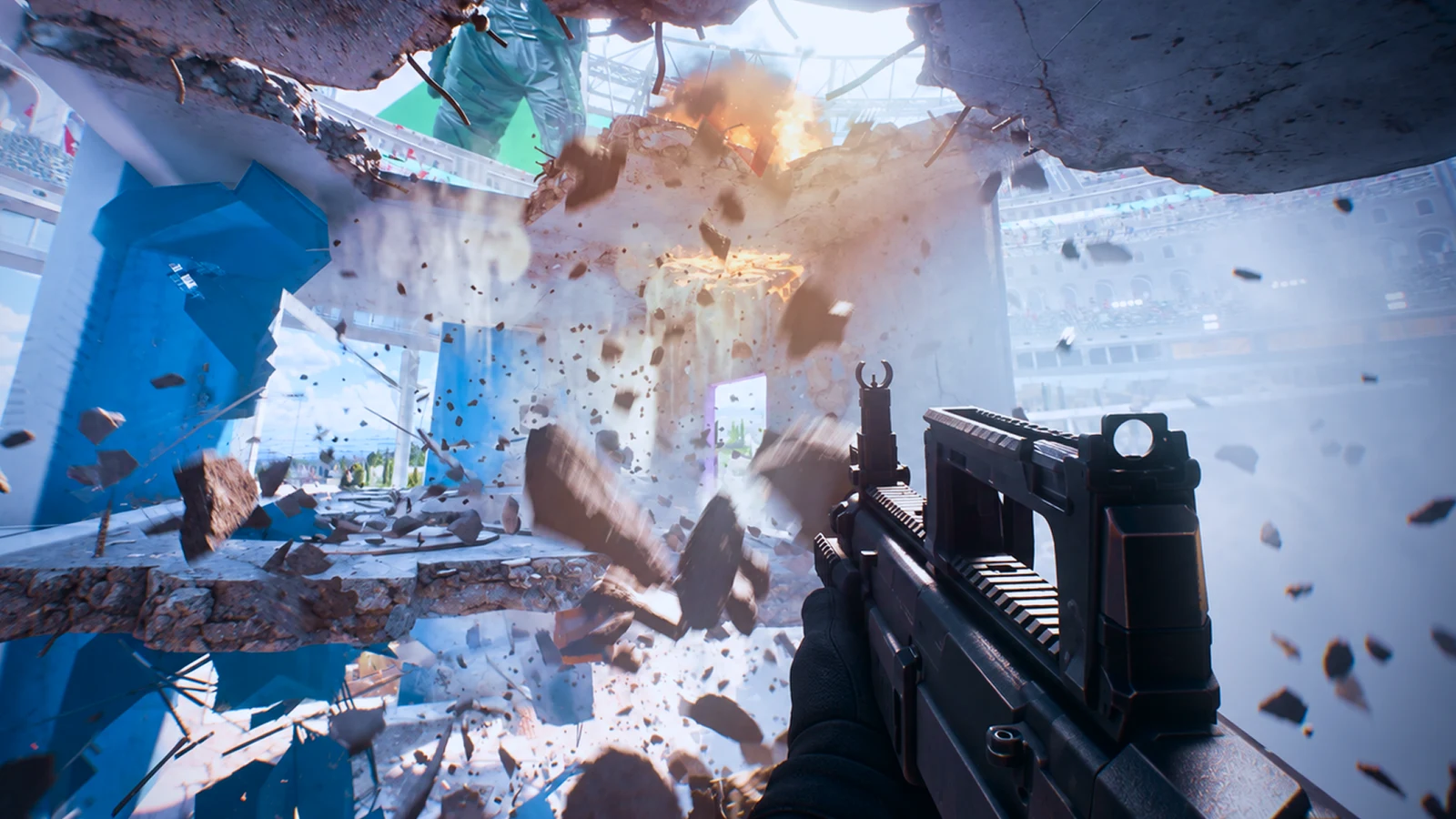
| Slow frames during destruction | Compare repeated captures with the same graphics settings | Inspect the event in the trace instead of relying on a whole-match average |
Check mixed input deliberately
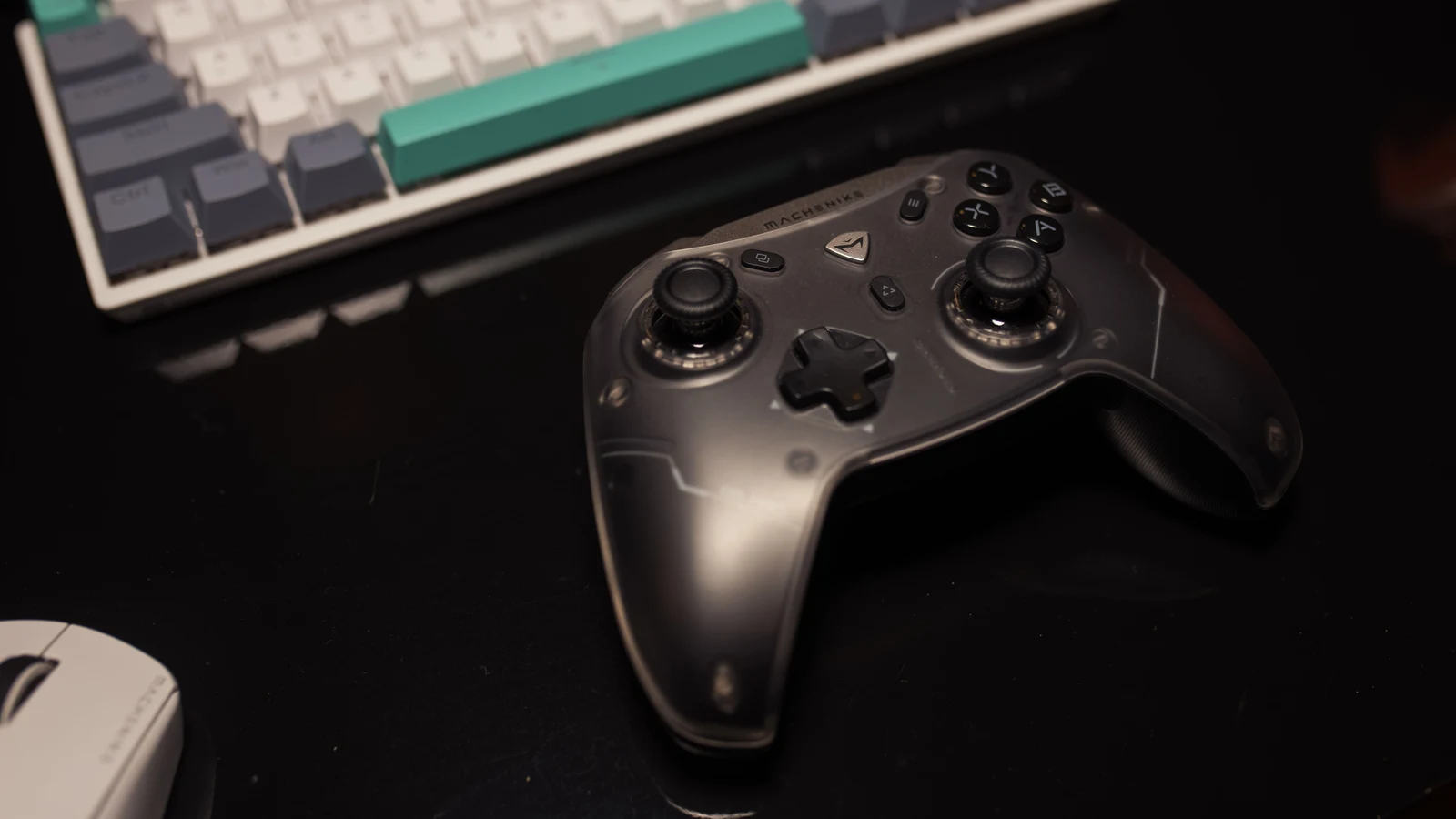
The patch addresses simultaneous controller and keyboard use. A controller merely being connected is a different condition. For a keyboard/mouse baseline, disconnect an unused controller if practical, then compare with it connected but untouched, and finally with the controller-and-keyboard actions you normally use. Keep the scene and graphics unchanged.
Use only your normal controls for the comparison. If a keyboard hotkey starts your capture while you play on controller, note that input too. Repeat the sequence a few times and record whether a visible hitch coincides with a frame-time spike. If the fault persists, retain the exact device models and reproduction steps for a support report.
Keep the Practice Range result separate
Because the range has its own stuttering fix, an improvement there is not enough to conclude that every arena is smoother. Retest the same range route first, then check destruction-heavy gameplay independently. If you have no comparable older capture, describe the current behaviour without assigning an improvement percentage to the patch.
Record frame times with a repeatable comparison
PresentMon can capture per-frame CSV data. Keep the tool version and metric labels with your results: intervals between presentation calls, time displayed on screen and latency describe different parts of frame delivery.
- Record CPU, GPU, RAM, game build, driver, output resolution, upscaler and quality mode. Also record frame generation, frame cap, display mode and synchronisation.
- Choose a repeatable route with a specific destruction event. Keep the arena, viewpoint, loadout and trigger as consistent as possible; record the intact scene and destruction section separately.
- Warm up the route, then make three 60-second captures with the baseline. Keep the first visit separate from repeated runs rather than mixing them together.
- Change one setting or input condition, repeat the captures, then restore the baseline and capture again. Keep the capture workload unchanged.
- Compare individual runs, the frame-time trace around the trigger, average FPS and consistently calculated 1% lows. If the apparent gain is similar to the spread between baseline runs, collect more evidence.
This capture schedule is a suggested method, not a completed benchmark. When the environment cannot be reset, group similar scenes and call the comparison approximate. Different live matches cannot provide a tightly controlled patch comparison.
A higher average FPS can coexist with isolated long frames. Treat any repeated spike as a separate finding, and keep low-percentile calculations consistent between captures.
High FPS but Game Still Stutters? How to Fix Frame Time Spikes
Compare FSR and lighting after the symptom checks
The FSR version update does not establish which options your GPU will expose. Check the updated game's menu and record the exact available options. At a fixed output resolution, compare native rendering with an available FSR Quality mode, then try a lighter available mode only if you still need performance. Treat each resolution as a separate test.
Keep frame generation off for the initial comparison wherever that option exists. Presented and displayed frames are distinct measurements, and a generated-frame counter must not be treated as rendered FPS. Check moving edges, distant targets and newly exposed rooms as well as timing before keeping a mode.
To investigate lighting, compare your existing global illumination setting with one lower available option while keeping the upscaler unchanged. Inspect interiors and opened walls. This tests a settings trade-off on the current build; it cannot isolate the patch's engine optimisation without comparable pre-patch data.
Decide whether the result is useful
Keep a change when repeated captures show a worthwhile improvement and the image remains readable during fights. Record mixed-input behaviour, range performance, fullscreen transitions and destruction separately. That makes a support report or later patch retest more useful than a single whole-match FPS number.
If response is your concern, measure latency separately and retain the metric's full name. PC latency and click-to-photon latency have different endpoints. If suitable latency data is unavailable, write “not measured”; a better 1% low does not fill that gap.
FAQ
It includes targeted fixes for mixed controller/keyboard use and Practice Range performance. Retest the situation that affected you. Those fixes do not establish that every source of stuttering has been removed.
Use disconnection as an optional baseline when you normally play on keyboard and mouse. The documented fix concerns using controller and keyboard together; a connected but untouched controller is a separate test condition.
The patch records the version update without a measured uplift or a hardware support matrix. Use the options actually available on your system and compare repeat captures at the same output resolution.
You can document present behaviour and compare current settings, but you cannot calculate a controlled patch uplift without a comparable pre-patch baseline. Keep that limit explicit when sharing results.