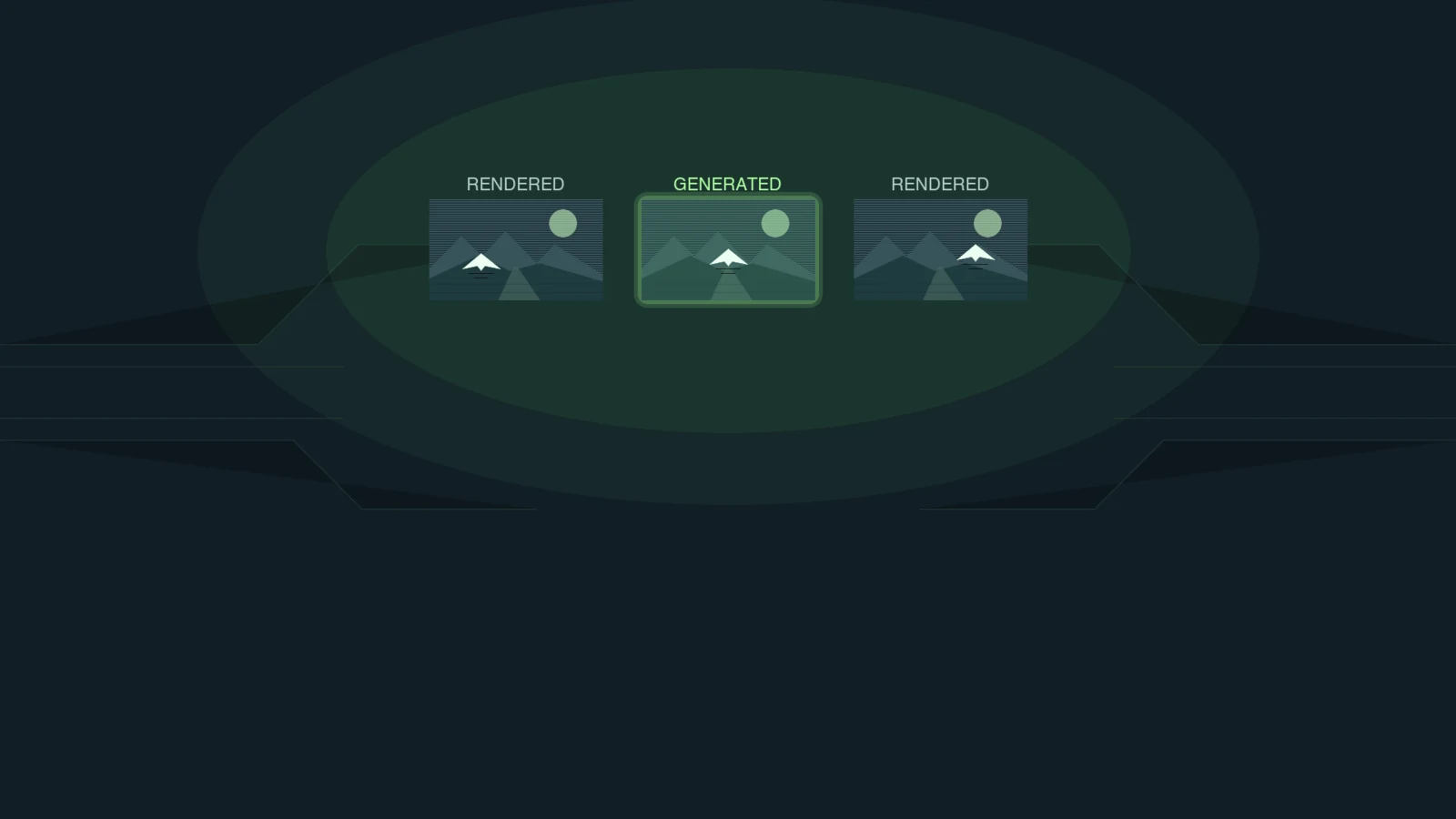
Start tuning Bodycam with Frame Generation off. Find an upscaling mode that preserves target clarity and improves rendered performance, then test generated output separately. That sequence helps you judge the picture, motion and controls without relying on one FPS counter.
Check which Bodycam build you are testing
As of 12 November 2026, The Dead & Damned v0.9 update is scheduled for 13 November. The announced public playtest ran from 11 November at 09:00 UTC to 12 November at 09:00 UTC. Keep playtest and release-build results separate. This guide proposes a comparison method; it contains no HD OPTI benchmark or measured Bodycam latency result.
Bodycam added FSR 4 upscaling and FSR Frame Generation support in the released v0.8 Locked & Loaded update. Start by recording your game build, GPU, driver and output resolution, then check the options available on your system. Feature support does not establish a particular FPS gain or confirm the settings menu of the forthcoming v0.9 release. This guide uses conditional comparisons, so skip unavailable combinations.
Separate FSR upscaling from Frame Generation
FSR upscaling reconstructs an output image from a lower internal rendering resolution. Reducing that workload can help when rendering demand limits performance, but the upscaler also has a processing cost. FSR 4 belongs to this upscaling discussion; selecting it does not by itself identify the frame generator in use.
Frame Generation creates additional images between application-rendered frames. It can improve motion smoothness, but displayed FPS alone does not establish faster control response. Record the upscaler and the frame-generation setting separately, including any driver override you already use. Do not label an ordinary FSR comparison as an FSR 4 test unless you can confirm that implementation is active.
DLSS Frame Generation on RTX 30 Series: How to Tell If It Helps
Compare three configurations
Use the same map and a repeatable short route. Include a dark doorway, a steady camera pan and a quick turn past a nearby object. Keep sensitivity, resolution, graphics preset, frame cap, V-Sync and display refresh rate fixed. If a setting forces another change, record both configurations in full.
| Run | Configuration to compare | What it answers |
|---|---|---|
| A | Native resolution or Native AA if offered; Frame Generation off | What is the baseline picture and rendered performance? |
| B | Supported FSR Quality mode if offered; Frame Generation off | Does upscaling improve rendered performance while preserving useful detail? |
| C | Same upscaling as B; Frame Generation on if available | Does generated output improve motion enough to keep it? |
- Save your current settings before changing them. Warm up the route and use the same recording duration for every run.
- Repeat A and B several times. Compare rendered FPS, the frame-time graph and 1% lows where your capture tool provides them.
- Compare B with C separately. Keep the upscaling mode unchanged so you can isolate Frame Generation.
- Return to B after C. Repeat the same short turns and aiming movements to see whether your preference survives the return comparison.
Use a capture tool that documents what its metrics mean. PresentMon can capture graphics performance on Windows, but separate rendered and generated reporting depends on the game's integration and the tool version. Leave an unsupported metric blank. A single overlay counter with an unknown definition cannot establish a rendered-FPS gain.
Check visibility and responsiveness in motion
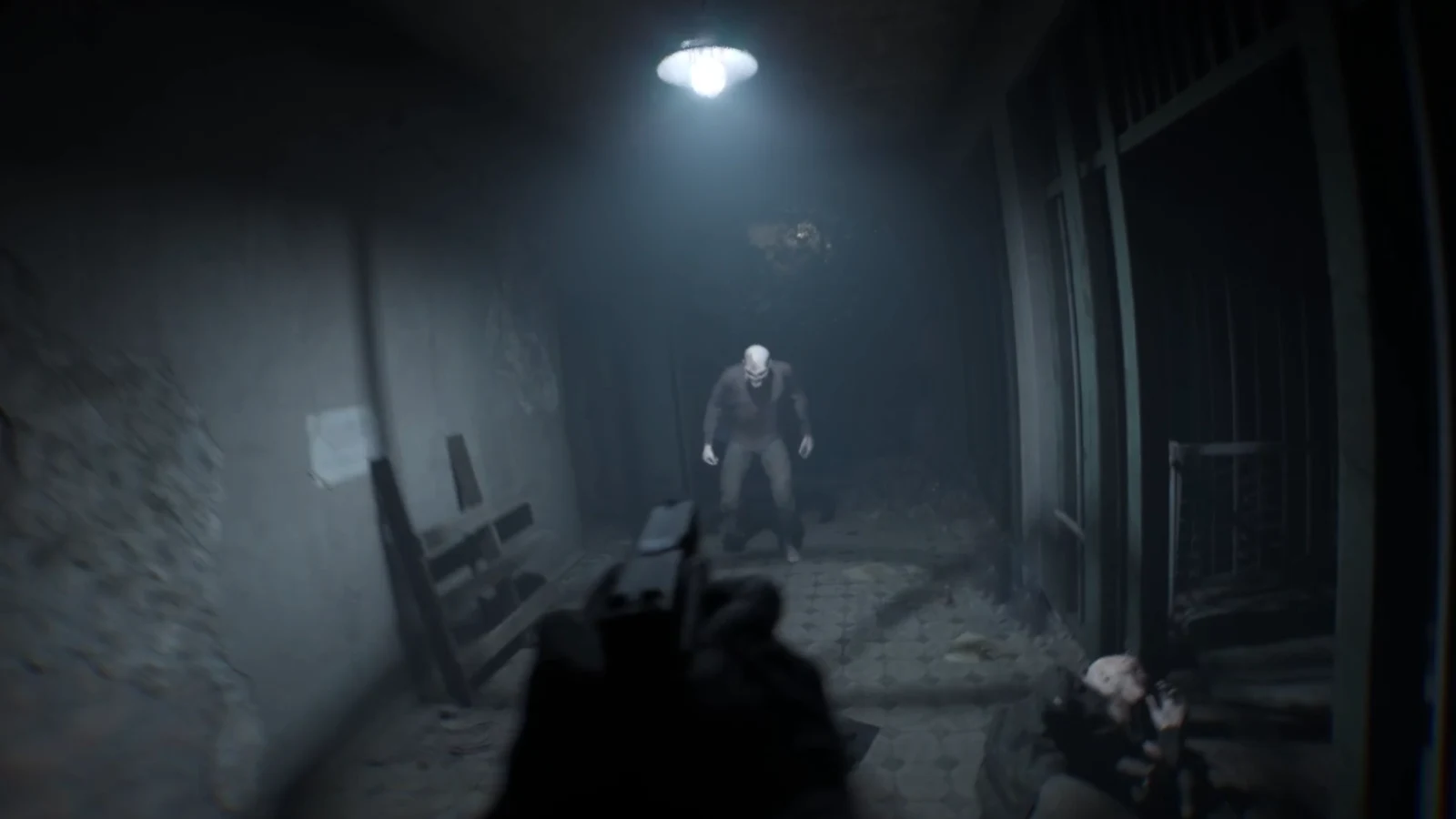
In Bodycam, use dark interiors and nearby weapon movement as practical comparison points. Check whether a distant silhouette remains readable, thin edges shimmer, or detail leaves a trail as you turn. Inspect the same scene with generation off first, then on. These are suggested checks, not confirmed defects in Bodycam.
Record perceived mouse response separately from the FPS figures. To quantify input-to-display latency, use a suitable measurement setup and keep its method fixed. A 1% low describes frame-rate behaviour; it does not measure the delay between your input and the visible response. Avoid converting a higher displayed counter into a claimed latency improvement.
For competitive play, start with generation off and choose the upscaling mode that gives you acceptable rendered performance and target clarity. Treat generation as a separate preference test. If turns feel less direct or moving detail becomes distracting, keep it off even when the displayed average is higher. This is a decision rule, not a measured verdict on Bodycam's implementation.
Test Zombies and PvP separately
Bodycam includes competitive multiplayer and co-op Zombies. Keep separate notes for each. For Zombies, record the map, wave and approximate enemy activity; for PvP, record the map and player activity. A quiet route is useful for isolating settings, but revisit your chosen profile in the busy situations you actually play.
| Your observation | Next useful comparison |
|---|---|
| FSR with generation off improves rendered FPS and clarity remains acceptable | Keep that mode as the baseline for a separate generation test. |
| Generation raises displayed FPS but controls feel worse | Return to generation off at the same upscaling mode. |
| Lower internal resolution barely changes rendered FPS | Check frame caps and repeat in the same scene before attributing the limit to one component. |
| Zombies runs differently from PvP | Keep mode-specific results; do not average them into one settings verdict. |
If the baseline still falls short, compare one graphics option at a time before considering a hardware purchase. Keep only changes that help repeatedly at a visual quality you would play. No universal Bodycam preset or percentage FPS gain is established here.
Do You Need a New GPU? What to Test Before Upgrading
FAQ
No verified Bodycam-specific uplift is established in this guide. Compare the same scene with Frame Generation off, first at your native baseline and then at the supported FSR mode. Record the active upscaler, GPU, driver and build before describing the difference as an FSR 4 result.
Start with it off while tuning rendered performance and clarity. Then compare it on and off at the same upscaling mode. Keep it only if the motion benefit suits you and control response remains acceptable; displayed FPS alone cannot answer that question.
Keep them separate. The announced playtest preceded the scheduled 13 November update, and Zombies and PvP are different comparison conditions. Recheck the release build in the mode and scenes you intend to play.