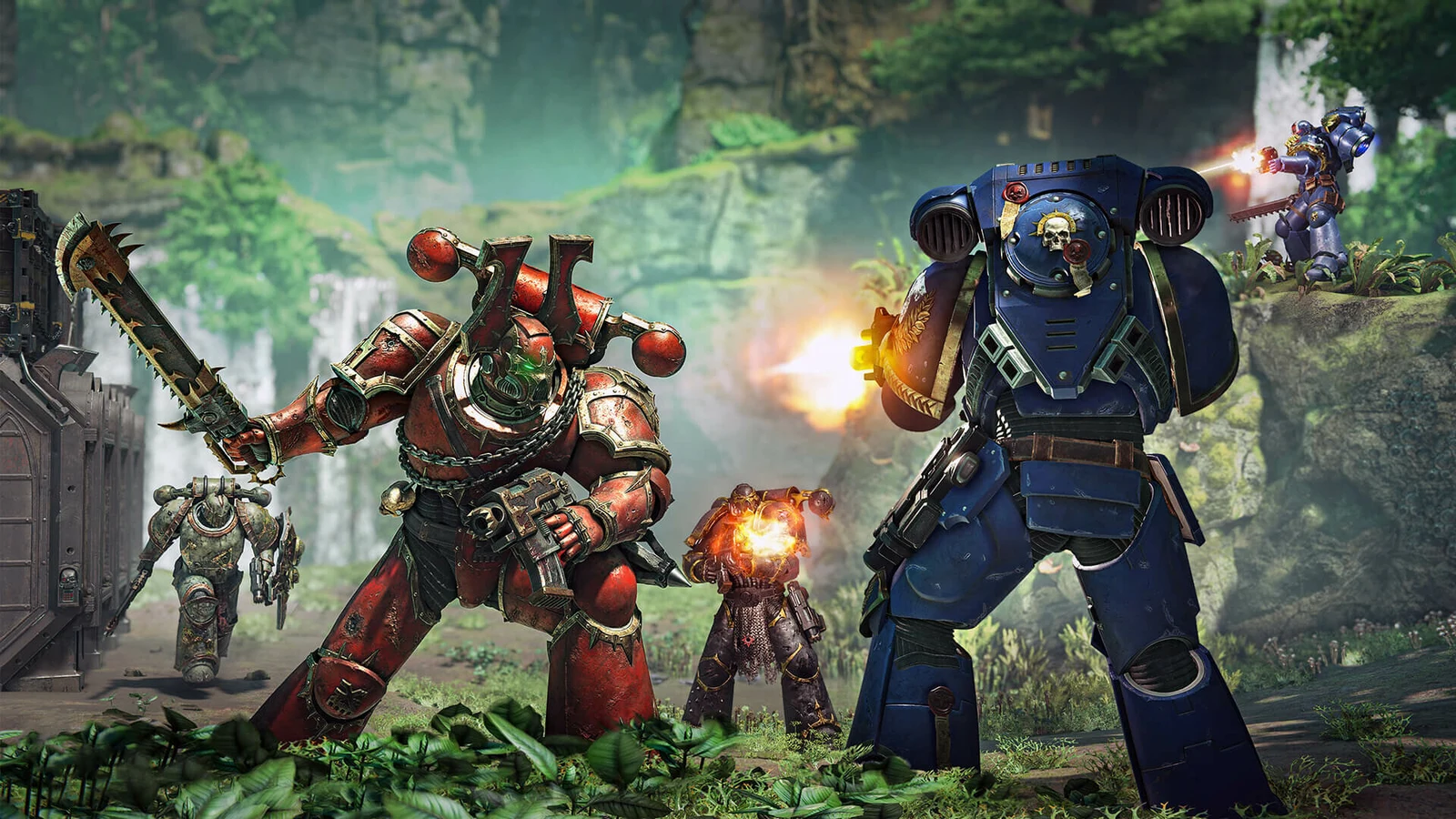
Space Marine 2’s Patch 16.0 targets loading times and memory use and lists minor performance improvements. It gives no combat frame-time results. If the wait to deploy feels shorter but a swarm still makes the game hitch, both observations can be accurate.
Time the same mission from loading screen to first input
The 16.0 notes list improvements to loading and memory use without quantifying either change. Pick a mission you regularly play and record the build, install drive, graphics preset and party setup. Start the timer when the mission loading screen appears. Stop when your Marine responds to a movement input. If the wait you care about starts in matchmaking, time that interval separately so a quicker lobby does not get counted as faster loading.
Record the first load after launching the game on its own line. Reload the same mission three times and write down all three times in seconds. If you also test another mission, keep a separate set for it. Compare first loads with first loads and repeat loads with repeat loads. If you have timings from an earlier build, check that the start and stop points match. Otherwise, keep today’s figures as a baseline for the next update.
Capture the same swarm early and late in a session
Choose a checkpoint just before a busy fight. Keep difficulty, route, resolution, frame cap and capture length fixed. Start a frame-time recording as you cross the same landmark each time. Mark when the enemy wave reaches you and when you feel a hitch. If one run draws a much smaller wave, repeat it. A frame-time graph can show a single long frame that barely moves the average FPS.
High FPS but Game Still Stutters? How to Fix Frame Time Spikes
Alongside the graph, log system RAM in use and dedicated GPU memory in use throughout the fight. Record the peak of each in GB and the available system RAM before the wave. Use the same counters and sampling interval each time. Label system-wide readings so you can tell them apart from memory used by the game alone.
Repeat the checkpoint after the length of play that usually brings on the stutter. Record the elapsed session time. Then exit the game fully, relaunch and replay the checkpoint with the same warm-up. If only the late run hitches, check whether the spikes recur across another long session. Rising memory use alone can reflect caching. A repeatable late-session hitch gives you a specific event to investigate.
How Garbage Collection and Memory Leaks Can Make Games Stutter
What a 16 GB versus 32 GB comparison can tell you
The recommended PC specification lists 16 GB of system RAM. The patch notes give no breakdown by memory capacity. If you can test both capacities on the same PC, keep memory speed, timings, channel configuration, background apps and the GPU fixed. Repeat the mission load and the fight on each setup. Record any hardware differences you cannot control.
Read the two results separately. A consistently shorter load on the same build with 32 GB concerns that mission and configuration. If both capacities show similar combat spikes at the same landmark, the extra RAM did little for that particular hitch. To measure the patch’s effect on a 16 GB machine, compare the same 16 GB configuration across builds.
FAQ
You can compare against earlier recordings if they used the same mission, settings and timing points. Without those records, measure the current build to establish a baseline. A second run on Patch 16 tells you about repeat loads on that build.
The loading timer ends when you regain control. A hitch during the next wave happens outside that interval. Compare frame-time graphs from the same stretch of combat to see whether that hitch changed.
Memory use can rise as data is cached. Repeat the same checkpoint early, late and after a relaunch, and check whether the rise accompanies a repeatable hitch. That pattern can narrow the investigation, but identifying a leak requires further evidence.