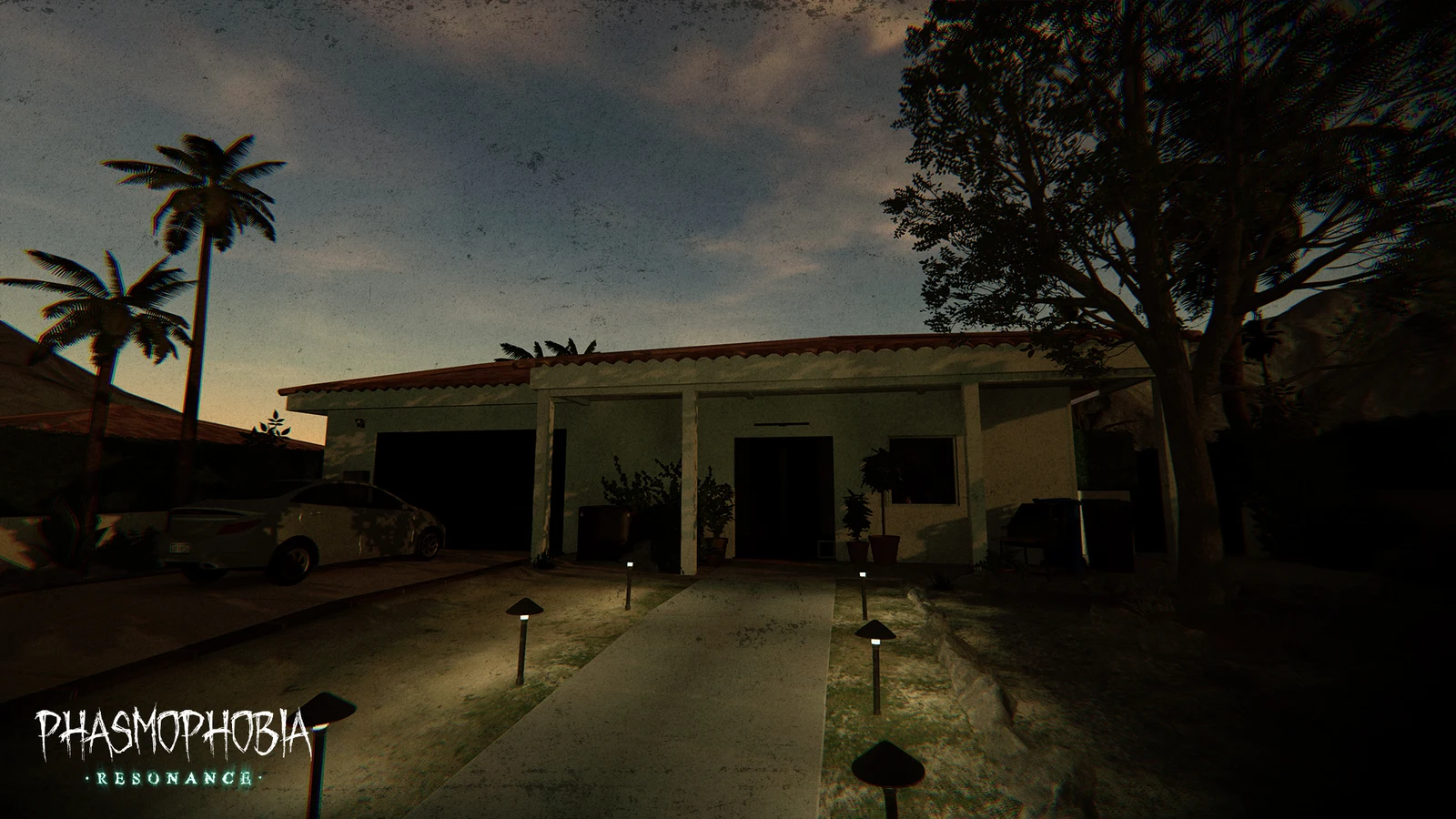
If the view catches as you turn into a dark hallway after the Resonance update, turn back and try it again before touching the graphics menu. Whether the hitch returns at the same doorway tells you which test is worth running next.
Replay the turn that caused the hitch
Resonance (v0.20.0.0) moved Phasmophobia to Unity 6 and reworked lighting, including the light entering rooms through windows and doors. Unity can pause the first time a graphics driver prepares a shader variant for a surface or effect. The engine can reuse that work on a later pass. Other data can warm up too, so a smoother second turn gives you a clue about first use without identifying the cause.
- On your first visit after updating, note the map, resolution, quality preset and frame cap. Pick a short walk from a lit doorway into a darker room. Keep the same torch, lights and camera direction.
- With a frame-time graph visible, walk the route and turn towards the same landmark. Mark where the longest frame occurs. Walk back and repeat twice within the same contract. Discard passes interrupted by a ghost event.
- Keep the first pass separate from the repeats. If the spike disappears and movement feels smooth, keep your settings. If it returns, use the repeated route as the baseline for the comparisons below.
Leave the cache intact. A first visit after an update is only a proxy for a cold run because you may already have cached some of the scene. Changing a setting between the first and second visits would give you two possible explanations for any improvement.
Did Your Shader Stutter Fix Work? How to Test Without Cache Bias
Which Resonance graphics setting should you change first?
Match the setting to the moment that keeps giving you trouble. Change one option, walk through once to warm the scene, then record the repeats. Restore the original option and check whether the difference returns. Compare both the height of individual spikes and how long frames take during the rest of the walk.
A hitch crossing from light to dark
Test Eye Adaptation at the same doorway. Compare Off, Performance and Quality wherever the menu offers them. The former On setting is now called Quality. VR and lower-end hardware support Performance as the enabled mode. For each pass, check how easily you can pick out an object just inside the room as well as what happens to frame times. If two options run equally well, choose the one that makes the transition easier to see.
Slow turns in a room with strong shadows
Face a doorway where objects cast visible shadows and pan across it at the same speed. Drop shadow quality by one level and repeat. If you use the new Extreme setting on compatible hardware, include a pass at the level immediately below it. Keep the lower level if the same turn consistently runs smoother and the shadow detail you use to read the room remains clear.
Hitches while holding a camera
Point a Photo or Video Camera at the same part of the room and compare Live Camera Feed On and Off. Keep the camera raised for both captures. The Media highlight still appears with the feed disabled. If frame times barely change, you can keep the live view for framing shots.
Check a small map and a large map separately
Repeat the doorway test on one map of each size with the same player count, gear, preset and cap. Compare settings within each map before comparing the two maps. A large map that runs slowly could differ in lighting or scene detail as well as size.
Where FPS stays below your cap, try a lower resolution on that same warmed route and watch GPU utilisation. Shorter frame times alongside previously high GPU use point towards a rendering limit. If the spikes persist with spare GPU capacity, record per-core CPU activity around the turn. A map-size difference alone cannot identify a CPU bottleneck. For a hitch you can reproduce, save the frame-time trace with your build, driver version, graphics settings and the exact turn.
FAQ
Keep it intact for the comparison. Revisit the same view twice before changing anything. Clearing cached work changes the starting conditions and can bring first-use stalls back into the test.
Resonance supports Performance as the enabled Eye Adaptation mode in VR. Lower-end PCs can also be limited to Performance. Use the modes your menu offers for the doorway test.
The highlight still appears on the camera. Test the toggle with the same camera aimed at the same scene so you can decide whether giving up the live view helps frame delivery on your PC.