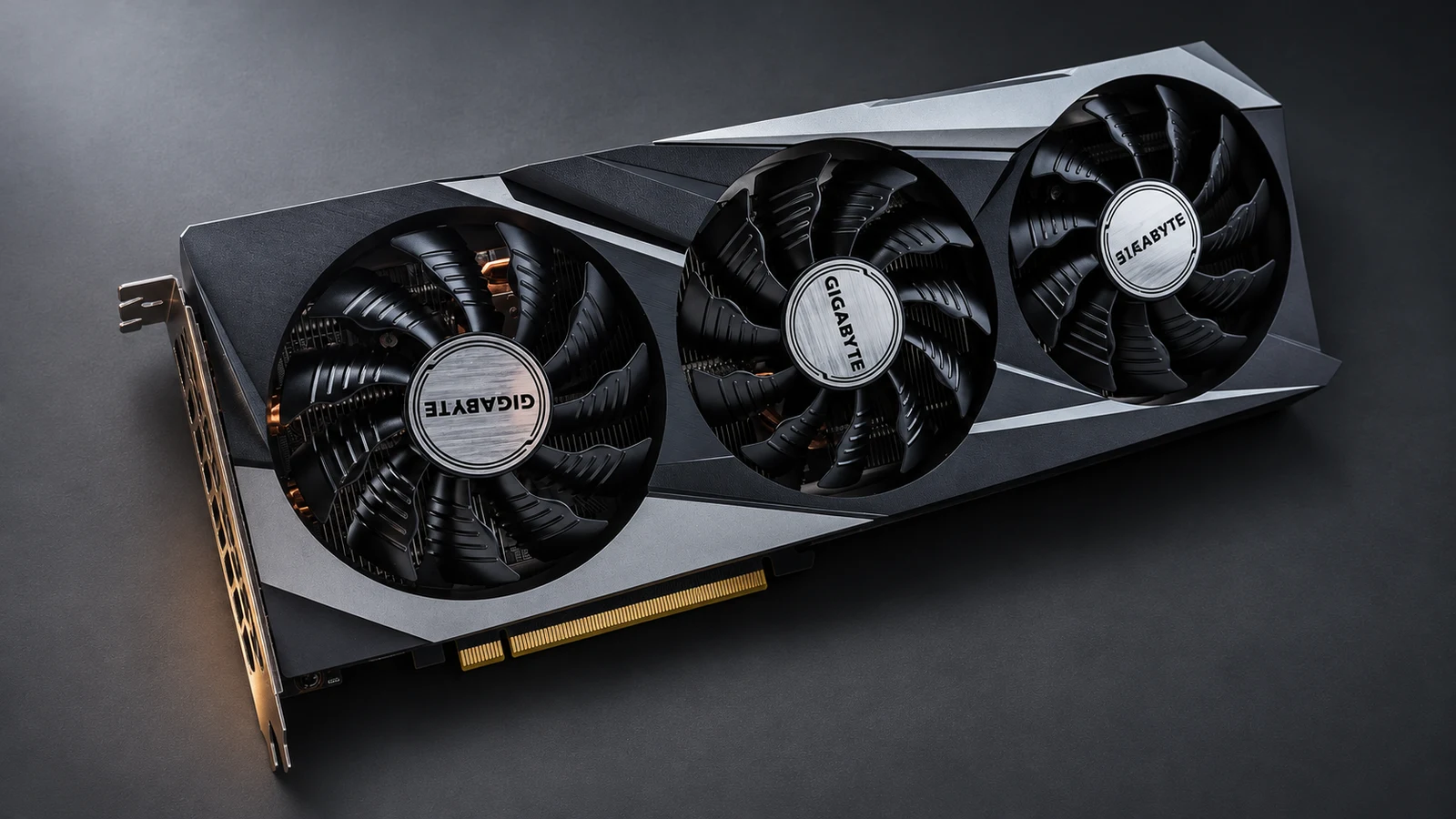
A GPU upgrade can raise your average FPS and still leave the hitch you feel when turning a corner or entering a fight. If you’re weighing an RX 6800 against a 16 GB RX 9060 XT or RTX 5060 Ti, compare how consistently each card delivers frames in the same scene. This guide shows how to run that comparison and check whether a driver change affects the result.
What 1% lows tell you about smoothness
Average FPS describes throughput over the capture. A 1% low summarises the slow end of frame delivery, and the frame-time graph shows when those delays happened. At a hypothetical steady 120 FPS, a new frame arrives about every 8.3 ms. A 33 ms spike is about four times that interval, and a few such spikes can be hard to spot in an average. Check whether spikes are isolated or recur when you repeat the same action.
Check how the capture tool defines 1% low. Some calculations average the slowest frames, while others weight by time spent at low frame rates. Keep the tool version and calculation fixed across runs. Presentation intervals measure when the game submits frames. Display-change intervals measure how long a frame stayed on screen. Label which one you use. Input latency needs its own measurement.
Run the same GPU test in Fortnite and Marvel Rivals
- Start with the same CPU, memory, Windows build, monitor and game version. Record the exact card and driver package. Use the 16 GB variants of the RX 9060 XT and RTX 5060 Ti for this comparison, alongside the 16 GB RX 6800.
- Use native resolution at 1080p, then repeat at 1440p if you play there. Keep the rendering API, graphics settings and display mode identical. Disable dynamic resolution, upscaling, and in-game or driver-level frame generation. For the initial throughput runs, remove FPS caps, turn off V-Sync and keep VRR off for all cards. Recheck the cards separately with your normal display settings.
- Choose one route per game. Start logging after loading and stop before returning to the menu. Save the first pass separately, then capture three warmed passes of the same length. Use 60 seconds as a starting point if the route fits.
- Use a capture tool such as CapFrameX. Select the game process, start capture at your first landmark, and open the frame-time graph after each pass. Log average FPS and the same 1% low metric. Save each capture, report the median and range across the warmed passes, and check whether the biggest spikes occur at the same points. If the gap is as small as the spread between runs, collect more passes before deciding.
Fortnite
Use the same Creative island in a private session and follow a route with fixed landmarks and camera turns. To check DX12 pacing, leave DX12 selected across the GPU and driver runs. If you want to test another rendering mode, keep the GPU and driver fixed and run that as a separate comparison. Validate persistent hitches in a live match separately, where encounters and locations vary.
Fortnite Chapter 7 Season 3 Optimization Guide: Boost FPS and Lower Input Delay
Marvel Rivals
Use the Practice Range with the same hero, targets, movement and ability sequence. Mark when you first use each ability, then repeat the sequence after warm-up. If the issue only shows up in team fights, capture those separately. A quiet Practice Range pass gives you repeatable conditions but may miss the workload that causes the hitch.
Marvel Rivals FPS Boost Guide: Fix Stutters and Input Lag on PC
Isolate the driver on one card
If stutter started after a driver update, compare the installed version with the previous supported version that ran well on the same card. Check the release notes for the game and rendering API. AMD’s historical Adrenalin 24.7.1 notes, for example, record an improvement to Fortnite DX12 stutter. A comparison between cards from different vendors measures each card with its driver. A comparison between two driver versions on one card helps isolate driver behaviour.
Reboot after each change, confirm the installed version and check that the game and driver profiles still match. Wait for any shader preparation to finish, then keep the first gameplay pass and run the same warm-up before logging three more passes. First-pass spikes can be consistent with shader compilation, but the trace alone cannot identify the cause. If a difference persists across warmed runs, retest the original driver with the same game build and settings to see whether the pattern follows the driver.
Use the trace to decide what to test next
| Pattern in repeat runs | Next check |
|---|---|
| Higher average FPS with worse 1% lows | Compare spike timing across runs. An upgrade that raises throughput still needs to improve the hitches you care about. |
| Spikes mostly disappear after one pass | Repeat the same warm-up for every setup and report the first pass separately. In Fortnite DX12, investigate repeated shader recompilation if the stutter persists. |
| Lower render resolution lifts the average and improves the lows | The scene responds to reduced rendering load. Try one graphics change at a time and check image quality as well as pacing. |
| Lower render resolution lifts the average but leaves the same spikes | Note where the spikes occur. Compare the same route on the same GPU with another supported driver before expecting a GPU swap to solve them. |
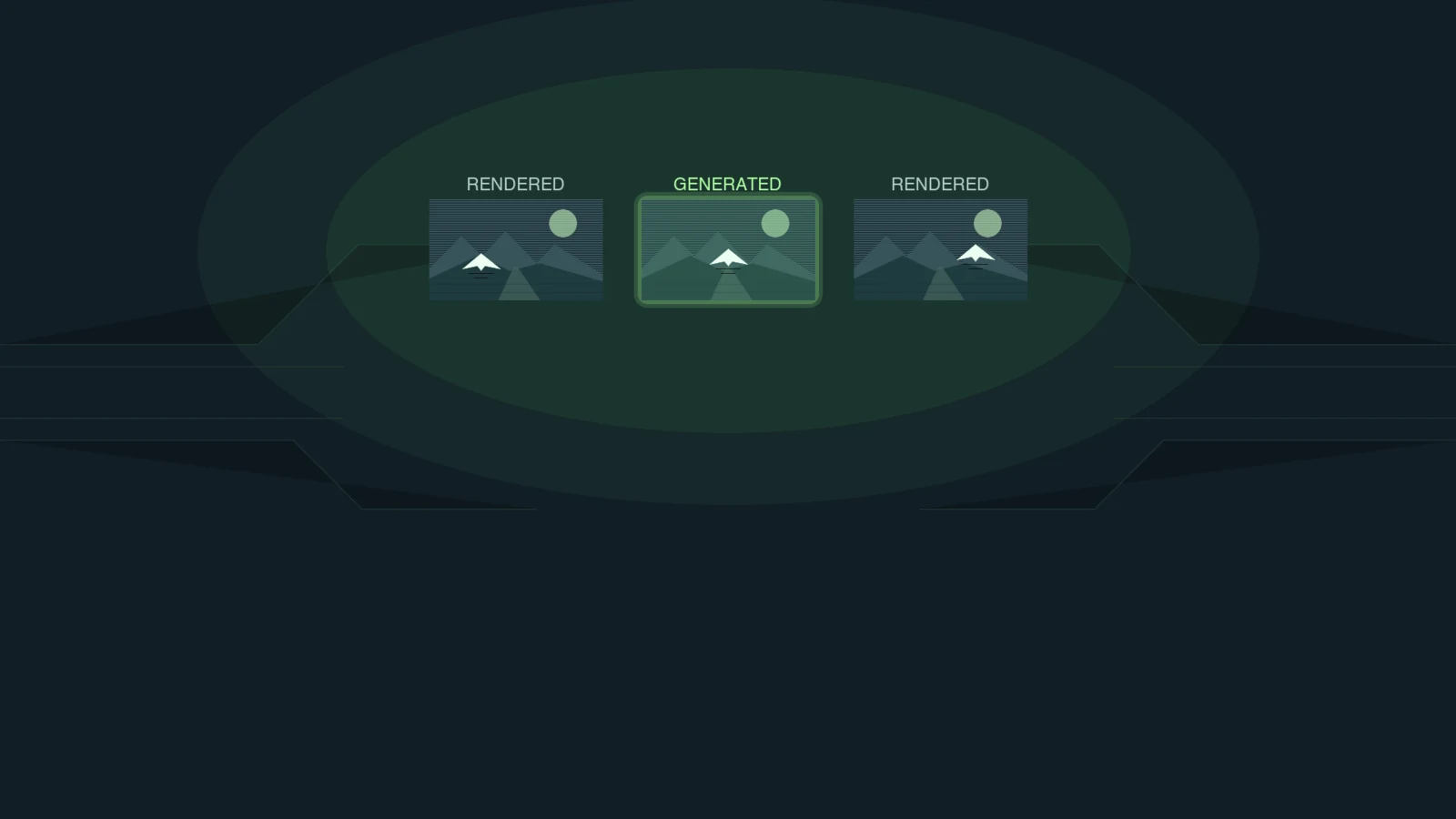
Judge an upgrade at the resolution and settings you actually play. Look for a repeatable reduction in long frame times during the moments that bother you. If you use upscaling or frame generation, test those afterwards. Record the upscaler and mode, then distinguish the game’s base frame rate from the rate that includes interpolated frames.
FAQ
Yes. A lower-throughput run can deliver frames more evenly. Check whether the RX 6800 has higher matched 1% lows and fewer or shorter spikes in repeated captures of the same scene before drawing that conclusion.
Save it as a first-pass result and keep it separate from warmed runs. Fortnite can compile new shaders during the first match after a cache clear. Repeating the same scene helps distinguish an initial hitch from one you still get in regular play.
Check that the captures use the same kind of frame interval and the same low calculation. If you cannot confirm both, use one tool and version for a fresh comparison. A time-weighted low and an average of the slowest frames can produce different figures from the same run.
Turn it off for the native baseline. If you play with it enabled, run a separate comparison with your usual settings and record both base and displayed FPS where your tool can distinguish them. That shows how the feature changes frame delivery without folding generated frames into the native result.