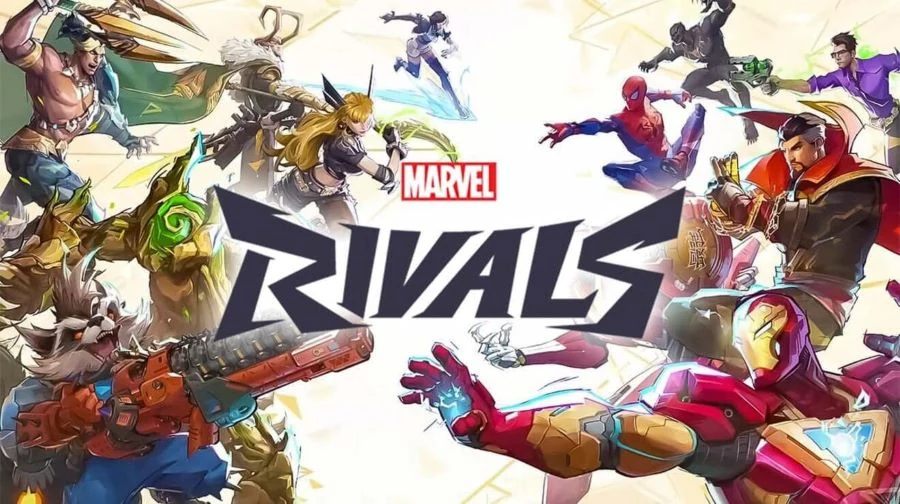
Marvel Rivals is fast, chaotic, and heavily dependent on stable frame pacing. If your FPS drops during fights, your mouse feels delayed, or the game stutters after updates, the fix is usually not one setting. The best results come from cleaning up Windows, reducing background load, maintaining the launcher, and tuning input settings for low latency.
Why Marvel Rivals Performance Needs More Than One Setting
Marvel Rivals can feel inconsistent when Windows, the launcher, background services, or mouse processing interfere with the game. Low FPS is only one part of the problem. Competitive players also need stable frame times, clean input, and fewer background tasks stealing CPU, RAM, disk, or GPU resources.
This guide focuses on a layered optimization approach. Start with Windows cleanup, move into software and launcher maintenance, then finish with in-game input settings. The goal is not just a higher FPS number. The goal is smoother gameplay, fewer micro-stutters, and lower input delay.
Prepare Windows for Better Marvel Rivals Performance
Before changing game settings, clean up the Windows environment. Small visual features, background notifications, capture tools, account sync tasks, and privacy services can all add background noise. Removing that noise helps Marvel Rivals get more consistent access to your hardware.
Use a Local Windows Account Where Possible
A local Windows account can reduce account syncing behavior and background Microsoft services compared with a Microsoft account. For a dedicated gaming PC, this can help keep the system cleaner and more predictable during matches.
The source recommendation is to use a local account without a password or PIN to streamline access and avoid extra account-related interruptions. Only do this on a private gaming PC where physical access is controlled. Do not remove security protections on shared, work, school, or travel devices.
Disable Notifications and Background Interruptions
Notifications can create unnecessary overlays, sound triggers, and background activity. In a competitive hero shooter, even a small interruption can cause a stutter or pull focus during a fight.
- Open Windows Settings
- Go to System
- Open Notifications
- Disable unnecessary notifications
- Turn on Do Not Disturb mode
- Review app notification permissions and disable anything you do not need while gaming
Simplify Personalization Settings
Windows visual effects can use small amounts of GPU and CPU time. The impact may be minor on high-end systems, but reducing unnecessary effects helps create a cleaner baseline and can improve consistency on lower-end PCs.
- Open Windows Settings
- Go to Personalization
- Set Background to a solid color or static picture
- Disable slideshows and spotlight backgrounds
- Go to Colors
- Turn off transparency effects
- Enable dark mode if you prefer lower eye strain during long sessions
Dark mode will not magically boost FPS, but it can reduce eye fatigue during long play sessions. The bigger performance win comes from removing dynamic backgrounds and transparency effects that add extra visual processing.
Sync Windows Time
Incorrect system time can cause online service problems, update issues, authentication errors, and random connection failures. If Marvel Rivals fails to authenticate, update, or connect properly, Windows Date & Time should be one of the first settings you check.
- Open Windows Settings
- Go to Time & Language
- Open Date & Time
- Enable automatic time settings if available
- Click Sync now
- Restart the launcher before opening Marvel Rivals again
Tune Windows Gaming and Graphics Settings
Windows gaming features can help or hurt depending on your hardware. The safest approach is to disable unnecessary capture features, enable graphics features required by modern rendering options, and manually assign Marvel Rivals to the high-performance GPU.
Disable Game Bar and Background Capture
Background recording can silently use CPU, GPU, RAM, and disk bandwidth. If you are chasing stable FPS and fewer stutters, disable capture features unless you actively use them.
- Open Windows Settings
- Go to Gaming
- Open Game Bar
- Disable Game Bar if you do not use it
- Open Captures
- Turn off background recording
- Disable automatic capture options you do not need
Game Mode is more hardware-dependent. Some systems benefit from it, while others feel smoother with it disabled. Test it both ways in the same training range or match scenario and keep the option that gives you more stable frame times.
Disable HDR if It Causes Issues
HDR can add display complexity and sometimes creates inconsistent brightness, latency, or capture issues. If Marvel Rivals feels unstable, washed out, or delayed, disable HDR while testing performance.
- Open Windows Settings
- Go to System
- Open Display
- Open HDR settings
- Disable HDR while testing Marvel Rivals performance
- Re-enable it only if the game remains smooth and latency feels normal
Enable Optimizations for Windowed Games and HAGS
Hardware-accelerated GPU scheduling, also called HAGS, allows the GPU to manage scheduling work more directly. It is also commonly required for modern frame generation and upscaling-related features such as DLSS workflows on supported NVIDIA systems.
- Open Windows Settings
- Go to System
- Open Display
- Open Graphics
- Enable Optimizations for windowed games
- Enable Hardware-accelerated GPU scheduling
- Restart the PC after changing these graphics settings
If you use DLSS-related features or modern NVIDIA graphics options, HAGS should be enabled. If you experience instability after enabling it, test again after a clean driver install before deciding whether to keep it on or off.
Set Marvel Rivals to High Performance
Windows can sometimes choose the wrong GPU or power profile, especially on laptops or systems with integrated graphics. Manually assigning Marvel Rivals to High Performance helps ensure the game uses the correct GPU.
- Open Windows Settings
- Go to System
- Open Display
- Open Graphics
- Click Browse
- Add the Marvel Rivals executable file
- Select the game in the graphics list
- Open Options
- Choose High Performance
- Save the setting
Reduce Windows Background Noise
Privacy services, diagnostics, startup apps, scheduled tasks, and unused applications can all add background load. Reducing this clutter helps keep Marvel Rivals more stable, especially during long sessions or after major Windows updates.
Disable Unnecessary Privacy and Diagnostic Features
Windows collects diagnostic data and allows apps to access many background permissions. For a gaming-focused setup, disable anything that is not required.
- Open Windows Settings
- Go to Privacy & Security
- Review General settings and disable unnecessary tracking options
- Open Speech and disable online speech recognition if you do not use it
- Open Inking & Typing Personalization and disable unnecessary personalization
- Open Diagnostics & Feedback
- Disable optional diagnostic data where possible
- Delete previously collected diagnostic data
- Review app permissions such as Location and App Diagnostics
- Disable permissions that are not needed for gaming
Remove Unused Apps and Store Bloat
Unused applications can add services, update tasks, scheduled processes, and background launchers. Removing them reduces clutter and makes troubleshooting easier when Marvel Rivals starts stuttering.
- Uninstall unused Microsoft Store apps
- Remove old launchers you no longer use
- Remove trial software and vendor utilities you do not need
- Keep essential GPU, audio, chipset, and peripheral software only if you actually use it
- Restart the PC after major cleanup
Manage Startup Items and Scheduled Tasks Carefully
Startup apps can run overlays, update checkers, sync tools, and peripheral services before you even launch the game. Use Windows Startup Apps or a trusted autoruns utility to review what starts with the PC.
- Disable unnecessary browser update helpers
- Disable unused cloud sync tools while gaming
- Disable secondary peripheral services you do not need
- Disable old launcher startup entries
- Avoid disabling security, GPU driver, audio driver, chipset, or networking components unless you know exactly what they do
Create a System Restore Point before deep cleanup. Startup and service changes can cause unexpected behavior if you disable the wrong item, so make changes in small batches and test after each round.
Run Basic System Maintenance
If Marvel Rivals suddenly feels worse after updates, the issue may be corrupted system files, broken runtimes, stale shader data, or cluttered local configuration files. Maintenance should be part of your seasonal optimization routine.
Create a Restore Point First
Before using cleanup tools, autoruns utilities, or deeper system tweaks, create a Windows System Restore Point. This gives you a safer rollback option if a change causes driver, launcher, or system problems.
- Open the Start menu
- Search for Create a restore point
- Open System Properties
- Select your system drive
- Click Create
- Name the restore point before optimization
- Save it before making deeper changes
Check System Integrity and Runtime Files
Corrupted Windows files or missing runtimes can cause crashes, stutters, failed launches, and inconsistent performance. Run basic system checks and keep common gaming runtimes updated.
- Run a Windows system file corruption check
- Update Microsoft Visual C++ runtimes
- Update DirectX runtime components where needed
- Install pending Windows updates carefully
- Restart before testing Marvel Rivals again
Clean Up Network Settings Only With Care
Some network optimization tools can adjust packet handling, adapter behavior, or latency-related settings. These may help with ping stability on some PCs, but aggressive changes can also create new problems.
Use a trusted network tool only if you understand what it changes or can restore defaults. For most players, stable Ethernet, updated network drivers, and fewer background downloads matter more than extreme registry tweaks.
Clean the Marvel Rivals Launcher
Launcher maintenance is one of the most important fixes for Marvel Rivals stuttering after patches or seasonal updates. Cached data, redundant files, and old shader data can cause weird performance issues even when your hardware is strong.
Clear Local Configuration, Redundant Files, and Shader Cache
The shader cache stores precompiled shader data. Clearing it forces the game to rebuild shaders, which can fix graphical stutters after updates. The first launch or first few matches after clearing cache may stutter slightly while shaders rebuild, but performance should stabilize afterward.
- Open the Marvel Rivals launcher
- Go to launcher settings
- Find cleanup or repair options
- Clear local configuration files
- Clear redundant files
- Clear the shader cache
- Restart the launcher
- Launch the game and allow shaders to rebuild
Do this at least once per season or whenever performance feels weird after an update. Seasonal maintenance helps prevent months of old cache and configuration data from dragging down stability.
Set the Launcher to Exit When the Game Starts
Background launchers can use CPU, RAM, disk, network, overlays, and hardware acceleration. Closing the launcher completely when Marvel Rivals starts is a simple way to reduce micro-stutters during matches.
- Open the launcher settings
- Find the behavior option for what happens when the game launches
- Set the launcher to exit completely when Marvel Rivals starts
- Avoid leaving the launcher minimized in the background
- Relaunch the launcher only when you need updates or settings
Disable Launcher Hardware Acceleration on Modern PCs
Launcher hardware acceleration can help older systems display launcher UI smoothly, but it can also keep GPU resources active in the background. On most modern gaming PCs, disable hardware acceleration inside the launcher unless the launcher becomes laggy or unstable without it.
- Disable launcher hardware acceleration on modern gaming PCs
- Enable it only if the launcher performs poorly without it
- Restart the launcher after changing this setting
- Test Marvel Rivals with the launcher fully closed during gameplay
Optimize Mouse Input for Lower Delay
FPS matters, but mouse feel matters just as much. Marvel Rivals can feel floaty if Windows or the game applies smoothing, acceleration, or indirect input processing. Competitive players should prioritize direct, predictable mouse input.
Disable Mouse Smoothing and Mouse Acceleration
Mouse smoothing and acceleration can make aim feel inconsistent because cursor movement no longer maps cleanly to physical mouse movement. For competitive play, turn both off wherever available.
- Open Marvel Rivals settings
- Go to mouse or input settings
- Turn off mouse smoothing
- Turn off mouse acceleration
- Apply the settings
- Test aim in the practice range
Enable Raw Input
Raw Input allows the game to read mouse data more directly from the hardware instead of relying heavily on Windows pointer processing. This can improve consistency and reduce the feeling of delayed or filtered aim.
- Open Marvel Rivals settings
- Go to input or mouse settings
- Enable Raw Input
- Save changes
- Restart the game if the setting does not apply immediately
Use High Polling Rate Support if Stable
Polling rate is how often your mouse reports its position to the PC. Higher polling rates can improve responsiveness, but they can also cause issues on some hardware, USB controllers, or game engines.
- Enable high polling rate support if your mouse supports it
- Test 1000 Hz first for stability
- Try higher polling rates only if your system handles them cleanly
- Disable high polling rate support if you notice tracking bugs, hitching, or inconsistent aim
- Use a stable setting over the highest possible number
Best Maintenance Routine for Each Marvel Rivals Season
Marvel Rivals updates can change assets, shaders, configuration files, and launcher data. A quick seasonal maintenance routine can prevent stutters before they become frustrating.
- Update GPU drivers when a stable driver is available
- Restart the PC after major driver or Windows updates
- Sync Windows time
- Clear launcher local configuration files
- Clear redundant launcher files
- Clear shader cache
- Confirm the launcher exits when the game starts
- Check that Raw Input is still enabled
- Test performance in the practice range before ranked matches
Stability matters more than chasing one peak FPS number. A stable 160 FPS can feel better than a fluctuating 220 FPS if the higher number comes with frame pacing spikes, background interruptions, or inconsistent input.
Quick Fix Checklist for Marvel Rivals FPS and Stuttering
If you want the fastest practical fixes first, start with the settings most likely to reduce background load and stutter sources.
- Disable Windows notifications and enable Do Not Disturb
- Disable Game Bar captures and background recording
- Set Marvel Rivals to High Performance in Windows Graphics settings
- Enable Hardware-accelerated GPU scheduling if you use supported modern GPU features
- Clear the launcher shader cache and redundant files
- Set the launcher to exit completely when the game starts
- Disable launcher hardware acceleration on modern PCs
- Turn off mouse smoothing and acceleration
- Enable Raw Input
- Test high polling rate support and disable it if tracking feels wrong
Common Mistakes That Keep Marvel Rivals Feeling Laggy
Many players only lower in-game graphics settings and ignore the rest of the system. That can help average FPS, but it may not fix stutters, frame pacing spikes, or input delay.
- Leaving background recording enabled
- Keeping multiple launchers open during matches
- Ignoring old shader cache after seasonal updates
- Using mouse acceleration without realizing it
- Running too many startup utilities
- Forgetting to assign the game to the high-performance GPU
- Using high polling rates that the system cannot handle cleanly
- Skipping Windows time sync when online services fail
Final Recommended Setup
For the cleanest Marvel Rivals experience, use a simple Windows setup, reduce background effects, disable unnecessary capture and notification features, maintain launcher cache every season, and use direct mouse input. These changes are not about making Windows look fancy. They are about giving Marvel Rivals the most stable path to your CPU, GPU, memory, network, and mouse.
The best optimization is the one that improves consistency. Test changes in small groups, keep what improves frame pacing and input feel, and undo anything that makes the game unstable.
FAQ
Start by disabling Windows notifications, Game Bar captures, background recording, transparency effects, and dynamic wallpapers. Then enable Hardware-accelerated GPU scheduling, set Marvel Rivals to High Performance in Windows Graphics settings, clear launcher cache files, and make sure the launcher exits completely when the game starts.
Open the Marvel Rivals launcher settings and use the cleanup options for local configuration files, redundant files, and shader cache. Restart the launcher afterward and allow the game to rebuild shaders. The first launch after clearing cache may stutter briefly while shaders rebuild.
Yes, clearing the shader cache is a normal troubleshooting step. It does not delete your account or core game progress. It forces the game to rebuild shader data, which can fix stutters after updates or seasonal patches.
Test Game Mode on your own hardware. Some PCs feel smoother with it enabled, while others are more consistent with it disabled. Keep the option that gives you better frame pacing and fewer stutters in repeatable testing.
Raw Input can improve mouse consistency by letting the game read mouse data more directly from the hardware. For competitive play, enable Raw Input and disable mouse smoothing and mouse acceleration.
A launcher running in the background can use CPU, RAM, disk, network, overlays, or hardware acceleration. Closing it completely when the game starts reduces background load and can help prevent micro-stutters.
- Witcher 3 Remastered8 min read
The Witcher 3 Remastered Best PC Settings: FPS Boost & Optimization Guide
- CONTROL Resonant7 min read
CONTROL Resonant Intel Arc Performance: Driver 32.0.101.9033 Benchmark & Best Settings
- Control Resonant8 min read
Control Resonant FPS Boost: Best Settings, DLSS 4.5 & 4K Benchmarks