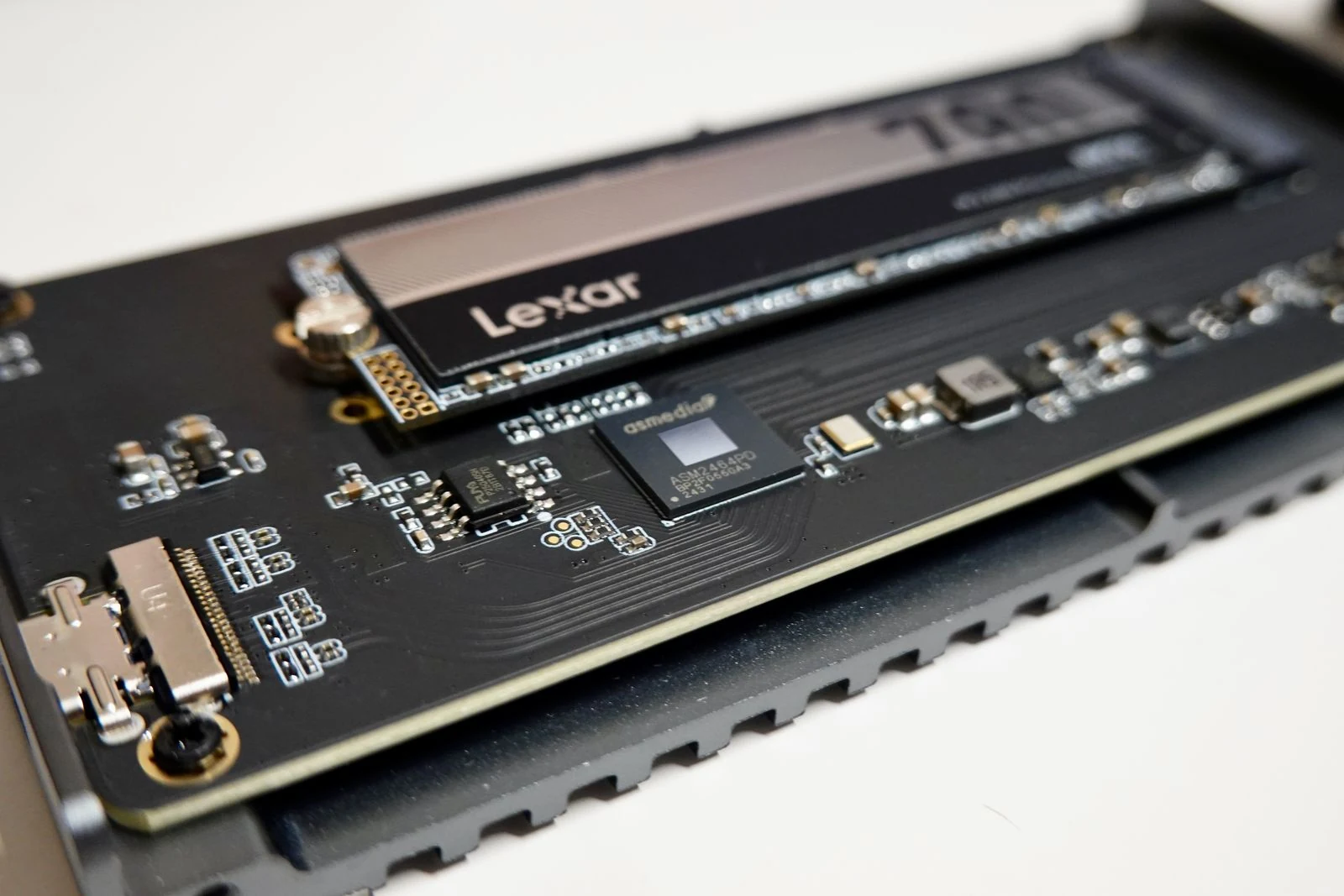
M.2 drives all look similar, but that does not mean they work the same way. This guide breaks down the difference between M.2 SATA SSDs and M.2 NVMe SSDs, explains why slot support matters, and helps you buy the right drive without wasting money.
NVMe vs SSD Is the Wrong Comparison
A lot of buyers search for "NVMe vs SSD," but that comparison is technically wrong. NVMe drives are SSDs. The real comparison is between an M.2 SATA SSD and an M.2 NVMe SSD. M.2 describes the physical form factor, while SATA and NVMe describe how the drive communicates with the system.
That distinction matters because two drives can look almost identical, fit the same general slot family, and still deliver very different performance or fail to work entirely if the slot does not support the right protocol.
M.2 Is the Shape, Not the Speed
M.2 is a card and socket standard. It tells you the drive is a slim stick-shaped module, but it does not tell you whether the drive uses SATA or PCIe/NVMe. That is why buying based on appearance alone is a common mistake.
You can think of M.2 as the physical connector family, while SATA and NVMe are the language the drive uses. The form factor does not guarantee performance. A slow M.2 SATA SSD and a much faster M.2 NVMe SSD can both be labeled M.2.
What 2280 Means
The number 2280 refers to the drive’s dimensions. It means the SSD is 22mm wide and 80mm long. This is the most common M.2 size in desktops and many laptops, but it is not the only one. Some systems require shorter drives like 2242, so size should always be verified before buying.
M.2 SATA SSD Explained
An M.2 SATA SSD uses the SATA interface through the M.2 connector. It is still solid-state storage, so it is much faster than a mechanical hard drive, but SATA III is a 6Gb/s interface with a practical ceiling around the mid-500MB/s range after overhead.
A typical example is the WD Blue SA510, which delivers up to around 560MB/s read and 520MB/s write. That is perfectly fine for everyday responsiveness, boot times, general gaming, and older systems where NVMe is not supported or where the price difference matters.
When M.2 SATA Still Makes Sense
- You have an older motherboard or laptop with an M.2 SATA-only slot
- You are replacing a failing SATA-based M.2 drive and need direct compatibility
- You are upgrading from a hard drive and want a major responsiveness boost without overspending
- Your workload does not benefit much from multi-gigabyte file transfers or high-end PCIe storage
M.2 NVMe SSD Explained
An M.2 NVMe SSD uses the NVMe protocol over PCIe lanes instead of using the SATA/AHCI storage path. NVMe was built specifically for flash storage and modern multi-core systems, which is why it supports much deeper and more parallel command queues than SATA.
This is why NVMe speed is not a single flat number. Performance depends on the PCIe generation, the number of lanes available, the controller, the drive capacity, and the platform itself. Telling buyers that "NVMe speed" is one standard figure is bad advice.
NVMe Speed Tiers
NVMe drives scale dramatically across PCIe generations. A Samsung 970 EVO Plus Gen3 NVMe drive reaches up to around 3500MB/s read and 3300MB/s write. A Samsung 990 PRO Gen4 drive reaches up to 7450MB/s read and 6900MB/s write. A Samsung 9100 PRO Gen5 drive reaches up to 14800MB/s read and 13400MB/s write, depending on capacity.
Those numbers show why NVMe is the better long-term choice for newer platforms, but they also highlight an important reality: your motherboard or laptop sets the ceiling. If your system only supports Gen3, a Gen5 NVMe drive will usually fall back to Gen3 speeds, assuming the slot, firmware, and drive are otherwise compatible.
Why NVMe Is Faster Than SATA
SATA was designed for an older era of storage. NVMe was designed for non-volatile memory using PCIe lanes, which gives it more bandwidth and a queue structure that better matches how flash storage and modern CPUs actually behave. In simple terms, SATA is a narrower road with shallower traffic management, while NVMe is built for much heavier parallel traffic.
That does not mean everyone needs the fastest Gen4 or Gen5 drive. It means NVMe has much more headroom, better scaling, and stronger long-term value when the system supports it.
The Compatibility Trap Most Buyers Miss
Not every M.2 slot supports both SATA and NVMe. Some M.2 slots are SATA-only. Some are PCIe/NVMe-only. Some support both. If you install the wrong type, the drive may not be detected at all even if it physically fits.
This is why the motherboard or laptop manual matters more than storefront labels or guesswork. The exact storage language in the documentation is the final authority. Look for terms like SATA, PCIe, NVMe, x2, x4, and storage sharing notes tied to specific M.2 sockets.
Some systems also disable certain SATA ports when a specific M.2 slot is populated. On other boards, lane allocation changes depending on which slot you use. That can affect additional drives, expansion cards, or overall slot behavior.
How to Access BIOS or UEFI on Any PC
Use Keying as a Clue, Not Proof
M.2 keying can help you narrow things down, but it is not a final compatibility check. You may see B-Key, M-Key, or B+M keyed drives. These notch patterns give clues about the interface, but they do not override motherboard support. A drive can physically fit and still not work if the slot does not support its protocol.
SATA vs NVMe for Gaming
For gaming, NVMe is the better long-term choice, but buyers should keep realistic expectations. An NVMe SSD does not act like a GPU upgrade. It will not suddenly transform average FPS in the way a faster graphics card would.
Where NVMe helps is load times, game installs, patching, asset streaming, and moving large files. If you are already on any SSD, the jump to a faster NVMe drive usually feels more noticeable during storage-heavy tasks than during raw in-game frame rate testing.
If you are still gaming from a hard drive, either SSD type will feel like a huge upgrade. If you are choosing between M.2 SATA and NVMe for a new build or modern gaming machine, NVMe is usually the smarter pick because it offers better speed scaling and stronger support for current features.
NVMe storage is also the foundation for Windows 11 DirectStorage in supported games, alongside the required DirectX 12 GPU support and driver stack.
How to Install an M.2 or NVME Drive in Your PS5
The 6-Step M.2 SSD Buying Checklist
- Read your motherboard or laptop manual and find the exact storage support for the slot.
- Confirm the required physical size, such as 2280 or 2242.
- Check whether the slot is SATA-only, PCIe/NVMe-only, or supports both.
- Verify whether using that M.2 slot disables SATA ports or changes lane behavior.
- Match the drive tier to your platform instead of overbuying a faster generation your system cannot use fully.
- Use the notch pattern as an early filter, then confirm final compatibility with documentation.
Check Your System Before Replacing a Drive
Before blaming the SSD, it is worth checking whether the problem is actually drive health, slot configuration, or a cluttered Windows install. A weak configuration, bad background load, or poor system housekeeping can make a fast drive feel slower than expected.
Start by checking the current drive’s health in Windows or with a trusted monitoring tool. Then benchmark the drive to see whether the real bottleneck is the storage device itself or the slot it is connected to. This helps avoid replacing a good SSD because of a setup issue.
It is also smart to clean up the operating system before spending money. A messy Windows install, too many background processes, and general system bloat can hurt responsiveness enough to confuse the diagnosis.
Common FPS Fixes for PC Games - OCCT, DDU, shadercache
Common Buying Mistakes to Avoid
- Assuming every M.2 drive is NVMe
- Buying by shape alone without checking protocol support
- Ignoring 2280 or other size requirements
- Believing physical fit guarantees compatibility
- Spending Gen5 money on a Gen3-only platform
- Expecting NVMe to deliver a miracle FPS increase
- Forgetting that some M.2 slots disable SATA ports or share bandwidth
Which One Should You Buy?
Buy an M.2 SATA SSD when your system specifically requires it or when you are targeting a lower-cost upgrade on compatible older hardware. Buy an M.2 NVMe SSD when your system supports PCIe storage and you want the better long-term option for gaming, faster file work, and stronger overall platform relevance.
The main lesson is simple: M.2 is not a speed class. It is a shape. SATA and NVMe are what determine compatibility and performance. Once you separate those ideas, choosing the right drive becomes much easier.
FAQ
No. M.2 is only the form factor. An M.2 drive can use SATA or NVMe depending on the drive and slot support.
Yes. NVMe uses PCIe lanes and scales far beyond SATA’s practical mid-500MB/s ceiling, but the exact speed depends on the PCIe generation, drive capacity, and platform support.
No. Some M.2 slots support only SATA, some only NVMe, and some support both. Always verify with the motherboard or laptop manual.
It refers to the physical size of the drive: 22mm wide and 80mm long.
Yes. SATA SSDs are still good for gaming, especially compared with hard drives. NVMe is better for faster loading, patching, and long-term platform value, but it is not a direct FPS upgrade.