Published: 10/20/2025
🕒 3 min read
How to install an M.2 or NVMe drive in your PS5
Need more storage for your PlayStation 5? Installing an NVMe SSD is the best way to expand your storage for modern titles without sacrificing load times or performance. Here’s how to safely install a compatible M.2 SSD and heat sink in your PS5.
What You’ll Need
- Compatible PCIe Gen4 NVMe M.2 SSD (250GB–4TB)
- Heatsink designed for PS5 M.2 slot
- Small Phillips screwdriver
- Clean, static-free workspace
Step-by-Step Installation
- Turn off your PS5 completely and unplug all cables.
- Place the console on a soft surface with the disc drive facing down (if applicable).
- Gently lift the corner of the faceplate and slide it off - no tools required.
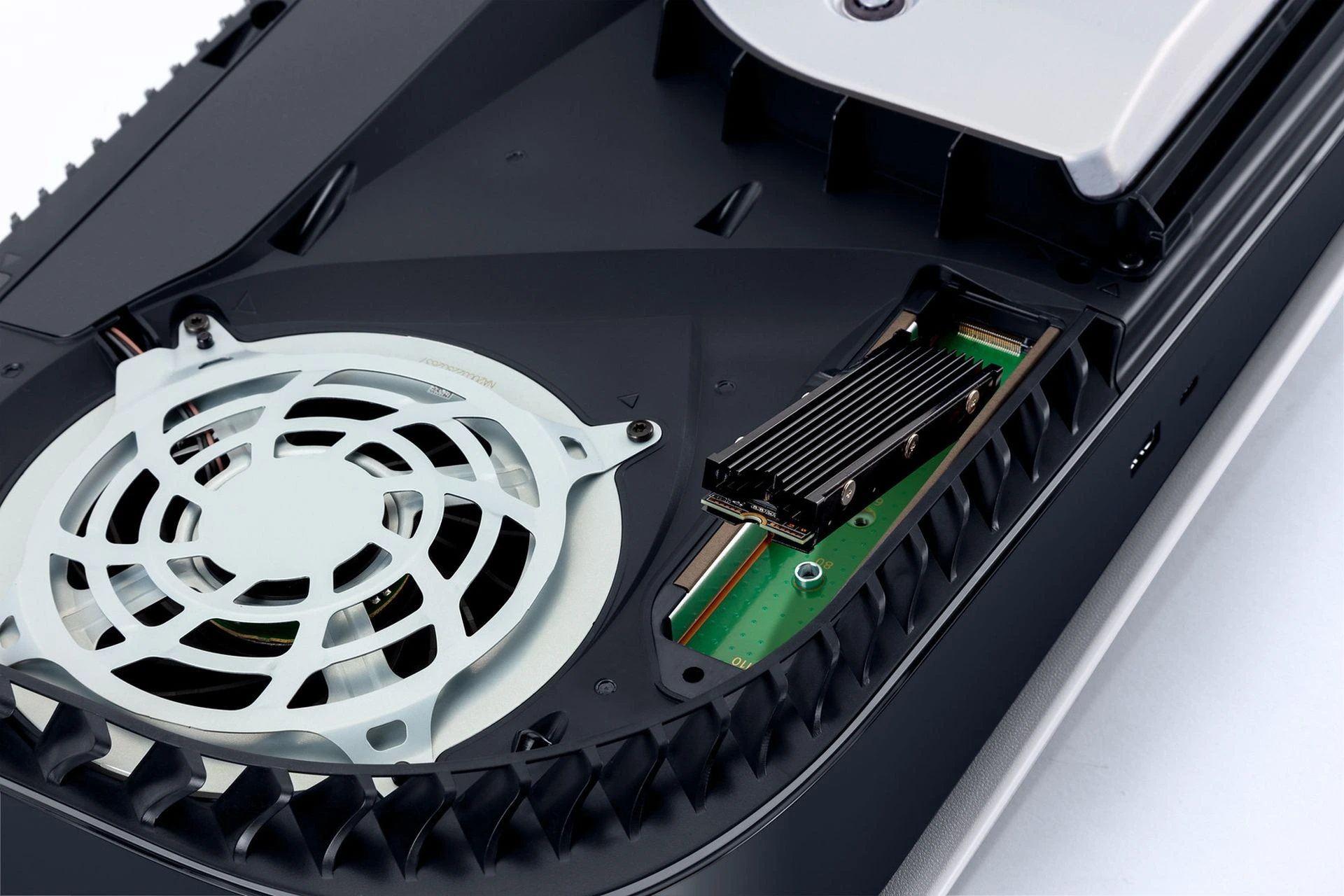
- Locate the M.2 expansion slot under the metal cover and remove the screw using a Phillips screwdriver.
- Insert your M.2 SSD at an angle (around 30°) into the connector, then press it down and secure it with the screw and spacer.
- If your SSD doesn’t have a built-in heatsink, install one before closing the cover.
- Reattach the metal shield and snap the PS5 faceplate back into place.
- Reconnect your cables and power on the console. The PS5 will detect the new SSD and prompt you to format it.
After Installation
Once formatted, your new SSD will appear under Settings → Storage → Installation Location. You can move or install PS5 games directly to it.
If your SSD isn’t detected, ensure it’s seated properly, has a heatsink, and meets Sony’s minimum speed requirement of 5500 MB/s or faster.
Recommended NVMe/M.2 Drives
- WD_BLACK SN850X
- Samsung 990 PRO
- Crucial T500
- Corsair MP700
- Seagate FireCuda 530
Final Advice
Installing an M.2 SSD is a quick, effective upgrade that dramatically increases your storage for digital games. Always choose a high-end Gen4 drive with a heatsink for sustained speeds and long-term reliability.
With your new SSD, your PS5 can hold more games, update faster, and maintain lightning-fast load times - all without juggling limited space.
If you don’t own a PlayStation but still want to get the most out of your gaming setup, explore our other PC optimisation guides for performance tweaks, latency reduction, and system-level improvements tailored for Windows gamers.