Lowering graphics settings has stopped raising FPS, and your GeForce GPU is not fully occupied. Before blaming NVIDIA driver overhead, establish what is limiting the game and whether a controlled software change reliably alters the result.
What NVIDIA driver overhead actually means
A game needs CPU work before its graphics commands reach the GPU. Recording commands, submitting work and synchronising resources all have a cost. Driver overhead is the driver’s share of that work; game simulation, engine scheduling and resource management can also limit frame delivery.
DirectX 12 changes how that work is organised and gives the application more responsibility for synchronisation and memory management. It does not make every game implementation equally efficient. A result from one API, game or scene cannot establish a universal GeForce penalty.
Check the limit before blaming the driver
Use a capture tool such as PresentMon to record the same scene, with frame time and GPU Busy visible. Frame time measures the interval between CPU frames; GPU Busy measures time the GPU spends working. A persistent gap is a reason to investigate work or waiting elsewhere in the pipeline, not a measurement of driver overhead.
How to Identify a CPU Bottleneck in Modern Gaming
CPU Busy is also broader than driver execution. Do not subtract GPU Busy from frame time and label the remainder “NVIDIA overhead”: CPU and GPU work overlap, and waiting can have several causes. Check the definitions in your tool version and leave unavailable metrics blank rather than treating them as zero.
Run a controlled comparison
The following is a suggested diagnostic method, not an HD OPTI benchmark. Start with the game and driver you already use; only compare another driver when investigating a repeatable regression, or another graphics API when the game officially offers it.
- Write down the CPU, GPU, RAM configuration, Windows build, game version, driver version, graphics API and capture-tool version. Save screenshots of game and driver settings.
- Choose a repeatable built-in benchmark or a short route from the same save. Keep the camera, route and capture duration consistent. Avoid using different online matches as your comparison.
- Check frame caps, V-Sync and driver overrides. For a brief diagnostic run, remove adjustable caps if appropriate, and record that change. Keep any fixed engine limit in your notes.
- Disable frame generation for the baseline so generated output does not complicate the comparison. Keep resolution, upscaling, ray tracing and other graphics settings identical between captures.
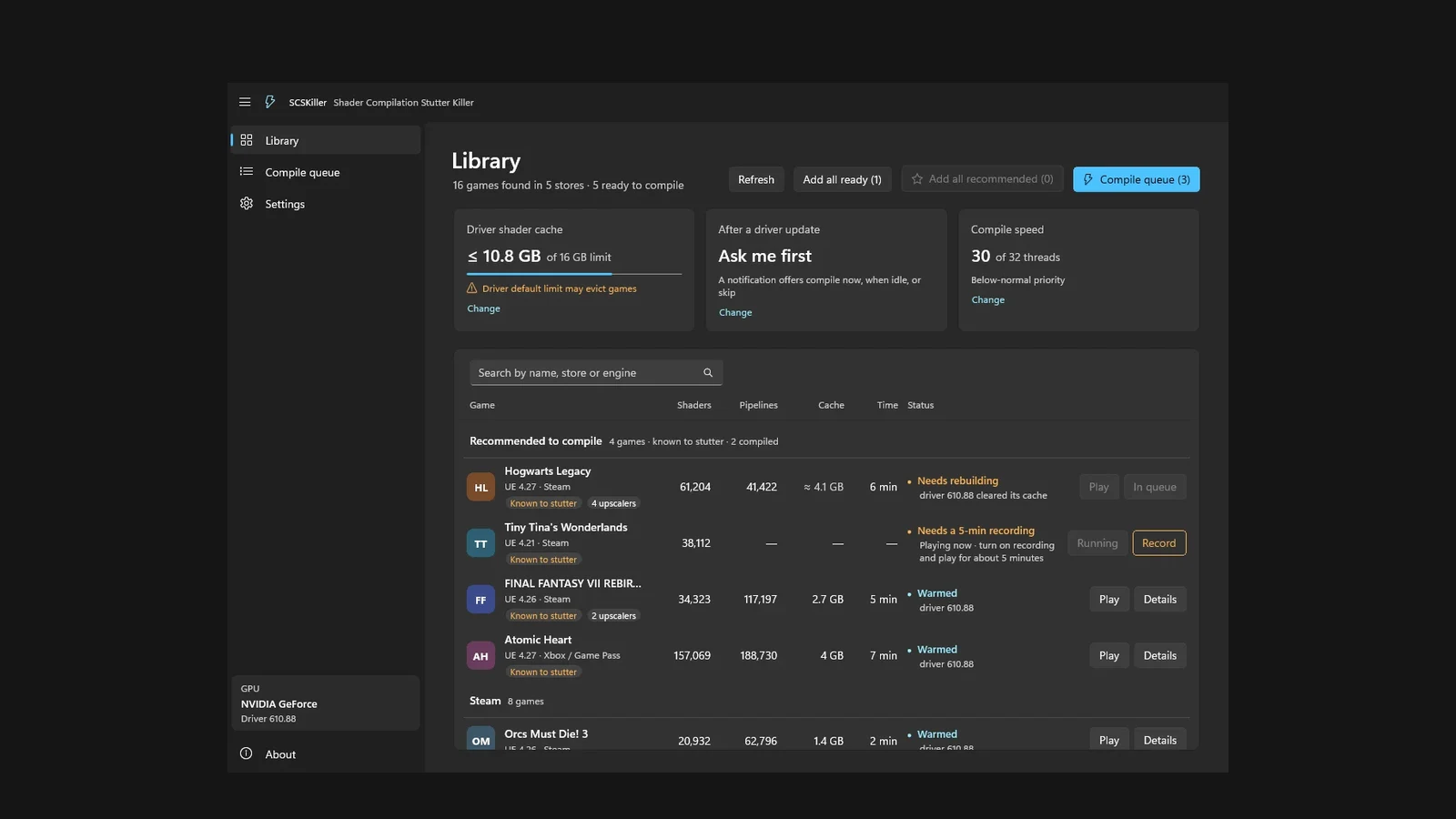
- Finish any game-provided shader preparation, then repeat the route until warm-up behaviour settles. Capture three runs as a practical starting point. Keep each run, its average FPS and frame-time graph; compare low-percentile results only within the same tool and definition.
- Reduce only render resolution or render scale for a second set of captures. Restore it afterwards. If FPS barely changes, investigate a limit outside pixel rendering before assuming a faster GPU will help.
Compare drivers and APIs separately
For a suspected driver regression, compare your current release with a previous release supported by your GPU and game. Download installers from the official vendor, record both versions and restore the same settings after installation. Repeat the warm-up and captures under each version. If practical, return to the original version and retest to check whether the change follows the driver.
For an API comparison, use only the game’s supported renderer option and follow any restart prompt. Match the available settings and note features that cannot be matched. Changing from DX11 to DX12 changes the engine’s rendering path as well as its interaction with the driver, so a faster result alone cannot isolate driver overhead.
Keep the driver fixed while testing APIs, and the API fixed while testing drivers. Compare the spread between repeated runs with the size of the apparent improvement. If those ranges overlap heavily, collect more consistent captures before choosing a winner.
What your result supports
| Observation | Useful interpretation | Next check |
|---|---|---|
| FPS stops at a stable configured limit | The cap prevents this test from showing maximum throughput | Check game and driver limits |
| Lower render resolution raises FPS consistently | Pixel-rendering load matters in this scene | Tune GPU-heavy settings before extrapolating CPU results |
| Lower render resolution barely changes FPS | A limit outside pixel rendering deserves investigation | Inspect CPU work, waiting and the frame-time trace |
| A change follows a driver version across repeat tests | Evidence of version-sensitive behaviour on this configuration | Keep logs and report the regression with exact versions |
| One supported API performs better | Evidence for that game’s renderer choice on this PC | Check image quality, features and frame consistency |
None of these observations establishes an NVIDIA-versus-AMD rule. Changing GPU vendor also changes hardware and the software path. Buying another graphics card solely to confirm a driver-overhead suspicion is a costly diagnostic step; first establish whether your current system misses your target in the settings and scenes you actually play.
Keep the diagnosis useful
Save a short result note: the exact symptom, the controlled change, the range across repeated runs and whether the change survives a retest. “Driver B improved this route on this PC” is a useful finding. Claiming a particular percentage of CPU time belongs to the driver needs more detailed profiling than an FPS overlay provides.
If the problem is isolated hitching rather than a sustained throughput limit, investigate that separately. Resource and shader creation can consume CPU work, and a single long frame does not establish a persistent driver-overhead penalty.
Common FPS Fixes for PC Games - OCCT, DDU, shadercache
FAQ
No. It is a symptom to investigate alongside frame caps, CPU work and waiting. GPU Busy and frame time describe parts of frame delivery; neither identifies the driver’s exclusive CPU cost.
Compare only officially supported options in the game. DirectX 12 changes work submission and moves responsibilities to the application, so the game’s implementation matters. Check frame consistency and available visual features as well as average FPS.
No. Generated frames and application-rendered frames are different categories of output. Disable frame generation for the baseline comparison, then evaluate it separately for your preferred playing configuration.
A repeatable change that follows the driver version while the game, API, settings and test route stay fixed. That supports a configuration-specific regression report; it does not measure the driver’s exclusive CPU overhead or predict every other game.