If Delta Force feels smooth until a busy fight or a wave event, start by recording when the slowdown happens. Aurora gives you several distinct scenarios to compare. This guide is a proposed test method; HD OPTI has not measured Aurora performance or established a best settings preset.
What Aurora changes for your PC test
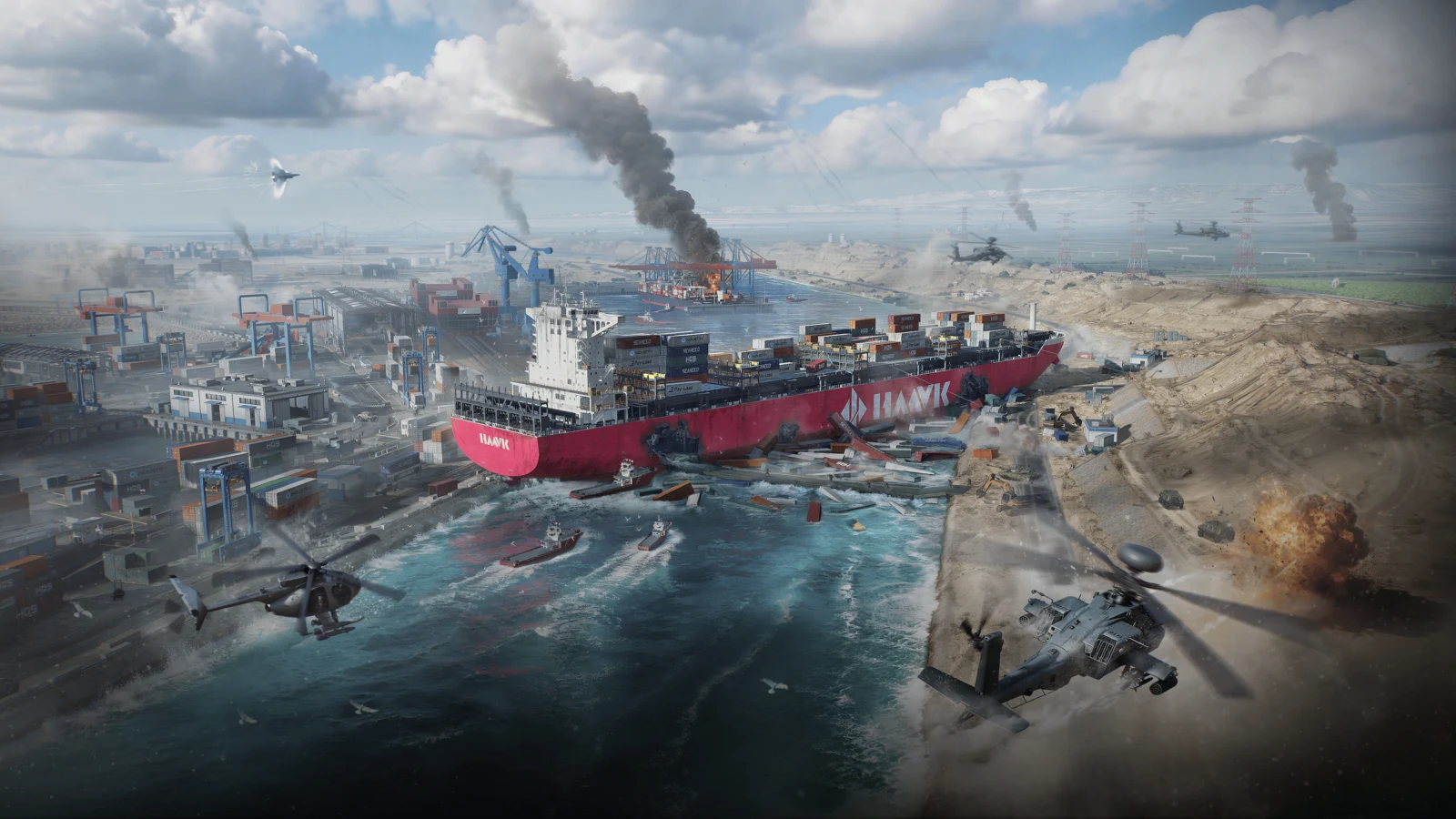
Aurora's PC update was scheduled for 10 November 2026 at 02:00 UTC. It adds Zenith Port to Warfare and revises Brakkesh in Operations. Zenith Port's Riptide event brings large waves that reshape the fighting area towards rooftop combat. These are useful comparison scenarios, but the announcement does not establish an FPS regression or a faster GPU vendor.
PC Full Verity Mode also raises the quality of global illumination, geometry, virtual shadow maps, water and vegetation. Record its state before comparing results. The separate Verity Mode (preview) audio mix is a different option; changing that audio setting is not the same experiment as changing rendering quality.
Keep three map tests separate
Build a small set of captures around the problem you actually notice. Do not combine a quiet walk, a wave event and an Operations firefight into one average and call it typical Aurora performance. The following capture plan is an editorial recommendation, with no measured results implied.
| Scenario | Suggested capture | Keep in your notes |
|---|---|---|
| Zenith Port before Riptide | A fixed route with a consistent view of the port | Mode, objective stage, position and nearby activity |
| Zenith Port Riptide | Equal-length windows before, during and after the wave event | Event timing, camera position, vehicles, smoke and explosions |
| Brakkesh 2.0 | A route through the revised Babel or Central Command area | Route, indoor/outdoor transitions and combat encounters |
| Existing-map control | A familiar route in the same mode as the comparison | Map name, player activity and all graphics settings |
For Zenith Port, compare the same event phase between settings. A before-wave pass and an after-wave pass differ in battlefield state as well as graphics workload. On Brakkesh, compare configurations within Operations; do not use a Warfare result as proof that the map itself caused the difference.
Use a controlled room only if the current game offers the map and conditions you need. Otherwise collect several live-match samples and describe them as observations with changing workloads. A quiet room can help repeat a route, but it cannot stand in for a full match.
Record a baseline before changing settings
- Note the game build, Windows version, CPU, RAM, exact GPU model and driver version. Save screenshots of the current graphics settings.
- Record output resolution, render resolution or upscaling mode, Full Verity Mode state, display refresh rate, FPS cap, V-Sync and variable-refresh state. Keep your field of view and viewpoint consistent.
- If frame generation is available and active, disable it for the first comparison. Keep driver-level frame generation off too, so this baseline does not mix different frame types.
- Use the same permitted capture tool, version and metric definitions throughout. PresentMon can record per-frame CSV data; check that your setup actually captures the game before collecting a comparison.
- Choose a fixed capture duration, such as 60 seconds for a route. For Riptide, choose equal event windows that fit the event and keep that duration unchanged between samples.
- Record at least three comparable passes per condition. Mark deaths, respawns, menus or unrelated interruptions and retain the notes rather than silently choosing the smoothest run.
Keep first-use observations separate from repeat visits. Shader caches can reuse compiled work, so later play may have different starting conditions. On NVIDIA, installing a new driver clears its shader cache. Do not compare a first session after that change with an established installation and assign the entire difference to a graphics preset.
Did Your Shader Stutter Fix Work? How to Test Without Cache Bias
Test settings in an order that answers a question
Start with one change per comparison. If your build exposes a Full Verity Mode graphics control, compare its available states while keeping the other settings fixed. Because it changes several rendering systems together, any observed difference belongs to that combined mode; it does not isolate the cost of water or lighting.
Next, try a lower render resolution as a separate diagnostic. Then compare individual shadow, effects, ambient occlusion or view-distance options only where the current menu offers them. Record the actual labels and values you used. These are candidates to investigate, not confirmed Aurora bottlenecks or a tested low preset.
Keep ray tracing and upscaling comparisons conditional on what your GPU and current build expose. After any change, check the distant targets, moving foliage, smoke edges and rooftop sightlines you use in play. Keep a setting only if its repeatable performance benefit is useful and its image quality remains acceptable.
Compare NVIDIA and Radeon without changing the question
Use the same CPU, RAM, game build, output resolution, route and rendering settings where possible. Record each card's exact model, driver and VRAM capacity. For the shared baseline, use the same render resolution with upscaling and frame generation disabled where supported. Then assess each card's available reconstruction modes separately rather than treating identically named quality modes as identical images.
Report each scenario and the spread between runs. If the driver, platform, player activity or event phase differs, keep that limitation beside the result. A faster pass on one card does not establish a general vendor advantage across Delta Force.
| Measurement | What to record | Limit on interpretation |
|---|---|---|
| Average FPS | Per-pass value and spread across repeated samples | A whole-capture average can hide brief interruptions |
| 1% and 0.1% lows | Same tool, calculation and capture duration | Do not compare different definitions or rely on one short sample |
| Frame-time trace | Timing metric and event markers | Present intervals and display intervals describe different stages |
| Generated/displayed FPS | Frame-generation state and tool support | Frame-type identification may require game or driver instrumentation |
| Latency | The actual latency metric and measurement method | FPS, display latency and end-to-end input response are not interchangeable |
An FPS counter alone cannot show whether aiming became more responsive. PresentMon distinguishes presentation intervals, display timing and input-related metrics; not every measurement is available in every setup. Leave latency unmeasured if you cannot capture a suitable metric, and do not convert an FPS gain into a claimed latency reduction.
High FPS but Game Still Stutters? How to Fix Frame Time Spikes
Decide what your result supports
If a lower setting improves repeated captures of the same troublesome phase, keep it and check a second representative fight. If only one run improves, repeat the comparison before changing more options. If frame-time spikes persist across your tested settings, record their timing and conditions rather than declaring the GPU, driver or wave effect responsible.
End with a configuration you can describe: exact settings, tested maps, repeat-run variation and any visibility trade-offs. That is more useful for your next session than an unsupported promise that a single preset fixes every Aurora slowdown.
FAQ
No. Riptide changes the battlefield, but the announcement supplies no measured FPS penalty. Compare equal event phases across repeated samples, and keep quiet traversal separate from the event itself.
Record the PC graphics mode that changes lighting, geometry, shadows, water and vegetation. Keep the separate Verity Mode (preview) audio mix unchanged. Compare only the graphics controls exposed by your current build; this guide has no measured winning setting.
Start with it disabled where supported to keep the baseline easier to interpret. Test it separately afterwards, recording the feature and capture tool. Identifying generated versus application-rendered frames can require game or driver instrumentation, so do not assume every FPS counter separates them.
Treat that as a limited observation. Use repeated samples with the same route and settings, record changing combat conditions and compare the spread between runs. If those conditions cannot be matched, leave a general GPU ranking open.