Looking for a Control Resonant FPS boost or FPS booster? The biggest gains come from reducing GPU load, choosing the right resolution, using DLSS 4.5 or FSR 4 correctly, and only enabling Path Tracing when your GPU has enough headroom. This guide explains the best settings for higher FPS, the hardware needed for 1080p, 1440p, and 4K, and how to configure Multi-Frame Generation without destroying responsiveness.
How to Boost FPS in Control Resonant
Control Resonant is heavily GPU-bound, so the most effective FPS boost comes from reducing the amount of work your graphics card has to perform. Resolution, Path Tracing, Ray Tracing, upscaling, and frame generation have a much larger impact than trying to squeeze extra performance from an already capable CPU.
If you are searching for a Control Resonant FPS booster, there is no single magic setting that instantly fixes performance. The best approach is to build a strong base frame rate first, use DLSS 4.5 or FSR 4 where needed, and then enable advanced effects only when your GPU has enough performance headroom.
How to Identify a CPU Bottleneck in Modern Gaming
Control Resonant Best Settings for FPS
Start with rasterized graphics before enabling Path Tracing. This gives you a clean performance baseline and makes it much easier to identify how much GPU headroom is available.
Recommended Performance Baseline
- Resolution: Use your monitor's native resolution initially
- Graphics preset: Ultra as a testing baseline
- Ray Tracing: Off during initial testing
- Path Tracing: Off during initial testing
- DLSS or FSR: Off during initial native performance testing
- Multi-Frame Generation: Off until base FPS has been measured
- Performance target: At least 60 FPS where possible
- Minimum recommended base FPS before MFG: Approximately 45 FPS
Once you know your native frame rate, you can decide whether the best FPS boost comes from enabling upscaling, lowering resolution, reducing graphics quality, or disabling expensive lighting features.
Control Resonant FPS Boost Settings for 1080p
1080p is the easiest resolution to run and provides the most accessible route to high FPS. Most of the GPUs included in the supplied benchmark were capable of more than 60 FPS at 1080p Ultra without Ray Tracing or Path Tracing.
Even the RTX 2080 Ti was described as producing a smooth 1080p experience when paired with a G-Sync display.
Best 1080p Settings
- Resolution: 1920x1080
- Graphics preset: Ultra
- Path Tracing: Off for maximum FPS
- Ray Tracing: Off if additional performance is required
- DLSS or FSR: Start disabled and enable only if more FPS is needed
- Multi-Frame Generation: Optional after checking base FPS
- Variable Refresh Rate: Enable G-Sync or equivalent when available
If you already exceed your monitor's refresh-rate target at native 1080p, there is little reason to sacrifice image quality purely for a larger FPS counter.
Control Resonant FPS Boost Settings for 1440p
1440p increases GPU load substantially. Only the top five GPUs in the supplied benchmark remained above 60 FPS at Ultra settings using traditional rasterized rendering.
Hardware around the RTX 3080 and RX 6900 XT performance class represents the approximate level discussed for a strong 1440p experience, although exact results were not supplied for every individual AMD GPU.
Best 1440p Settings
- Resolution: 2560x1440
- Graphics preset: Ultra as a starting point
- Path Tracing: Off initially
- DLSS or FSR: Enable if native FPS falls below your target
- Multi-Frame Generation: Enable only after reaching a strong base frame rate
- Performance target: 60 FPS or higher
For a quick Control Resonant FPS boost at 1440p, enabling an upscaler will usually make more sense than immediately reducing every graphics setting to Low.
Control Resonant FPS Boost Settings for 4K
Native 4K Ultra is extremely demanding. In the supplied benchmark, the RTX 5090 was the only tested GPU capable of maintaining a smooth result above 60 FPS at native 4K Ultra without upscaling.
This makes DLSS 4.5 particularly important for NVIDIA users targeting 4K. The RTX 5080 reached approximately 100 FPS at 4K Ultra when DLSS 4.5 Performance mode was enabled in the supplied test.
Best 4K FPS Settings
- Resolution: 3840x2160
- Graphics preset: Ultra as a starting point
- DLSS 4.5: Performance mode on supported NVIDIA GPUs
- FSR 4: Use as the available AMD upscaling option
- Path Tracing: Disable if base FPS is too low
- Multi-Frame Generation: Enable after reaching approximately 45 FPS or higher without generated frames
- Native 4K: Reserve for extremely powerful GPUs when high FPS is the priority
Use DLSS 4.5 for a Major FPS Boost
DLSS 4.5 is one of the most important performance features available in Control Resonant. Instead of rendering every frame at the full output resolution, Super Resolution reconstructs the image from a lower internal resolution and reduces GPU workload.
At 4K, the supplied benchmark showed an RTX 5080 reaching approximately 100 FPS with DLSS 4.5 Performance mode. That makes DLSS one of the strongest options for increasing Control Resonant FPS without immediately dropping to a lower display resolution.
Recommended DLSS 4.5 Setup
- Set Control Resonant to your monitor's native resolution.
- Disable Multi-Frame Generation temporarily.
- Test your underlying frame rate in a demanding gameplay area.
- Enable DLSS 4.5 if native performance is below your target.
- Select Performance mode when targeting maximum FPS at 4K.
- Check that base performance is approximately 45 FPS or higher.
- Enable Multi-Frame Generation only after establishing a smooth base frame rate.
- Test combat and fast camera movement for responsiveness and image stability.
Multi-Frame Generation Is Not a Replacement for Base FPS
DLSS 4.5 Multi-Frame Generation can dramatically increase the displayed frame rate, but the quality of the experience still depends on the underlying frame rate.
The supplied testing recommends a base frame rate of approximately 45 FPS or higher before enabling MFG. Starting from a strong baseline helps maintain better responsiveness and reduces the chance of the game feeling slow despite showing a high FPS number.
If Frame Generation Feels Laggy
- Disable Multi-Frame Generation.
- Measure your actual base FPS.
- Enable DLSS or reduce internal rendering resolution.
- Disable Path Tracing if GPU load remains too high.
- Lower demanding graphics settings until base performance reaches approximately 45 FPS or higher.
- Re-enable Multi-Frame Generation.
- Retest input response during combat and rapid camera movement.
Minor visual artifacts can still appear during extreme camera movement, but the supplied testing described Control Resonant's implementation as cleaner than earlier frame-generation implementations seen in Alan Wake 2.
Disable Path Tracing for a Bigger FPS Boost
Path Tracing significantly improves lighting, reflections, shadow accuracy, and global illumination, but it also places a very heavy load on the GPU.
If your main goal is a Control Resonant FPS boost, Path Tracing should be one of the first advanced features to disable. Rasterized rendering allows a much wider range of graphics cards to maintain 60 FPS or higher.
Path Tracing On
- More accurate reflections
- Improved global illumination
- More realistic shadows
- Better integration between objects and environmental lighting
- Significantly higher GPU load
- Greater dependence on DLSS or FSR at high resolutions
Path Tracing Off
- Higher native FPS
- Lower GPU load
- Easier 60 FPS target at 1080p and 1440p
- More headroom for higher resolutions
- Less dependence on aggressive upscaling
- Reduced lighting and reflection accuracy
DLSS 4.5 vs FSR 4
Control Resonant supports NVIDIA DLSS 4.5 and AMD FSR 4. Intel XeSS was not supported in the supplied version.
NVIDIA users can combine DLSS 4.5 Super Resolution with Multi-Frame Generation on compatible hardware. AMD users have access to FSR 4, although the supplied source did not include detailed FSR 4 performance or image-quality benchmarks.
AMD GPU Optimization Guide: Unlock More FPS, Lower Latency, and Fix Stuttering
Control Resonant Resolution and FPS Requirements
1080p Ultra
- More than 60 FPS on most tested GPUs
- RTX 2080 Ti described as smooth with G-Sync
- Good target for older high-end hardware
- Upscaling may not be necessary if native performance is already strong
1440p Ultra
- More than 60 FPS achieved by the top five tested GPUs
- Requires substantially more GPU power than 1080p
- DLSS or FSR becomes more useful
- Path Tracing can quickly reduce available performance headroom
Native 4K Ultra
- Extremely demanding
- More than 60 FPS achieved only by the RTX 5090 in the supplied native benchmark
- Upscaling recommended on less powerful GPUs
- Path Tracing increases the GPU requirement even further
4K Ultra With DLSS 4.5 Performance
- Approximately 100 FPS on the RTX 5080 in the supplied benchmark
- Much more practical than native 4K for high-refresh gaming
- Can provide enough base performance for Multi-Frame Generation
- Recommended when maximum native resolution is less important than smoother FPS
Update Your GPU Driver Before Troubleshooting Low FPS
The benchmark system used NVIDIA GeForce 616.92 and AMD Radeon Adrenalin Edition 26.9.1. Driver versions can affect game compatibility, shader behavior, performance, and support for technologies such as DLSS and FSR.
If Control Resonant performance is unexpectedly poor, make sure the correct graphics driver is installed before changing dozens of in-game settings.
How to Install NVIDIA Drivers Properly for Maximum Performance
Control Resonant Low FPS Fix
If Control Resonant runs below 60 FPS, work through the settings in order instead of randomly changing every option. Because the game is heavily GPU-bound, reducing GPU workload should be the priority.
- Disable Path Tracing.
- Test native rasterized performance.
- Enable DLSS 4.5 or FSR 4 if native FPS is still below your target.
- Use DLSS Performance mode when targeting maximum FPS at 4K.
- Make sure base FPS reaches approximately 45 FPS before enabling Multi-Frame Generation.
- Reduce other graphics settings only if upscaling is not enough.
- Confirm the GPU is operating normally and is not being limited by drivers, temperature, or another system problem.
- Retest performance in a demanding gameplay section.
High FPS but Control Resonant Still Feels Stuttery
Average FPS does not tell you everything about game smoothness. Frame-time spikes can make a game feel stuttery even when the FPS counter appears high.
The supplied testing found no major traversal or shader compilation stutters through the tested prologue and open-world areas. If your system experiences frequent hitching that is not present in the benchmarked behavior, investigate drivers, VRAM pressure, unstable hardware settings, or background system activity.
High FPS but Game Still Stutters? How to Fix Frame Time Spikes
Try These General FPS Fixes if Performance Is Abnormally Low
If changing Control Resonant's graphics settings does not solve unusually poor performance, the problem may sit outside the game. Corrupt GPU drivers, shader cache problems, overheating, unstable overclocks, or other system issues can reduce FPS and damage frame-time consistency.
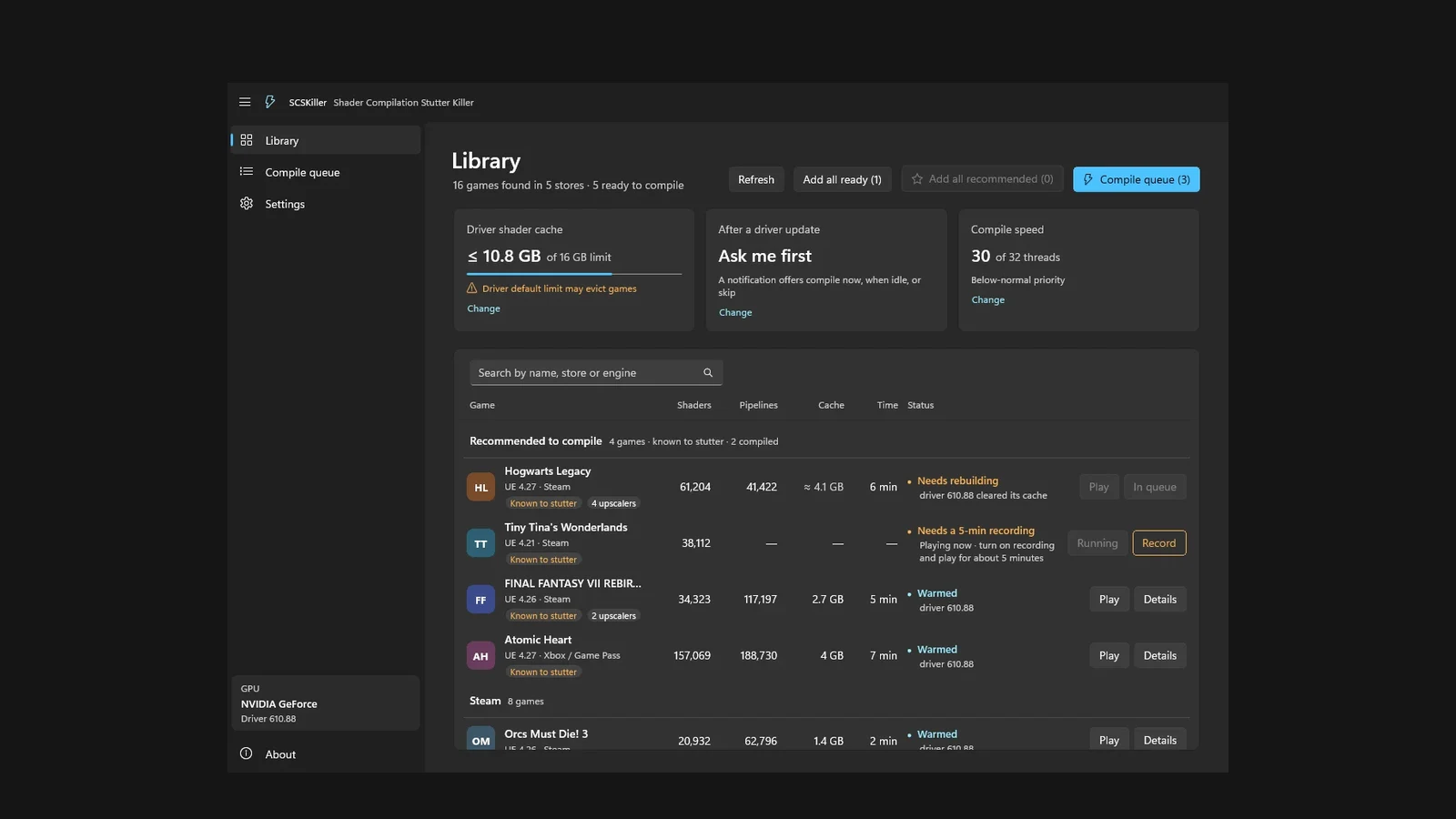
Common FPS Fixes for PC Games - OCCT, DDU, shadercache
Best Control Resonant FPS Booster Setup
The most effective Control Resonant FPS booster is a combination of sensible resolution scaling, upscaling, and advanced-effect management rather than a single external tool.
Maximum FPS Setup
- Disable Path Tracing
- Use rasterized graphics
- Enable DLSS 4.5 or FSR 4 when GPU-limited
- Use DLSS Performance mode at 4K when required
- Establish at least approximately 45 FPS before enabling MFG
- Enable Multi-Frame Generation after building a strong base frame rate
- Use variable refresh rate if your display supports it
- Keep graphics drivers updated
- Reduce additional graphics settings only when necessary
Better Visual Quality Setup
- Use native resolution where performance allows
- Keep rasterized Ultra settings as the baseline
- Enable a higher-quality upscaling mode instead of immediately using the most aggressive option
- Enable Path Tracing only when enough GPU headroom remains
- Maintain a strong underlying frame rate before enabling MFG
- Avoid sacrificing responsiveness purely to maximize visual effects
Control Resonant Benchmark Test System
- CPU: AMD Ryzen 9 7950X3D
- Memory: 32GB DDR5 at 6000MHz
- Operating system: Windows 10 64-bit
- NVIDIA driver: GeForce 616.92
- AMD driver: Radeon Adrenalin Edition 26.9.1
- AMD GPUs: RX 6900 XT, RX 7900 XTX, and RX 9070 XT
- NVIDIA GPUs: RTX 2080 Ti, RTX 3080, RTX 4090, RTX 5080, and RTX 5090
Control Resonant FPS Benchmark Summary
- 1080p Ultra rasterized: More than 60 FPS on most tested GPUs
- 1440p Ultra rasterized: More than 60 FPS on the top five tested GPUs
- Native 4K Ultra rasterized: More than 60 FPS only on the RTX 5090
- 4K Ultra with DLSS 4.5 Performance: Approximately 100 FPS on the RTX 5080
- Recommended base FPS before Multi-Frame Generation: Approximately 45 FPS
What Settings Should You Lower First?
The supplied benchmark material does not provide individual FPS costs for Shadows, Lighting, Textures, Shading, and Foliage, so there is not enough evidence to claim a precise performance ranking between those individual settings.
The confirmed heavy performance decisions are resolution, Path Tracing, and upscaling. Start with those before aggressively reducing smaller graphics options.
Recommended Adjustment Order
- Disable Path Tracing if enabled.
- Enable DLSS 4.5 or FSR 4.
- Change the upscaling quality mode if more performance is required.
- Confirm base FPS before enabling Multi-Frame Generation.
- Reduce overall graphics quality only if the previous changes are not enough.
- Test individual settings separately to see which ones affect your specific GPU the most.
Final Control Resonant FPS Boost Recommendations
For 1080p, start with native Ultra rasterized settings and only enable upscaling if your GPU cannot maintain the FPS you want. Most of the tested hardware already produced more than 60 FPS at this resolution.
At 1440p, expect a much heavier GPU workload. High-end GPUs can still deliver strong native performance, but DLSS or FSR becomes useful when targeting higher refresh rates.
At 4K, upscaling is the most important FPS boost for anything below the fastest hardware tested. DLSS 4.5 Performance mode allowed the RTX 5080 to reach approximately 100 FPS in the supplied benchmark, while native 4K Ultra above 60 FPS was limited to the RTX 5090.
For maximum FPS, disable Path Tracing, establish a smooth base frame rate, enable the appropriate upscaler, and only then add Multi-Frame Generation. That approach provides a much stronger Control Resonant FPS boost than simply enabling every graphics feature and relying on generated frames to compensate.
FAQ
Start with Path Tracing disabled, test rasterized performance, and enable DLSS 4.5 or FSR 4 if native FPS is below your target. At 4K on supported NVIDIA hardware, DLSS 4.5 Performance mode provides a major performance increase.
There is no single FPS booster setting that fixes every system. The biggest confirmed gains come from disabling expensive Path Tracing, reducing rendering workload with DLSS 4.5 or FSR 4, and enabling Multi-Frame Generation only after establishing a strong base frame rate.
Disable Path Tracing first, enable DLSS or FSR, and verify that your GPU driver is working correctly. If you plan to use Multi-Frame Generation, aim for approximately 45 FPS or higher before generated frames are added.
The supplied benchmark showed approximately 100 FPS on an RTX 5080 at 4K Ultra when using DLSS 4.5 Performance mode. Native 4K is substantially more demanding.
AMD FSR 4 is supported. Intel XeSS was not supported in the tested version. The supplied material did not include detailed FSR 4 performance benchmarks.
- SCSKiller guide6 min read
SCSKiller Guide: Reduce Shader Compilation Stutter in PC Games
- Witcher 3 Remastered8 min read
The Witcher 3 Remastered Best PC Settings: FPS Boost & Optimization Guide
- CONTROL Resonant7 min read
CONTROL Resonant Intel Arc Performance: Driver 32.0.101.9033 Benchmark & Best Settings