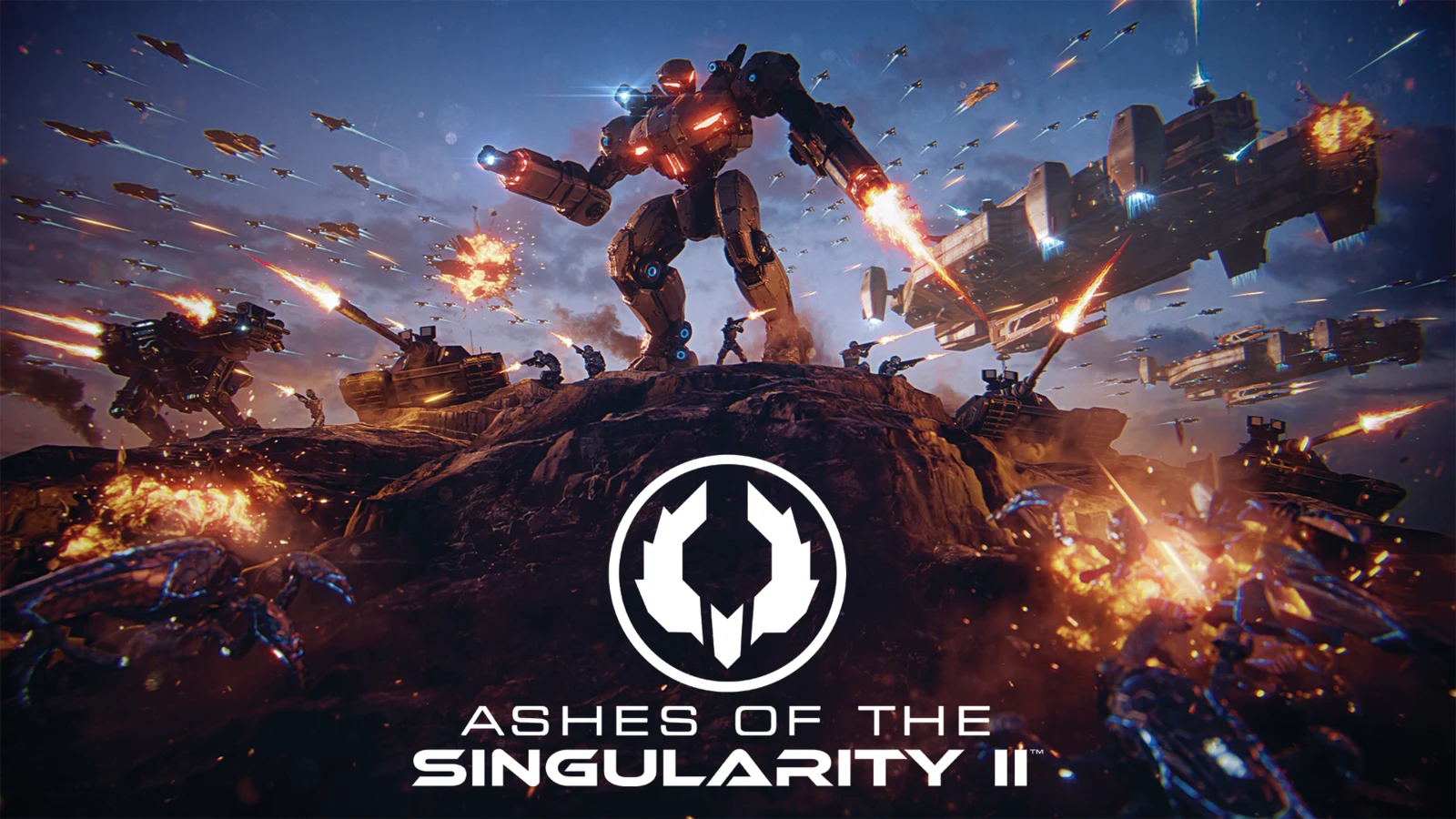
If Ashes of the Singularity II runs slowly or shows a black battlefield, start by identifying the symptom. Use the shader-setting check for missing scenery, then compare graphics settings on a battle you can repeat. These are suggested checks for your PC; no HD OPTI benchmark results are claimed.
Choose the right starting point
A battlefield that renders incorrectly needs a compatibility check before its FPS is useful. For a correctly drawn game that slows down during combat, start with a repeatable performance comparison.
| What you see | First check | What to record |
|---|---|---|
| Black terrain or missing scenery on Intel graphics | Try Shading Quality set to Performance, then restart | GPU, driver, game build and before/after screenshots |
| Correct scenery but low FPS | Compare presets at the same resolution | Average FPS and repeated captures of the same battle |
| Acceptable average FPS but visible hitches | Inspect frame-time captures | When the pauses happen and whether they repeat |
Try the Intel black-terrain check
If the menu works but the battlefield is black or mostly missing on Intel Arc graphics, try changing Shading Quality to Performance. Treat this as a compatibility test. It does not establish that every Arc card needs that setting or that a permanent fix has shipped.
- Note the game build, exact GPU and installed driver version. Take a screenshot of the broken scene and your original graphics settings.
- Open the graphics options and set Shading Quality to Performance. Leave other options unchanged for this comparison.
- Apply the setting, close the game and relaunch it. Load the same scene and check whether terrain, units and effects draw correctly.
- If the picture is usable, keep that setting while testing performance. If the fault persists, retain the screenshots and version details for a support report.
Check again after a game or graphics-driver update before assuming the workaround is still necessary. Compare with your saved baseline. A rendering problem that remains after this check needs further investigation; lowering every option at once makes the useful change harder to identify.
Establish a settings baseline
As checked on 11 November 2026, the launch version has Low, Medium, High and Extreme presets, but no built-in benchmark or integrated DLSS, FSR or XeSS upscaling. Plan around the graphics options the game actually offers.
Start with Medium at your usual display resolution as a diagnostic baseline, rather than a proven best preset. Follow restart requirements after graphics changes. If you need Shading Quality on Performance for a correct picture, recheck it after selecting a preset and keep it fixed throughout the FPS comparison.
For a laptop, keep mains power, the performance mode and your capture setup consistent. Record the complete GPU name, including Laptop GPU where applicable. Keep the driver unchanged while comparing settings so that a driver change does not become another variable.
Compare the same battle at 1080p and 1440p
Choose a single-player situation you can return to. Use the same save where available, camera position, zoom and capture duration. Include a busy fight representative of the slowdown you want to improve. Treat changes in army size or battle events as limits on comparability.
- Record the build, driver, resolution, preset, Shading Quality and any frame-rate limit. Choose a fixed capture interval, such as 60 seconds.
- Play through once to settle into the scene, then capture three repetitions with the same preparation. Keep loading screens outside the capture.
- Compare Medium with High at the same resolution, restarting as required. Restore any compatibility setting that the preset changed.
- Restore the baseline preset and compare 1920 × 1080 with 2560 × 1440 if your display offers both. Keep the same aspect ratio and judge the picture as well as performance.
- Return to the original configuration and repeat it. If the baseline has drifted, repeat the comparison before deciding which setting helped.
A tool such as Intel PresentMon can capture per-frame timing data. Keep its version and capture settings fixed. Record average FPS, a frame-time trace and 1% lows if your chosen tool reports them; none of those alone is a measurement of input latency.
Keep first-run behaviour separate from repeated play. Do not clear caches between ordinary preset comparisons, and note any recent driver update so that a smoother later pass is not automatically credited to the graphics setting.
Did Your Shader Stutter Fix Work? How to Test Without Cache Bias
Decide what the result supports
| Repeated observation | Cautious interpretation | Next step |
|---|---|---|
| Performance shading restores missing scenery | The setting is useful for compatibility on this configuration | Keep it for now and retest after updates |
| Medium improves FPS over High with acceptable detail | The lower preset suits this scene better | Check another demanding fight before saving the profile |
| Lower resolution improves FPS | Rendering demand is worth investigating | Choose the sharpness and performance balance you accept |
| Lower resolution changes little | Pixel rendering has not explained the shortfall | Check frame limits and investigate other work or waiting |
| Average FPS improves but pauses remain | The throughput change has not removed the interruptions | Compare individual frame-time traces before adding another tweak |
Keep a profile only when its picture and repeated playing experience suit you. A short opening scene cannot establish performance across every battle. If acceptable settings still miss your target, use that remaining shortfall to guide further diagnosis or hardware research.
Do You Need a New GPU? What to Test Before Upgrading
FAQ
Set Shading Quality to Performance, apply it and restart the game before checking the same scene. Keep the original setting and screenshots so you can compare. This is a compatibility test for the symptom, with no guarantee for every Arc GPU or driver.
The launch version checked on 11 November 2026 does not offer integrated DLSS, FSR or XeSS upscaling. Compare its available presets and display resolutions, and check the menu again after future updates.
Hold resolution and any required Performance shading setting fixed, restart as required, and capture the same scene several times. Keep your tool, capture duration and preparation consistent, then repeat the baseline. Treat this as a personal diagnostic method, not a guaranteed FPS gain.