ARC Raiders best settings should balance enemy visibility, responsive controls and consistent frame delivery. Frozen Trail brings confirmed performance changes, but measuring your own combat frame times is the best way to judge their impact.
What Frozen Trail Changed for PC Performance
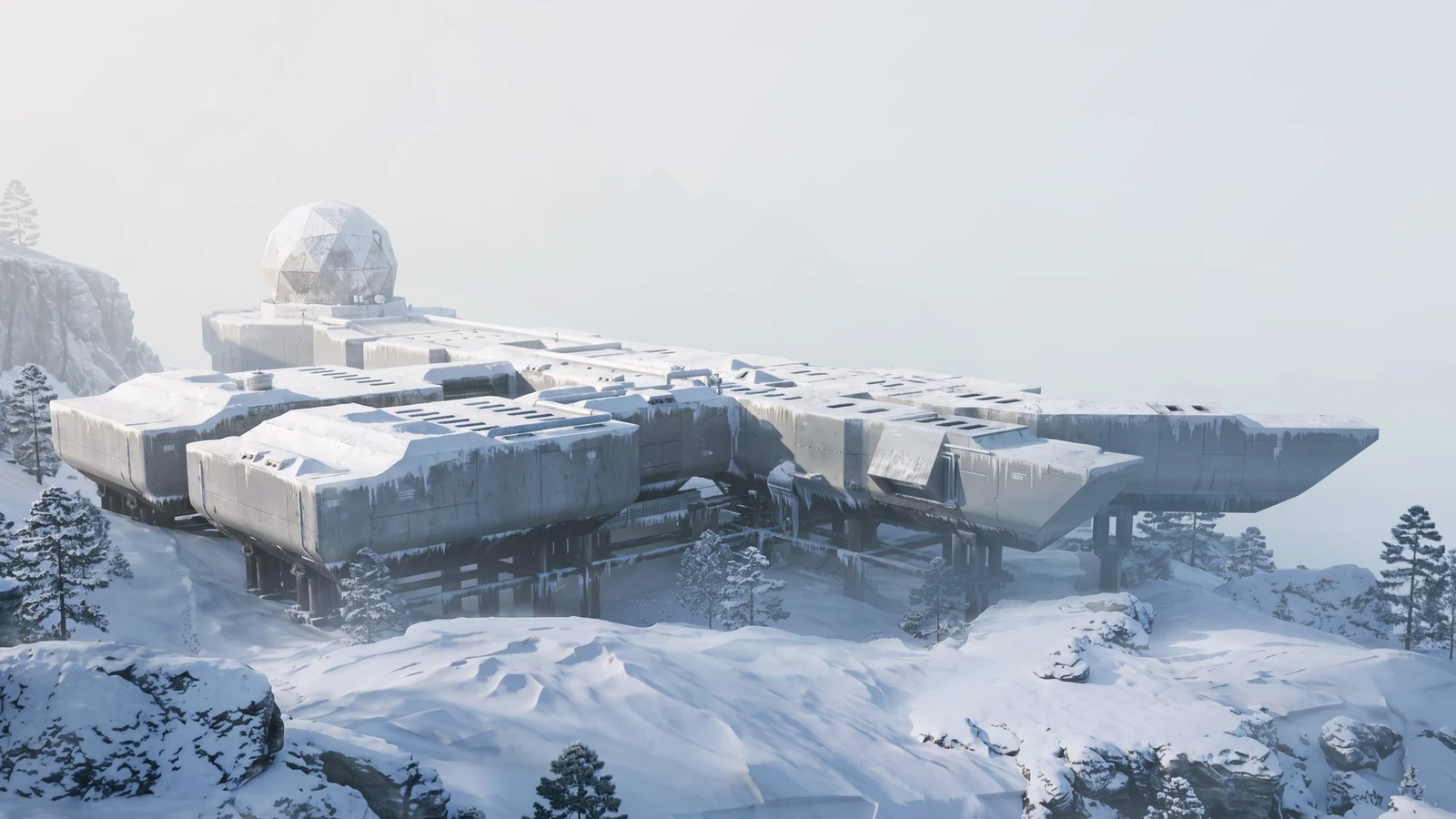
Embark released ARC Raiders Frozen Trail 2.0 on 8 October 2026, introducing Pendola Pass alongside technical changes. Its performance notes confirm reduced enemy memory usage, broader memory and stability optimisations, an upgrade to AMD FSR 4.1.1 and a fix for a crash when changing graphics settings.
These changes give returning players a reason to reassess their settings. They do not establish a particular FPS gain, prove that every memory leak has disappeared or guarantee smooth combat on every PC. No controlled benchmark results accompany this guide.
Embark Studios: Frozen Trail 2.0 Official Patch Notes
ARC Raiders 2.0 Feature & Performance Comparison Matrix
| Performance Metric | Pre-2.0 Build | Frozen Trail 2.0 Build | Benefit / Impact |
|---|---|---|---|
| Enemy Encounter 1% Lows | Baseline capture required | Reduced enemy memory usage | Measure combat frame times to assess the benefit |
| Upscaling Integration | Earlier integration | AMD FSR 4.1.1 | Compare supported modes for image quality and FPS |
| Settings Menu Stability | A graphics-settings crash was reported | Documented crash fix | Addresses the documented crash path |
| Long Session RAM Stability | Baseline memory logging required | General memory and stability optimisations | Extended-session testing required |
ARC Raiders Best Settings: Start Here
Use the following as a tuning baseline rather than a tested universal preset. Record your current configuration first, then change one setting at a time. Option names and available upscalers can vary with hardware and the installed build.
- Display resolution: use your monitor's native output resolution.
- Display mode: start with your usual fullscreen or borderless mode and compare only if you encounter a specific problem.
- Upscaling: begin with Quality using an option supported by your GPU.
- Shadows: try Medium before lowering further.
- Global illumination: try Medium where available, then compare image quality and frame times.
- Effects: reduce one step if explosions consistently coincide with frame-time spikes.
- Textures: choose a level that leaves enough memory headroom during busy encounters.
- Frame generation: disable it for baseline performance testing.
- Frame limit: after tuning, choose a target your PC can sustain during combat.
Avoid assuming that fullscreen always delivers lower latency or that a particular VRAM capacity guarantees High textures. Resolution, other graphics options and the scene being rendered all affect the result.
Choosing FSR Settings at 1080p, 1440p and 4K
The FSR 4.1.1 integration listed in Embark's notes does not mean every GPU can run the same upscaling path. AMD documents hardware-specific support for FSR technologies. Check the options available on your system and AMD's compatibility information before choosing a mode.
AMD FSR Technologies and Hardware Support
1080p: Protect Distant Enemy Clarity
Start with Quality if you need more GPU performance. Compare it against native rendering while moving, aiming and watching distant enemies. If thin objects or small targets become difficult to read, the extra FPS may not justify the loss of clarity.
1440p: Compare Quality Against Balanced
Begin with Quality. Try Balanced when GPU rendering remains the limiting factor and you need additional headroom. Check foliage, railings, moving enemies and newly revealed objects for reconstruction artefacts.
4K: Test Balanced Before Performance
Quality and Balanced are sensible comparison points at 4K. Try Performance only when the faster setting provides a useful improvement and still preserves the visibility you need. These are starting points, not measured rankings for ARC Raiders.
Lowering the internal rendering resolution can help a GPU limit. It may do little for a CPU limit, asset-streaming stalls or memory pressure. If average FPS rises while combat hitches remain, investigate those separately.
How to Identify a CPU Bottleneck in Modern Gaming
Why Combat Stutters Need More Than an FPS Counter
An average FPS figure can hide a short pause during an otherwise smooth run. A frame-time graph shows how long individual frames take, making sudden interruptions easier to identify.
The 1% and 0.1% low metrics help describe slower frame delivery, but their definitions differ between tools and calculation modes. Keep the same capture tool, version and metric settings throughout a comparison. Short captures make the rarest slow frames particularly sensitive to a single event.
CapFrameX: Explanation of Performance Metrics
Use the graph alongside the low FPS figures. Record whether a spike happened during an explosion, movement into a new area, an enemy encounter or a menu transition. That context makes the next settings change more useful.
High FPS but Game Still Stutters? How to Fix Frame Time Spikes
How to Benchmark Frozen Trail Properly
Separate patch comparisons from settings comparisons. To test the update itself, you need comparable captures from both builds on a map available in both. Pendola Pass can assess current performance, but it cannot provide a direct pre-update comparison because the map is new.
- Record your CPU, GPU, RAM capacity, graphics driver, game build, resolution and complete graphics configuration.
- Close unnecessary background applications and disable optional overlays consistently across all runs.
- Keep the capture tool and sensor logging active in every comparison.
- Run the route once to warm up, then record at least three captures of equal length.
- Use a repeatable traversal route to assess movement through the environment.
- Capture combat separately, recording enemy types, approximate numbers and major effects.
- Compare average FPS, consistently calculated 1% and 0.1% lows, and the frame-time graphs.
- Report the variation between runs alongside a representative result.
Live encounters will not repeat perfectly. Differences in enemy activity, weather and other players can influence the outcome. A single unusually quiet or chaotic raid is weak evidence for a settings recommendation.
Overlays and recording tools should also remain consistent. Changing capture software between runs introduces another variable into the comparison.
How Discord, Nvidia, and Other Overlays Affect FPS & Latency
Keep Frame Generation Separate
Establish the base rendering performance with frame generation disabled. If you then enable it, record that as a separate test and assess responsiveness as well as displayed FPS. Generated frames should not be presented as evidence that an underlying CPU or memory stall has been fixed.
How to Check RAM and VRAM Usage
Memory allocation alone does not prove a leak. A game can retain reusable assets after a raid, and monitoring tools can report different measures of memory use. Look for repeatable growth alongside worsening frame times, memory pressure or instability.
- Start from a fresh game launch and record memory use at a consistent menu or hub location.
- Play for approximately 45 minutes while logging process memory, available system RAM, GPU memory readings and frame times.
- Return to the same hub location after each extraction and allow the same settling time before taking a reading.
- Track at least three extractions, noting maps and unusually busy encounters.
- If usage continues climbing and performance deteriorates, extend the test to assess longer sessions.
- Restart the client and repeat a comparable route to check whether performance recovers.
A lower memory footprint may create useful headroom without increasing average FPS. Equally, a higher allocation can be harmless caching. The practical question is whether the PC maintains stable frame delivery without running into memory pressure.
Choosing Texture Quality
Start conservatively if you already experience hitching or texture-loading problems. Compare Medium against High in the same area, then repeat the comparison during combat and after several extractions.
Keep High only if image quality improves without introducing repeatable stalls or memory pressure. An 8GB card should not automatically receive the same texture recommendation at every output resolution.
Troubleshooting Remaining Performance Problems
FPS Drops During Busy Enemy Encounters
Repeat a comparable encounter with a lower internal rendering resolution. A substantial improvement suggests GPU rendering contributes to the limit. Little improvement warrants checking CPU behaviour, memory pressure, temperatures and background activity.
Reduce effects, shadows or lighting individually and retain only changes that help across repeated captures. Avoid changing an entire preset at once if you want to identify the expensive option.
Crashes When Changing Graphics Settings
Install the latest available game update and verify the game files through your launcher. If crashes continue, record the exact setting change, game build, driver version and any error message.
Return to a known working configuration and test one change at a time. Embark's 2.0 fix addresses a documented crash path, but continued crashes still require investigation rather than an assumption about their cause.
Performance Degrades After Several Extractions
Compare memory readings and frame times at the same hub location between raids. Also check whether temperatures, clock speeds or background applications change during the session.
Restarting the client can provide temporary relief if it restores performance, but it does not identify or repair the underlying problem. There is no established requirement to restart after a fixed number of extractions.
Movement Feels Unstable Despite Smooth Frame Times
Rubber banding and delayed interactions can involve the connection or server rather than graphics rendering. Compare the symptoms against frame-time captures and any available network indicators before reducing visual quality further.
How to Fix Packet Loss and High Ping in Any Online Game
What Would Prove the Update Helped?
A useful before-and-after result needs the same hardware, driver, settings, capture method and comparable encounters. Look for repeatable improvements in slow-frame behaviour, fewer visible spikes or reduced memory pressure.
Without an older comparable capture, you can still find better settings for the current build. Describe those results as a current-build comparison and keep conclusions specific to the tested PC.
FAQ
Embark confirms memory, performance and stability changes, including reduced enemy memory usage. Their impact on average FPS and combat frame times requires comparable measurements on the hardware being tested.
Start with a supported upscaler in Quality mode, try Medium shadows and lighting, and choose textures according to observed memory pressure. Adjust one option at a time and test busy encounters.
Do not assume universal support. Available features depend on the GPU, driver and game integration. Check AMD's compatibility information and the options exposed on your system.
No. Compare repeated sessions and look for sustained growth, worsening frame times and memory pressure. Allocation changes alone cannot establish whether a leak exists or has been resolved.
That compares different workloads. Use a map available in both builds for a patch comparison, and test Pendola Pass separately to assess its current performance.