Packet loss and high ping can make online games feel delayed, heavy, or completely inconsistent. This guide walks through a layered PC gaming network optimization process, starting with safe hardware fixes and moving into Windows settings, DNS, adapter tuning, and advanced interrupt priority changes.
Start With a Safety Net Before Changing Network Settings
Before you edit network protocols, run batch scripts, or adjust interrupt settings, create a System Restore Point. These changes can improve responsiveness, but they also touch low-level Windows and adapter behavior. A restore point gives you a fast way to roll back if a setting causes disconnects, driver issues, or worse performance.
- Open the Windows search menu.
- Search for Create a restore point.
- Select your system drive.
- Click Create.
- Name the restore point Network.
- Save it before applying registry, adapter, or MSI Mode changes.
The Hardware Foundation: Why Ethernet Still Rules
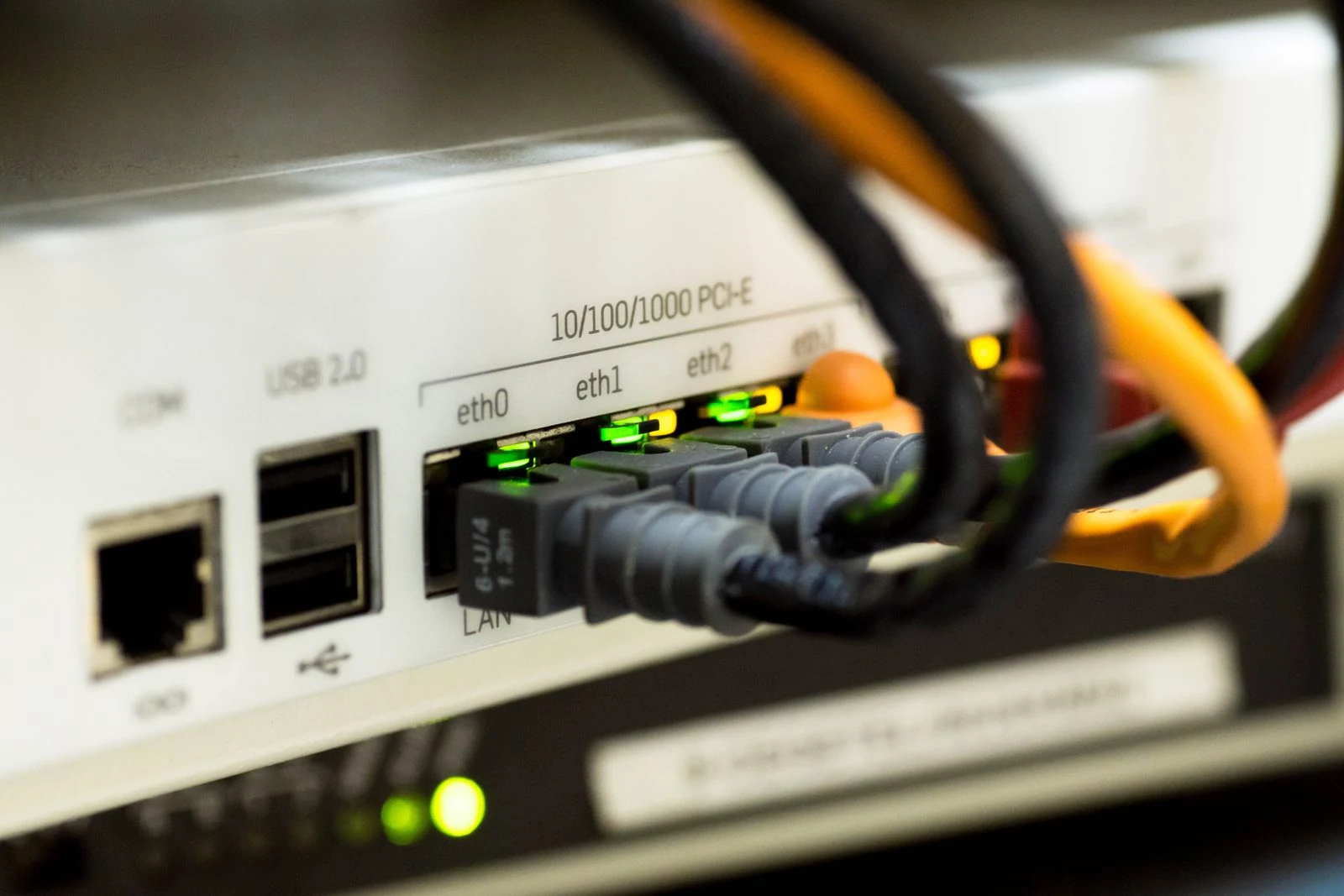
The fastest way to reduce ping instability is to remove wireless signal problems from the setup. Wi-Fi can be affected by distance, walls, interference, router load, and signal drops. Ethernet gives your PC a direct wired path to the router, which makes it the better choice for competitive games where every packet matters.
- Connect your PC directly to the router with a LAN or Ethernet cable.
- Restart the router after connecting if the adapter does not immediately detect the wired connection.
- Test the same game server again and compare ping, packet loss, and stutter.
- Keep Wi-Fi disabled during testing so Windows does not switch between adapters.
Ethernet will not create true zero ping because distance to the game server still matters. It does, however, remove one of the biggest causes of jitter, random spikes, and inconsistent hit registration.
Choose the Closest Game Server
Server distance matters. A nearby server usually gives lower latency because game data travels a shorter route. If your game lets you manually select a region or data center, pick the location with the lowest displayed ping before starting ranked or competitive matches.
- Choose the nearest server to your real location.
- Avoid auto-select if it sends you to a higher-ping region.
- Recheck the server list after router restarts or ISP routing changes.
- Do not judge your connection from one match only; test multiple sessions.
In the source example, a local server showed latency around 7 ms. Your number will depend on your location, ISP routing, router quality, and the game server infrastructure.
Use Optimization Software Carefully
Network optimization tools can help route game traffic, reduce packet loss, manage ports, and streamline background settings. Some tools include features such as game tunneling, Turbo Games, Boost FPS, or automatic TCP and UDP port handling. These can be useful for players who do not want to configure every network setting manually.
Use these tools carefully. Only install reputable software, avoid random scripts from unknown sources, and create a restore point first. A bad optimizer can change registry values, DNS settings, or firewall rules in ways that hurt stability instead of improving it.
Reduce Background Load With a Local Windows Account
A Microsoft account can keep extra sync, account, and cloud-related services active in the background. Switching to a local Windows account can reduce some of that activity, which may help lower system overhead on weaker PCs or heavily loaded installs.
- Open Windows Settings.
- Go to Accounts.
- Choose your account information section.
- Select the option to sign in with a local account instead.
- Restart the PC after the change.
- Launch the game and test ping consistency again.
This is not a guaranteed FPS or ping fix on every system. Treat it as a background-resource cleanup step, not a magic network repair.
Configure Firewall Access for Stable Game Traffic
Firewall profile mismatches can cause connection issues, fluctuating ping, or blocked game services. The goal is simple: make sure your game is allowed through the Windows firewall on the network profile your PC is using.
- Open Settings.
- Go to Network and Internet.
- Open Ethernet or Wi-Fi depending on your connection.
- Check whether the active profile is Public or Private.
- Open Windows Security.
- Go to Firewall and Network Protection.
- Select Allow an app through firewall.
- Click Change settings.
- Find your game in the list.
- Check both Private and Public boxes for the game.
- Save the setting and restart the game.
Checking both profiles helps prevent problems when Windows changes or misidentifies the network type. This is especially useful for games that show network warning icons, voice chat issues, or ping spikes during active gameplay.
Set a Faster DNS for Game Handshakes
DNS translates server names into IP addresses. Changing DNS will not overcome physical distance to a server, but it can improve how quickly your PC resolves addresses during launch, login, matchmaking, or initial server connection.
- Open Control Panel.
- Go to Network and Sharing Center.
- Select Change adapter settings.
- Right-click your active Ethernet or Wi-Fi connection.
- Select Properties.
- Open Internet Protocol Version 4.
- Select Use the following DNS server addresses.
- Set Preferred DNS server to 8.8.8.8.
- Set Alternate DNS server to 8.8.4.4.
- Save the change and restart the game.
| Google Public DNS
If the connection gets worse after changing DNS, revert to automatic DNS or test another trusted DNS provider. DNS performance can vary by region and ISP.
Stop Windows From Power-Throttling the Network Adapter
Windows can turn off network adapters to save power. That is useful for laptops on battery, but it can cause disconnects, delayed packet handling, or unstable behavior during long gaming sessions. For a gaming desktop or plugged-in laptop, disable adapter power saving.
- Open Control Panel.
- Go to Network and Sharing Center.
- Select Change adapter settings.
- Right-click your active network adapter.
- Select Properties.
- Click Configure.
- Open the Power Management tab.
- Uncheck Allow the computer to turn off this device to save power.
- Click OK and restart the PC.
This is one of the most important hidden fixes for random disconnects and unstable network behavior, especially on systems where Windows aggressively manages power.
Tune Advanced Network Adapter Properties
Advanced adapter settings control how the network card handles packets, offloading, flow control, and interrupt behavior. These settings can affect responsiveness, CPU usage, and connection stability. Apply changes carefully and test your game after each group of changes.
- ARP Offload: Enabled
- Flow Control: RX & TX Enabled
- Interrupt Moderation: Enabled
- Interrupt Moderation Rate: Low
- IPv4 Checksum Offload: Disabled
- Jumbo Packet: Disabled
- Speed & Duplex: Auto Negotiation
- TCP Checksum Offload for IPv4 and IPv6: Disabled
- UDP Checksum Offload for IPv4 and IPv6: Disabled
- Large Send Offload for IPv4 and IPv6: Disabled
The goal is to reduce delay from offloading and packet batching while keeping the adapter stable. If you notice slower downloads, disconnects, or worse ping after changing these values, revert the last setting and retest.
Run Network Optimizer Scripts Only After Creating a Restore Point
Batch files can apply many network commands at once, including TCP, UDP, DNS, registry, and routing tweaks. This can be convenient, but it is also risky because you may not know exactly what each command changes.
- Run network optimizer batch files as administrator only when you trust the source.
- Avoid scripts that do not show the commands being applied.
- Save a restore point before running any script.
- Restart the PC after applying a network batch file.
- Test one game and one server before changing anything else.
Automated optimizers can be helpful, especially for users who do not want to manage ports or registry values manually. The safest approach is to keep a rollback option ready and avoid stacking multiple optimizers on top of each other.
Set Your Network Controller to High Priority With MSI Mode
MSI stands for Message Signaled Interrupts. It changes how hardware devices communicate with the CPU. When your network controller is set to MSI Mode with high interrupt priority, the adapter can receive faster CPU attention, which may improve responsiveness and reduce the heavy feeling caused by delayed packet handling.
- Download and open a trusted MSI Mode Utility.
- Right-click the utility and run it as administrator.
- Locate your Ethernet or Wi-Fi controller.
- Check the MSI box for the network controller.
- Set Interrupt Priority to High.
- Click Apply.
- Restart the PC.
- Test your game for ping stability, input response, and packet loss.
Do not enable MSI Mode randomly for every device. Start with the network controller only. If the system becomes unstable, use your restore point or undo the setting in the utility.
Quick Troubleshooting Checklist for Packet Loss
If you still see packet loss, teleporting players, delayed hit registration, or network error icons, work through the basics again before applying deeper tweaks.
- Use Ethernet instead of Wi-Fi whenever possible.
- Restart the modem and router.
- Choose the nearest game server.
- Close launchers, downloads, cloud sync apps, and browser tabs.
- Allow the game through both firewall profiles.
- Disable network adapter power saving.
- Test Google DNS or another trusted DNS provider.
- Check for router overload when other devices are streaming or downloading.
- Update the network adapter driver from the motherboard or adapter manufacturer.
- Avoid VPNs unless they clearly improve routing to your game server.
What Not to Expect From These Tweaks
No Windows setting can guarantee zero ping in an online game. Ping is affected by your physical distance to the server, your ISP routing, local congestion, router quality, and the game server itself. The real goal is not fake zero latency. The goal is lower jitter, fewer spikes, less packet loss, and a more consistent connection during competitive play.
Start with Ethernet, server selection, firewall alignment, DNS, and adapter power settings. Then move into advanced adapter properties, optimizer scripts, and MSI Mode only if the basic fixes do not solve the issue.
FAQ
Start with Ethernet, choose the closest game server, close background downloads, allow the game through the firewall, disable network adapter power saving, and test DNS changes. If packet loss continues, check router load, ISP routing, and advanced adapter settings.
Ping can fluctuate because of Wi-Fi interference, firewall profile issues, router congestion, background services, ISP routing, or power-saving behavior on the network adapter. A good download speed does not always mean stable latency.
5GHz Wi-Fi can work if the router is close and the signal is clean, but Ethernet is still more stable for competitive gaming. Wired connections avoid wireless interference and reduce random spikes.
No. Changing DNS only changes which service your PC uses to translate domain names into IP addresses. It does not delete files, game data, accounts, or Windows settings.
Interrupt Moderation lets the network adapter bundle packet notifications instead of interrupting the CPU constantly. For gaming, a low moderation rate can help packets get processed more frequently, which may improve responsiveness.