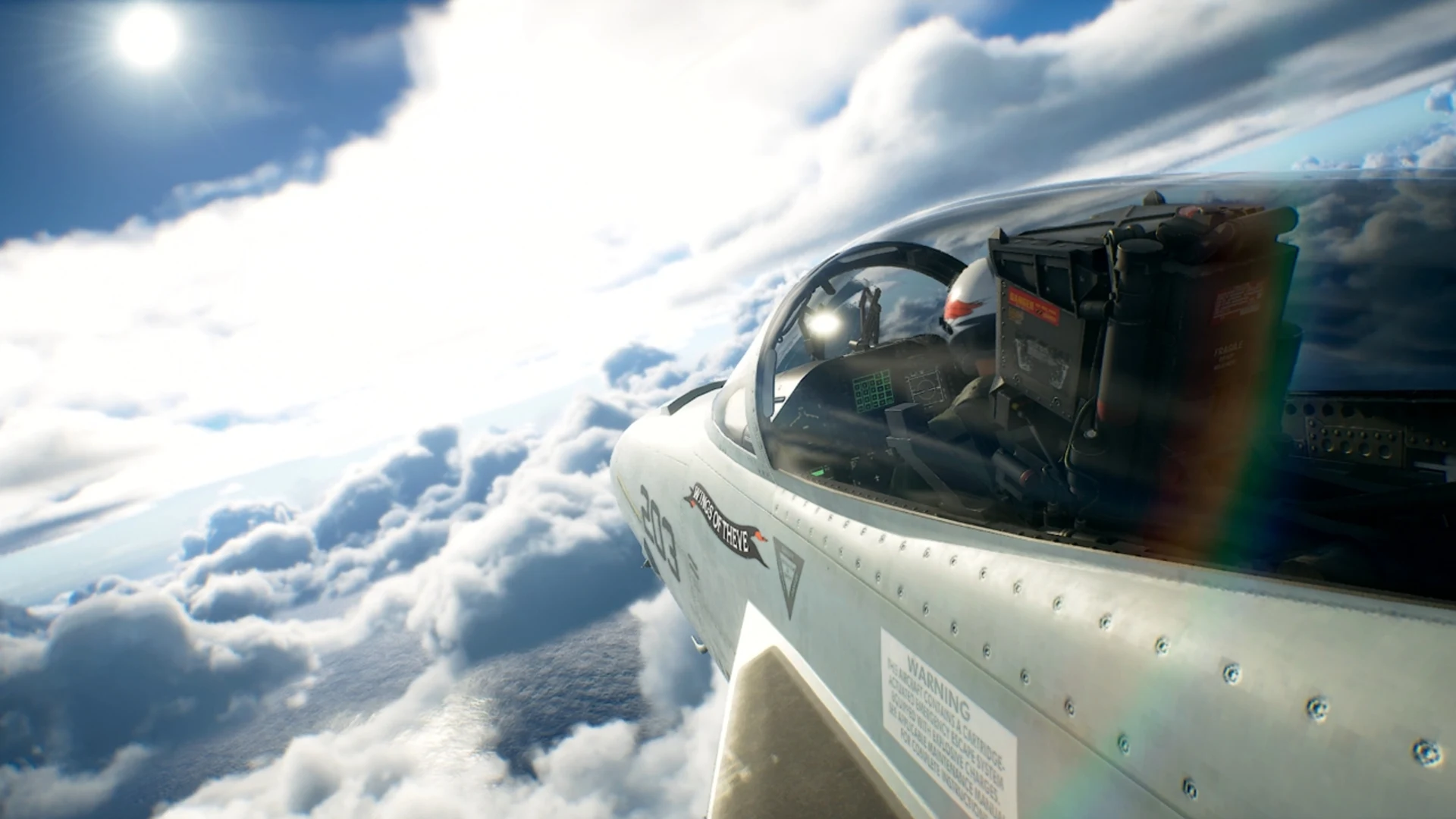
Ace Combat 8: Wings of Theve is available in early access ahead of its October 2 release. If flights start smoothly but stutter develops over time, check memory use and frame times before changing every graphics option. This guide gives you a starting setup and a way to separate GPU load from possible memory problems.
Start with the right performance baseline
Bandai Namco lists 16 GB of RAM as the minimum and 32 GB as recommended. Its published targets are upscaled 1080p at 30 FPS on Low and upscaled 1080p at 60 FPS on Medium. Those targets do not promise 60 FPS at native 4K.
Official Ace Combat 8 PC requirements
Before tuning, record your resolution, preset, upscaling mode, average FPS, 1% lows, and system RAM use. Test the same mission segment after each change. A short flight can reveal a graphics bottleneck; a longer session is needed to investigate stutter that appears over time.
High FPS but Game Still Stutters? How to Fix Frame Time Spikes
Best Ace Combat 8 PC settings to try first
These values are a starting point, not a tested universal preset. Apply one group at a time and compare the same flight segment. If a listed option is unavailable in your version of the graphics menu, leave it unchanged.
- Keep your monitor's native output resolution, then try DLSS or FSR Quality if the game offers it and your GPU supports it. Move to Balanced only if you need more performance and can accept softer fine detail.
- Lower Cloud Quality by one or two steps during cloud-heavy missions, then compare FPS and visibility.
- Try Medium Shadows and Global Illumination if GPU load remains high.
- Try Medium Reflections and Post-Processing if effects-heavy scenes still produce frame-time spikes.
- Keep the setting changes that improve frame times without making aircraft, HUD elements, or targets difficult to read.
Clouds are central to the game's visual design, so inspect the result during an actual mission before settling on a lower cloud setting. Graphics reductions may improve GPU-limited FPS, but they will not establish the cause of steadily rising RAM use.
Why native 4K Max is demanding
In GameGPU's native 4K Max test, the RTX 5090 averaged 60 FPS, while the RTX 5080 averaged 38 FPS and the RX 7900 XTX averaged 37 FPS. These are results from one test setup and scene, not guaranteed performance on every PC or mission. Start with upscaling or a lower preset if your 4K frame rate misses your target.
GameGPU native 4K Max benchmark
Native 4K Max benchmark baseline
GameGPU tested these cards at 3840×2160 with Max settings and no upscaling. The modes in the final column are starting points to test, not measured 60 FPS results. The RX 9060 XT result is inferred from GameGPU's 4K threshold rather than an exact published average.
| GPU Model | Native 4K Max Average FPS | 60 FPS Goal | Upscaling to Try |
|---|---|---|---|
| NVIDIA RTX 5090 | 60 FPS | Met on average | Native / DLSS Quality |
| NVIDIA RTX 5080 | 38 FPS | Unmet at native 4K | DLSS Quality |
| AMD Radeon RX 7900 XTX | 37 FPS | Unmet at native 4K | FSR Quality |
| AMD Radeon RX 9060 XT | Below 25 FPS (inferred) | Unmet at native 4K | FSR Balanced at 1080p / 1440p |
The RX 9060 XT estimate follows GameGPU's finding that a stronger GPU is needed to average 25 FPS at native 4K Max. Check the full GPU benchmark for its test setup and interactive charts.
Compare upscaling modes in motion. Watch cockpit instruments, distant aircraft, and HUD text as well as the FPS counter. A higher average FPS is less useful if image clarity or frame pacing becomes uncomfortable.
How to investigate high RAM usage and worsening stutter
Early player reports describe unusually high memory use, but a single high reading does not prove a memory leak. To test the pattern, measure the game's memory use across repeatable missions and check whether it falls after returning to the menu.
Ace Combat 8 Steam player reviews
- Close unnecessary background applications and record the game's memory use, total system RAM use, and FPS shortly after launch.
- Fly a repeatable mission segment and note memory use, average FPS, 1% lows, and visible hitches after each mission.
- Return to the menu and check whether the game's memory use falls or remains elevated.
- Repeat the same mission after several consecutive missions, then fully restart the game and test it once more.
- Compare the fresh and extended sessions. Consistently rising game memory alongside worsening frame times is useful evidence to report, but further investigation is needed to identify the cause.
On a 16 GB system, watch total memory pressure as well as the game's process. If physical RAM fills and Windows begins paging heavily, closing background applications may help temporarily. Keep the Windows pagefile enabled; adding more RAM can provide headroom, but it does not repair a game-side leak.
Boost Your FPS - How Faster RAM and More Memory Improve Gaming Performance
What to do when performance degrades mid-session
If stutter appears only after extended play and a full game restart restores performance, restarting between missions is a temporary workaround while you collect evidence. Do not assume a fixed 45-minute interval works for every PC. Check for game updates before retesting, and compare the same mission with the same graphics settings.
If cutscenes hitch even on a fresh launch, test them separately from long-session memory symptoms. Close background recording or streaming apps, confirm the game is installed on an SSD, and compare frame times before and after lowering Shadows or Post-Processing. Bandai Namco specifies an SSD in its PC requirements, but an NVMe drive or a graphics change is not a guaranteed cutscene fix.
Common FPS Fixes for PC Games - OCCT, DDU, shadercache
Quick performance checklist
- Record a fresh-launch baseline in a repeatable mission.
- Try upscaling at Quality, then Balanced if more FPS is needed.
- Lower Cloud Quality, Shadows, and Global Illumination one group at a time.
- Check 1% lows and frame times, not just average FPS.
- Track game memory across several missions and compare it with a fresh restart.
- Recheck your results after game or driver updates.
FAQ
Some early players report memory use rising during play. That is a reason to investigate, not proof that every system has a confirmed leak. Compare game memory and frame times across missions, a return to the menu, and a fresh restart.
Bandai Namco lists 16 GB as the minimum and 32 GB as recommended. On a 16 GB PC, close unnecessary background apps and watch total memory use if stutter worsens during longer sessions.
Try Cloud Quality during a repeatable cloud-heavy mission, then test Shadows and Global Illumination. Keep each change only if it measurably improves performance while preserving the visibility you need.
GameGPU measured a 38 FPS average for the RTX 5080 in its native 4K Max test. Your result may differ, but that test supports trying upscaling or lower settings rather than assuming native 4K Max will hold 60 FPS.