WARDOGS low FPS and stuttering can come from very different problems. Heavy GPU settings reduce average FPS, while shader compilation, asset streaming, CPU-heavy 100-player battles, driver problems, and engine-level hitching can cause sudden frame-time spikes. The key is diagnosing which problem you actually have before turning every setting to Potato.
WARDOGS Low FPS and Stuttering Are Not the Same Problem
Before changing settings, work out whether you have consistently low FPS or short frame-time spikes. Low average FPS normally points toward a rendering or CPU limitation. Stuttering can happen even when the FPS counter looks high because individual frames are taking much longer than the surrounding frames to render.
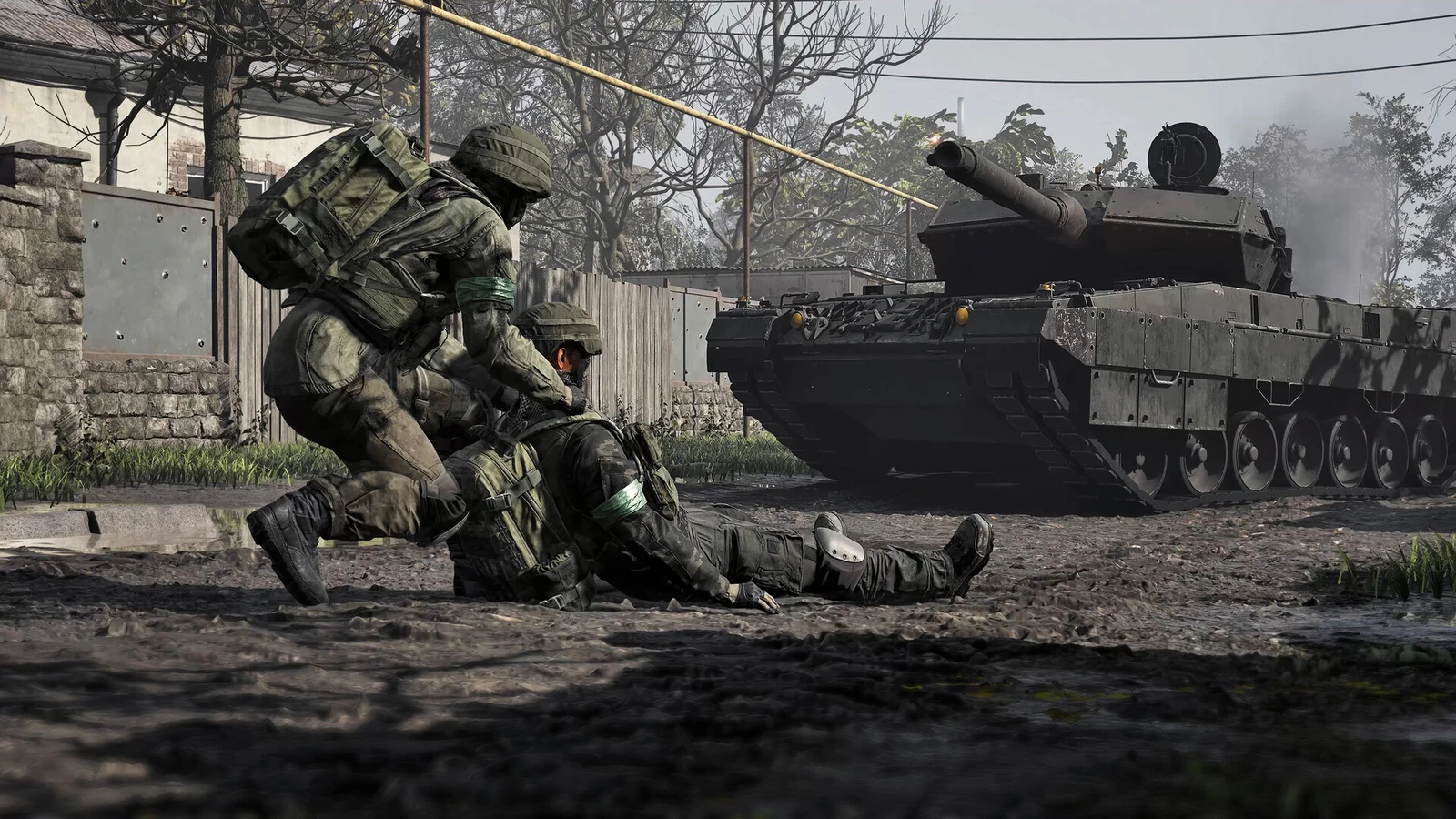
This distinction matters in WARDOGS because its large battles combine up to 100 players, vehicles, destruction, effects, networking, and long sightlines. A system can therefore become CPU-limited in one part of a match and GPU-limited somewhere else. The official Steam page describes WARDOGS as a 100-player tactical shooter split across three teams, which helps explain why crowded combat can behave differently from quieter sections of the map.
High FPS but Game Still Stutters? How to Fix Frame Time Spikes
Start With a Clean WARDOGS Performance Baseline
Avoid changing ten things at once. Establish a repeatable baseline first so you can tell whether each adjustment actually improves performance.
- Close browser videos, recording software, unnecessary overlays, RGB utilities, motherboard utilities, launchers you do not need, and other heavy background applications.
- Reboot the PC to clear temporary background activity and start from a consistent state.
- Launch Steam and WARDOGS without unnecessary monitoring or capture software running.
- Verify the WARDOGS game files through Steam if performance changed after an update or crash.
- Install and test the latest appropriate GPU driver, especially if the problem appeared after a driver change.
- Test the same type of match or similarly busy location after each major adjustment.
Background CPU activity matters more when the game itself is already stressing its main game threads. Removing unnecessary background work will not magically double FPS, but it can prevent another application from competing with the game during its heaviest moments.
Common FPS Fixes for PC Games - OCCT, DDU, shadercache
Test Whether WARDOGS Is CPU or GPU Limited
One of the fastest diagnostic tests is temporarily reducing the rendering workload. Enter a demanding match, note your performance, then reduce resolution or move DLSS or FSR one quality step toward performance.
If FPS increases substantially, the GPU was limiting performance. If the frame rate barely changes while GPU usage also remains below its normal maximum, the CPU or game thread may be the limiting factor instead.
Do not judge a CPU bottleneck from total CPU usage alone. Games rarely distribute every workload perfectly across every available core. One important game thread can become saturated while Windows still reports relatively moderate overall CPU utilization.
- Enter a busy Control Zone or similarly demanding battle.
- Record your normal FPS, GPU utilization, and frame-time behavior.
- Lower render resolution or choose a more aggressive upscaling mode.
- Repeat the same test.
- A large FPS increase points toward a GPU limit.
- Little or no improvement suggests investigating CPU, game-thread, background-process, or engine limitations.
How to Identify a CPU Bottleneck in Modern Gaming
WARDOGS Shadow Cache Stutter and Current Engine Fixes
Some WARDOGS hitching has been engine-side rather than something users can completely solve through graphics settings. BULKHEAD's current performance and stability notes specifically state that shadow-cache refreshes were reduced to cut hitching when taking control of a character. The same update fixed two Frame Generation crash paths, made the render-target pool configurable, removed a legacy graphics dependency, and improved GPU crash reporting.
That means updating WARDOGS should come before aggressive configuration edits. If an engine update already targets the exact hitch you are experiencing, an old workaround may no longer be necessary.
The update also allows DLSS Frame Generation to be disabled without restarting the game. That makes A/B testing much easier because you can compare the same gameplay conditions with Frame Generation enabled and disabled.
Frame Generation Does Not Replace a Strong Native Frame Rate
Frame Generation can make motion look substantially smoother by inserting generated frames between traditionally rendered frames, but the higher displayed FPS should not be confused with an equivalent increase in simulation or input responsiveness.
Use Frame Generation after establishing a healthy base frame rate. Test aiming, camera movement, vehicle control, and heavy combat with it both enabled and disabled. Keep it only if the smoother presentation is worth the responsiveness trade-off on your system.
NVIDIA Reflex is also worth testing on supported NVIDIA hardware. The HD OPTI WARDOGS configuration keeps Reflex enabled while recommending that players compare frame consistency and responsiveness rather than judging the result from the FPS counter alone.
Best Graphics Settings for WARDOGS FPS and Visibility
The goal is not to force every graphics option to its minimum. WARDOGS contains large environments and long engagement distances, so visibility still matters. Current community settings guides follow the same general approach: reduce expensive lighting and effects first while retaining enough geometry and view distance to identify distant players.
Global Illumination
Set Global Illumination to Low or disable it where available when you are GPU-limited. Indirect lighting can be relatively expensive and provides less competitive value than maintaining clear geometry and target visibility.
Shadows
Start at Medium and move to Low if additional GPU headroom is needed. Shadows affect both rendering cost and visibility, but eliminating useful visual information simply to chase the lowest possible preset is not always the best competitive trade.
Reflections
Reflections are a good candidate for Low or Potato. They increase rendering work without being critical for identifying enemies in most situations.
Effects and Particle Spawn Rate
Use Low or Potato when prioritizing FPS. Explosions, destruction, smoke, and other effects can make the most demanding firefights significantly heavier than quiet areas of the map.
Post-Processing
Low is a sensible performance baseline. Motion blur, depth of field, lens flare, and bloom can also be disabled if you prefer a cleaner competitive image.
Mesh Detail
Medium is a practical starting point. Drop to Low only when required for performance rather than assuming the lowest setting is automatically optimal.
View Distance
Keep View Distance around Medium rather than immediately dropping it to the lowest possible value. WARDOGS has long sightlines, and aggressively reducing distant detail can hurt target acquisition for a comparatively small performance return.
Textures
Texture quality behaves differently from heavy lighting effects. If you have enough VRAM, higher texture quality often costs much less FPS than Global Illumination, shadows, reflections, or resolution. Reduce texture streaming if VRAM pressure or asset-streaming stutter appears instead of assuming every texture option must be Low.
DLSS and FSR
Quality is a good starting point when GPU-limited. Move to Balanced if more performance is required. Upscaling reduces internal rendering resolution and can provide considerably more GPU headroom than destroying visibility through extremely low geometry settings.
HD OPTI WARDOGS Best Settings for an FPS Boost
HD OPTI has a dedicated WARDOGS optimization page with separate FSR 3 and DLSS configurations. These profiles are designed as performance-focused starting points rather than a promise of one fixed FPS increase across every PC. Your CPU, GPU, display resolution, current settings, and the intensity of the match still determine the final result.
HD OPTI FSR 3 Starting Settings
- Display Mode: Windowed Fullscreen
- Resolution: Use your normal display resolution
- VSync: Disabled
- Main Menu FPS Limit: 120
- Anti-Aliasing Method: AMD FSR
- AMD FSR: Quality
- Mesh Detail: Medium
- View Distance: Medium
- Shading: Low
- Global Illumination: Disabled
- Shadows: Medium
- Reflections: Potato
- Effects: Potato
- Particle Spawn Rate: Potato
- World Textures: High
- Character Textures: High
- Effects Textures: High
- Texture Streaming: Potato
- Texture Filtering: Medium
- Post-Processing: Low
- Motion Blur: Disabled
- Depth of Field: Disabled
- Lens Flare: Disabled
- Bloom: Disabled
This profile deliberately reduces lighting, reflections, effects, and post-processing while keeping important textures and geometry at more useful levels. It is a better example of targeted optimization than blindly placing every option on its minimum setting.
HD OPTI DLSS Starting Settings
- FOV: 100
- Display Mode: Windowed Fullscreen
- Resolution: Native display resolution
- Frame Limit: Unlimited
- VSync: Off
- NVIDIA Reflex: On
- Anti-Aliasing Method: NVIDIA DLSS
- DLSS Mode: Quality or Balanced
- Mesh Detail: Medium
- View Distance: Medium
- Shading: Low for FPS
- Global Illumination: Off
- Shadows: Medium
- Reflections: Potato
- Effects: Potato
- Particle Spawn Rate: Potato
- Post-Processing: Low
- World Textures: High
- Character Textures: High
- Effects Textures: High
- Texture Streaming: High on GPUs with sufficient VRAM, or Potato when VRAM is limited
- Texture Filtering: Medium
The DLSS configuration also keeps Reflex enabled and treats Frame Generation separately from DLSS Quality or Balanced. This is important because upscaling and Frame Generation solve different performance problems.
Apply the WARDOGS Config Through HD OPTI
- Open HD OPTI and go to Game Config.
- Select WARDOGS.
- Choose either the FSR 3 or DLSS profile based on your supported rendering path.
- Apply the configuration.
- Launch WARDOGS.
- Test performance in a demanding match rather than relying on the main menu FPS counter.
- Compare FPS, 1% lows, target clarity, and input responsiveness before deciding whether further adjustment is needed.
What Current WARDOGS Settings Videos Add
Recent WARDOGS optimization videos reinforce an important point: competitive optimization is about balancing visibility and performance rather than producing the ugliest possible image. Strider's settings guide specifically focuses on improving frame rate on lower-end GPUs without making the game visually unusable, while also covering display, graphics, controls, interface, and helicopter settings.
ALEDVAN's current guide likewise separates display configuration, FOV, screen mode, FPS limits, DLSS and Reflex, graphics quality, shadows, Global Illumination, audio, and controls. The useful takeaway is that there is no single graphics slider responsible for every performance problem; display, latency, rendering, and visibility settings should be evaluated separately.
Official WARDOGS PC Performance Targets
The official Steam requirements provide useful expectations for the current Early Access build. Minimum hardware is listed as an Intel Core i5-8600 or Ryzen 5 3500, 16 GB RAM, and a GTX 1660 or RX 590, targeting 1080p Low at 60 FPS with upscaling.
The recommended specification is an Intel Core i7-12700K or Ryzen 7 5700X with 16 GB RAM and an RTX 3070 or RX 6700 XT. BULKHEAD lists that tier for approximately 1440p Medium at 70+ FPS native or 4K Medium at 60+ FPS with upscaling. These are target configurations rather than guarantees for every 100-player firefight.
WARDOGS Stuttering After an Update
If the game was smooth before an update and suddenly becomes severely worse afterward, do not immediately assume your hardware has failed. Verify the game files, reboot, check for a newer GPU driver or known driver issue, and test after the game has rebuilt any temporary caches it needs.
Players have also reported severe hitching or FPS drops in some recent builds despite otherwise capable hardware. Some community reports claim that disabling GPU crash debugging through a Steam launch option or rebuilding local cache data improved their systems, but these are community workarounds rather than universal or officially documented fixes. Results are inconsistent, so use them only as troubleshooting tests and reverse the change if it provides no benefit.
Fix WARDOGS Driver Problems Properly
If WARDOGS started stuttering immediately after a GPU driver update, first determine whether other games are affected. A corrupt installation or problematic driver can produce stutter that no in-game graphics preset will fix.
For persistent NVIDIA driver problems, a clean reinstall can remove old profiles, services, and corrupted driver components before installing a fresh package.
How to Install NVIDIA Drivers Properly for Maximum Performance
Check for Thermal Throttling
Performance that begins normally and gradually deteriorates after several minutes can indicate thermal or power throttling rather than a bad graphics preset.
- Monitor CPU and GPU temperatures while playing.
- Watch clock speeds as temperatures increase.
- Check whether clock speed drops coincide with worsening FPS or frame times.
- Clean blocked filters, heatsinks, and fans where necessary.
- Confirm that CPU and GPU cooling systems are operating correctly.
- Remove unnecessary recording or background workloads before repeating the test.
A thermal problem should be fixed at the hardware or cooling level. Lowering graphics quality may hide the symptom by reducing power consumption, but it does not address the underlying cooling limitation.
Best Order to Fix WARDOGS Low FPS and Stuttering
- Update WARDOGS so you have the latest engine and shadow-cache fixes.
- Reboot and establish a clean baseline with unnecessary background applications closed.
- Verify the Steam game files if the problem began after an update or crash.
- Check your GPU driver and clean-install it if there are signs of corruption or regression.
- Test whether the system is CPU-bound or GPU-bound by temporarily lowering rendering resolution.
- Lower Global Illumination, reflections, effects, particles, and other GPU-heavy settings first.
- Keep View Distance and geometry usable for long-range target visibility.
- Use DLSS or FSR Quality, then Balanced if more GPU headroom is required.
- Test Frame Generation separately from upscaling.
- Monitor frame times, 1% lows, GPU utilization, CPU behavior, temperatures, and responsiveness rather than watching average FPS alone.
- If the problem remains repeatable, record the map, location, hardware, settings, and exact action that triggers it before submitting a bug report.
Stable Frame Times Matter More Than the Highest FPS Number
A system running at a consistent 120 FPS can feel better than one bouncing repeatedly between 170 and 110 FPS. In a tactical shooter where aiming, vehicles, destruction, and long-range engagements all demand predictable input, frame-time consistency should be part of every optimization test.
That is also why dropping every setting to Potato is not automatically the best WARDOGS optimization. Reduce the settings that actually consume significant GPU resources, preserve the settings that help you identify targets, and diagnose CPU or engine-related stutters separately.
FAQ
Update WARDOGS and your GPU driver, establish a clean background-process baseline, verify the Steam files, test whether you are CPU or GPU limited, then reduce expensive settings such as Global Illumination, reflections, effects, and shadows. Use DLSS or FSR when GPU-bound and diagnose frame-time spikes separately from low average FPS.
Start with Medium mesh and view distance, Low shading and post-processing, Global Illumination disabled, Medium shadows, Potato reflections and effects, and DLSS or FSR on Quality. Move the upscaler to Balanced if additional GPU performance is required.
Install the latest game updates first. BULKHEAD has already reduced shadow-cache refreshes specifically to cut hitching, so make sure those engine-level improvements are installed before attempting additional troubleshooting.
It can stress both. Resolution, lighting, reflections, shadows, and effects increase GPU load, while large 100-player battles can increase CPU and game-thread pressure. Lowering render resolution is a useful test because a large FPS improvement indicates GPU limitation, while little change can point toward CPU or engine limits.
Test it both ways. Frame Generation can make displayed motion smoother, but a higher FPS counter does not mean the same improvement in input response. Establish a healthy native frame rate first, keep NVIDIA Reflex enabled where supported, and compare responsiveness in real combat.