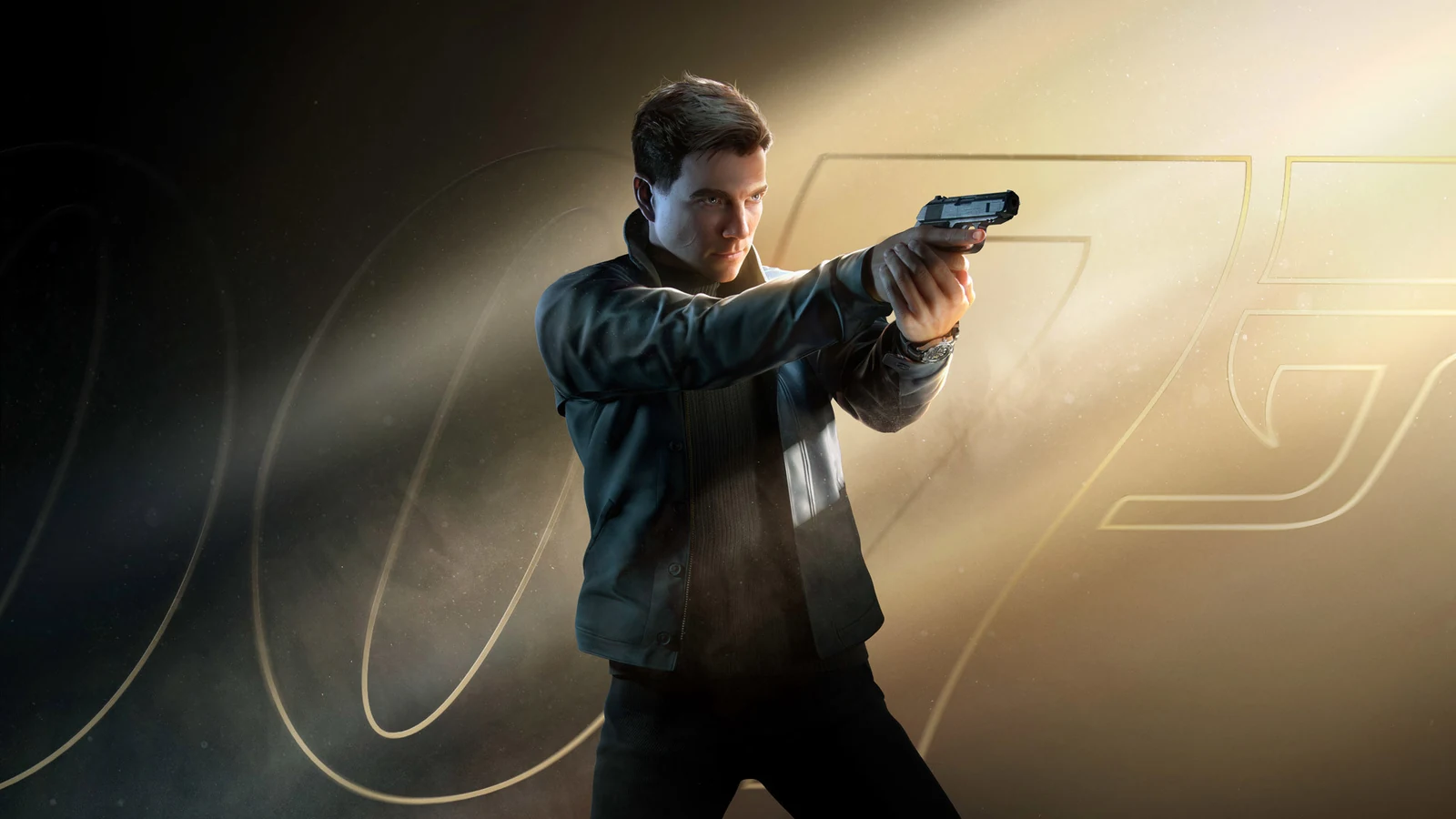
007 First Light does not scale cleanly across its graphics presets, so simply dropping from Ultra to Low often gives underwhelming gains. The biggest improvements come from targeting the few settings that actually matter, especially textures, volumetrics, and upscaling.
Why 007 First Light Is Hard to Optimize
007 First Light uses an upgraded version of IO Interactive’s Glacier Engine with new software-based ray-traced global illumination and a unified volumetric system called Smolder. While the game looks impressive, most settings do not offer strong visual or performance separation between Low, Medium, High, and Highest.
That limited scalability makes manual optimization more important than usual. Instead of lowering everything, the best approach is to keep the settings that add clear visual value and cut the few options that create noticeable FPS drops, VRAM pressure, or frame time spikes. :contentReference[oaicite:0]{index=0}
DLSS vs FSR3 in 007 First Light
DLSS delivers the sharper and more stable image in this game, but its performance uplift is smaller than expected. FSR3 Quality currently offers better raw FPS gains, which makes it the stronger choice if your priority is smoothness rather than image quality.
Best upscaling choice for most players
Choose DLSS Performance if you want cleaner image quality and can accept a smaller performance increase. Choose FSR3 Quality if you want the best overall FPS gain and are willing to trade some image stability for speed.
What to avoid
Do not use Ultra Performance mode. It causes obvious texture blur because the game does not properly compensate with the negative LOD bias needed to preserve sharpness during aggressive upscaling.
- Use DLSS Performance for better clarity.
- Use FSR3 Quality for maximum FPS.
- Avoid Ultra Performance because image quality drops too far.
- On RTX 20-series and RTX 30-series GPUs, force DLSS Preset K through the NVIDIA App or Optiscaler for better stability.
007 First Light Best Settings
These optimized settings are built around keeping visual quality high while removing the hidden performance killers. On mid-range systems, this approach is the best way to improve average frame rates without making the game look noticeably worse.
VRAM-safe settings for 8GB GPUs
Texture memory is one of the biggest problems in 007 First Light. High and Ultra textures can push 8GB cards into frame spikes, heavier system RAM usage, and inconsistent performance. For GPUs like the RTX 3060 Ti, Medium textures are the safer choice.
- Texture Quality: Medium
- Texture Filtering: 16x
- Terrain Quality: Medium
- Shadow Quality: Medium
- Reflection Quality: High
Geometry and world detail
Level of Detail is worth tuning because higher settings can cost several percentage points of performance without a major improvement during normal gameplay. Medium is the sweet spot for keeping object quality solid while avoiding wasted overhead.
- Level of Detail: Medium
- Raise it only if you have extra GPU headroom.
- Keep Terrain at Medium because High and Ultra show only minor visual gains.
- Leave Texture Filtering at 16x because the cost is basically negligible.
Volumetrics and combat performance
Volumetric systems are where some of the largest frame drops happen, especially in gunfights, explosions, smoke-heavy scenes, and effects close to the camera. If you notice performance collapsing during action, this is where you should start cutting settings first.
- Volumetric Fog: Medium
- Volumetric Effects: Low or Medium
- Drop Volumetric Effects first if combat feels unstable.
- Avoid pushing fog and particle settings to High or Ultra unless you have strong GPU overhead.
Lighting and reflections
Global illumination and reflections matter more to the look of the game than many other settings. Their performance cost is relatively manageable compared with the visual payoff, so these are worth keeping higher than the rest when possible.
- Global Illumination: High or Ultra
- Reflection Quality: High
- Shadow Quality: Medium by default
- Use Ultra shadows only if you have spare VRAM and want to reduce flicker
Recommended Optimized Preset
For most players, especially anyone using an 8GB card, this is the best all-around setup for balancing image quality, performance, and frame consistency.
- Upscaling: FSR3 Quality for best FPS, or DLSS Performance for better image quality
- Texture Quality: Medium
- Texture Filtering: 16x
- Level of Detail: Medium
- Terrain Quality: Medium
- Shadow Quality: Medium
- Volumetric Fog: Medium
- Volumetric Effects: Low or Medium
- Global Illumination: High
- Reflection Quality: High
Expected Performance Gains
Optimized settings can deliver a meaningful improvement over maxed-out presets, but the gains depend on your upscaler choice. The biggest wins come from reducing texture pressure on limited VRAM cards and cutting back the expensive volumetric systems that punish performance in heavy scenes.
- Around 20% better performance versus Ultra when using FSR3 Quality
- Around 11% better performance versus Ultra when using DLSS Performance
- Lower frame time spikes on 8GB GPUs by keeping textures at Medium
- Smoother combat when Volumetric Effects is reduced
Extra Tips for Smoother Gameplay
A few small decisions can clean up the experience further, especially if you are trying to stop stutter, reduce sudden dips, or keep the game stable during action-heavy sequences.
- If explosions or smoke effects tank your FPS, lower Volumetric Effects immediately.
- Do not reduce Texture Filtering below 16x because the visual loss is obvious and the performance gain is effectively zero.
- Medium is the best default target for most major settings because High and Ultra often add very little.
- Be cautious with High or Ultra textures on 8GB GPUs because VRAM pressure can trigger stutter and frame pacing issues.
- If you use capture hardware and still see tearing, the issue may not be fully fixed by V-Sync or VRR alone.
FAQ
Use Medium textures, Medium LOD, Medium terrain, Medium shadows, Medium volumetric fog, and Low or Medium volumetric effects. Keep global illumination on High and reflections on High for strong visuals without the worst frame spikes.
DLSS looks cleaner and more stable, but FSR3 Quality currently gives better FPS gains. DLSS is best for image quality, while FSR3 is best for raw performance.
The main issue is VRAM pressure from high texture settings and the heavy cost of volumetric effects during combat. Lowering textures to Medium and reducing volumetric effects usually helps the most.
Lower Volumetric Effects first if your drops happen during explosions, smoke, or combat. Lower Texture Quality to Medium if you are getting stutter or frame time spikes on an 8GB GPU.
Usually no. The game has weak scalability, so Ultra settings often cost performance without delivering a major visual improvement. Optimized Medium and High settings are the better choice for most PCs.
- Ace Combat 85 min read
Ace Combat 8 Best PC Settings: Reduce Stutter and Investigate High RAM Usage
- Witcher 3 Remastered8 min read
The Witcher 3 Remastered Best PC Settings: FPS Boost & Optimization Guide
- CONTROL Resonant7 min read
CONTROL Resonant Intel Arc Performance: Driver 32.0.101.9033 Benchmark & Best Settings