The HD OPTI USB Port Analyzer helps you see which USB controller each device is using so you can place your most important peripherals on the lowest-latency path available. This guide shows where to find it, how to read the results, and what to do if your device is connected to the wrong port.
Open the USB Port Analyzer from HD OPTI Lab
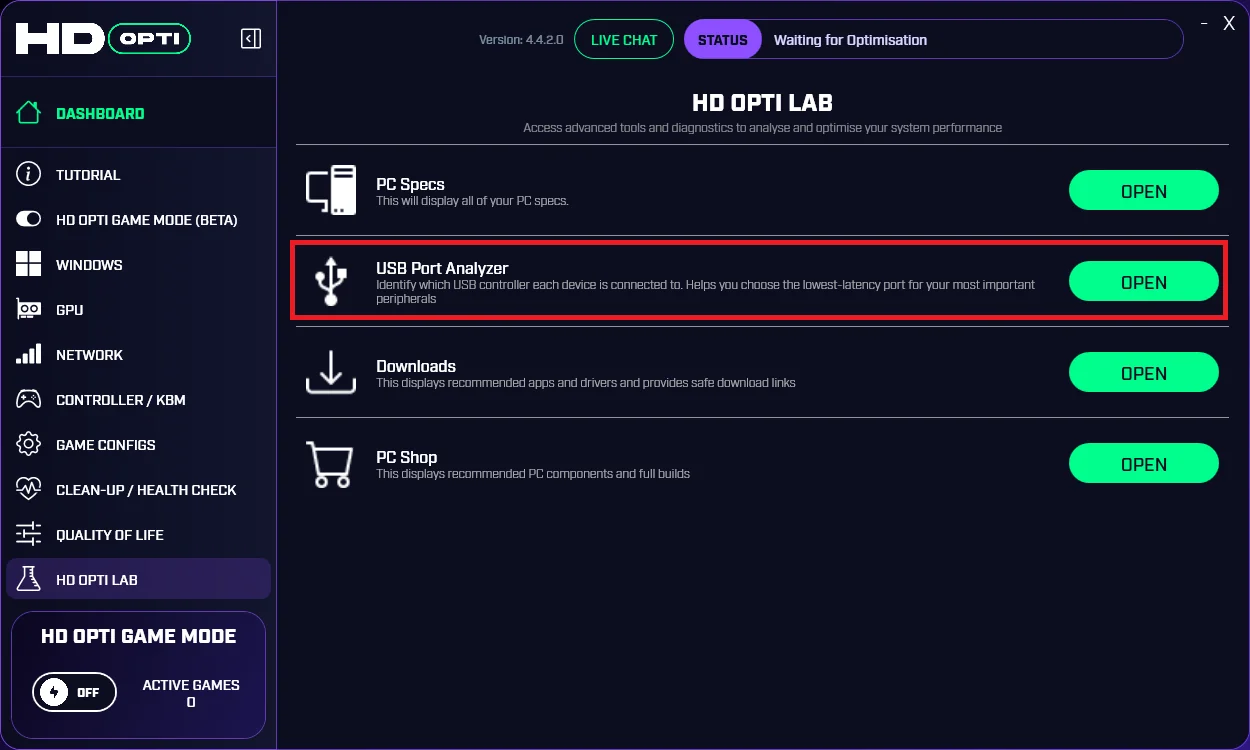
Start in HD OPTI Lab, then open the USB Port Analyzer tool. This is where HD OPTI lists your USB controllers and the devices currently attached to them, making it easier to see whether a controller, mouse, headset, or other important peripheral is using the best available USB path.
Wait for the USB scan to complete
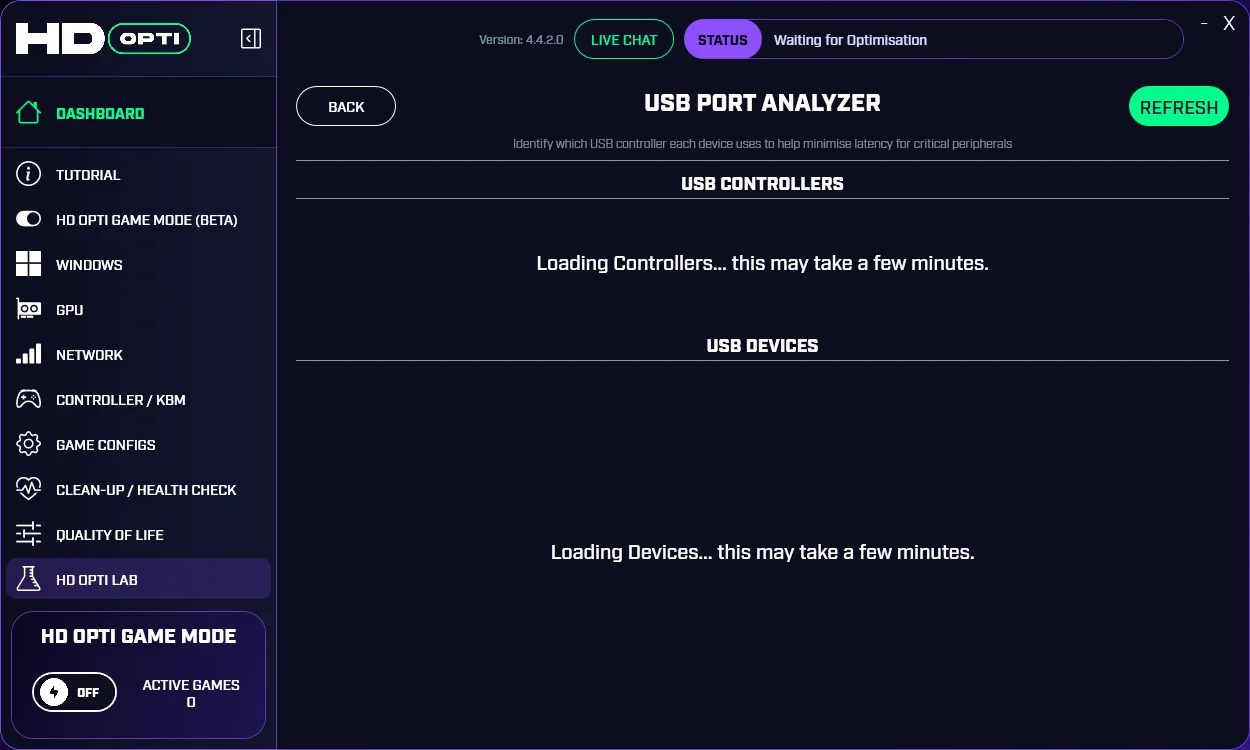
After opening the tool, allow it time to detect both USB controllers and connected devices. During this stage, HD OPTI will show loading messages while it scans the system. Do not judge the results until the scan finishes, because the controller mapping may not be complete yet.
Use the side guidance to understand what you are looking for
Once the analyzer is open, the side guidance helps explain the goal. In simple terms, you want your most latency-sensitive device, usually a controller or mouse, connected to the lowest-latency USB path your motherboard provides. On supported AMD Ryzen boards, that may be a CPU-direct USB path. On many other systems, the chipset path will be the best available option.
Optimizing Windows 11 for Real-Time Performance: A LatencyMon Deep Dive
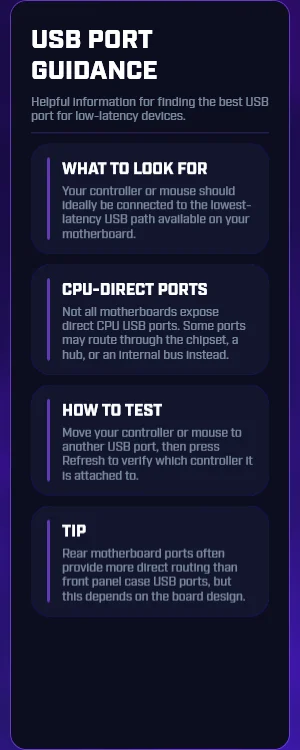
What CPU-direct and chipset mean
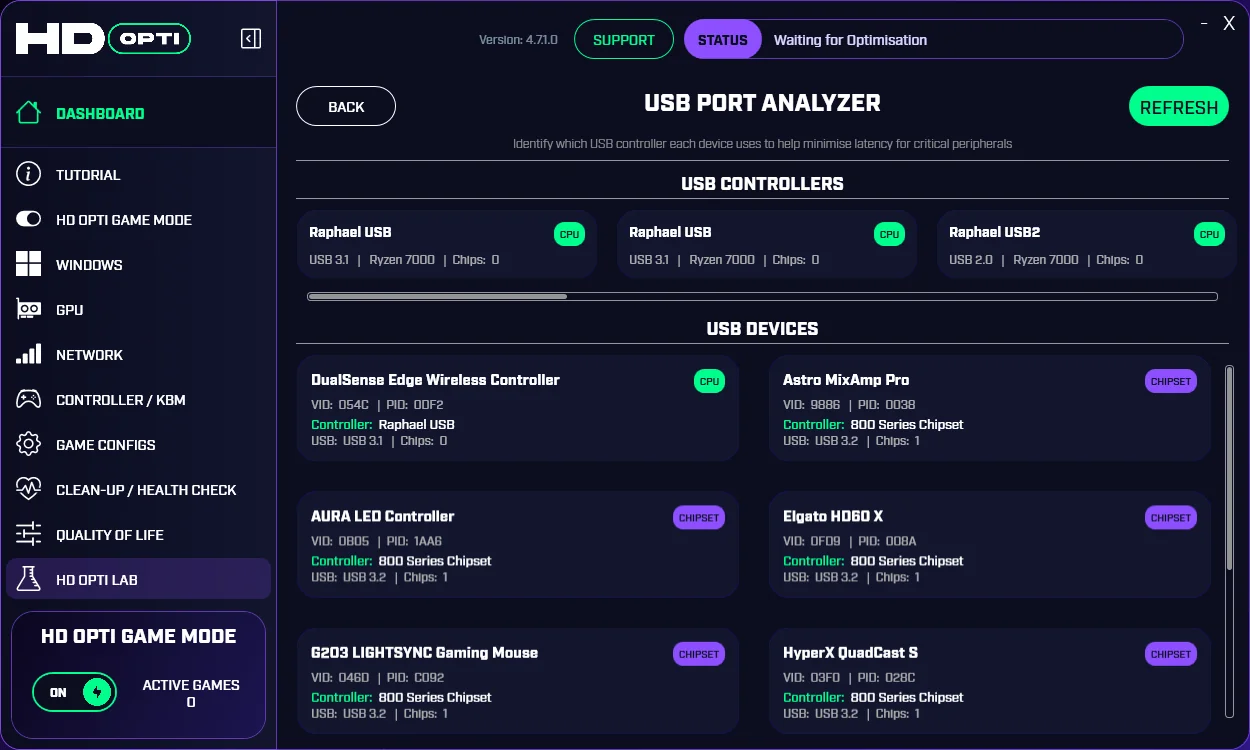
A CPU-direct result means the device is attached to a USB controller that routes straight through the CPU path, with no extra chipset hop in between. That is typically the preferred result for critical peripherals when the motherboard supports it. A chipset result means the device is connected through the motherboard chipset instead. That is not automatically bad, but if CPU-direct is available on your system, the chipset path is usually not the lowest-latency option.
Not every motherboard supports direct CPU USB for peripherals. This is primarily something you will see on certain Ryzen motherboard layouts. Intel systems generally do not have the same direct-CPU USB presentation in this context, so if chipset is the only option shown, that is usually the lowest-latency route available for that platform.
Intel vs AMD CPUs in 2025: FPS, Thermals & Gaming Performance Compared
Example of the device in the wrong port
In this example, the controller is connected to the wrong USB path. The analyzer shows it attached through the chipset rather than on a CPU-direct USB controller. If your controller or mouse appears like this and your motherboard supports CPU-direct USB, move the device to a different motherboard USB port and then click Refresh.
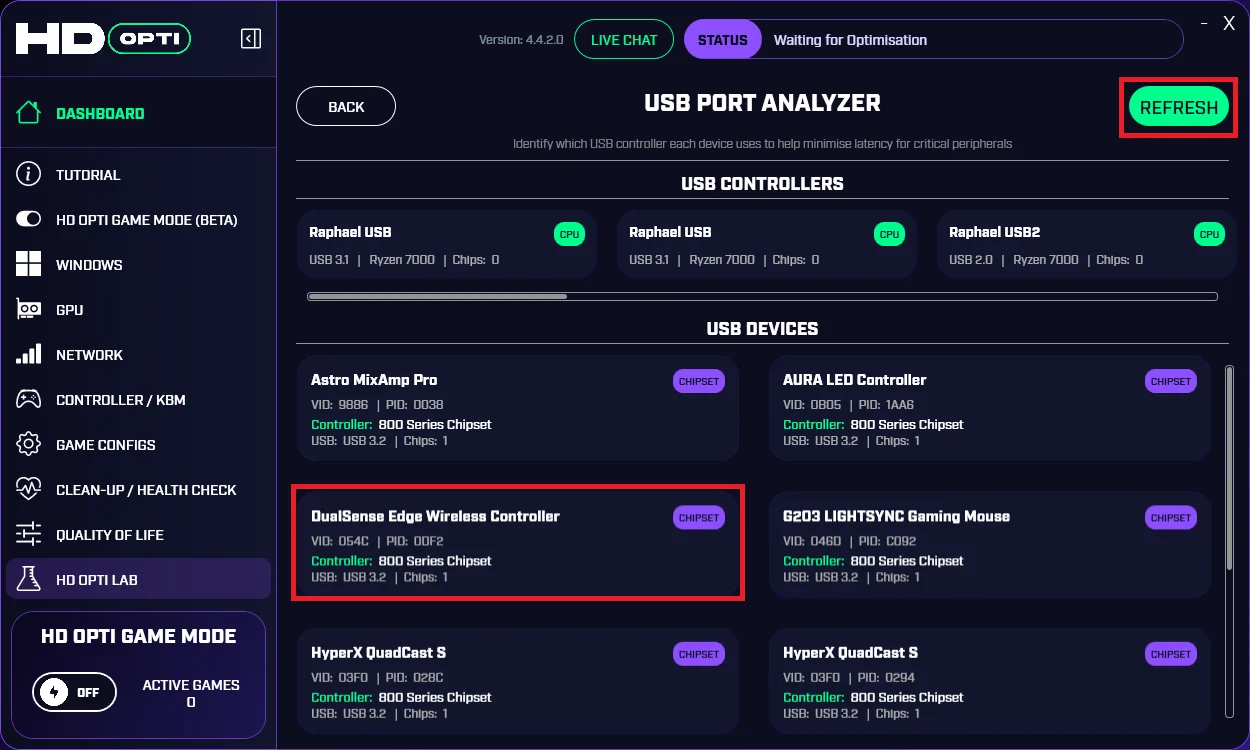
Avoid judging this by the physical label on the port alone. Different rear motherboard ports can route through different controllers depending on the board design. The correct method is to move the device, refresh the analyzer, and verify the controller assignment inside the tool itself. If the device still shows chipset, try another motherboard port and refresh again.
10 Mistakes Killing Your FPS and Input: solutions to fix your mistakes
Move the device and refresh
Unplug the device from its current port, connect it to another rear motherboard USB port, then press Refresh in the USB Port Analyzer. If the board exposes a CPU-direct USB path, HD OPTI should update the result and show the device on the correct controller. If it does not, keep testing another motherboard port until you find the best available route.
- Open USB Port Analyzer.
- Wait for controllers and devices to finish loading.
- Find your controller, mouse, or other critical peripheral in the device list.
- Check whether it shows CPU or chipset.
- If it shows chipset on a Ryzen board that supports CPU-direct USB, move the device to another rear motherboard port.
- Click Refresh and check the new result.
- Repeat until the device lands on the lowest-latency path available.
What the correct result should look like
When the device is connected to the correct port on a supported setup, the analyzer will show a green CPU icon next to the USB device entry. That confirms the peripheral is using the CPU-direct controller path instead of going through the chipset.
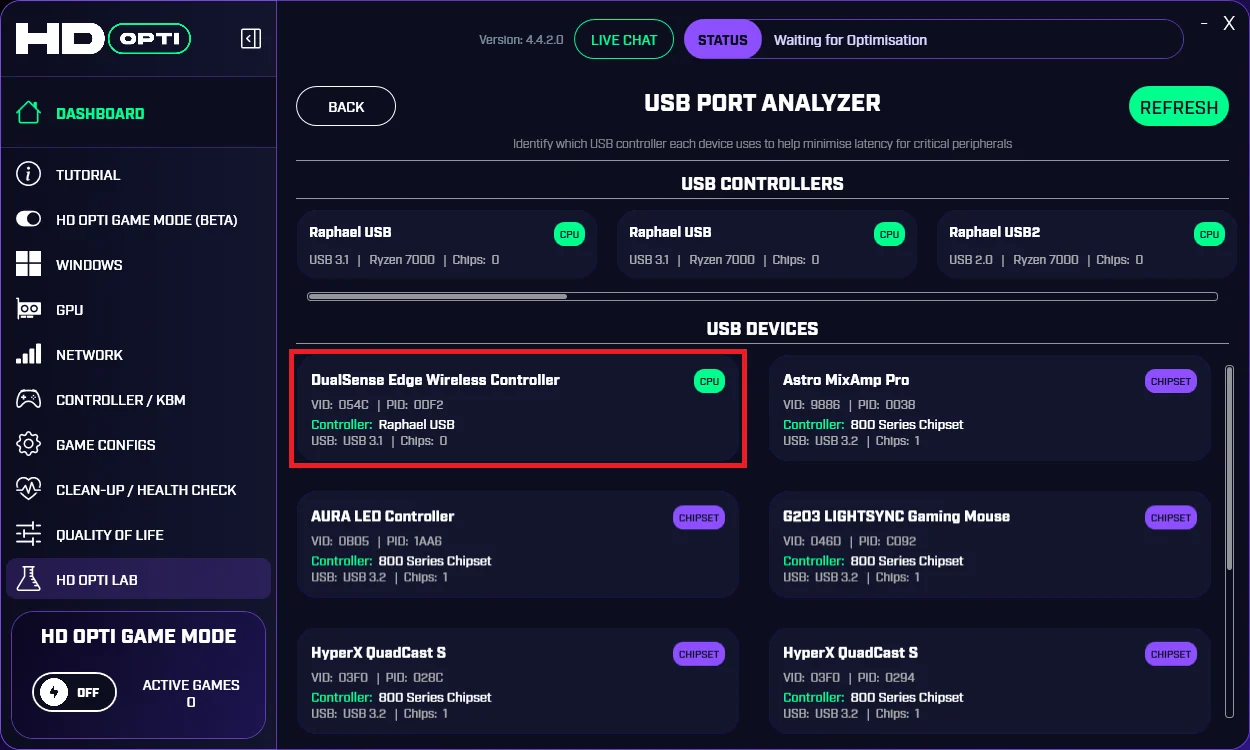
If you never get a CPU result after testing multiple motherboard ports, your board may not expose a CPU-direct option for that device, or your platform may only offer chipset routing. In that case, keep the peripheral on the best and most stable chipset port you can identify, because that is the lowest-latency path your system provides.
How to Overclock Your Controller with Hidusbf
Best practice for choosing ports
- Test rear motherboard USB ports before using front panel case ports.
- Refresh the analyzer after every port change.
- Prioritize controllers and mice first, since they are the most latency-sensitive devices.
- If your board supports CPU-direct USB, use that path for critical peripherals.
- If only chipset is available, chipset is your best option on that system.
- Do not assume all ports on the motherboard behave the same way.
Final takeaway
The goal of the HD OPTI USB Port Analyzer is simple: identify which USB path your device is using, then move your most important peripheral to the lowest-latency option available. On supported Ryzen systems, that usually means finding a CPU-direct USB port. On Intel systems and boards without direct CPU USB routing, the chipset path may already be the best you can get. The tool removes the guesswork by letting you move the device, refresh, and verify the result directly.
FAQ
Open it from HD OPTI Lab, wait for the controller and device scan to finish, then locate your controller or mouse in the device list before making any port changes.
It means the device is connected through a CPU-direct USB controller path, which is typically the preferred low-latency route on supported Ryzen motherboard layouts.
If your board or platform only exposes chipset routing, then chipset is the best available path. This is common on Intel systems and on motherboards that do not offer CPU-direct USB for peripherals.
Usually no. Rear motherboard ports are the better place to test first because front panel ports may route differently and are often less ideal for latency-sensitive peripherals.
Move the device, click Refresh, and check the analyzer again. On a supported setup, the correct result will show the device with a green CPU icon next to it.