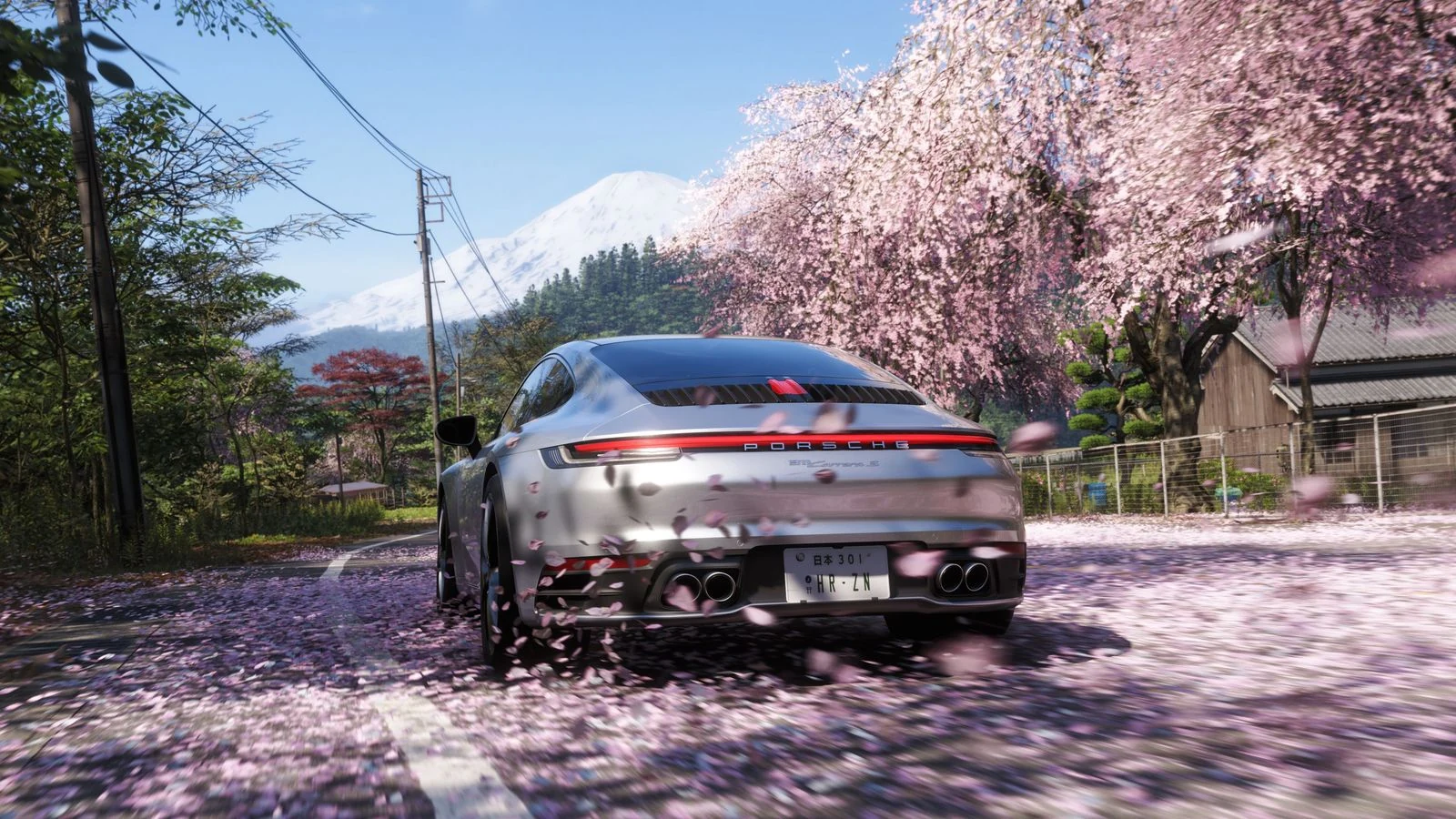
This guide covers the best Forza Horizon 6 settings for players who want smoother gameplay, better responsiveness, and strong image quality on PC. It focuses on unlocking the frame rate, reducing latency, using DLSS correctly on NVIDIA GPUs, and disabling the settings that cost too much performance for too little visual gain.
Best Forza Horizon 6 settings for FPS and visuals
Forza Horizon 6 can look great on PC without forcing you into poor frame rates. The main goal is to remove the default bottlenecks first, then raise the settings that still give strong visual quality without adding unnecessary latency or heavy GPU load. For most players, that means unlocking the frame rate, turning off V-Sync, staying in full screen, and using sensible quality settings instead of maxing everything.
Start with the video tab
Your first priority is making sure the game is actually using your hardware properly. Match the resolution to your monitor’s native resolution, set Frame Rate to Unlocked, turn Vertical Synchronisation Off, enable Full Screen, turn Motion Blur Off, and enable the FPS counter so you can monitor changes while testing. These are the biggest quality-of-life changes because they remove the default 60 FPS cap and reduce the input lag that V-Sync can add.
Common FPS Fixes for PC Games - OCCT, DDU, shadercache
Recommended video settings
- Set Resolution to your monitor’s native value
- Change Frame Rate from 60 to Unlocked
- Set Vertical Synchronisation to Off
- Turn Full Screen On
- Set Motion Blur to Off
- Turn Show FPS On
Best DLSS and anti-aliasing settings for NVIDIA GPUs
If you are using an NVIDIA GPU, DLSS is the easiest way to gain extra performance while keeping the image clean enough for fast racing. The best balance here is DLSS On with Super Resolution set to Performance and Sharpness around 0.5. That gives a meaningful FPS lift without making the image look too soft or overly sharpened. NVIDIA Reflex Low Latency should also be enabled to help reduce system latency and improve responsiveness.
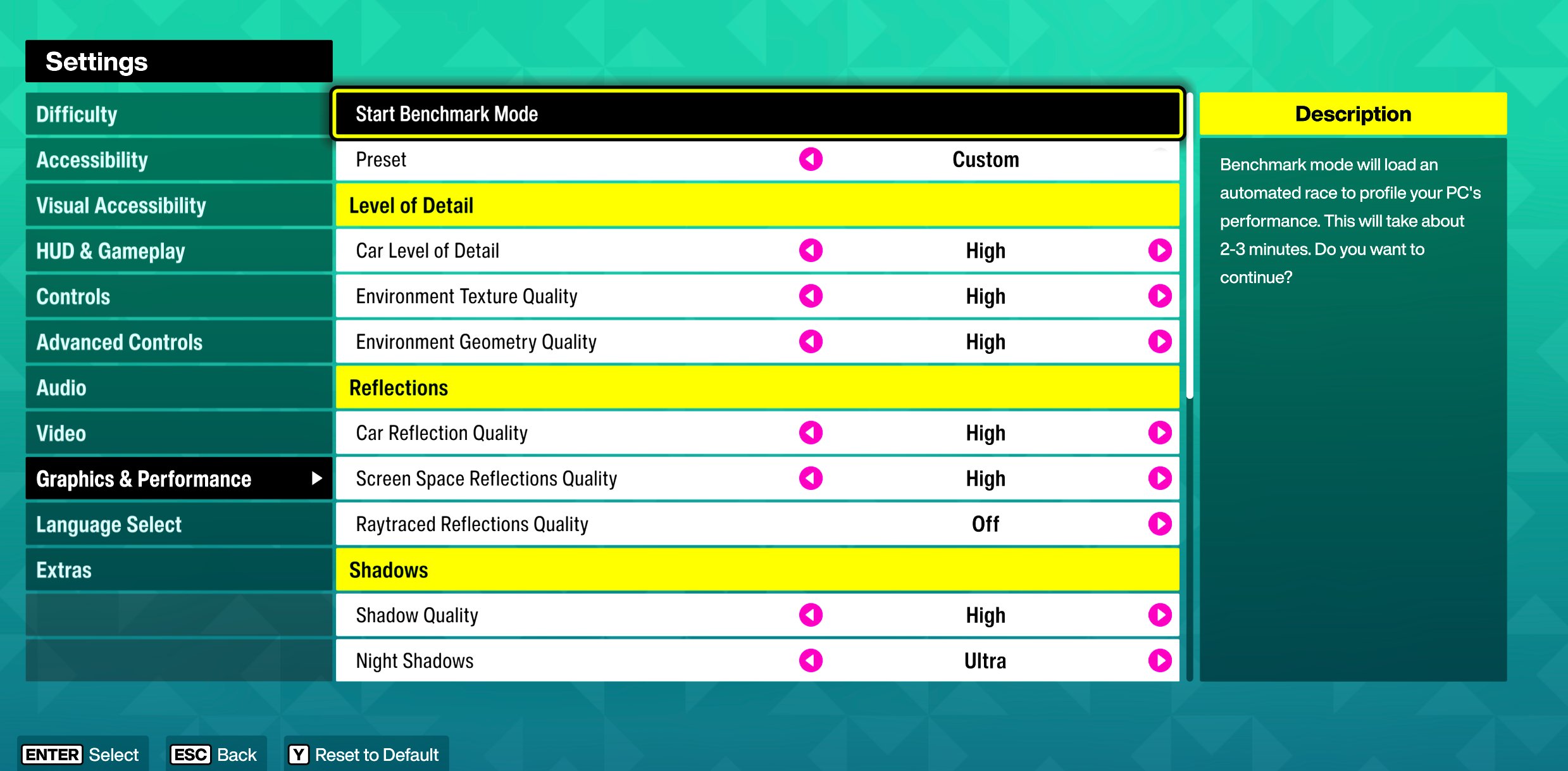
When DLSS is active, avoid stacking other scaling or anti-aliasing methods on top of it. Leave TAA, AMD FSR, and Intel XeSS disabled. Mixing these options usually adds blur, inconsistency, or unnecessary processing, and it defeats the point of using DLSS as the main performance tool.
NVIDIA vs AMD: The GPU Battle for PC Optimization and AI Dominance in 2025
Recommended NVIDIA upscaling settings
- NVIDIA DLSS: On
- Super Resolution: Performance
- Sharpness: 0.5
- NVIDIA Reflex Low Latency: On
- TAA: Off
- AMD FSR: Off
- Intel XeSS: Off
Graphics settings that keep the game looking good
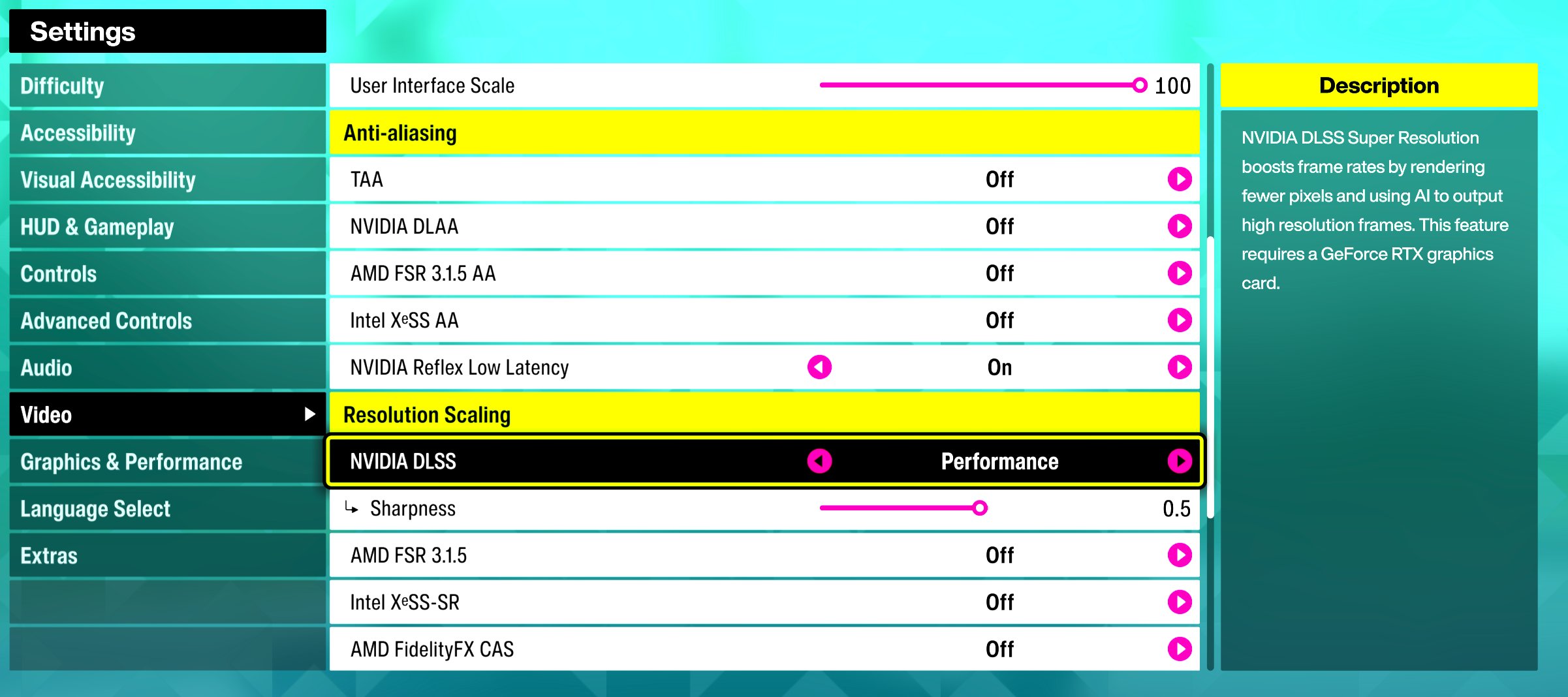
The best approach is not to drop every setting to Low. Forza Horizon 6 still looks excellent with the right High and Ultra options in place. Car Level of Detail, Environment Texture Quality, Environment Geometry Quality, Shadow Quality, Car Reflection Quality, Screen Space Reflections, Screen Space GI, and Shader Quality can stay high because they preserve the visual identity of the game without the massive hit that full ray tracing can cause.
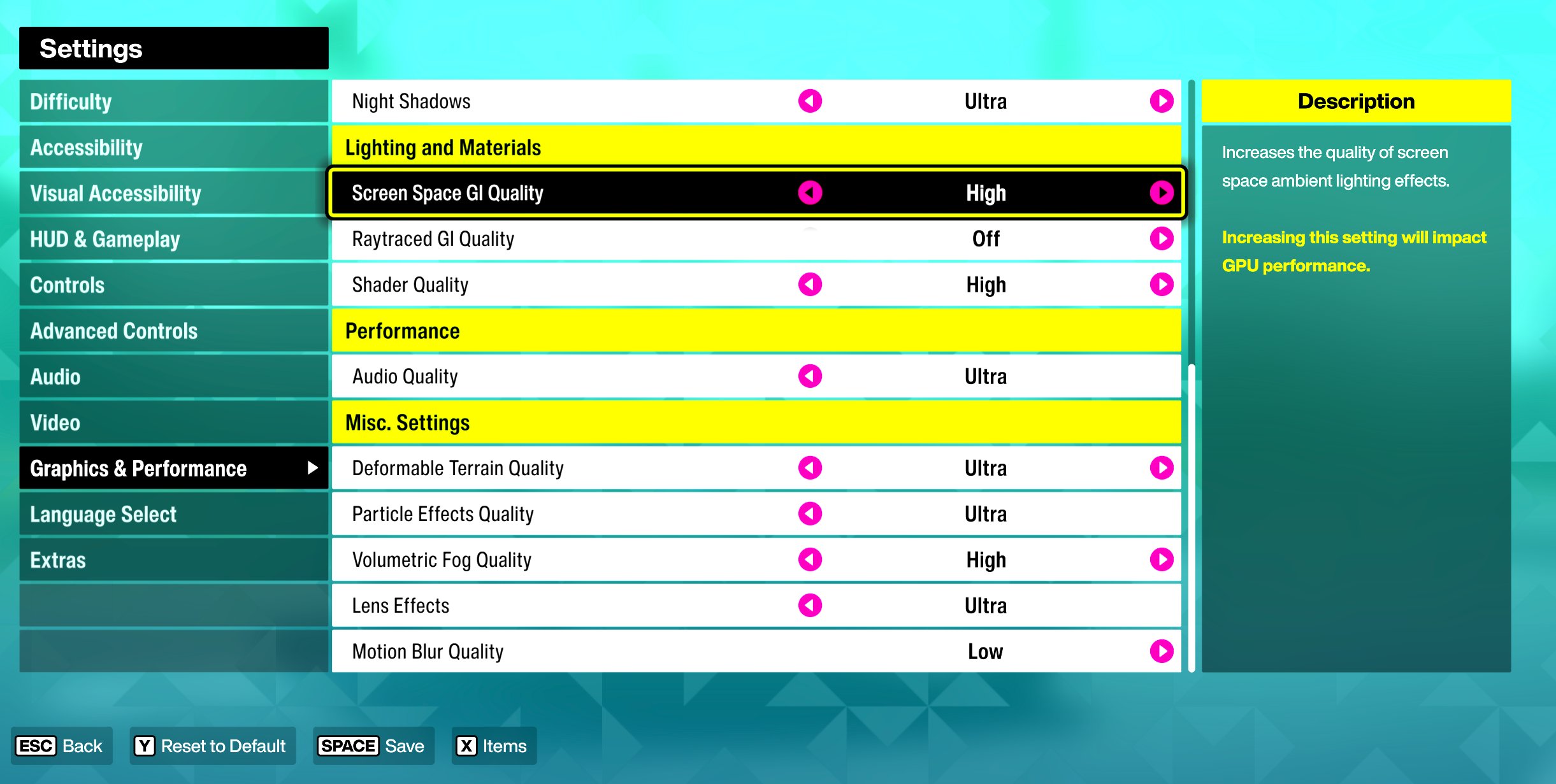
The biggest performance win comes from disabling ray tracing features. Turn Raytraced Reflections Quality Off and Raytraced GI Quality Off. These settings are among the heaviest in the game, and they are not worth the frame rate loss if your goal is smooth racing and stable FPS. Disabling them lets you keep more of the traditional quality settings higher, which gives a better overall result than running mixed ultra settings with poor performance.
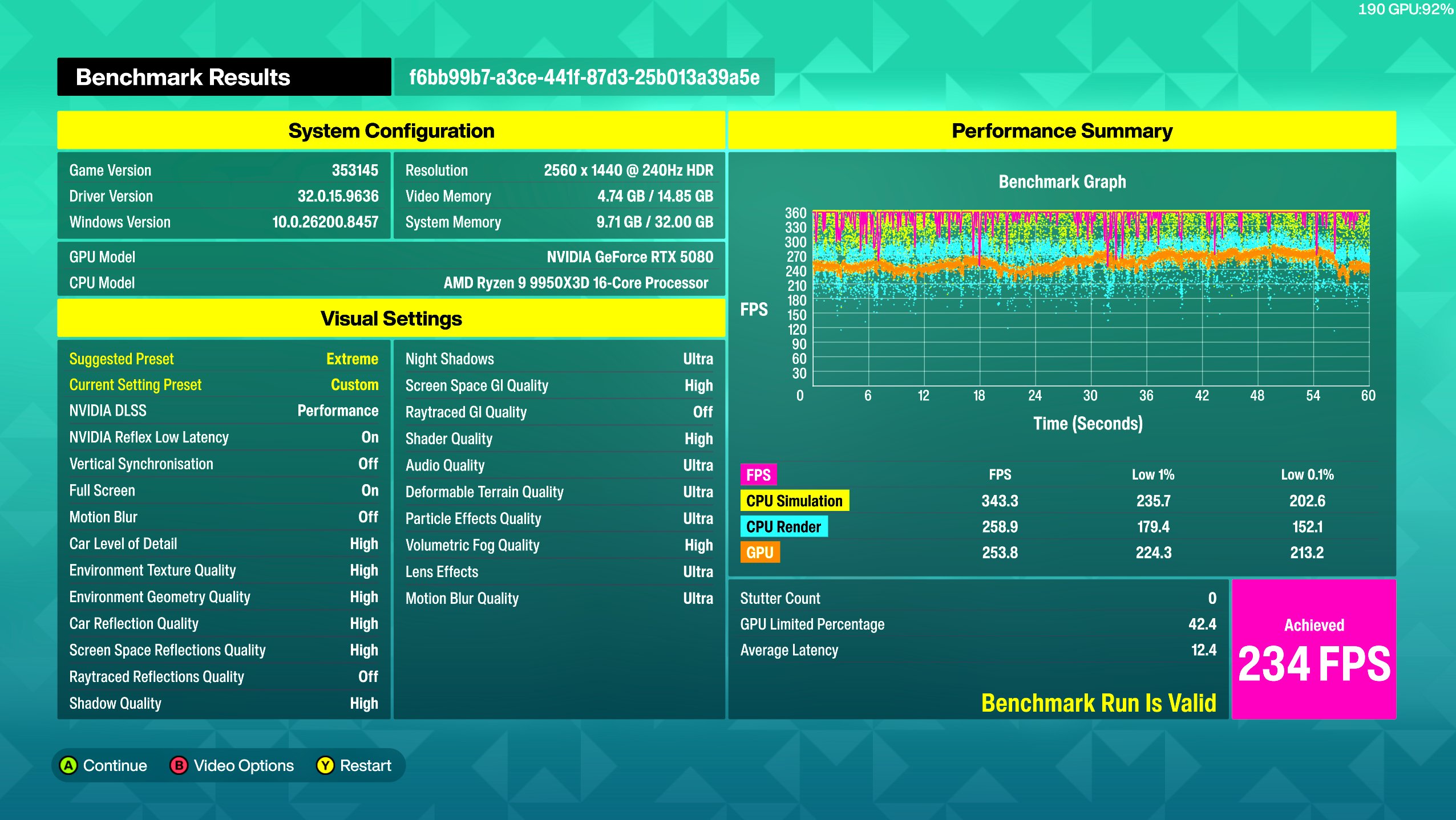
Recommended graphics settings
- Car Level of Detail: High
- Environment Texture Quality: High
- Environment Geometry Quality: High
- Car Reflection Quality: High
- Screen Space Reflections: High
- Shadow Quality: High
- Night Shadows: Ultra
- Screen Space GI: High
- Shader Quality: High
- Raytraced Reflections Quality: Off
- Raytraced GI Quality: Off
Extra settings for clarity and smoothness
Some smaller settings still matter, especially when you are driving at speed. Motion Blur should stay Off in the video menu because it reduces clarity and makes the image harder to read during fast camera movement. At the same time, a few miscellaneous settings can remain high or ultra if you want the world to feel rich without overloading the system too much.
Good examples are Deformable Terrain, Particle Effects, Lens Effects, and Motion Blur Quality on Low or Off, with Volumetric Fog on High. This keeps the picture cleaner while preserving atmosphere in other areas.
How Discord, Nvidia, and Other Overlays Affect FPS & Latency
Recommended miscellaneous settings
- Deformable Terrain: Ultra
- Particle Effects: Ultra
- Lens Effects: Ultra
- Motion Blur Quality: Low
- Volumetric Fog: High
- User Interface Scale: 100
Best overall Forza Horizon 6 settings list
If you want a simple copy-and-apply setup, use the list below as your baseline. It is designed to deliver strong FPS, lower input lag, and very good image quality on a modern PC, especially with an NVIDIA GPU.
- Resolution: Native monitor resolution
- Frame Rate: Unlocked
- V-Sync: Off
- Full Screen: On
- Motion Blur: Off
- Show FPS: On
- DLSS: Performance
- Sharpness: 0.5
- NVIDIA Reflex Low Latency: On
- TAA: Off
- NVIDIA DLAA: Off
- AMD FSR 3.1.5 AA: Off
- AMD FSR 3.1.5: Off
- Intel XeSS AA: Off
- Intel XeSS-SR: Off
- AMD FidelityFX CAS: Off
- Car Level of Detail: High
- Environment Texture Quality: High
- Environment Geometry Quality: High
- Car Reflection Quality: High
- Screen Space Reflections Quality: High
- Raytraced Reflections Quality: Off
- Shadow Quality: High
- Night Shadows: Ultra
- Screen Space GI Quality: High
- Raytraced GI Quality: Off
- Shader Quality: High
- Audio Quality: Ultra
- Deformable Terrain Quality: Ultra
- Particle Effects Quality: Ultra
- Volumetric Fog Quality: High
- Lens Effects: Ultra
- Motion Blur Quality: Low
- User Interface Scale: 100
Final optimisation tips
If the game still feels unstable after applying these settings, the issue may be outside the game itself. Background processes, overlays, shader cache problems, or messy GPU drivers can all hurt smoothness even when your in-game settings are correct. That is why it helps to treat game settings as only one part of the full optimisation process.
How to Install NVIDIA Drivers Correctly (Manual Clean Method)
Start with the in-game changes first, then test in a demanding race or busy open-world area. Watch your FPS counter, check for frametime consistency, and only reduce more settings if performance is still below your target. In most cases, unlocking the frame rate, disabling V-Sync, using DLSS correctly, and turning off ray tracing will do the bulk of the work.
FAQ
The game may default to a 60 FPS frame rate limit. Set Frame Rate to Unlocked in the video settings to let your GPU run beyond that cap.
If your goal is higher responsiveness and lower input lag, turn V-Sync Off. It can cap performance and add latency, especially on high refresh rate monitors.
For NVIDIA GPUs, use DLSS On, Super Resolution set to Performance, Sharpness at 0.5, and NVIDIA Reflex Low Latency On. Disable TAA, FSR, and XeSS when using DLSS.
Not if your priority is FPS. Raytraced Reflections and Raytraced GI are expensive settings, and turning them Off usually gives a better balance of performance and image quality.
Unlock the frame rate, disable V-Sync, switch to full screen, turn Motion Blur Off, and use DLSS if you have an NVIDIA GPU. Those changes usually provide the biggest immediate improvement.
- CONTROL Resonant7 min read
CONTROL Resonant Intel Arc Performance: Driver 32.0.101.9033 Benchmark & Best Settings
- WARDOGS low FPS and stuttering8 min read
WARDOGS Low FPS and Stuttering: Complete PC Troubleshooting Guide
- Beast of Reincarnation6 min read
Beast of Reincarnation FPS Boost: Best Settings to Fix Lag and Stutter