Lag in Marathon is not always caused by the game server. High ping, packet loss, jitter, delayed damage registration, and heavy-feeling input can also come from Wi-Fi instability, Windows power saving, background bandwidth usage, DNS routing, firewall restrictions, or risky system tweaks applied without a restore point. This guide walks through a practical optimization path, starting with the safest hardware and Windows settings before moving into advanced registry and command-line changes.
Start With the Real Problem: Ping, Packet Loss, Jitter, and Input Delay
A good Marathon lag fix starts by identifying what kind of delay you are dealing with. High ping means your connection is taking too long to reach the game server and return. Packet loss means some data never arrives, which can cause rubber banding, missing shots, delayed damage, or sudden movement correction. Jitter means your packet timing is inconsistent, so the game feels unstable even when your average ping looks acceptable.
Input lag is slightly different. Your ping can be stable while the game still feels heavy because Windows, your power plan, background tasks, or driver-level settings are adding delay before your inputs are processed. The best setup improves both network stability and system responsiveness.
Create a System Restore Point Before Changing Anything
Before applying network scripts, registry files, BCD tweaks, or driver changes, create a System Restore Point. This gives you a clean rollback option if a setting conflicts with your hardware, causes instability, or makes the connection worse.
- Open the Start menu and search for Create a restore point
- Select your system drive
- Click Create
- Name the restore point Marathon
- Save it before applying advanced tweaks
This step is especially important when using registry files, batch scripts, or Boot Configuration Data changes. A restore point makes it much easier to reverse settings instead of guessing which tweak caused the issue.
Use a Wired Ethernet Connection Instead of Wi-Fi
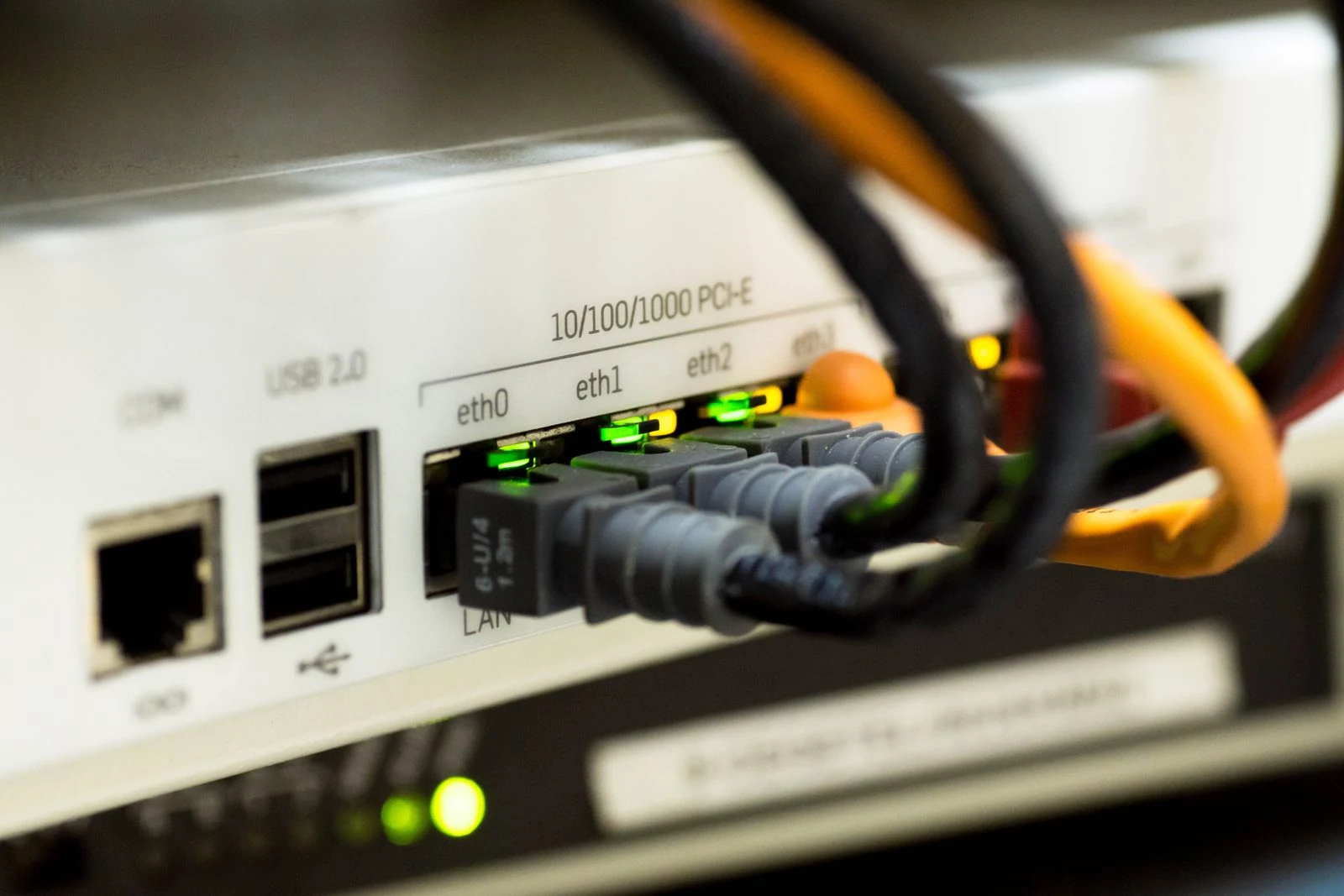
A wired LAN connection is the strongest foundation for Marathon network optimization. Wi-Fi can be fast on a speed test but still suffer from interference, signal drops, packet timing issues, and inconsistent latency. Ethernet removes most of those variables and gives your PC a more direct path to the router.
- Connect your PC directly to the router with a LAN or Ethernet cable
- Avoid playing competitive matches on unstable Wi-Fi when possible
- Restart your router after switching from wireless to wired
- Test Marathon again before applying deeper Windows tweaks
This single change can reduce ping spikes, packet loss, and jitter more reliably than most software tweaks. If Marathon feels inconsistent during fights, switching to Ethernet should be your first step.
Allow Marathon Through Windows Firewall
Windows Firewall or third-party security software can accidentally restrict or throttle game traffic. Marathon needs clear Private and Public network permissions so the game client can communicate with servers without unnecessary blocks.
- Open the Start menu and search for Allow an app through Windows Firewall
- Click Change settings
- Click Allow another app
- Browse to the Marathon install or download location
- Select marathon.exe
- Make sure both Private and Public boxes are checked
- Click OK
After applying the firewall exception, restart the game and check whether connection warnings, matchmaking issues, or sudden disconnects improve.
Disable Ethernet Power Saving in Device Manager
Windows often allows network adapters to save power by reducing performance or turning off the device when it thinks the system does not need it. For gaming, this can create micro-stutters, brief disconnects, and sudden latency spikes. Your Ethernet controller should stay fully active while Marathon is running.
- Right-click the Start menu
- Open Device Manager
- Expand Network adapters
- Right-click your Ethernet controller
- Select Properties
- Open the Power Management tab
- Uncheck every option that allows Windows to turn off or reduce power to the device
- Click OK
This is one of the safest and most useful Windows network tweaks because it prevents the operating system from interrupting your wired connection during gameplay.
Tune Ethernet Advanced Settings Carefully
The Advanced tab for your Ethernet controller contains driver-level options that affect throughput, power saving, interrupt behavior, and packet handling. These settings vary by adapter, so do not blindly copy values from a different network card. Use the performance-oriented profile designed for your exact controller when available.
- Prioritize settings that reduce power saving during active gameplay
- Avoid changing unknown offload or interrupt options without a restore point
- Apply one group of changes at a time so you can test stability
- Restart your PC after major adapter setting changes
- Revert any option that increases disconnects, stutters, or packet loss
The goal is not just maximum download speed. For Marathon, the priority is stable low-latency communication between your PC and the game server.
Benchmark Google DNS vs. Cloudflare DNS
DNS does not directly lower the physical distance to the Marathon server, but it can improve how quickly your PC resolves addresses and starts connections. The best DNS server depends on your location, ISP, and routing, so benchmark before choosing.
- Open Command Prompt
- Type ping 8.8.8.8 and press Enter
- Note the average latency for Google DNS
- Type ping 1.1.1.1 and press Enter
- Note the average latency for Cloudflare DNS
- Choose the DNS provider with the lower and more stable result
If Google DNS gives you the better result, use 8.8.8.8 as the preferred DNS server and 8.8.4.4 as the alternate DNS server. If Cloudflare is better, use 1.1.1.1 as the preferred DNS server and 1.0.0.1 as the alternate DNS server.
Apply the Best DNS Server in Windows
- Open Control Panel
- Go to Network and Sharing Center
- Click Change adapter settings
- Right-click your Ethernet connection
- Select Properties
- Double-click Internet Protocol Version 4 (TCP/IPv4)
- Select Use the following DNS server addresses
- Enter the preferred and alternate DNS addresses from your test
- Click OK and restart your connection
Re-test your ping after changing DNS. If the result is worse or inconsistent, switch back or test another trusted DNS provider.
Stop Windows Delivery Optimization From Stealing Bandwidth
Delivery Optimization allows Windows to share update data with other devices on your network or across the internet. That can use upload and download bandwidth in the background, which may cause ping spikes during active Marathon matches.
- Open Settings
- Go to Windows Update
- Open Advanced options
- Select Delivery Optimization
- Turn off Allow downloads from other devices
This is a useful fix if your ping randomly jumps while nothing obvious is running. It prevents Windows Update from using your connection as a background sharing service while you are trying to play.
Use the Ultimate Performance Power Plan
Power-saving behavior can affect both your CPU responsiveness and network adapter behavior. The Ultimate Performance power plan is designed to reduce power-management delays, which can help Marathon feel more responsive on desktops and high-performance laptops.
- Open Command Prompt as administrator
- Run the command powercfg -duplicatescheme e9a42b02-d5df-448d-aa00-03f14749eb61
- Open Control Panel
- Go to Power Options
- Select Ultimate Performance
- Restart your PC
On some systems, especially laptops, this may increase power usage and heat. Use it when plugged in and monitor temperatures during long sessions.
Use BCD, Registry, and Network Scripts With Caution
Advanced optimization packs often include BCD tweaks, registry files, and network optimizer batch scripts. These can target input latency, Ethernet performance, power behavior, unnecessary services, and FPS-related responsiveness. They can also cause conflicts if they are poorly written or not designed for your hardware.
- Run only trusted scripts
- Always run them as administrator when required
- Read what the script changes before applying it
- Apply one tweak category at a time
- Restart and test Marathon after each major change
- Use your Marathon restore point if performance gets worse
BCD tweaks are especially sensitive because they affect how Windows handles boot-time configuration and hardware timing. They may make input feel lighter on some systems, but they should never be applied without a rollback plan.
Monitor Performance With Net Stats and RAM Tools
After applying your Marathon network optimization settings, use available performance overlays or net stats tools to watch ping, packet loss, and jitter in real time. This helps you separate a real improvement from placebo.
- Watch for packet loss during fights
- Check whether ping spikes happen when Windows updates or downloads start
- Monitor jitter instead of focusing only on average ping
- Use RAM optimization features only if they are stable on your PC
- Check hidden settings or burger menus in utility tools for memory cleanup options
If a booster includes an optimized RAM after boosting option, test it during a normal play session before relying on it in ranked or competitive matches. The best utility setting is the one that improves consistency without causing stutters or crashes.
Optional: Tune CPU Priority Based on Your Hardware
Some players improve system responsiveness by assigning Marathon a higher CPU priority. This can help if background processes are competing with the game, but it is not a universal fix. Too aggressive of a priority setting can make other system tasks unstable or reduce overall smoothness.
Use CPU priority tweaks only after the core network fixes are complete. Ethernet stability, firewall permissions, Delivery Optimization, DNS selection, power settings, and adapter power management should come first.
Quick Marathon Lag Fix Checklist
- Use Ethernet instead of Wi-Fi
- Allow marathon.exe through Windows Firewall
- Disable Ethernet power saving in Device Manager
- Benchmark Google DNS and Cloudflare DNS before choosing
- Turn off Windows Delivery Optimization
- Enable the Ultimate Performance power plan
- Create a Marathon restore point before registry or BCD tweaks
- Test every major change in-game before applying more tweaks
- Monitor ping, packet loss, and jitter with net stats tools
- Revert any tweak that makes stutters, disconnects, or latency worse
Key Terms for Marathon Network Optimization
- Ping: The time in milliseconds it takes for data to travel from your PC to the game server and back
- Packet loss: Missing network packets that can cause rubber banding, delayed actions, or failed hit registration
- Jitter: Inconsistent packet timing that makes gameplay feel unstable even when average ping looks normal
- DNS: The system that translates server names into IP addresses before your PC connects
- BCD: Boot Configuration Data, which controls certain Windows boot and hardware timing behaviors
- Delivery Optimization: A Windows feature that shares update data with other devices and can use bandwidth in the background
FAQ
High ping can come from Wi-Fi interference, poor routing, background downloads, Windows update sharing, firewall restrictions, power-saving network settings, or distance from the game server. Start with Ethernet, disable Delivery Optimization, allow Marathon through the firewall, and test DNS latency.
Wi-Fi can cause packet loss, jitter, and ping spikes even when your download speed looks fast. Ethernet is more reliable because it avoids wireless interference and gives your PC a direct wired connection to the router.
The best DNS settings depend on your location and ISP. Test ping 8.8.8.8 for Google DNS and ping 1.1.1.1 for Cloudflare DNS in Command Prompt, then use the provider with the lower and more stable average latency.
They can be useful, but they are more advanced than basic Windows settings. Create a System Restore Point first, use only trusted scripts, apply changes one at a time, and revert immediately if you notice crashes, disconnects, or worse input delay.
Yes, many of them can work on a laptop, especially Ethernet, firewall permissions, DNS testing, and Delivery Optimization changes. The Ultimate Performance power plan and advanced power tweaks should be used while plugged in because they may increase heat and battery drain. \`\`\`