Before replacing your GTX 1660 Super, check whether a different graphics profile makes your games enjoyable again. Its 6GB of memory and feature support need separate attention: low FPS, texture-related hitches and an unmet hardware requirement call for different decisions.
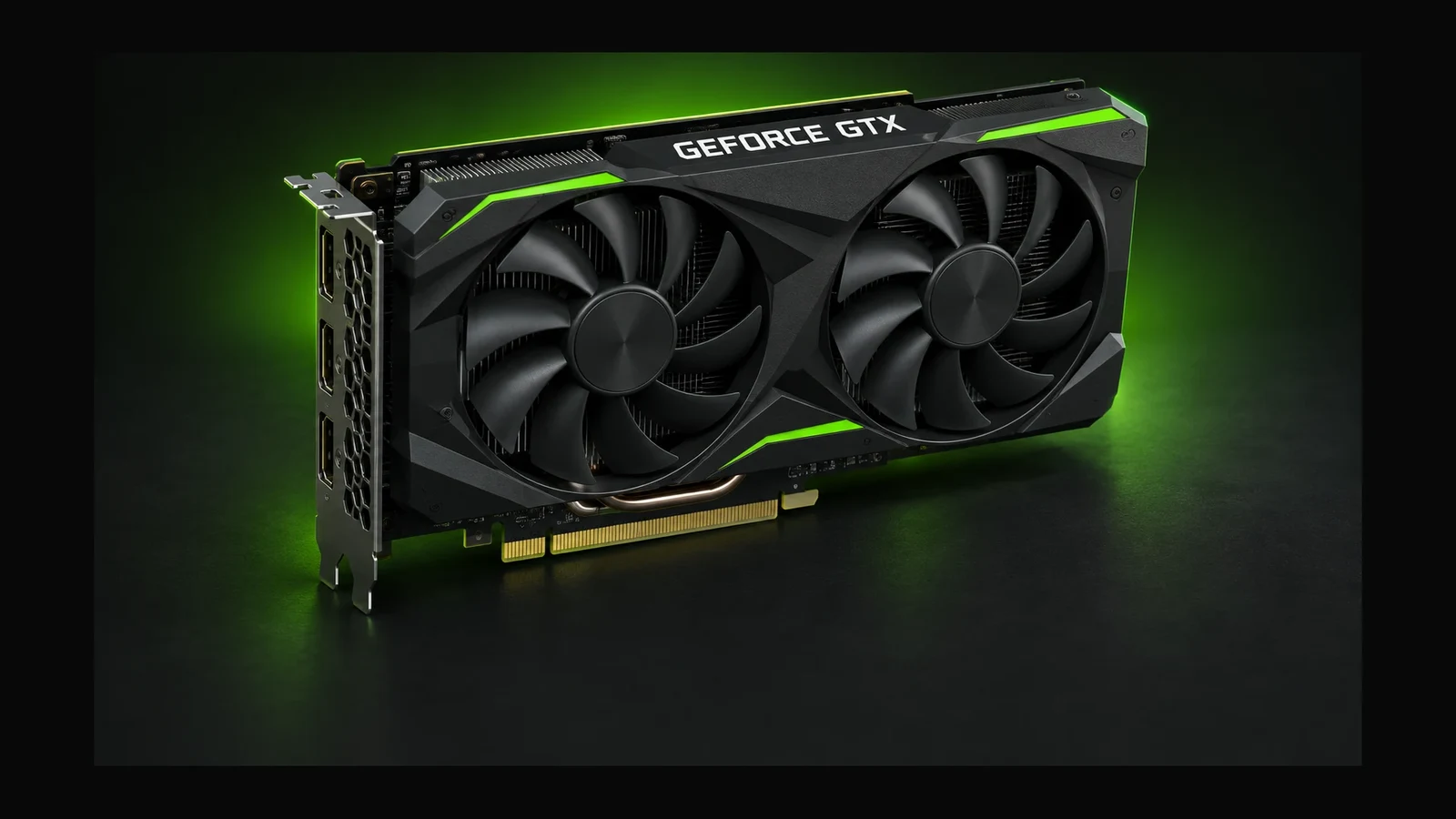
Header image: AI-generated illustration of a GeForce GTX-style graphics card; not a photograph of a specific GTX 1660 Super model.
Check compatibility before tuning
The GTX 1660 Super has 6GB of GDDR6 memory. NVIDIA lists no dedicated ray tracing cores, Tensor Cores or DLSS support for this card. A setting that works on an RTX GPU is therefore not automatically available on your GTX card.
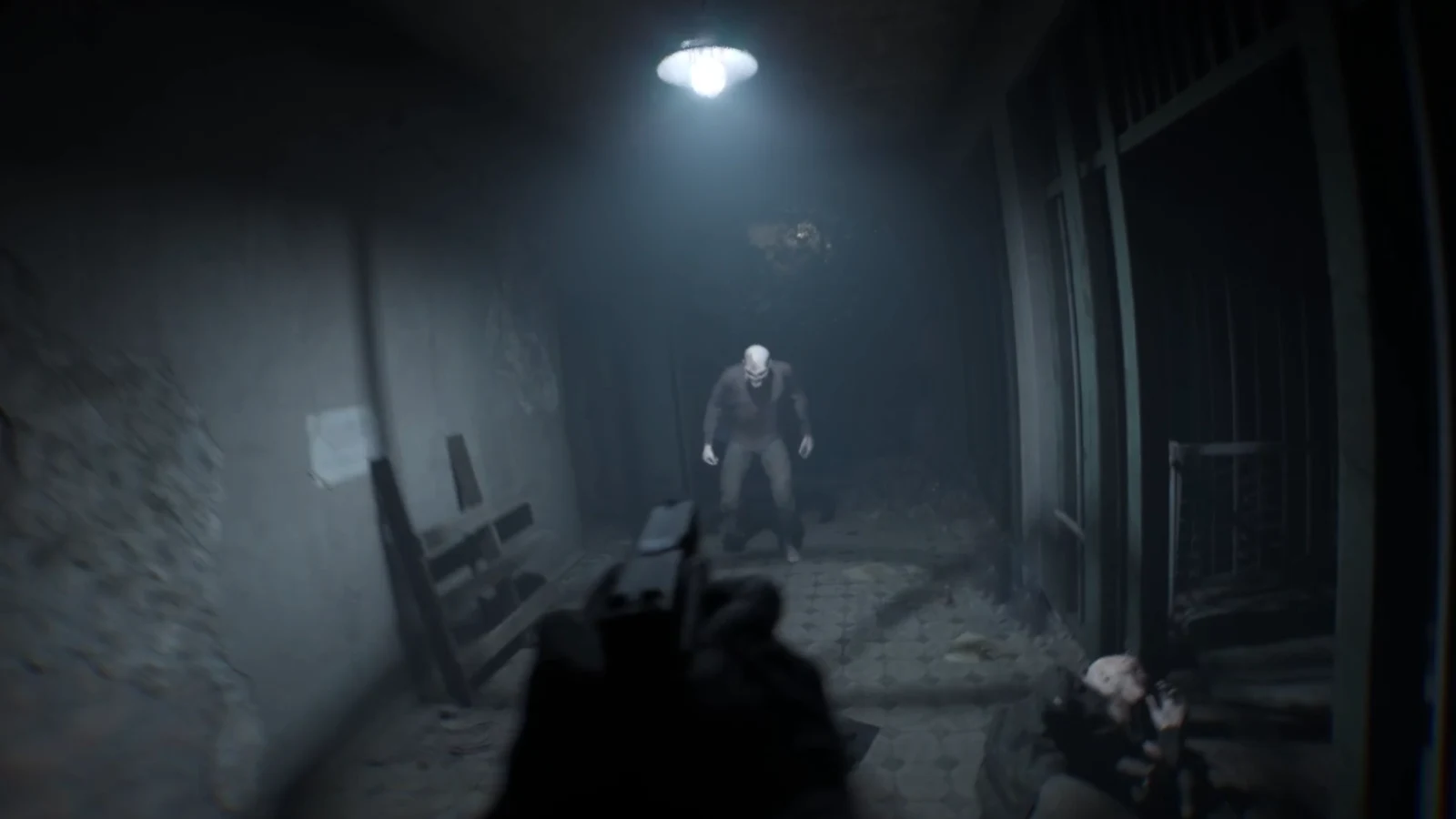
Check the game's current minimum GPU, VRAM and required rendering features before troubleshooting a failed launch. DOOM: The Dark Ages, for example, specifies a hardware ray tracing-capable GPU with at least 8GB of dedicated VRAM even at its minimum tier. The GTX 1660 Super does not meet that specification. Reducing resolution or installing a texture preset cannot make it meet those requirements.
Build a baseline you can compare
The following is a suggested home test, not an HD OPTI benchmark or a promise of particular FPS. Choose one demanding route you can repeat. Record the game version, driver, CPU, system RAM, output resolution and graphics settings. Keep those conditions fixed while comparing one change.
- Save screenshots of your current settings and choose your own target frame rate.
- Finish any shader preparation requested by the game, then practise the route before capturing.
- Keep frame generation off wherever offered. Note frame caps and V-Sync so a deliberate limit is not mistaken for a performance ceiling.
- Capture three runs of the same length. Record average FPS, a frame-time graph and 1% low if your capture tool provides it.
- Change one setting, repeat the captures, then restore the original setting and retest. Keep improvements that exceed the normal variation between runs.
PresentMon can capture frame timing and hardware telemetry across multiple GPU vendors. Keep the same capture tool and metric definitions throughout. Average FPS describes throughput; inspect long frames separately, and keep your impression of control response in another note. A 1% low is not an input latency measurement.
Intel PresentMon download and documentation
A route that gets smoother simply because you have already visited it needs a careful return test. Avoid comparing a first visit at your original settings with only a warmed-up visit at the new settings.
Did Your Shader Stutter Fix Work? How to Test Without Cache Bias
Separate rendering load from the 6GB texture budget
Start at your normal output resolution. If you want a manageable first comparison on a 1080p display, keep 1920 × 1080 output and compare the game's Low and Medium presets. This is an editorial starting point, not a measured best preset. Once you choose a usable baseline, isolate the settings below rather than continuing to change the entire preset.
| Comparison | How to run it | What to do with the result |
|---|---|---|
| Render resolution | Lower only render scale one clear step; keep output resolution and textures fixed. | If repeatable FPS improves, explore supported upscaling or lower rendering demand. Judge clarity in motion. |
| Texture quality | Restore render scale, lower textures one step and follow any restart prompt. | Repeat the troublesome route. Keep the change if hitches or loading behaviour improve and detail remains acceptable. |
| Complete playing profile | Combine only the changes you want to keep. | Retest demanding gameplay before deciding whether this profile meets your target. |
The reason to test textures separately is memory demand. Game developers identify texture quality among the settings that can affect VRAM use, while Windows graphics documentation warns that exceeding an application's video memory budget can cause stuttering. A memory meter by itself does not prove that a particular hitch has this cause: usage, reservation and the operating system's budget are distinct quantities.
Treat a repeated improvement from lower textures as a lead, not a diagnosis of every stutter. If the game exposes individual character, environment or effects texture controls, test them separately. Avoid imposing one universal memory percentage on every game.
Try supported upscaling without chasing the mode name
DLSS is unavailable on the GTX 1660 Super. Where a game supports a compatible FSR option, evaluate that instead of copying an RTX settings list. FSR 2 does not require dedicated machine learning hardware, but it requires game integration and adds processing work of its own. That does not establish that every FSR version or feature supports this card.
Start with a quality-oriented upscaling mode where available and compare it with your native baseline. Inspect thin edges, foliage and distant targets while moving. Keep it only if the repeatable performance improvement and image quality suit you. Moving to a more aggressive mode is a further comparison, not an automatic upgrade.
Fortnite example: compare Performance mode
Fortnite provides a built-in Performance rendering mode intended to help with low frame rates. To try it, open your player icon, select Settings, then the Video tab. Under Display, set Rendering Mode to Performance, select Apply and restart Fortnite. Compare the same activity with your previous mode; this changes rendering behaviour and should be treated as a complete mode comparison.
If you use Performance mode and do not want the high-resolution texture pack, open Epic Games Launcher, select Library, open Fortnite's three-dot menu, choose Options, untick High Resolution Textures and apply. Removing the optional pack reduces installation size; it does not add VRAM or guarantee smoother matches. Judge the result in the scenes you actually play.
Decide whether to keep the card
Save the profile if it meets your target at an image quality you accept. If lowering render resolution makes little difference, first check whether a frame limit explains the ceiling; that result alone does not prove you need a new CPU. If you still miss your target after the comparisons, record the remaining problem precisely before researching hardware.
Do You Need a New GPU? What to Test Before Upgrading
Use three separate outcomes: a supported game that meets your target, a supported game that still needs investigation, or a game whose minimum requirements the card does not meet. That keeps useful settings work focused and gives any eventual upgrade a specific purpose.
FAQ
No. NVIDIA lists no DLSS support for the GTX 1660 Super. Test a compatible in-game upscaler instead, checking the exact feature's hardware requirements.
Use Low as a comparison, then test textures separately. Texture settings can affect VRAM demand, but a memory reading alone does not identify the cause of a hitch. Keep the detail level that behaves consistently in your repeatable route.
No. The published minimum specifies a hardware ray tracing-capable GPU and at least 8GB of dedicated VRAM. Lower settings cannot provide the missing capability or increase the card's physical 6GB capacity.
No. It is a supported rendering mode intended to assist with low frame rates. Apply it, restart the game and compare repeated runs of the same activity before deciding whether to keep it.