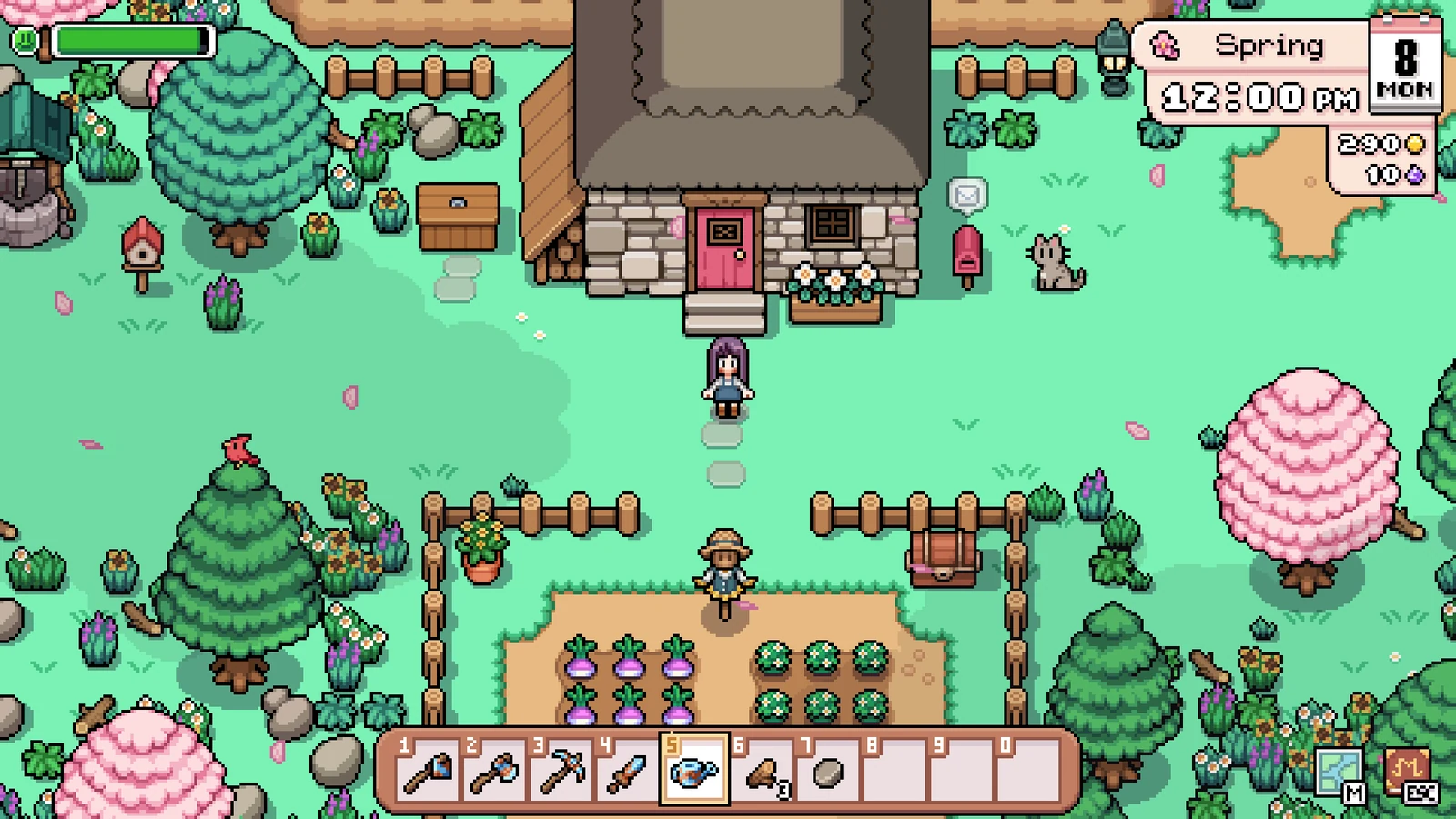
Fields of Mistria may look lightweight, but performance problems can include stuttering, uneven frame delivery, camera judder, tearing, and even gameplay that feels like slow motion despite showing 60 FPS. The safest approach is to establish a clean system baseline, test NPC Studio's troubleshooting configurations separately, and compare them using the same repeatable in-game route.
Fields of Mistria Performance Problems Explained
Fields of Mistria performance issues are not always visible through a simple FPS counter. A system can report 60 FPS while movement still looks uneven, the camera judders, or the entire game feels as though it is running in slow motion. Frame pacing and rendering consistency matter just as much as the displayed FPS number.
Before changing settings, identify the symptom you are actually trying to fix. Continuous slow gameplay, traversal stutter, screen tearing, camera judder, overlay-related FPS drops, and short transition hitches can have different causes and should not all be treated as the same problem.
High FPS but Game Still Stutters? How to Fix Frame Time Spikes
Slow Motion Despite 60 FPS
Slow-motion gameplay can be associated with sustained throughput problems, frame-pacing mismatches, or the game using the wrong GPU on a hybrid-graphics system. Brightness and Saturation settings away from their default midpoint can also add processing overhead according to the troubleshooting information supplied for the game.
Event Hitches vs. Continuous Stuttering
A short pause when launching the game, entering a building, changing maps, or triggering another transition is an event hitch. That is different from consistently poor frame delivery while simply walking around a stable scene. Separate these behaviours before changing graphics settings so you are testing the correct problem.
Start With a Clean Performance Baseline
Update Fields of Mistria, Windows, and your GPU driver before troubleshooting. Then close memory-heavy background applications so each test starts with as little system-resource variance as possible.
Windows background clutter can affect memory pressure, CPU activity, and frame consistency. Avoid aggressive or risky system modifications while diagnosing the game. The goal is to create a repeatable baseline rather than changing dozens of Windows settings at once.
How to Debloat Windows 11 & 10 the Right Way
Make Sure Fields of Mistria Uses Your Dedicated GPU
Hybrid-GPU laptops can sometimes assign lightweight-looking games to integrated graphics. If Fields of Mistria is running on the weaker adapter, performance can collapse even when the rest of the system is capable of much more.
- Open Windows Graphics Settings.
- Add Fields of Mistria if it is not already listed.
- Select the game and open Options.
- Choose High performance to prefer the dedicated GPU.
- Launch the game again and repeat your performance test.
Do this before experimenting with more advanced graphics combinations. Correcting an incorrect GPU assignment can solve a major bottleneck without requiring additional tweaks.
Best Fields of Mistria Settings to Test First
NPC Studio's troubleshooting guidance is best treated as two independent configurations. Test Branch A first. If it does not resolve the problem, test Branch B separately. Do not combine settings from the two branches, because doing so makes it harder to determine which configuration actually improved frame delivery.
Branch A: Official Initial Test
Branch A focuses on Fullscreen operation with VSync enabled. Keep your Resolution and In-Game Scale unchanged while running this test so the VSync behaviour is the main variable being evaluated.
- Set Display Mode to Fullscreen.
- Set VSync to On, or Adaptive if that option is available.
- Record the existing state of Frame Rate Cap: 60 FPS.
- Record the existing state of Snap Frame Rate.
- Do not change the Frame Rate Cap or Snap Frame Rate settings during this Branch A test.
- Return Brightness to its default middle position.
- Return Saturation to its default middle position.
- Keep Resolution unchanged.
- Keep In-Game Scale unchanged.
- Run the same repeatable in-game route several times.
Adaptive in the Fields of Mistria menu is an in-game VSync option. Its presence does not confirm that monitor-level VRR, G-Sync, or FreeSync is active.
Branch B: 60 FPS Fallback
If Branch A does not fix movement stutter, pacing problems, or slow gameplay, move to the separate 60 FPS fallback configuration. Branch B disables VSync but pairs that change with a 60 FPS cap.
- Keep Display Mode set to Fullscreen.
- Set VSync to Off.
- Set Frame Rate Cap: 60 FPS to On.
- Set Snap Frame Rate to Off.
- Keep Brightness at its default middle position.
- Keep Saturation at its default middle position.
- Repeat the same test route used for Branch A.
Branch B can provide a stable engine-level 60 FPS target without relying on in-game VSync. The trade-off is that screen tearing may still be visible depending on your display configuration.
Do Not Run Fully Uncapped
Avoid running Fields of Mistria with VSync Off, Frame Rate Cap Off, and Snap Frame Rate Off at the same time. The supplied developer guidance warns that this fully uncapped configuration generally produces severe stuttering rather than smoother gameplay.
A higher peak FPS reading does not automatically mean better motion. Stable frame delivery is the target, especially in a game where camera movement makes inconsistent pacing easy to notice.
Fine-Tune In-Game Scale and Camera Behaviour
If slow-motion symptoms remain after testing both official branches, keep Brightness and Saturation at their midpoint and move on to the game's scaling and camera options.
- Reset Brightness and Saturation to their exact default middle positions.
- Increase In-Game Scale to the maximum available for your selected Resolution.
- Test the same route again.
- If slow-motion behaviour continues, lower the game's Resolution or overall output-window size.
- Set Smooth Camera Tracking to Off.
- Repeat the route and compare camera movement against the default setting.
In-Game Scale should not be treated like a conventional render-resolution percentage. Its exact rendering behaviour is not documented well enough to calculate reliable FPS gains from individual values.
Smooth Camera Tracking
Smooth Camera Tracking is On by default. Turning it Off is primarily a diagnostic step for determining whether camera smoothing is contributing to the judder you perceive during movement.
Why Brightness and Saturation Matter
Returning Brightness and Saturation to their default middle positions removes additional processing described in the supplied troubleshooting information. The improvement may be small, but resetting both settings also removes another variable from your benchmark.
Keep these sliders at their midpoint until troubleshooting is complete. Once you have established a stable configuration, you can change them again and check whether your preferred appearance has any noticeable performance impact.
Fix Fields of Mistria Overlay Stuttering
Fields of Mistria v1.0.2 specifically included performance work for situations where proprietary AMD or NVIDIA overlays render in the same window as the game. If you experience large stutters or FPS drops when an overlay appears, compare performance with the overlay enabled and completely disabled.
Other overlays can also be useful diagnostic variables. Disable overlays one at a time and repeat the same route rather than shutting down multiple tools and assuming one particular application was responsible.
How Discord, Nvidia, and Other Overlays Affect FPS & Latency
Benchmark Fields of Mistria Properly
The fastest way to make troubleshooting unreliable is to change several settings and then wander through a different part of the game. Use a controlled route so every configuration is tested under approximately the same conditions.
Pick a Repeatable Route
- Farm Morning Route: Useful for testing developed farms with many visible assets.
- Town and Water Route: Useful for comparing traversal smoothness, frame pacing, and water animation.
- Winter Dialogue Route: Useful for seasonal UI rendering and text readability checks.
Control the Test Conditions
- Use the same save file.
- Start at the same in-game morning time.
- Match weather conditions where possible.
- Keep NPC schedules and the surrounding scene as consistent as possible.
- Face the same camera direction at the start.
- Walk the same route.
- Change only one setting before the next comparison.
- Run multiple passes before deciding whether a setting helped.
This one-variable-at-a-time method makes it much easier to determine whether VSync, the 60 FPS cap, camera tracking, resolution, overlays, or another setting is responsible for the difference.
Common FPS Fixes for PC Games - OCCT, DDU, shadercache
Fields of Mistria Patch Performance History
Performance guidance for Fields of Mistria is patch-dependent. The supplied information is verified through build v1.0.4, so recommendations should be interpreted in that context rather than assumed to apply unchanged to every future version.
- v1.0.4: Includes fixes for quest tracking, MISSING monster names, and mines cutscene portraits, but no documented graphics or performance uplift.
- v1.0.3: Noted that performance and graphical optimization work was still ongoing.
- v1.0.2: Improved performance when proprietary AMD or NVIDIA overlays render in the same window.
- v1.0.0: Reported more than 50% lower VRAM usage compared with the preceding development build.
- v0.16.4: Reported up to 50% lower startup memory allocation.
- v0.16.2: Added native Linux, SteamOS, and Steam Deck support.
No absolute VRAM allocation figures are provided in the supplied material, so the reported percentage reductions should not be converted into specific megabyte or gigabyte savings.
Fields of Mistria Steam Deck and Linux Save Migration
Native Linux and SteamOS support changes where Fields of Mistria stores save files. If saves appear to be missing after moving away from Proton compatibility mode, the files may still exist in the old Proton directory.
Proton Save Location
~/.steam/steam/steamapps/compatdata/2142790/pfx/drive_c/users/steamuser/AppData/Local/FieldsOfMistria/saves/
Native Linux and SteamOS Save Location
~/.local/share/FieldsOfMistria/saves
Move Proton Saves to the Native Version
- Open the game's Steam compatibility settings.
- Make sure Force the use of a specific Steam Play compatibility tool is unchecked when using the native version.
- Back up your existing save files before moving anything.
- Open the old Proton save directory.
- Copy the required save files.
- Open ~/.local/share/FieldsOfMistria/saves.
- Paste the copied files into the native save directory.
- Launch Fields of Mistria and confirm that your saves are available.
Fields of Mistria PC System Requirements
Fields of Mistria has modest official hardware requirements, but meeting the minimum specification does not guarantee perfect frame pacing under every configuration.
Minimum Requirements
- Operating System: Windows 10 64-bit
- Processor: Intel Core2 Duo E6400 or AMD Phenom X2 Dual-Core GP-7730
- Memory: 6 GB RAM
- Graphics: NVIDIA GeForce GTX 460 1 GB or AMD Radeon R7 240 1 GB
- DirectX: Version 11
- Storage: 2 GB available space
Recommended Requirements
- Processor: Ryzen 3 3300X
- Memory: 8 GB RAM
- Graphics: AMD Radeon RX 480 8 GB
- DirectX: Version 11
- Storage: 2 GB available space
Quick Fields of Mistria Troubleshooting Guide
Game Runs in Slow Motion
First confirm that Fields of Mistria is using your dedicated GPU. Reset Brightness and Saturation to the midpoint, test Branch A and Branch B independently, maximize In-Game Scale for the selected resolution, and try Smooth Camera Tracking Off if the problem continues.
Camera Judder or Uneven Frame Delivery
Test the official branches on the same route and avoid the fully uncapped VSync Off, Cap Off, and Snap Off combination. Close heavy background applications before comparing results.
Screen Tearing
Start with Branch A using VSync On or Adaptive. Branch B disables VSync and can therefore allow tearing even when the 60 FPS cap improves overall pacing.
Stutters When an Overlay Opens
Confirm that the game includes the v1.0.2 overlay-related performance improvements or later changes from the supplied patch history, then compare the same route with AMD, NVIDIA, Steam, Discord, or other relevant overlays enabled and disabled.
Quest, Dialogue, Portrait, or Crash Problems
Do not assume every bug is a graphics-performance issue. Quest tracking errors, dialogue problems, portrait bugs, and crashes should be treated as software issues and reported with clear reproduction steps rather than chased through graphics settings.
Best Fields of Mistria Settings Summary
There is no single universal configuration for every PC. Start with Fullscreen and the official VSync-based Branch A, then use the separate 60 FPS Branch B fallback if necessary. Keep your testing controlled, avoid fully uncapped gameplay, and focus on frame consistency rather than chasing the highest FPS counter.
- Use Fullscreen while troubleshooting.
- Test VSync On or Adaptive first.
- Keep the existing Frame Rate Cap and Snap Frame Rate states unchanged during the initial Branch A test.
- If needed, switch separately to VSync Off, 60 FPS Cap On, and Snap Frame Rate Off.
- Keep Brightness and Saturation at their midpoint while testing.
- Verify that hybrid-GPU systems use the dedicated graphics adapter.
- Close heavy background applications.
- Test overlays separately if they cause hitches.
- Change only one variable between benchmark runs.
- Use the same save, route, camera direction, weather, and starting conditions where possible.
- Leave undocumented options such as High-Res Screen Buffer at default during baseline testing.
FAQ
Start with Fullscreen and VSync On or Adaptive while keeping the existing Frame Rate Cap and Snap Frame Rate states unchanged for the initial test. If stuttering remains, separately test Fullscreen with VSync Off, the 60 FPS Cap On, and Snap Frame Rate Off.
A 60 FPS counter does not guarantee consistent frame delivery. Slow-motion behaviour can be associated with pacing problems, sustained throughput limitations, incorrect GPU selection on hybrid systems, or other rendering overhead. Verify the dedicated GPU and compare the two official troubleshooting configurations using the same scene.
Test VSync On or Adaptive first as part of Branch A. If that does not resolve the issue, Branch B uses VSync Off together with a 60 FPS cap and Snap Frame Rate Off. Do not simply disable VSync and all frame-limiting options at the same time.
Update the game, Windows, and GPU driver, close heavy background applications, use Fullscreen, verify the correct GPU, reset Brightness and Saturation, and test Branch A and Branch B separately. Use the same repeatable route and change only one variable at a time.
Older Proton saves can be found under ~/.steam/steam/steamapps/compatdata/2142790/pfx/drive_c/users/steamuser/AppData/Local/FieldsOfMistria/saves/. Native Linux and SteamOS saves use ~/.local/share/FieldsOfMistria/saves.
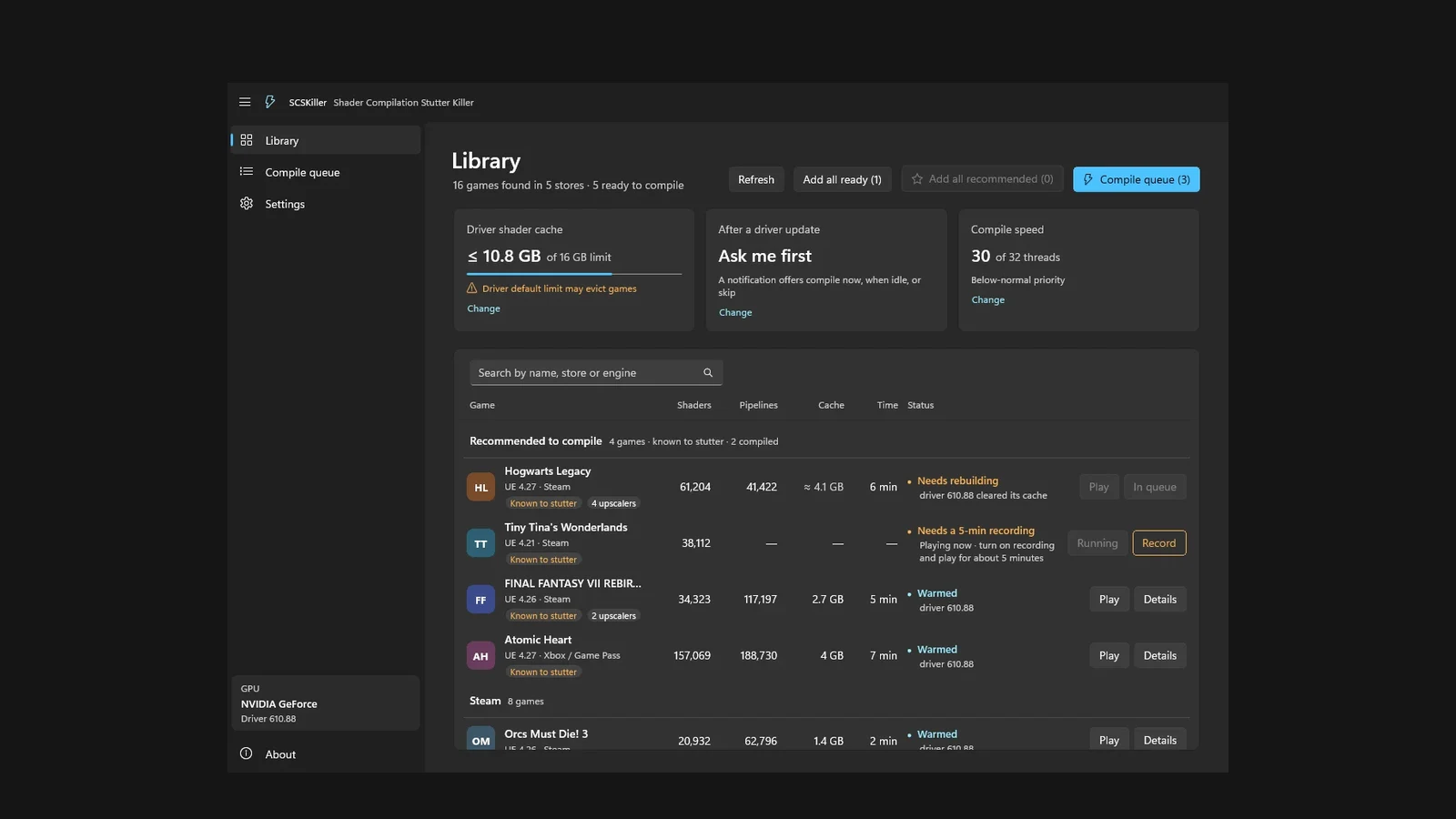
- SCSKiller guide6 min read
SCSKiller Guide: Reduce Shader Compilation Stutter in PC Games
- Witcher 3 Remastered8 min read
The Witcher 3 Remastered Best PC Settings: FPS Boost & Optimization Guide
- CONTROL Resonant7 min read
CONTROL Resonant Intel Arc Performance: Driver 32.0.101.9033 Benchmark & Best Settings