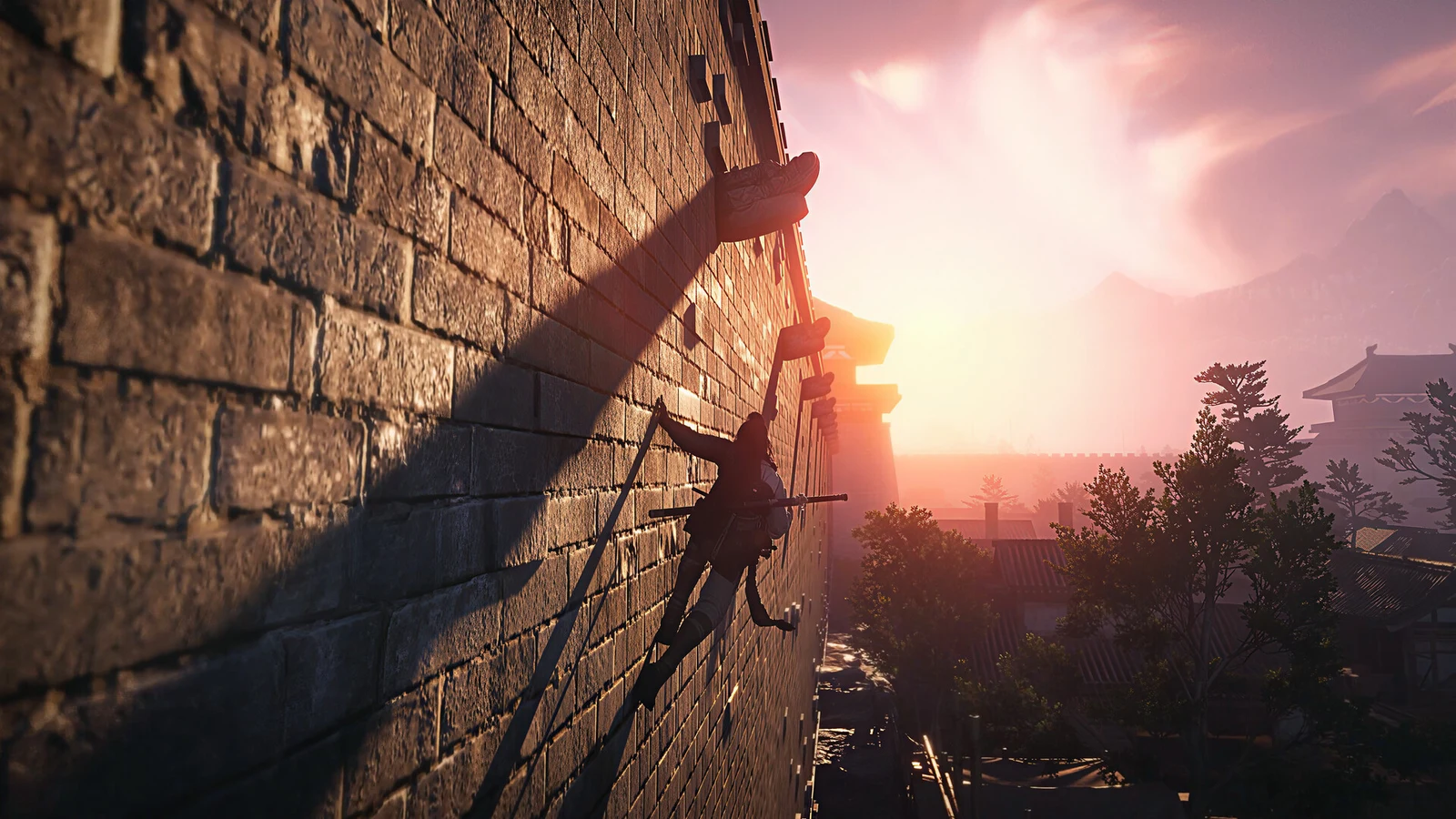
A sunlit robe can look different with DLSS 5 enabled even when the FPS counter barely moves. To decide whether to keep it at 4K, walk the same character into the shade twice. First compare the light on the fabric, then check how long the game took to render each frame. HD OPTI has no measured 4K result for this game.
Check the neural rendering setting
Where Winds Meet’s 23 November update supports DLSS 5 Neural Rendering on GeForce RTX 50 Series GPUs. The release notice names Game Ready Driver 621.24. Check your GPU, game build and driver version, then confirm the game offers the neural rendering toggle. Super Resolution and Multi Frame Generation were already available in the game.
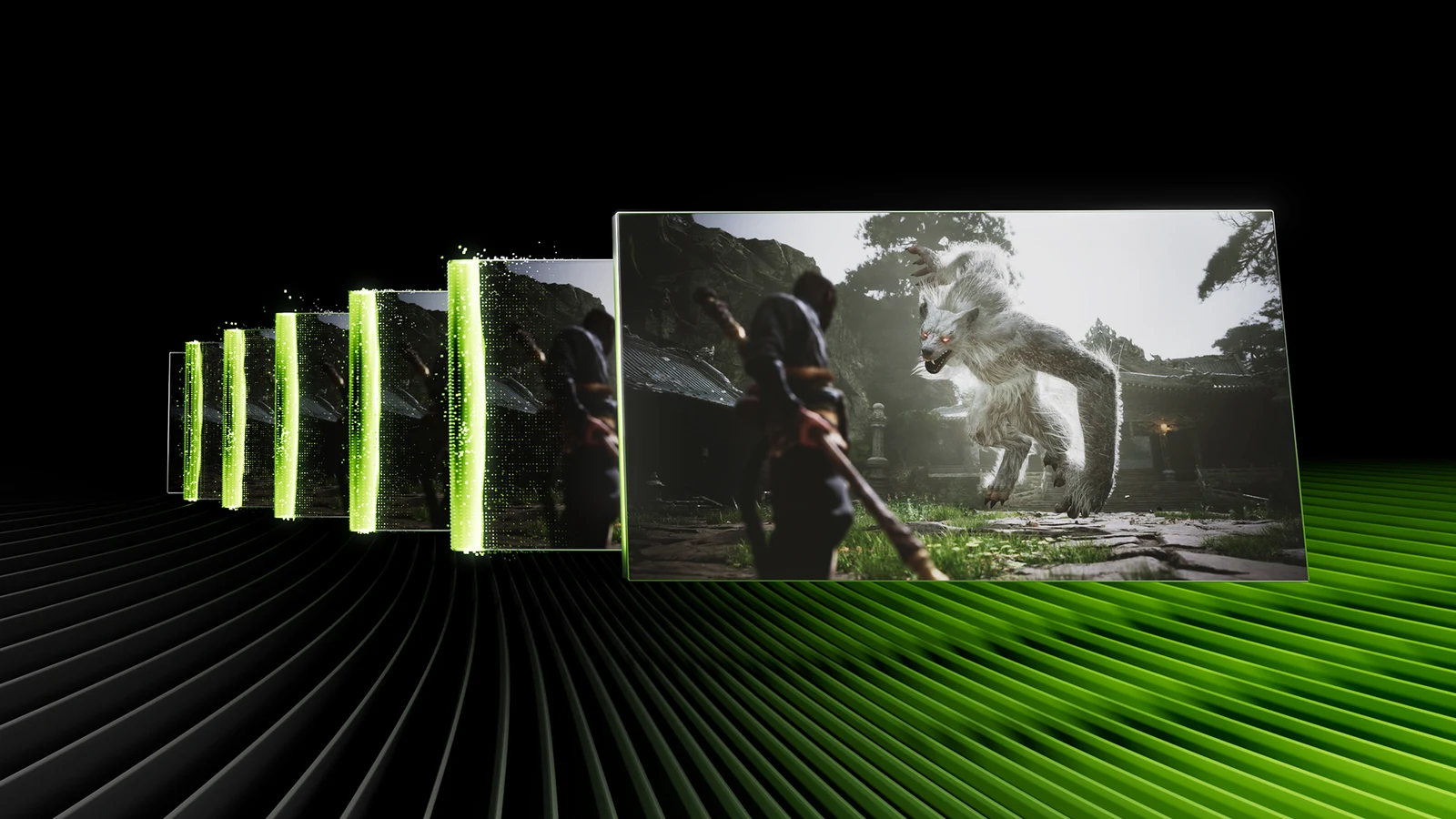
Each control changes a different part of the picture. Super Resolution reconstructs the output from a lower rendering resolution. Neural rendering adjusts the lighting and material detail of the rendered scene. Frame Generation adds intermediate images between rendered frames.
DLSS 5 Explained: Nvidia’s Neural Rendering Could Change Game Lighting Forever
Run the same walk with DLSS 5 off and on
Find an overhanging roof beside a sunlit wall. Face the wall from a repeatable starting point, walk under the eaves, then pan back towards the light. Use the same outfit and camera distance. Capture the same moment in each pass so you can compare the highlights on a sleeve, the face in shade and the texture of the wall. Watch the transition at normal speed as well.
- Set the output to 3840 × 2160 and choose the Super Resolution mode you normally use. Disable dynamic resolution if available. Record the preset, frame cap, refresh rate and latency settings. Use the same settings throughout each pair.
- Switch Frame Generation off. Warm up the route, then log a pass with neural rendering off and another with it on. Match route duration, camera movement, time of day and weather. Repeat the pair in reverse order. Discard a pass if combat or a lighting change interrupts it.
- If you play with Frame Generation, repeat both passes with the same fixed multiplier. If you change Super Resolution from Quality to Balanced, start a fresh pair at Balanced. Keep each comparison within its pair.
Read the cost in milliseconds
Log average rendered FPS and rendered 1% lows for each pass. A frame-time trace shows where a slow frame occurred on the walk. To estimate the change in average time per rendered frame, divide 1,000 by each average rendered FPS and subtract the off result from the on result. A 60 FPS target allows about 16.7 ms per rendered frame. If both runs sit at a cap, the FPS difference alone tells you little about spare GPU capacity.
Record GPU utilisation and the same VRAM usage counter on each pass. A memory reading by itself cannot identify the cause of a hitch. Compare the hitch location across repeats. If the difference between on and off is as small as the variation between repeats, treat the cost as inconclusive for this route.
With generation enabled, log displayed FPS alongside rendered FPS. Measure input latency separately using the same input and a supported latency instrument in both passes. Record what the instrument measures. If latency data is unavailable, mark it unmeasured. Keep neural rendering if you prefer the lighting in motion and the slower frames and response still meet your target.
DLSS 4.5 vs DLSS 5: Test Visual Quality, FPS and Latency
FAQ
The RTX 5070 belongs to the supported RTX 50 Series. Check the game build, driver and neural rendering toggle before recording. Your card and chosen Super Resolution mode need their own measurements.
Keep your usual Super Resolution mode for the first pair. That measures the cost at the settings you play with. To check native rendering, run a separate off/on pair with native input if the game allows it.
Generated images can increase the displayed frame rate between game-rendered frames. Record rendered FPS to see the game’s underlying cadence and measure input latency separately to check responsiveness.