A higher DLSS version or FPS counter does not tell you what improved. To judge DLSS 5 alongside DLSS 4.5, compare its lighting and material changes at the same upscaling settings, then assess Frame Generation separately. This guide provides a repeatable method; HD OPTI has not performed the benchmarks described here.
What are you actually comparing?
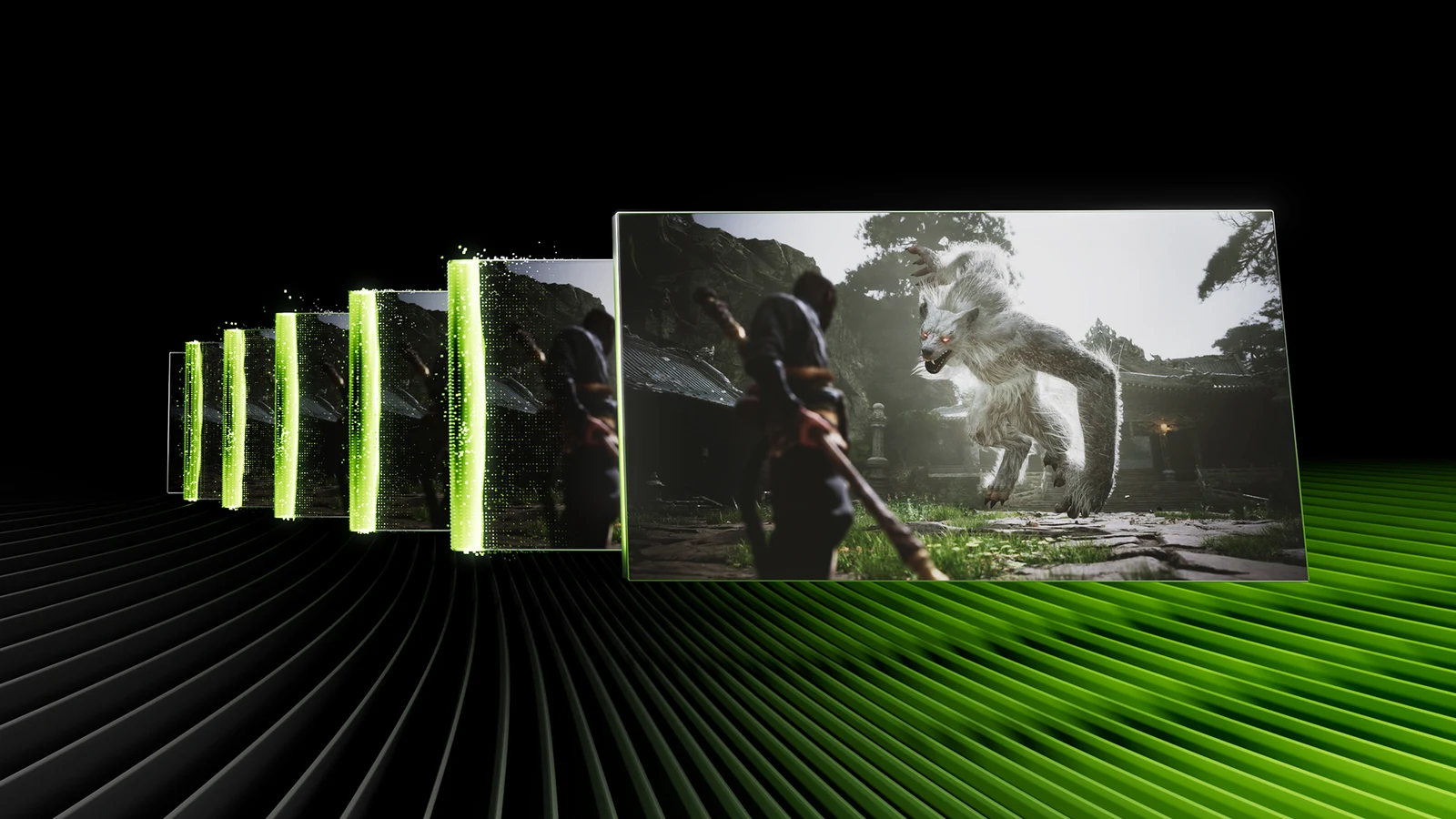
DLSS is a suite of features. Super Resolution reconstructs the output image from a lower rendering resolution. Frame Generation adds intermediate frames, while Multi Frame Generation can add several between application-rendered frames. DLSS 5 introduces 3D-Guided Neural Rendering, which uses the engine's rendered frame to add lighting and material detail. It can operate alongside the other features.
That makes “DLSS 4.5 vs DLSS 5” an incomplete settings description. A useful comparison names the Super Resolution mode and model, neural-rendering state, and Frame Generation mode. Otherwise a visual change and an FPS change may come from different parts of the configuration.
As checked on 17 November 2026, DLSS 5 has already debuted in NBA 2K27 on GeForce RTX 50 Series. Where Winds Meet's integration is announced for 23 November, while the inspected Assetto Corsa Rally announcement describes its DLSS 4.5 upgrade as coming soon. Driver 621.24 prepares for those additions; installing it does not establish that a future game update is available or that FPS improves.
Check the exact game build, GPU requirements and available controls before starting. Use official game integrations for this comparison. If you are exploring the separate unofficial AMD mod, its results need their own test conditions.
AMDLSS5 on RX 9070 XT: How to Test Its Performance Cost
Keep native, rendered and displayed FPS separate
| Measurement | What to record | What it cannot establish alone |
|---|---|---|
| Native-resolution baseline | Output resolution, native rendering and Frame Generation off | How upscaling or neural rendering performs |
| Application-rendered FPS | Engine-frame rate at the stated render resolution and upscaling mode | The total output including generated frames |
| Displayed FPS | Output frame rate, identifying whether generated frames are included | Equivalent input response or native rendering speed |
| Frame times and 1% lows | Metric name, observed frame stream and capture-tool version | That every hitch is visible in an average |
| Latency | Measured path, tool, units and supported instrumentation | Full input-to-visible-response delay if only PC latency is captured |
Here, “native” means rendering at the output resolution without upscaling. An engine frame reconstructed with DLSS Super Resolution is still an application-rendered frame, but it is not a native-resolution result. Avoid calling every non-generated frame “native FPS” when comparing image reconstruction.
DLSS 4.5's 6X mode can add five generated frames for each rendered frame. That is a frame-count relationship, not evidence that the engine or input processing became six times faster. Dynamic Multi Frame Generation changes the multiplier, so dividing its displayed FPS by one assumed multiplier is not a reliable rendered-FPS measurement.
Build a fair on/off comparison
Save the game build, driver, CPU, GPU, RAM, output resolution, graphics API and preset. Keep ray tracing, Ray Reconstruction, textures, sharpening and camera effects unchanged. Record the exact Super Resolution model or override as well as Quality, Balanced or Performance mode: an automatic or Recommended selection does not always identify the same reconstruction model.
Record refresh rate, display mode, VRR, V-Sync, FPS limits and Reflex state. Keep these fixed within each paired comparison wherever the integration allows it. Disable dynamic resolution for the initial test if the game offers that control; otherwise record that rendering resolution can vary.
| Condition | Configuration | Compare against |
|---|---|---|
| A: Native reference | Native resolution; neural rendering off; Frame Generation off | Original appearance and baseline performance |
| B: Upscaling baseline | Fixed Super Resolution mode/model; neural rendering off; Frame Generation off | A, to judge reconstruction |
| C: Neural rendering only | Same as B, with 3D-Guided Neural Rendering on | B, to isolate the neural toggle |
| D: Fixed generated output | Same as B, with an available fixed Frame Generation multiplier | B, to assess generated frames |
| E: Neural plus generated output | Same as D, with neural rendering on | D, to test the neural toggle with generation active |
| F: Dynamic output | Chosen configuration with Dynamic Multi Frame Generation | A separate practical playback test |
Only use rows supported by the game's actual controls. If neural rendering forces a different upscaler, preset or Frame Generation state, record every forced change and describe the result as a combined configuration comparison. It cannot isolate the neural pass alone.
- Choose one repeatable route with fixed start and end points, including a lit character, detailed scenery and a controlled camera turn. Keep weather and time of day matched where possible.
- Warm up the route before capture. As a suggested protocol, record three 60-second passes per condition, excluding loading screens and menus.
- Start with B and C, keeping generated frames off. Compare average rendered FPS, frame times, low-percentile behaviour and images.
- Repeat B after C. If the baseline has drifted, investigate the changed conditions before assigning a cost to neural rendering.
- Compare D with E using the same fixed multiplier. Record both application-rendered and displayed output where the tool supports them.
- Test F last. Compare the repeated-run spread and motion quality rather than selecting only the best capture.
The capture length and run count are recommendations, not measured results or mandatory software defaults. If runs overlap substantially, report that the test has not separated an effect from normal variation.
Measure response without guessing from FPS
FrameView can log frame data to CSV, and its 2.0 summary average uses displayed-frame scheduling metrics. Check the exact field rather than assuming an overlay's “FPS” means application rendering. PresentMon frame-type tracking also depends on application or driver instrumentation. If your tool cannot distinguish rendered and generated frames in that configuration, mark the rendered rate unavailable.
Download FrameView and read its user guide
Capture latency separately where supported. PC latency covers the PC portion of the input path and excludes mouse and monitor display latency. A full end-to-end measurement also includes those components. Missing latency data is unavailable, not zero; subjective aiming or steering feel belongs in a separate observation.
Compare frame-time traces alongside average FPS and 1% lows. Keep the metric and calculation consistent between runs, and identify whether each trace concerns application frames or displayed output. A smoother-looking pan and a lower measured input delay are different outcomes.
FSR Frame Generation Stutter: Why High FPS Can Still Feel Choppy
Give Dynamic mode its own settings check
For the documented NVIDIA app override, open Graphics > DLSS Override - Frame Generation Mode, choose Dynamic, then select Max refresh rate or a Custom target. The inspected guidance says this Dynamic mode is incompatible with frame-rate limiters and V-Sync. Check current guidance for your integration before testing; record any required change as part of the configuration.
Do not compare a capped fixed-mode run with an uncapped Dynamic run and attribute the whole difference to the multiplier. Use matched compatible conditions for a direct comparison, then make a separate pass with your preferred playing settings. Record tearing, motion consistency and response as well as the output counter.
Judge visual benefit during movement
Use matched screenshots to examine lighting and material changes, then repeat the route at normal playing speed. As an inspection checklist, watch faces and hair during turns, foliage against bright backgrounds, reflections, thin geometry, newly revealed surfaces and HUD text. Record any shimmer, trails, instability or unwanted appearance changes you actually see; these are checks, not claims that DLSS 5 necessarily produces those faults.
Keep capture resolution and compression consistent. Inspect B against C with Frame Generation off before judging D against E. This helps separate changes to the rendered image from interpolation behaviour. A still image cannot establish stability throughout movement, and a more realistic appearance may not be your preferred look.
| Observed result | Decision to test |
|---|---|
| Preferred lighting/material appearance with acceptable frame times and response | Keep neural rendering for this game and configuration |
| Displayed FPS rises but measured latency worsens | Reduce generation or favour the configuration that meets your response needs |
| Neural rendering lowers rendered FPS at unchanged settings | Judge its visual benefit against the measured cost |
| Hitches remain in the upscaling baseline | Investigate the baseline before blaming generated frames |
| Differences sit within repeated-run variation | Record no demonstrated performance difference in this test |
Keep a record containing the exact settings, raw captures, repeated-run spread and matched visual samples. Choose the configuration that delivers the appearance, frame delivery and response you prefer on your display. There is no measured winner supplied by this guide.
FAQ
DLSS 5 adds 3D-Guided Neural Rendering for lighting and material detail. It can work alongside Super Resolution, Frame Generation and Ray Reconstruction. Compare the actual enabled features rather than treating version numbers as two mutually exclusive graphics presets.
Not when Super Resolution is active. Application-rendered FPS describes engine frames before generated intermediate frames are counted; those engine frames may use a lower internal rendering resolution. Label the native-resolution, upscaled-rendering and displayed-output results separately.
No. A 6X mode can insert five generated frames for each rendered frame. It does not establish a matching increase in engine updates or reduction in input delay. Measure latency separately and state whether the measurement covers PC latency or the full end-to-end path.
The announcement checked on 17 November 2026 schedules that game integration for 23 November. Driver support alone does not establish availability. Wait for the game update, confirm its requirements and controls, then compare the neural-rendering toggle at otherwise unchanged settings.