Learn how to safely update your motherboard BIOS to improve RAM stability, fix ranked play crashes, and optimise performance for Warzone and Black Ops competitive matches.
How To Update Your BIOS For Call of Duty Ranked
If you're playing Call of Duty Ranked and experiencing crashes, instability, or random performance drops, your BIOS version could be the problem. Modern Ryzen CPUs and high-speed DDR5 memory rely heavily on updated firmware for stability. Updating your BIOS can improve RAM compatibility, reduce micro-stutters, and fix known issues that affect Warzone and Black Ops ranked matches.
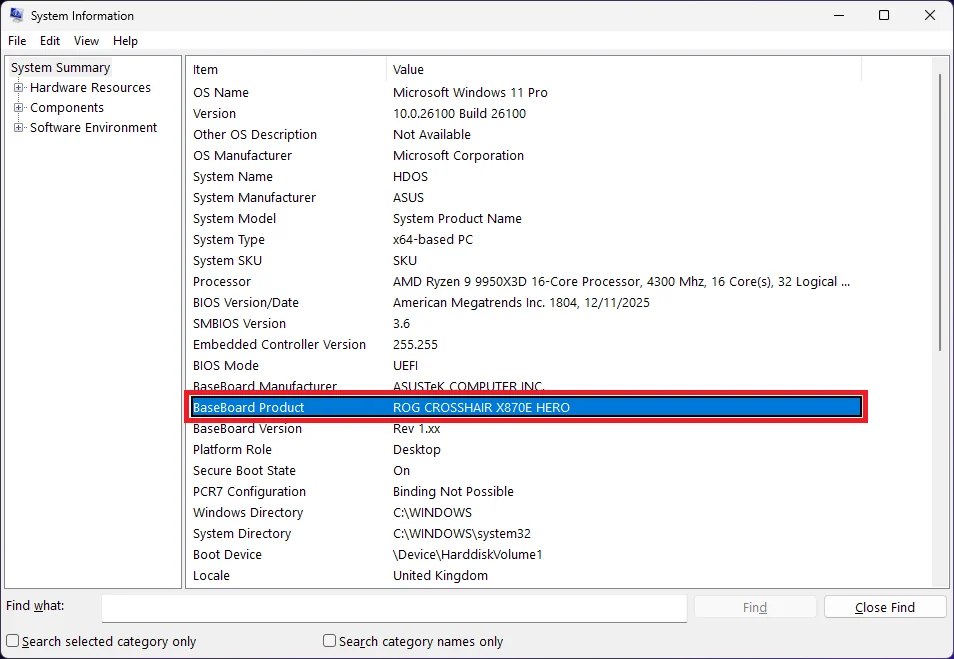
Step 1 – Check Your Exact Motherboard Model
Before downloading anything, you must confirm your exact motherboard model and manufacturer.
- Press Start
- Type: msinfo32
- Press Enter
- Look for: - BaseBoard Manufacturer - BaseBoard Product
Step 2 – Download The Correct BIOS
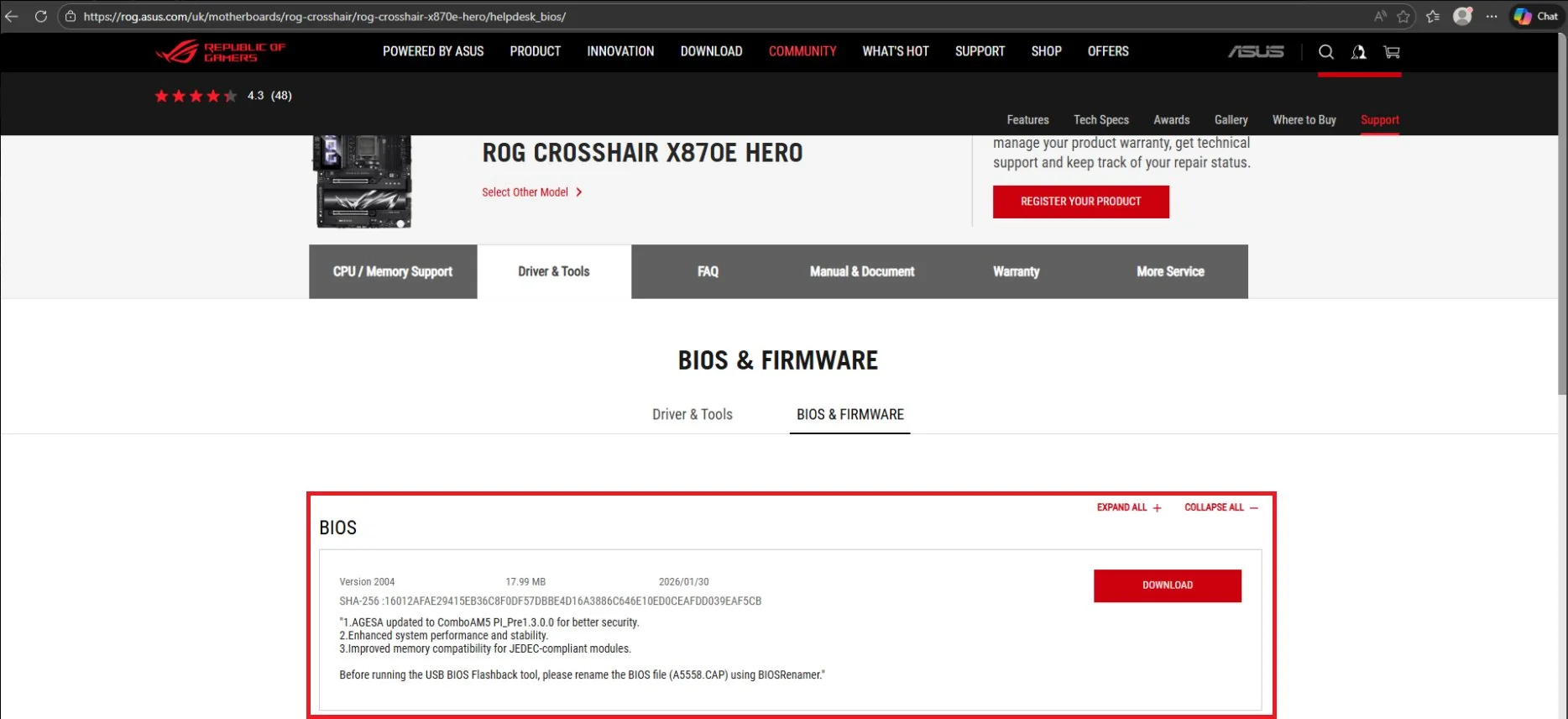
Search Google for your exact motherboard model and open the official manufacturer website (ASUS, MSI, Gigabyte, ASRock, etc). Go to: Support → BIOS / Firmware Download the latest BIOS version for your exact board. Make sure: • The version is newer than your current one • It matches your motherboard revision • You download it only from the official site
Step 3 – Prepare The BIOS File
- Extract the downloaded ZIP file
- Locate the BIOS file (usually .CAP, .BIN, or similar)
- Format a USB stick to FAT32
- Copy the BIOS file to the root of the USB drive
- If required (ASUS boards), run BIOSRenamer.exe before copying
Step 4 – Reboot Directly Into BIOS
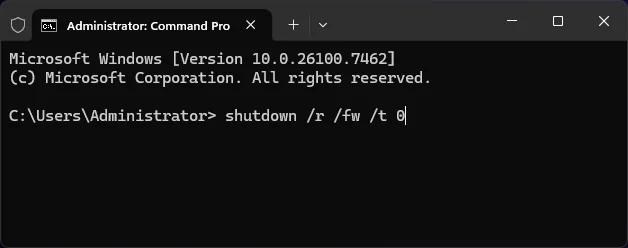
To reboot straight into BIOS without pressing DEL or F2 repeatedly, use this command:
shutdown /r /fw /t 0
Step 5 – Flash The BIOS
Once inside BIOS, open the built-in flash utility. The name depends on your motherboard manufacturer:
- ASUS → EZ Flash
- MSI → M-Flash
- Gigabyte → Q-Flash
- ASRock → Instant Flash
Select your USB drive, choose the BIOS file, and confirm the update. The system will restart automatically once finished.
DO NOT TURN OFF YOUR PC DURING THE UPDATE. Interrupting a BIOS flash can permanently brick your motherboard.
Why BIOS Updates Matter For Ranked Play
- Improves RAM stability (critical for EXPO/XMP)
- Reduces micro-stutters in Warzone
- Fixes random crashes in Ranked matches
- Updates AGESA firmware for Ryzen CPUs
- Improves DDR5 compatibility
- Enhances overall system stability
After Updating Your BIOS
- Re-enable EXPO/XMP in BIOS
- Re-check your boot order
- Re-apply custom CPU or RAM settings
- Save and exit BIOS properly
Want Fully Optimised Ranked Performance?
Updating your BIOS improves hardware stability - but Windows tuning, GPU optimisation, and network configuration also impact competitive performance. If you want fully automated optimisation built specifically for Call of Duty players, HD OPTI applies advanced performance tweaks safely in seconds.
CLICK HERE TO GET FULLY OPTIMISED
FAQ
Yes, updating your BIOS is safe if done correctly using the official motherboard manufacturer’s website and built-in flash utility. The only real risk comes from interrupting the update process. Never power off your PC during a BIOS flash.
A BIOS update can improve system stability, RAM compatibility, and CPU microcode performance. While it does not directly increase FPS, it can reduce crashes, stutters, and instability in Warzone and Black Ops ranked matches.
No, a BIOS update does not affect your Windows installation or personal files. However, it may reset BIOS settings such as EXPO/XMP, boot order, or custom CPU tuning profiles.
If your system is completely stable and you are not experiencing crashes, memory issues, or compatibility problems, updating BIOS is optional. However, competitive players running high-speed DDR5 or newer Ryzen CPUs may benefit from firmware improvements.
If a BIOS update is interrupted, it can corrupt the firmware and potentially brick the motherboard. Some modern boards include BIOS Flashback or dual BIOS recovery features, but it is critical not to interrupt the update process.
In some cases, yes. BIOS updates often include AGESA updates for Ryzen CPUs, improved memory training, and stability fixes that can resolve random crashes, freezing, or instability during Ranked Play sessions.