Published: 11/27/2025
🕒 10–12 min read
OBS and Streamlabs Settings for FPS Boost & Lower Latency (Ultimate Guide)
Streaming in high definition at 60 FPS puts real pressure on your PC. To keep your gameplay smooth and your stream looking crisp, you need to dial in OBS, your encoder, and your system. This guide walks through the best OBS and Streamlabs settings for 1080p60 and 720p60 streaming on Twitch and YouTube to boost FPS, achieve lower latency, and apply practical PC optimisation without sacrificing in-game performance.
Recommended Bitrates for 1080p60 vs 720p60
One of the first decisions when setting up a 60 FPS stream is choosing the right bitrate for your resolution and upload bandwidth. Bitrate controls both visual quality and how much data you send each second: push it too low and your stream turns blocky, too high and you risk network instability and buffering for viewers.
Twitch and YouTube have their own recommended ranges for 720p60 and 1080p60. Twitch is stricter due to ingest limits, while YouTube gives you more headroom for higher bitrates and quality.
| Platform | Resolution @ 60 FPS | Recommended Video Bitrate | Minimum Upload Speed |
|---|---|---|---|
| Twitch | 720p (HD) | ~3,000–4,000 kbps (typical target ~3,500 kbps) | ≥ 5 Mbps (stable upload) |
| Twitch | 1080p (Full HD) | ~6,000 kbps (max recommended) | ≥ 8 Mbps (to avoid drops and buffering) |
| YouTube | 720p (HD) | ~4,000–6,000 kbps | ≥ 6–8 Mbps (for reliability) |
| YouTube | 1080p (Full HD) | ~6,000–9,000 kbps (or higher for premium quality) | ≥ 10–12 Mbps (for high quality) |
Twitch effectively caps video bitrate around 6 Mbps for standard streamers. Going much beyond ~6,000 kbps can cause ingest or playback issues, so treat that as the ceiling for 1080p60. For 720p60 on Twitch, ~3,500 kbps is a solid target – pushing higher doesn’t dramatically improve quality because of the lower resolution.
YouTube Live is more flexible and happily accepts higher bitrates. Many creators push 1080p60 up to 9,000 kbps or even higher (12,000+ kbps) for “premium” quality. Beyond a certain point you get diminishing returns, so 6–9 Mbps is usually plenty for a crisp 1080p60, and around 5 Mbps can be enough for a clean 720p60 stream.
Always test your upload and leave headroom. A simple rule is to use no more than 70–80% of your measured upload speed for video+audio bitrate. If you have a 10 Mbps upload, limit your stream to ~7 Mbps (7,000 kbps) to cushion against fluctuations. On unstable lines, you may even target ~50% of your upload for maximum stability.
Audio is light compared to video, but still plan for ~160 kbps, or up to 192 kbps on YouTube for slightly better music and overall clarity. On Twitch, the 6,000 kbps “limit” is typically counted just for video, with audio on top.
If your bandwidth is limited, it’s better to stream 720p60 with a modest bitrate than squeeze 1080p60 into the same pipe. A lower resolution at the same bitrate will always look cleaner than a higher resolution that’s starved for bits. Don’t force 1080p if your upload can only sustain 3–4 Mbps – 720p60 will look noticeably sharper and more stable.
Leverage GPU Encoders: NVIDIA NVENC & AMD AMF
One of the biggest performance wins in OBS comes from using your GPU’s hardware encoder instead of CPU-based x264. OBS supports software x264 along with dedicated hardware encoders like NVIDIA NVENC, AMD AMF, and Intel Quick Sync Video.
Offloading Work to the GPU
NVENC (NVIDIA) and AMF/VCE (AMD) are dedicated encoding blocks on your graphics card. When you use them, video encoding no longer crushes your CPU, freeing it to run the game, Windows, and OBS’s other tasks. For single-PC setups, this is massive: heavy x264 encoding can shred your game’s frame rate, while NVENC/AMF typically barely registers in GPU usage because it doesn’t rely on the main 3D cores.
Quality Improvements
Older GPU encoders looked noticeably worse than CPU x264 at the same bitrate. Modern generations changed that. Turing-era and newer NVENC (RTX 20-series, 30-series, 40-series) can rival very slow x264 presets in many scenarios, roughly matching x264 medium or even slow at similar bitrates – while only using a few percent of your GPU. AMD’s AMF has also improved on newer RX 6000 and 7000 series cards compared to older Radeon encoders. If your GPU has a recent hardware encoder, use it – you gain huge performance headroom with little or no visual sacrifice.
How to Enable in OBS
In OBS Studio, go to Settings > Output. Switch the Output Mode to Advanced (or use Simple mode for a streamlined view) and select your hardware encoder:
- NVIDIA GPUs: choose Hardware (NVENC).
- AMD GPUs: choose Hardware (AMF).
- Intel iGPU: choose Hardware (QSV) (Quick Sync Video).
In Simple mode, you may just see “Hardware (H.264)” with the vendor in brackets. If you don’t see a hardware option, update your drivers and check that your GPU actually supports hardware encoding - very old cards may not.
Encoder Presets
NVENC and AMF both expose presets that balance speed and quality. NVENC might offer labels like Quality, Max Quality, Performance, or P1–P7 (P7 = Max Quality, P1 = Max Performance). AMD AMF has options like Speed, Balanced, and Quality.
Higher quality presets use more GPU resources for slightly better image quality per bitrate. Performance-oriented presets are lighter and lower quality. On strong GPUs you can usually run Quality or even Max Quality without hurting your game. If your GPU is pegged near 100% usage in demanding titles, step down to a more performance-oriented preset to stop the encoder fighting your game for GPU time.
Platform Support & AV1
Both Twitch and YouTube accept H.264 streams from NVENC/AMF. YouTube also supports newer codecs like HEVC (H.265) and AV1 for live streaming, which some GPUs can handle in hardware. If you have an NVIDIA RTX 40-series, AMD RX 7000-series, or Intel Arc card, AV1 encoding on YouTube can deliver significantly better quality at a given bitrate (for example, 1080p60 at 6 Mbps AV1 can look more like a much higher H.264 bitrate).
Twitch still ingests H.264, so stick to NVENC/AMF in H.264 mode there. On YouTube, feel free to test HEVC or AV1 if your hardware and OBS build support them.
A Practical OBS Output Example
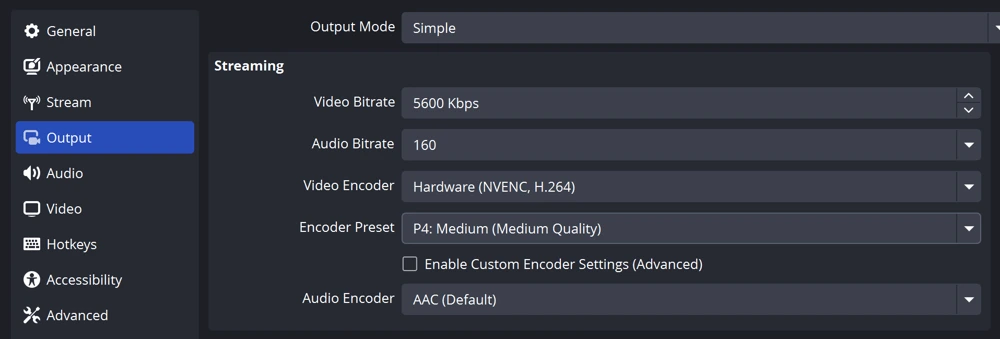
A typical balanced setup might use Hardware (NVENC) at around 5,600 kbps video bitrate with a mid-range quality preset (for example, P4: Medium). This keeps you within a 7 Mbps upload budget (~80% of a 10 Mbps upload), preserving headroom for audio and network spikiness. You then adjust bitrate to match your own connection and pick the highest quality preset that doesn’t cause rendering lag or push GPU usage into the danger zone.
Best OBS Encoder Presets for Different PC Setups
Ideal OBS settings change a lot depending on your hardware. A budget rig, mid-range PC, and high-end monster all want different compromises for 1080p60 and 720p60 streaming. Below we break it down into low-end, mid-range, and high-end systems, and for each, whether you're using the PC just for streaming or for gaming + streaming.
Low-End Systems
Think older quad-core CPUs, entry-level GPUs, or spare PCs.
Streaming Only
On a low-end PC that only encodes (for example, capturing console gameplay), your priority is keeping CPU load as light as possible. Use hardware encoding if you can - NVENC on older NVIDIA GTX cards or AMD AMF on low-end Radeons. Hardware encoding lets even a budget CPU handle a stable 60 FPS stream.
Target 720p60 first; 1280×720 is far easier for weak hardware than 1920×1080. If your GPU is too old to have NVENC/AMF, you'll need x264. In that case choose veryfast or ultrafast presets in OBS to avoid overloading the CPU. You'll lose compression efficiency, which means you might have to accept lower resolution or a bit more blockiness, but the stream stays stable.
With a hardware encoder on a low-end PC, use a Performance or Balanced preset to keep things light. If 60 FPS still isn't stable, consider dropping to 30 FPS as a last resort, but prioritise 720p60 first if you're aiming for smooth motion.
Gaming + Streaming (Same PC)
Running the game and encoding on the same budget PC is the hardest scenario. You need to protect in-game FPS and stream stability at the same time:
- Stream at 720p60 instead of 1080p60 – much lower strain on both CPU and GPU.
- Use NVENC/AMF if at all possible (GTX 1050/1050 Ti or newer for NVIDIA, or any recent Radeon with AMF).
- Choose a performance-focused preset (NVENC Quality instead of Max Quality, or P3/P4 instead of P7; Balanced/Speed on AMD).
- Lower your game settings and resolution, and cap FPS so the GPU isn't constantly at 100% - leave some headroom for OBS.
- Keep OBS scenes simple and disable the preview while live to reduce GPU and CPU overhead.
If you still see encoding overload or severe stutter, you may need to drop to 30 FPS or even lower resolution like 540p. A smooth, lower-res stream beats a choppy 1080p any day.
Mid-Range Systems
Think 6–8 core CPUs, 16 GB RAM, modern mid-tier GPUs.
Streaming Only
A mid-range PC used only for streaming gives you room to chase quality. With a decent NVIDIA card (GTX 1660 Super, RTX 2060/3060, etc.), NVENC can easily handle 1080p60 at excellent quality. Use NVENC with a high-quality preset (on newer OBS builds, try P5–P6) and enjoy very clean output with tiny CPU usage.
If you prefer CPU encoding, a mid-range CPU can usually manage 1080p60 at x264 faster or fast preset. CPUs like a Ryzen 5 5600X or Intel i5-11600K class can sometimes even run x264 medium if nothing else heavy is happening, but monitor CPU usage to avoid spikes above ~85–90%.
Bandwidth permitting, 1080p60 is ideal here. If your upload is limited, 720p60 at a high bitrate will still look very sharp.
Gaming + Streaming (Same PC)
This is the classic single-PC streamer setup. You have a capable CPU and GPU, but modern games at high settings will still load them heavily.
- Prefer NVENC or hardware encoding to avoid extra CPU use. On RTX 20/30-series, NVENC quality is so strong that x264 rarely makes sense on the same box.
- For Twitch at 6 Mbps, consider whether 720p60 at 6 Mbps might look cleaner than 1080p60 at the same bitrate - especially in fast shooters.
- Start with 1080p60; if you see drops or muddy motion, switch to 720p60.
- Use NVENC Quality or Max Quality if your GPU isn't slammed; if GPU usage is near 99% in game, step down to Performance.
- In Windows, keep Game Mode on and consider setting OBS process priority to Above Normal so the encoder doesn't get starved.
You can experiment with x264 on a strong mid-range CPU (e.g. x264 veryfast/faster), but always watch in-game performance, frame times, and CPU usage before committing.
High-End Systems
Think Ryzen 7/9 or Core i7/i9 with 8–16 cores, 32 GB+ RAM, RTX 3080/4080 or RX 6800/7900 class GPUs.
Streaming Only / Dual-PC
On a high-end streaming rig or second PC in a dual-PC setup, you can push quality to the limit. You might experiment with x264 medium/slow at 1080p60, but be aware that gains beyond x264 medium become marginal and CPU usage skyrockets. Keep an eye on CPU usage and avoid sustained 90–100% utilization.
Many creators still choose NVENC or AV1 on high-end RTX cards, because you get near-x264-slow quality with none of the CPU stress. On such systems, you can run NVENC on Max Quality, enable Psycho-visual Tuning and Look-Ahead in OBS, and enjoy pristine 1080p60.
For YouTube, a high-end PC can even consider 1440p60 or 4K30, but Twitch still effectively caps things at 1080p60 due to bitrate and platform limits.
Gaming + Streaming (Same High-End PC)
On a top-tier single PC, 1080p60 streaming should feel trivial if you configure it well:
- Use NVENC with Max Quality. Encoding runs on a fixed hardware unit and barely touches game FPS.
- If you insist on x264, limit yourself to fast or medium presets while gaming, even on 12+ cores. Slower presets while running a demanding game are a recipe for dropped frames.
- Consider recording locally at higher bitrate/quality while streaming at a more reasonable bitrate if you want crisp VODs, assuming you have NVMe storage and headroom.
- If you play at 144–240 Hz, cap your in-game FPS so the GPU isn't slammed at 100% - this helps NVENC stay smooth and reduces input lag.
Keep drivers current, OS lean, and background tasks under control. On high-end hardware, most issues come from software bloat or rogue processes, not raw horsepower.
Lowering Output Resolution for Extra Performance
One of the easiest ways to lighten the load is lowering output resolution. In Settings > Video you can choose a Base (Canvas) resolution and an Output (Scaled) resolution.
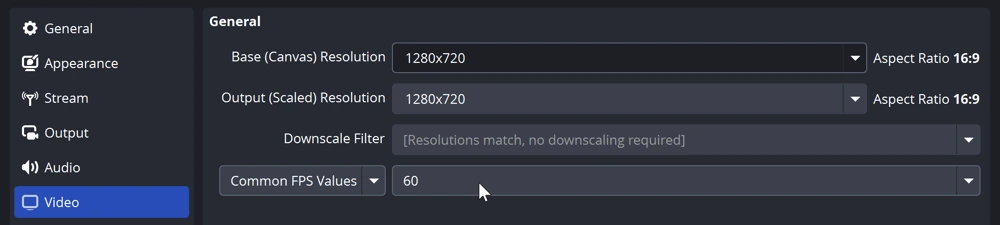
Setting both to 1280×720 at 60 FPS means OBS doesn't have to downscale at all - no scaling work, lower pixel count, and easier encoding. For weak systems and fast-paced games, 720p60 can be the perfect balance.
If your PC and bandwidth can comfortably handle it, 1080p60 offers sharper detail. But if you're on the edge, dropping to 720p60 is often the difference between a choppy stream and a smooth one.
PC Optimisation Techniques to Boost FPS & Lower Stream Latency
Beyond encoder choices and bitrate, there are a lot of tweaks inside OBS and Windows that help you hold higher FPS and reduce added latency from streaming.
Use Game Capture Instead of Display Capture
For games, always prefer Game Capture. It hooks directly into DirectX/OpenGL and is more efficient than Display Capture, which has higher overhead and can even cap FPS due to desktop compositing. If anti-cheat blocks Game Capture, you might need to run OBS as admin or fall back to Window/Display capture (with a small performance hit).
Limit FPS or Use V-Sync Smartly
Running uncapped FPS looks nice in benchmarks, but when streaming it can starve OBS of GPU time. If your GPU is pinned at 100%, you may see rendering lag or encoding overload. Cap your FPS to a reasonable target (e.g. your monitor's refresh rate or a value you know your system can sustain) or use V-Sync / G-Sync / FreeSync with a cap just under refresh. Aim for consistent performance, not peak numbers.
Enable Windows Game Mode
On Windows 10 and 11, Game Mode prioritises your active game and reduces background interruptions. Keep it on so the OS doesn't let random background tasks chew up CPU while you're gaming and streaming.
Tune OBS Rendering & Preview
In Settings > Video, choose an appropriate downscale filter. Lanczos (32 samples) gives excellent quality but uses more resources; Bicubic is a good compromise; Bilinear is fastest but softest. If you're struggling, dropping to Bicubic can help.
Make sure the Renderer is set to Direct3D 11/12 and that OBS is using your main GPU (not an iGPU, which is especially common on laptops). While live, consider turning on Performance Mode or disabling the preview to save a bit more GPU time.
Platform Latency Settings
If you care about chat interaction, use the low-latency options on your platform. Twitch's Low Latency Mode is usually on by default. On YouTube, pick Low Latency or Ultra Low Latency when setting up your stream. Ultra Low Latency gives 2–3s delay but limits you to 1080p and disables DVR and captions; Normal Latency allows higher resolutions but adds more delay. These don't change OBS performance, but they dramatically affect how “live” your stream feels.
Network, Scenes & Process Priority
Always stream over wired Ethernet when possible. Wi-Fi adds packet loss, jitter, and random spikes that show up as buffering or lag. If you must use Wi-Fi, prefer 5 GHz with a strong signal and avoid heavy network use elsewhere in the house.
In OBS, complex scenes full of animated browser sources, widgets, and overlays can chew CPU/GPU time. Keep scenes lean - use static images where you can, limit browser source resolution, and hide sources you aren't using. You can also adjust Process Priority for OBS in Settings > Advanced to Above Normal so the encoder keeps up even under load. Advanced users can experiment with CPU affinity (giving OBS a couple of dedicated cores), but that's only needed if you're chasing every last bit of stability.
Finally, always tune in-game graphics settings: drop ultra shadows, heavy post-processing, ray tracing, and extreme anti-aliasing if you need extra FPS. Close overlays you don't need (Discord, Steam, etc.) so your CPU and GPU can focus on the game and encoder - exactly in line with HDOpti's “no wasted cycles” philosophy.
General PC Optimization Tips for Better Streaming
A well-tuned PC is often the difference between a rock-solid broadcast and a stuttery mess. Beyond OBS itself, make sure your overall system is in good shape.
Keep Drivers & OS Updated
Keep your GPU drivers current (via NVIDIA GeForce Experience, AMD Adrenalin, or manual downloads) and stay on a stable Windows build. Driver and OS updates frequently include performance improvements and capture fixes. Avoid installing major updates right before a big stream; update during downtime, test, then go live once you're confident.
Use a High-Performance Power Plan
In Windows, switch to a High Performance or Ultimate Performance power plan to prevent CPU and GPU from throttling unnecessarily. On desktops this mainly means slightly higher power draw and fan noise in exchange for consistent clocks. On laptops, always plug in and run in performance mode while streaming.
Make Sure You Have Enough RAM
Modern games + OBS can easily consume well over 8 GB of RAM. OBS alone can use 1–2 GB (or more with many sources or simultaneous recording).16 GB is a realistic minimum for gaming + streaming; 32 GB gives plenty of headroom if you run bots, browser windows, or editing tools alongside. Watch Task Manager while live - if you're close to the limit, upgrading RAM will dramatically smooth things out.
Close Background Apps & Maintain Your PC
Before going live, close everything you don't need. Web browsers, torrent clients, sync tools, and RGB software can steal CPU, GPU, disk, and bandwidth without you realising. Use Task Manager's Startup tab to prevent non-essential programs from auto-launching.
Keep your PC dust-free and well cooled. High temperatures force CPUs and GPUs to throttle, crushing FPS. Check that case fans and coolers are working properly and consider a mild, fully stable overclock if you know what you're doing. For streaming, stability matters more than that last 2–3% of performance.
Storage, Network & Security
Ensure you have plenty of free disk space, especially on the drive you're recording to. Prefer SSDs or NVMe drives for recording; high-bitrate 1080p60 footage can make mechanical HDDs choke during heavy gameplay loads.
On the network side, avoid heavy downloads or uploads while streaming. Configure QoS (Quality of Service) on your router if possible to prioritise your PC or RTMP traffic. If you see persistent packet loss or weird spikes, run tests or talk to your ISP.
Finally, keep your system free from malware and bloatware. A hidden crypto-miner or misbehaving background service is guaranteed to wreck your stream. Use Windows Defender or a trusted antivirus, but schedule full scans outside of your streaming hours and set active hours so Windows Update doesn't reboot you mid-stream.
HDOpti Principles & Dual-PC Options
The HDOpti approach is simple: eliminate bottlenecks, keep software lean, and balance CPU/GPU load so neither sits at 100%. If GPU is bottlenecked, lower GPU-heavy settings or cap FPS; if CPU is maxed, move encoding to NVENC/AMF and reduce CPU-intensive game options.
If your ambitions grow, consider a dual-PC setup or console + PC. Your main PC or console just plays the game, while a second PC with a capture card handles OBS encoding. That completely decouples game performance from streaming load, which is why many professional streamers adopt it when they want absolute stability.
Conclusion: Stream in HD Without Sacrificing Performance
Setting up OBS for 1080p60 or 720p60 streaming on Twitch and YouTube can feel overwhelming at first, but it really comes down to a few core ideas: match your bitrate to your bandwidth and resolution, use hardware encoders to offload work, pick encoder presets appropriate for your PC tier, and keep both OBS and Windows lean.
- Choose bitrate settings that fit your upload and platform limits so you don't overload your connection and you get a reliable FPS boost.
- Lean on NVENC/AMF (or AV1 where supported) to free your CPU and maintain high FPS.
- Adjust encoder presets and resolution based on whether you're on a low-end, mid-range, or high-end rig.
- Apply system-wide optimizations in Windows, your games, and your network to cut latency and avoid dropped frames.
When you follow these steps, you're putting the HDOpti philosophy into practice: squeeze the most out of your hardware without wasting cycles. A smooth, professional-looking 60 FPS stream that doesn't compromise your gameplay is absolutely achievable.
Go live knowing your setup has been tuned for both quality and performance – your viewers get a sharp, fluid stream, and you get to play with a consistent FPS boost, lower latency and responsive controls.
FAQ
If your upload is weak, 720p60 at a healthy bitrate will usually look better than 1080p60 starved for bits. Focus on stability and clean motion first, then resolution.
On modern GPUs (Turing and newer), NVENC quality is comparable to x264 medium/slow at similar bitrates, with a fraction of the CPU cost. For most single-PC streamers, NVENC is the smarter choice.
When your GPU sits at 100% rendering uncapped frames, OBS can't get enough GPU time to render/encode your stream, so it drops frames. Cap your FPS or lower graphics settings to leave headroom for OBS.
By offloading encoding to NVENC or AMF, lowering output resolution when needed, and trimming background tasks, you reduce CPU and GPU load. That gives you a noticeable FPS boost in-game and lower latency on your stream, especially in fast shooters.