Published: 10/16/2025
🕒 3 min read
Windows Sound - Quieter Gunshots, Clearer Footsteps
No third-party EQ required. Use built-in Loudness Equalization to tame loud gunfire and make footsteps easier to hear.
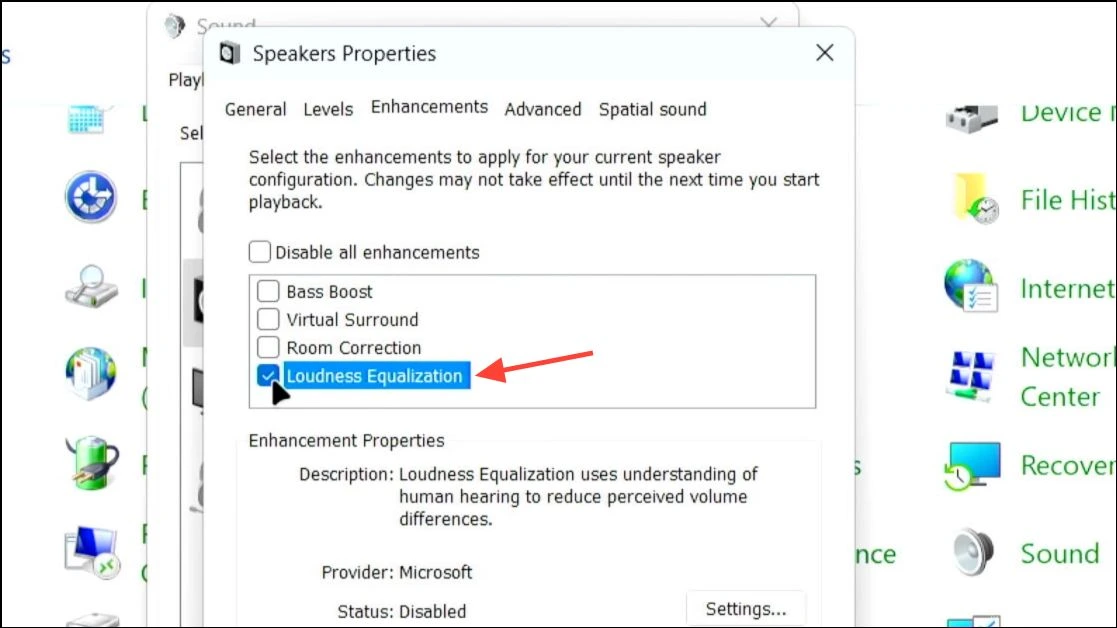
Flow: Base Windows Steps (No Extra Software)
mmsys.cpl → choose device → Properties → Enhancements → tick Loudness Equalisation → adjust one–two left (if distorted, back to one) → Apply → set the same device inside your game.Quick Steps
- Open the Run window with Windows + R.
- Type
mmsys.cpland press Enter. - Choose the playback device you want to EQ.
- Click Properties.
- Click the Enhancements tab.
- Click Loudness Equalisation (tick it).
- Drag the slider one or two to the left. If audio becomes distorted, move it back to one.
- Click Apply (then OK).
- In your game, set this same device as the audio output.
Watch the 15-Second Walkthrough
Benefits of Using Loudness Equalization
- Quieter gunshots without nerfing everything else: evens out big transients so blasts don’t dominate.
- Clearer footsteps & reload cues: raises quieter details so they sit closer to the mix.
- Works system-wide: no extra software, applies to games/launchers/voice apps if routed to the same device.
- Device-specific and reversible: enable per output, toggle off anytime.
- Comfort & safety: smoother volume for long sessions or speakers/night gaming.
- No Input lag: Loudness Equalisation does not introduce input lag like 3rd party software.
Drawbacks to Keep in Mind
- Reduced dynamic range: explosions lose some impact; the mix feels flatter.
- Slight spatial change: compression can nudge distance cues and perceived directionality.
- Possible distortion if overdone: keep the slider to 1–2 ticks left; back off if you hear pumping or harshness.
- Tiny processing overhead: usually negligible, but some devices/drivers may add minimal latency.
- Driver quirks: vendor suites can hide/override the Enhancements tab on certain headsets.
You’ll feel the benefits most when you pair this with a full PC optimization from HD OPTI - boost FPS and reduce system latency for a smoother, more responsive experience. It’s a legal, real-world way to gain an advantage over your opponents in both competitive and casual play.