Published: 8/14/2025
🕒 4–5 min read
This guide explains—in plain English—how TPM 2.0 and Secure Boot work, what Call of Duty requires on PC, and how to enable both so you’re ready for Black Ops 7 and beyond.Source for original policy: Activision Support.
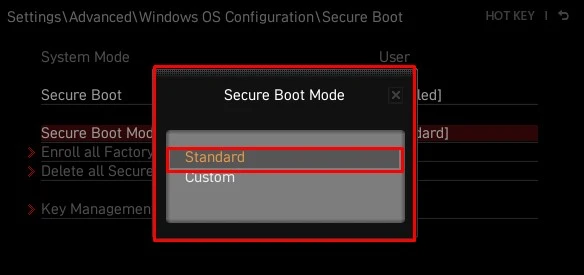
TPM 2.0 provides hardware-backed checks; Secure Boot ensures only trusted software loads during startup.
Summary
TPM 2.0 is a hardware-backed security capability available on most modern PCs. Secure Boot is a UEFI feature that only allows verified software to run during boot. Together, they help anti-cheat verify system integrity. These features are required for Call of Duty: Black Ops 7 on PC.
TPM 2.0 and Secure Boot
They verify key parts of your system from power-on, helping anti-cheat detect tampering and block low-level cheats. Enabling both creates a stronger baseline for fair play and ensures compliance with current and future CoD requirements.
OS: Windows 10 (22H2+) or Windows 11.
TPM: Version 2.0 via CPU firmware TPM (Intel PTT / AMD fTPM) or a discrete TPM 2.0 module.
- Intel: 8th-gen or newer with PTT (see Microsoft CPU lists).
- AMD: Ryzen 2000 or newer with fTPM (see Microsoft CPU lists).
Secure Boot: UEFI boot mode with a GPT system drive and Secure Boot enabled in firmware.
You may see in-game notices about missing requirements, and Black Ops 7 on PC won’t run without them once enforcement begins.
Confirm your motherboard/CPU support TPM 2.0 and Secure Boot. Check your board manual or vendor support pages for the exact menu names. If problems persist, contact your system or motherboard manufacturer.
TPM 2.0 Guidance
- Press Win + R, type
tpm.msc, press Enter. - If you see “TPM is ready for use,” you’re good. If you see “Compatible TPM cannot be found,” TPM might be disabled in firmware or not present.
Important: Menus vary by brand—follow your manufacturer’s documentation.
- Reboot into UEFI/BIOS (Windows Advanced Startup → UEFI Firmware Settings, or your board’s hotkey).
- Look under Advanced, Security, or Trusted Computing:
- Intel: Enable Intel PTT or Security Device Support.
- AMD: Enable AMD CPU fTPM.
- Save & exit. Back in Windows, run
tpm.mscagain to confirm “TPM 2.0” and a Ready status.
Tip: Check OEM support pages (Acer, ASRock, ASUS, Biostar, Dell/Alienware, EVGA, GIGABYTE, HP, Lenovo, Maingear, MSI, Razer) for exact steps.
Some boards may need a TPM firmware update. In tpm.msc, check the Manufacturer Version. Certain versions indicate a required update—see your CPU vendor’s notes or contact support.
Secure Boot Guidance
- Press Win + R, type
msinfo32, press Enter. - In System Information, confirm:
- BIOS Mode = UEFI
- Secure Boot State = On
If “Secure Boot State: Off” → supported but disabled in firmware. “Unsupported” → system may not support it. If “BIOS Mode: Legacy” → switch to UEFI (may require GPT conversion).
Secure Boot requires UEFI + a GPT system drive.
- Open Disk Management → right-click your Windows drive → Properties → Volumes → check Partition style.
- If it’s MBR, use Microsoft’s
mbr2gpttool (prereqs: Win10 1703+, 64-bit OS, up to 3 partitions, BitLocker off, BIOS supports UEFI; keep Secure Boot disabled during conversion). - Admin CMD:
mbr2gpt /validate /allowFullOSthenmbr2gpt /convert /allowFullOS. Reboot, set firmware to UEFI.
- In UEFI/BIOS, ensure Boot Mode = UEFI (disable CSM/Legacy).
- With a GPT system drive confirmed, locate Secure Boot and set to Enabled. If it’s greyed out, apply UEFI, save, and re-enter firmware.
- Save changes and exit.
Attribution: This page paraphrases Activision’s “Trusted Platform Module (TPM) 2.0 and Secure Boot for Call of Duty.” Read the original here: Activision Support.