Published: 4/14/2025
🕒 3 min read
Want to get smoother performance and higher FPS in Warzone, Modern Warfare, or other Call of Duty titles? Adjusting the Renderer Worker Count setting can give your system a noticeable boost—especially on multi-core CPUs. This guide shows you how to tune the hidden setting for your processor to improve frame pacing and reduce stutters.
What Is Renderer Worker Count?
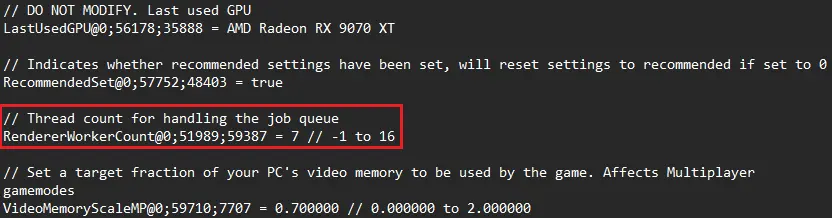
Renderer Worker Count controls how many CPU threads the game uses to render frames. Call of Duty tries to auto-detect a value at launch, but it can overshoot or undershoot depending on your CPU architecture. Setting it manually often improves 1% lows and reduces microstutter.
Why Customize Renderer Count?
Fine-tuning this value can unlock:
- Smoother frame pacing — fewer stutters and spikes
- Higher average FPS — better CPU thread utilization
- Lower input latency — helpful for competitive play
Before You Adjust
Quick pre-checks:
- ✅ Know your CPU’s core layout (e.g., Intel P-Cores vs E-Cores)
- ✅ Benchmark your current performance for comparison
- ✅ Update the game and GPU drivers
How to Set Renderer Worker Count
This setting isn’t in the in-game UI; you’ll edit a config file instead.
Step 1: Locate the Config File
- Each title stores configs a little differently.
- Look in these places:
- Modern titles (MWII, MWIII, BO6):
Documents\Call of Duty\(files may appear ass.1.0.cod24.txt0, etc.) - Older titles (Cold War, Vanguard, MW19 and earlier): under their full name, e.g.
Documents\Call of Duty Black Ops Cold War\players\
- Modern titles (MWII, MWIII, BO6):
- Files to check:
adv_options.inioptions.iniconfig.cfgs.1.0.cod24.txt0(BO6 / COD HQ-based)
- Search for RendererWorkerCount inside those files.
Step 2: Edit the Value
- Find or add the line:
RendererWorkerCount = X - Intel with P-Cores: Set
Xto number of P-Cores − 1 (e.g., 8 P-Cores →RendererWorkerCount = 7). - AMD or non-hybrid CPUs: Use physical core count or physical cores − 1.
Step 3: Save and Lock (Optional)
- Save the file.
- Right-click → Properties → check Read-only to prevent overwrites.
How to Confirm It’s Working
- Use an FPS monitor (MSI Afterburner + RivaTuner) to view frame times.
- Look for reduced stutters and higher 1% / 0.1% lows in gameplay.
Troubleshooting
- Stuttering? Lower the count by 1 or revert to auto.
- CPU spiking? Try an FPS cap or V-Sync.
- Crashing (e.g., Warzone)? Restore defaults and remove read-only.
Final Thoughts
Adjusting Renderer Worker Count is a quick, reversible optimization—especially helpful on Intel hybrid CPUs. It’s an easy win for smoother gameplay without overclocking or hardware changes.
Combine this tweak with GPU tuning and RAM optimization for the best Call of Duty experience.