Published: 11/9/2025
🕒 6–7 min read
HDMI vs DisplayPort – Which One Should You Use?
HDMI and DisplayPort both move video and audio from your PC to your screen - but they don’t all support the same refresh rates or resolutions. TVs, consoles, and media players lean on HDMI; gaming PCs and high–refresh monitors often prefer DisplayPort. Let’s walk through the differences so you can pick the cable that actually unlocks 144Hz, 4K, or VRR on your setup.
Ports, Pins, and Connectors
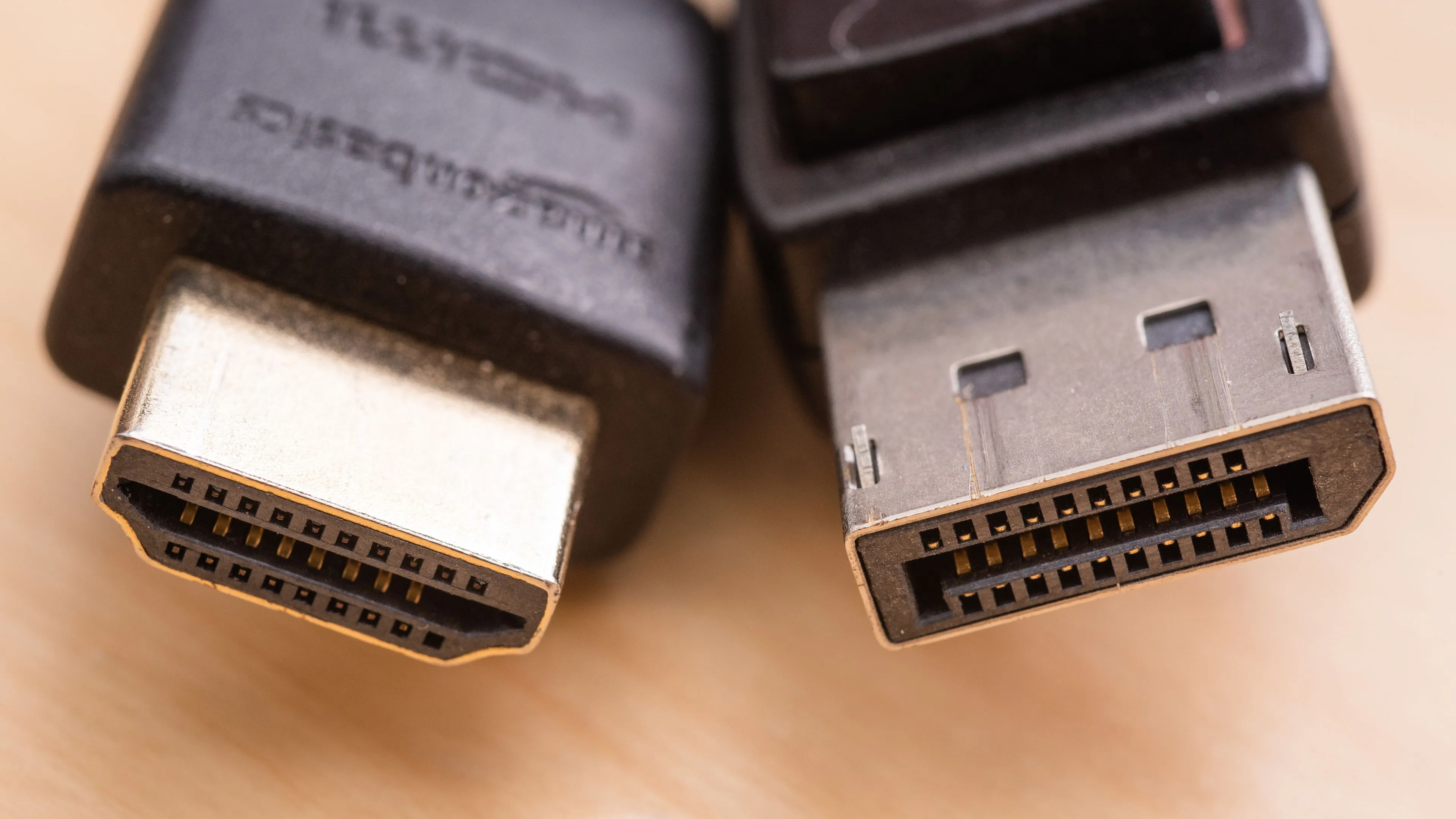
HDMI uses a 19–pin connector and is on nearly every consumer device. DisplayPort has 20 pins and is more common on graphics cards and PC monitors. A lot of DP cables have a latch so they don’t get pulled out by accident - HDMI usually doesn’t.
There are mini/micro versions of HDMI and Mini DisplayPort, but most gaming screens and GPUs stick to the full–size ports.
Cable Length and Signal Reliability
Neither HDMI nor DisplayPort has a “hard” maximum length, but the longer the run, the more likely you’ll see flicker or dropouts - especially at high resolutions. Short, 2–3 meter certified cables are the safest.
If you have to go long (room–to–room or wall runs), look for active HDMI/DP cables or fiber versions. They’re directional and pricier, but they keep bandwidth intact.
Max Refresh by Resolution, Color Depth, and Port Version
Real monitors don’t always expose these exact numbers, but this shows the ballpark bandwidth difference between HDMI 2.0/2.1/2.2 and DisplayPort 1.2/1.4/2.1 when you’re running uncompressed 4:4:4.
| Resolution | Color Depth | HDMI 2.0 | HDMI 2.1 | HDMI 2.2 | DP 1.2 | DP 1.4 | DP 2.1 |
|---|---|---|---|---|---|---|---|
| 1920×1080 | 8-bit | 246Hz | 589Hz | 1178Hz | 289Hz | 406Hz | 885Hz |
| 1920×1080 | 10-bit | 202Hz | 499Hz | 998Hz | 238Hz | 338Hz | 771Hz |
| 2560×1440 | 8-bit | 147Hz | 379Hz | 758Hz | 174Hz | 251Hz | 610Hz |
| 2560×1440 | 10-bit | 119Hz | 314Hz | 628Hz | 142Hz | 206Hz | 517Hz |
| 3440×1440 | 8-bit | 112Hz | 297Hz | 594Hz | 133Hz | 194Hz | 492Hz |
| 3440×1440 | 10-bit | 91Hz | 245Hz | 490Hz | 108Hz | 158Hz | 412Hz |
| 3840×2160 | 8-bit | 69Hz | 188Hz | 376Hz | 82Hz | 120Hz | 324Hz |
| 3840×2160 | 10-bit | 55Hz | 153Hz | 306Hz | 66Hz | 97Hz | 267Hz |
Values are theoretical ceilings for these link rates - your monitor may expose only common refreshes like 144Hz, 165Hz, 240Hz, etc.
Versions and Bandwidth (Why This Even Matters)
Both standards have had multiple revisions. HDMI 2.0 (18Gbps) → HDMI 2.1 (48Gbps) → HDMI 2.2 coming later; DisplayPort 1.2 → 1.4 → 2.1. More bandwidth = higher resolution at higher refresh without compression.
Real hardware doesn’t always ship at the maximum spec, though. You’ll see “HDMI 2.1” displays that only expose 24Gbps, and DP 2.1 devices limited to lower UHBR modes. Your max output is always the slowest of: GPU port, cable, monitor.
Actual Gaming Use Cases
- 1080p / 144Hz: HDMI 2.0 or DisplayPort 1.2+ is fine.
- 1440p / 144Hz: DisplayPort 1.2/1.4 is the cleanest. HDMI 2.0 can work on some monitors, but it’s not universal.
- 4K / 120Hz: HDMI 2.1 or DisplayPort 1.4 with DSC / DP 2.x.
If one of your ports is older than that, that’s your new ceiling - even if the other side is newer.
Features: Where Each One Wins
DisplayPort has MST (daisy–chaining multiple monitors off one port) and great VRR support with PC GPUs. HDMI fights back with eARC/ARC for audio gear and ALLM for consoles/TVs.
If you’re on NVIDIA and want G-SYNC–style variable refresh, DP is the safer bet unless you know your monitor does VRR over HDMI 2.1.
Device Compatibility
HDMI is still king for “plug anything in”: TVs, projectors, consoles, streamers, soundbars. DP is basically “PC monitors and GPUs.” If you’re only connecting your gaming PC to your gaming monitor, either is fine - pick the one that gives you the refresh rate you want.
After the Cable: Clean Up Windows for Higher FPS
Even with a high-bandwidth DisplayPort or HDMI 2.1 cable, background Windows processes can quietly steal performance and increase input delay. HD OPTI automatically optimizes your system before every gaming session-disabling unnecessary services, trimming memory usage, and freeing CPU resources. The result is higher FPS, lower latency, and more consistent frame pacing across demanding titles.
By reducing background thread scheduling and DPC latency, HD OPTI improves frame delivery timing and network responsiveness, giving you tighter hit registration, smoother aim tracking, and reduced packet loss in shooters like Call of Duty, Apex Legends, and Valorant. It’s the final layer of optimization after you’ve picked the right cable - so your GPU, monitor, and Windows environment all work in sync for maximum performance.
FAQ
No - image quality is the same if you’re running the same resolution, refresh, and color format. The difference is what each port can reach.
One of your HDMI ends is on an older spec (like 2.0), so it tops out at 4K 60. DisplayPort on that monitor/GPU has more bandwidth.
Not always. Some displays advertise the version but expose lower bandwidth. Always check the monitor’s spec sheet for the exact 4K/Hz combo it supports.