Published: 4/14/2025
🕒 3 min read
If you're experiencing stutter, black screens, driver crashes, or frame dips after updating GPU drivers, it's time to do a clean sweep. DDU (Display Driver Uninstaller) removes every last trace of your old NVIDIA/AMD/Intel drivers so you can reinstall fresh, stable ones.
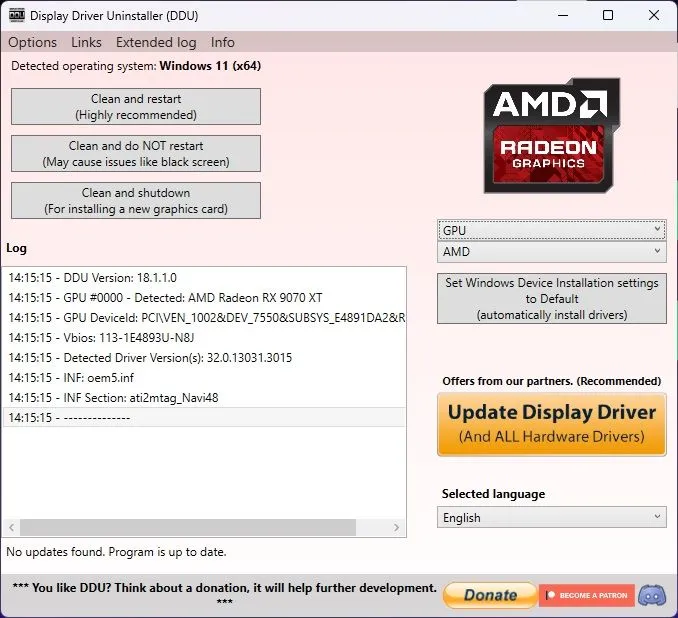
What Is DDU?
DDU is a deep-clean utility that fully removes graphics drivers and related registry keys, folders, services, and telemetry. It's essential when switching GPU brands, fixing corrupt installs, or troubleshooting persistent issues.
Unlike Windows' built-in uninstaller, DDU scrubs everything so your next install is truly clean.
When Should You Use DDU?
- Switching GPU brands (e.g., NVIDIA → AMD)
- After failed driver updates
- Black screen or no signal after reboot
- Frequent driver crashes in games/benchmarks
- Upgrading GPUs and want a fresh slate
Before You Start
- ✅ Download the latest DDU from wagnardsoft.com
- ✅ Download the latest GPU drivers (NVIDIA / AMD / Intel)
- ✅ Plan to run in Safe Mode for maximum cleanup
How to Use DDU (Step-by-Step)
Follow these steps to perform a clean uninstall and reinstall.
Step 1: Boot Into Safe Mode
- Press Windows + R, type
msconfig, press Enter. - Go to the Boot tab → check Safe boot → Restart.
Step 2: Run DDU
- Extract the DDU ZIP and run
Display Driver Uninstaller.exe. - Select your GPU vendor (NVIDIA / AMD / Intel).
- Click Clean and Restart.
Step 3: Install Fresh Drivers
- Once Windows boots normally, install the latest driver package.
- Restart again to finalize.
Advanced Tips
- Disable automatic driver installs via Windows settings/Group Policy.
- Use
msconfigagain to uncheck Safe Boot after finishing. - Run DDU offline (disconnect Ethernet/Wi-Fi) to prevent Windows from fetching drivers.
Final Thoughts
DDU is a must-have tool for resolving unstable or bloated GPU drivers. Doing a clean install avoids conflicts, registry junk, and performance loss.
Use DDU before major driver updates or GPU swaps for a smoother experience and better stability.