Choosing a WoW Forever graphics profile
Find the desktop or laptop example closest to your processor, memory and graphics card. Each example suggests a starting profile for that hardware tier. Try it at your usual resolution in a busy area where you want to hold your target frame rate.
Desktop hardware examples based on settings
PerformanceLow-spec
- Intel CPU
- Core i5-10400F
- AMD CPU
- Ryzen 5 3600
- RAM
- 16 GB
- AMD Radeon GPU
- RX 5600 XT
- NVIDIA GeForce GPU
- RTX 2060
BalancedMid-range
- Intel CPU
- Core i5-12400F
- AMD CPU
- Ryzen 5 5600
- RAM
- 16 GB
- AMD Radeon GPU
- RX 6700 XT
- NVIDIA GeForce GPU
- RTX 3060 Ti
QualityHigh-spec
- Intel CPU
- Core i7-13700K
- AMD CPU
- Ryzen 7 7800X3D
- RAM
- 32 GB
- AMD Radeon GPU
- RX 7900 XTX
- NVIDIA GeForce GPU
- RTX 4080
Laptop hardware examples based on settings
PerformanceLow-spec
- Intel CPU
- Core i5-11400H
- AMD CPU
- Ryzen 5 5600H
- RAM
- 16 GB
- AMD Radeon GPU
- RX 6500M
- NVIDIA GeForce GPU
- RTX 3050 Laptop GPU
BalancedMid-range
- Intel CPU
- Core i7-12700H
- AMD CPU
- Ryzen 7 7735HS
- RAM
- 16 GB
- AMD Radeon GPU
- RX 7600S
- NVIDIA GeForce GPU
- RTX 4060 Laptop GPU
QualityHigh-spec
- Intel CPU
- Core i9-13980HX
- AMD CPU
- Ryzen 9 7945HX
- RAM
- 32 GB
- AMD Radeon GPU
- RX 7900M
- NVIDIA GeForce GPU
- RTX 4080 Laptop GPU
On a laptop, test with the charger connected and your usual power mode selected. Two laptops with the same GPU can have different power limits. If your frame rate dips during a raid, try the next lighter profile at the same resolution.
Performance for low-spec PCs and busy raids
Choose Performance if your frame rate drops below your target when a boss pull fills the screen with spell effects. This config prioritises frame rate at the expense of visual detail. It’s also worth trying on a faster PC if smooth camera movement during group fights matters more to you than scenery.
Balanced for mid-range PCs and everyday play
Start with Balanced if you split your time between questing, dungeons and raids. It keeps more visual detail than Performance while leaving room for busier scenes. Try it in a dungeon you know well. If camera turns feel smooth even on the largest pull, Balanced is a good fit for that resolution.
Quality for high-spec PCs and extra texture detail
Choose Quality if Balanced already holds your target frame rate and you want to see more detail while exploring or taking screenshots. HD OPTI added extra texture detail to this config beyond what the normal in-game graphics settings offer. To get that look, select Quality in HD OPTI and apply it with WoW Forever closed.
To see the difference, stand near a stone wall or a paved road and compare the same view in Balanced and Quality. Then ride through a busy hub. If the extra detail looks good but camera movement becomes uneven, use Quality for exploration and switch back to Balanced for group play.
WoW Forever configuration details
- HD OPTI version
- 4.8.2.0 or later
- Included plans
- Standard and Elite
- App section
- Game Configs
- When to apply
- With WoW Forever closed
How to apply a WoW Forever profile
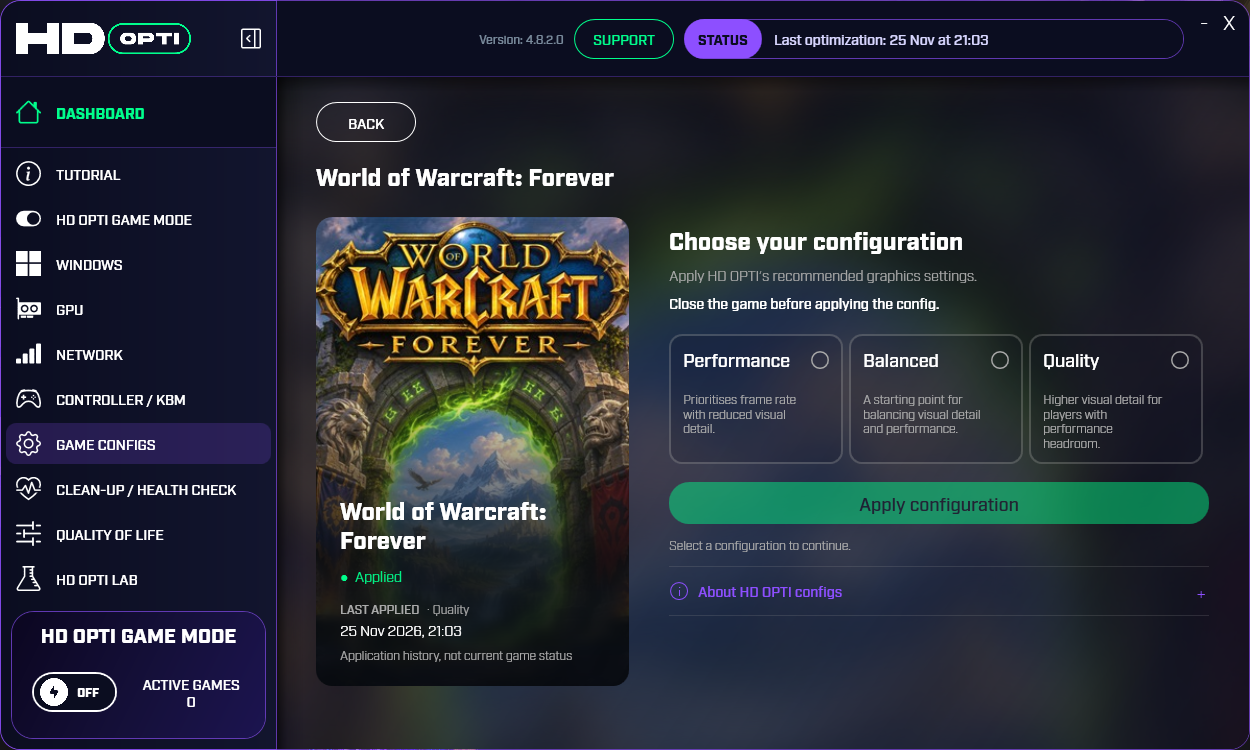
For help getting started, follow the HD OPTI app tutorial. The 4.8.2.0 patch notes cover the release that added WoW Forever.
How to compare profiles on your PC
Start with the profile closest to your PC tier and follow a familiar route through a busy area. Watch your frame rate and how smoothly the camera moves. Close the game, apply a second profile and repeat the route at the same resolution. If you’re comparing scenery detail, pause at the same viewpoint both times.
If movement looks smooth but abilities respond late, see the WoW network lag guide.