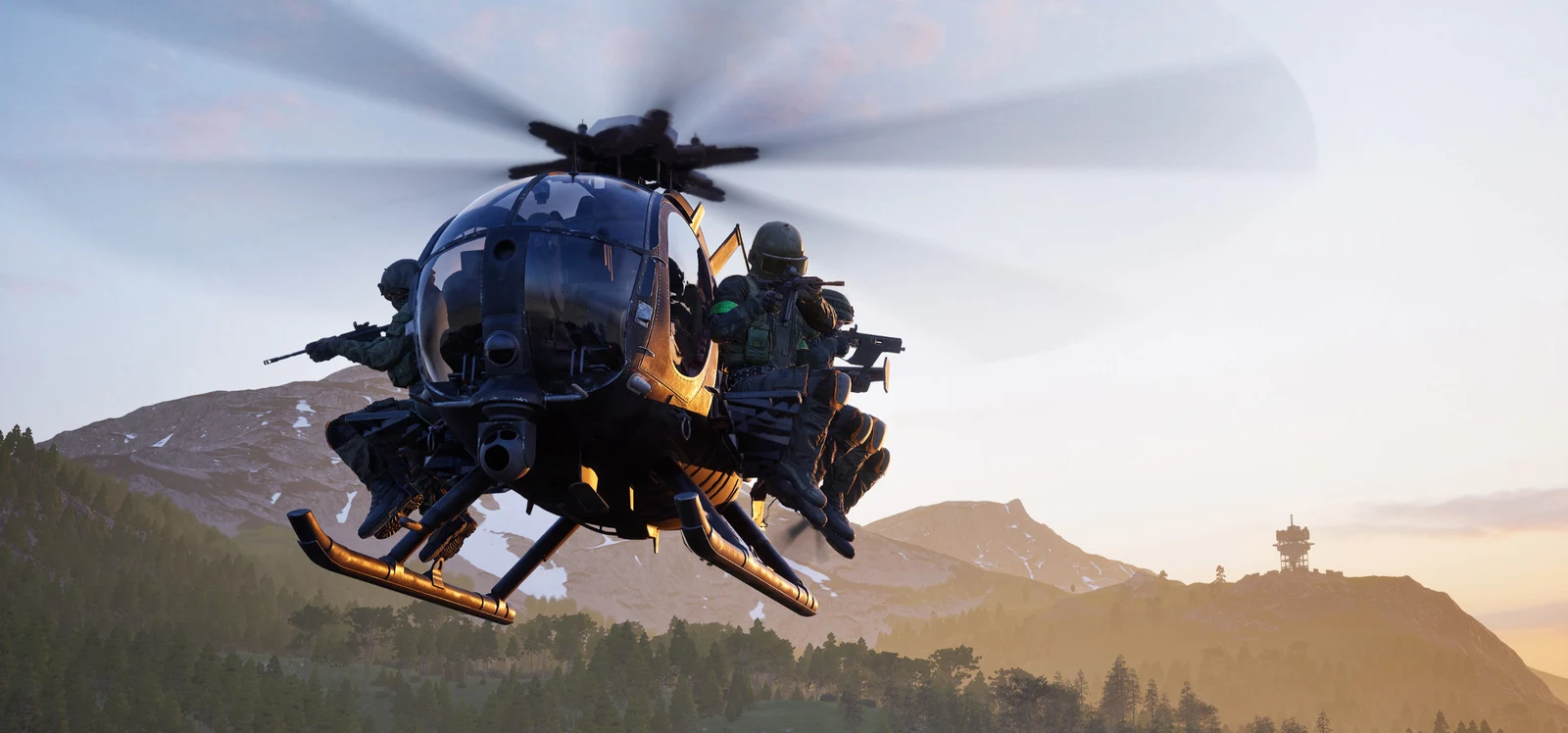
WARDOGS PC Optimization with HD OPTI
HD OPTI now includes dedicated WARDOGS configuration files with separate FSR 3 and DLSS profiles. Choose the rendering option that suits your graphics card and apply the config through the app, with a focus on higher FPS, smoother frame delivery, and clear visuals during combat.
HD OPTI WARDOGS Configs: FSR 3 and DLSS
The app provides two configuration paths. FSR 3 and DLSS use upscaling to balance rendering performance and image quality. Choose one profile based on the options your GPU supports in WARDOGS, your display resolution, and your preferred balance of clarity and frame rate.
| HD OPTI Profile | Recommended For | Rendering Approach | Primary Focus |
|---|---|---|---|
| FSR 3 | GPUs that support WARDOGS' FSR 3 option | AMD FidelityFX Super Resolution 3 | Upscaling with a balance of performance and image quality |
| DLSS | DLSS-compatible NVIDIA GeForce RTX GPUs | NVIDIA DLSS | AI upscaling for performance and image clarity on RTX hardware |
Which WARDOGS Config Should You Choose?
On a compatible NVIDIA GeForce RTX graphics card, the DLSS profile is an option for balancing FPS and image quality. The FSR 3 profile offers an alternative on hardware that supports the game's FSR 3 option. If DLSS is unavailable on your GPU, check whether FSR 3 is available before choosing your config.
Compare how the selected profile looks and feels at your usual resolution during gameplay. Pay attention to target clarity, frame consistency, and responsiveness as well as the FPS counter. For technology and hardware details, see the official AMD FSR guidance and NVIDIA DLSS overview.
WARDOGS FSR 3 Settings for FPS and Visibility
The settings below show the HD OPTI FSR 3 Quality setup in the WARDOGS menus. The captured setup uses 1920 × 1080; choose the resolution that matches your own display.
Potato is the game's own quality label. Values marked inactive are greyed out in this setup. Motion blur, depth of field, lens flare, and bloom are disabled, so their quality controls are inactive too.
Display
- Display Mode
- Windowed Fullscreen
- Resolution
- 1920 × 1080
- Resolution Scale
- 100% (inactive)
- Brightness
- 100%
- Sharpness
- 0.90
- Frame Limit
- Off
- VSync
- Disabled
- Main Menu FPS Limit
- 120
Resolution Quality / AMD FSR 3 Profile
- Anti-Aliasing Method
- AMD FSR
- AMD FFX FSR
- Quality
Overall
- Overall Quality
- Custom
Geometry
- Mesh Detail
- Medium
Environment
- View Distance
- Medium
- Shading
- Low
Lighting
- Global Illumination
- Disabled
- Shadows
- Medium
- Reflections
- Potato
Effects
- Effects
- Potato
- Particle Spawn Rate
- Potato
Textures
- World
- High
- Character
- High
- Effects
- High
- Texture Streaming
- Potato
- Texture Filtering
- Medium
Post Processing Quality
- Post-Processing
- Low
- Motion Blur
- Disabled
- Motion Blur Quality
- Potato (inactive)
- Depth of Field
- Disabled
- Depth of Field Quality
- Potato (inactive)
- Lens Flare
- Disabled
- Lens Flare Quality
- Potato (inactive)
- Bloom
- Disabled
- Bloom Quality
- Potato (inactive)
WARDOGS DLSS Settings for FPS and Visibility
Use this setup with DLSS Quality or Balanced on a compatible NVIDIA GeForce RTX GPU. Set your output resolution to your display's native resolution. Options marked as preferences let you adjust the setup to your hardware and the way you play.
DLSS / Gameplay
- FOV
- 100
- Weapon View Model Scale
- Maximum
- Vehicle FOV / 1st Person
- Low
- Vehicle FOV / 3rd Person
- High
- ADS Behavior
- Preference: Independent or Affected
- Picture-in-Picture Scope
- Off
DLSS / Video
- Display Mode
- Windowed Fullscreen
- Resolution
- Native
- Brightness
- 100%
- Sharpness
- 1.2
- Frame Limit
- Unlimited
- VSync
- Off
- NVIDIA Reflex
- On
- Menu FPS Limit
- Disabled
DLSS / AA and Upscaling
- Anti-Aliasing Method
- NVIDIA DLSS
- DLSS Mode
- Quality or Balanced
DLSS / Quality
- Mesh Detail
- Medium (Low if needed)
- View Distance
- Medium
- Shading
- Low for FPS / High for visuals
- Global Illumination
- Off
- Shadows
- Medium
- Reflections
- Potato
- Effects
- Potato
- Particle Spawn Rate
- Potato
- Post-Processing
- Low
- Bloom
- Preference
DLSS / Textures
- World
- High
- Character
- High
- Effects
- High
- Texture Streaming
- High: 8–16 GB VRAM / Potato: low VRAM
- Texture Filtering
- Medium
Start with 100 FOV. The minimum-performance fallback in this setup is 60 FOV, which narrows your view. Keep anti-aliasing enabled and use DLSS Quality or Balanced; this setup avoids Ultra Performance, TAA, and XeSS. For native-resolution anti-aliasing on compatible NVIDIA hardware, DLAA is an alternative to DLSS upscaling where available.
Keep NVIDIA Reflex On and compare frame consistency, including 1% lows, if you try On + Boost. The texture-streaming choices above are starting points: check VRAM use and stuttering at your chosen resolution before settling on High or Potato.
Treat DLSS Frame Generation separately from the Quality or Balanced upscaling choice. NVIDIA pairs frame generation with Reflex to maintain responsiveness; a higher displayed FPS is not a guarantee of unchanged input latency. Compare responsiveness with frame generation enabled and disabled on supported hardware. See the NVIDIA DLSS guide.
How to Access and Apply the WARDOGS Config
- Open the HD OPTI app and go to the Game Config section.
- Select WARDOGS and open its game config.
- Choose the FSR 3 or DLSS profile for your graphics card.
- Apply the selected profile, then launch WARDOGS and check the result in game.
WARDOGS configuration support was added in HD OPTI 4.7.4.0. See the WARDOGS config-support patch notes. For help getting started, follow the HD OPTI app tutorial or explore the HD OPTI feature overview.
What the WARDOGS Configs Focus On
WARDOGS brings infantry, vehicles, and destructible environments into battles with up to 100 players. The HD OPTI profiles give you a starting point for balancing rendering performance and visual clarity throughout those encounters.
- A choice of FSR 3 or DLSS upscaling to suit compatible hardware
- A performance and image-quality balance for your display resolution
- Smoother gameplay and readable visuals during movement and combat
- A game-specific configuration applied from the HD OPTI app
Results depend on your CPU, GPU, resolution, and starting settings. Compare performance in similar gameplay conditions after applying a profile to see how it works on your PC.
Ready to optimize WARDOGS? Visit the store to explore HD OPTI and its game-specific and system-level optimization features.
FAQ
HD OPTI includes separate FSR 3 and DLSS configuration profiles for WARDOGS. Open the Game Config section in the app to select and apply a profile.
Choose DLSS if you have a compatible NVIDIA GeForce RTX GPU and want to use DLSS upscaling. Choose FSR 3 if your hardware supports the game's FSR 3 option and you prefer that rendering path. Compare clarity and performance at your normal display resolution.
Select one rendering profile at a time. FSR 3 and DLSS are alternative config choices in the HD OPTI app.
The profiles target rendering performance and image quality, but the FPS change depends on your hardware, resolution, current settings, and what is happening in the match. There is no fixed FPS increase for every PC.
